> ## Documentation Index
> Fetch the complete documentation index at: https://docs.dovetail.com/llms.txt
> Use this file to discover all available pages before exploring further.
# Create a Doc from project findings
Product teams are inundated with data. After hours of research, you're often left with a repository full of transcripts and notes, but the path to a clear set of product requirements or actionable next steps is unclear. Translating raw data into a prioritized backlog is time-consuming and difficult.
Docs are where raw customer feedback transforms into a catalyst for action. For researchers, product managers, and designers, a well-crafted Doc is the bridge between understanding core problems and deciding what to build next. In this lesson, you will learn how to craft findings in a way that centers your raw data, builds a compelling narrative, and drives conversation and alignment with your stakeholders.
***
## Generate a first draft with AI Doc
Docs help you create reports and summaries directly from chat. Whether you’re analyzing research, summarizing feedback, or drafting a PRD, AI Docs gives you a fast, flexible way to generate your first draft.
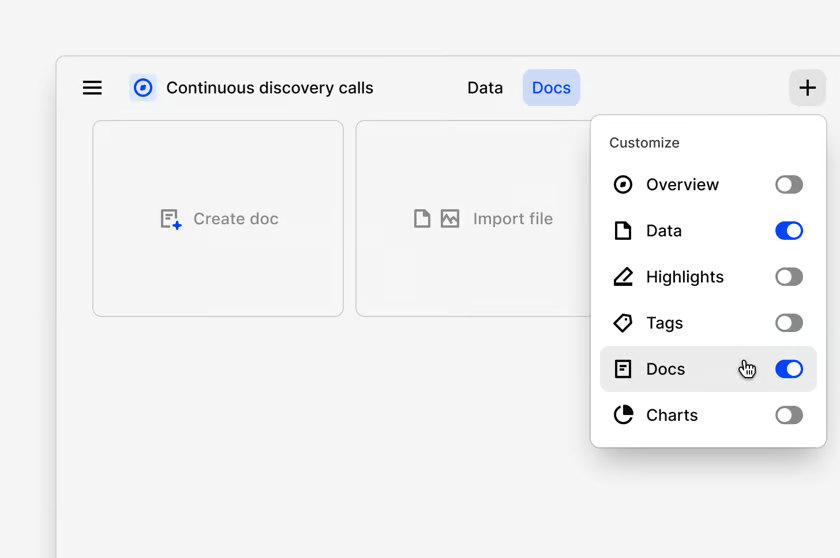
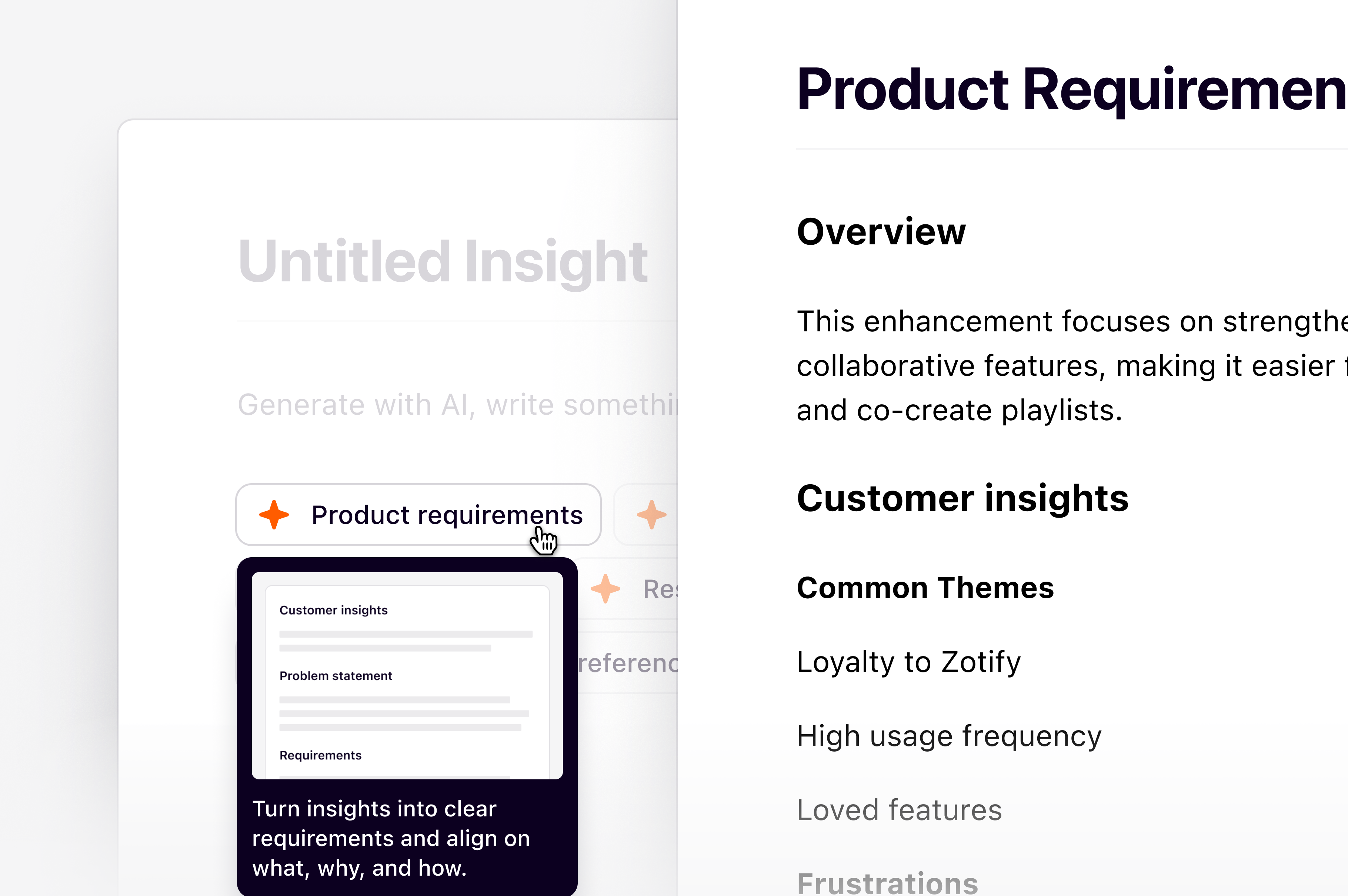 To create an Doc in a project:
* Select `+` and toggle `Docs` on.
* Next, select `Create Doc.`
* From there, choose how you want to create your Doc. You can:
* Ask a question or write a custom prompt in chat (e.g. “Summarize key findings from customer interviews”), with the help of a Doc or
* Select a predefined framework like Voice of Customer, Research Report, or PRD.
* Chat will use your project context to generate a complete draft. Once created, you can refine the content in Edit mode, or make manual edits anytime.
This feature bridges the gap between qualitative research and the product development lifecycle. It automates the initial, time-intensive synthesis, giving PMs and designers a tangible starting point in a familiar format. It turns days of work into minutes, allowing you to focus on refining strategy and prioritizing the roadmap rather than getting lost in the weeds of the data.
To create an Doc in a project:
* Select `+` and toggle `Docs` on.
* Next, select `Create Doc.`
* From there, choose how you want to create your Doc. You can:
* Ask a question or write a custom prompt in chat (e.g. “Summarize key findings from customer interviews”), with the help of a Doc or
* Select a predefined framework like Voice of Customer, Research Report, or PRD.
* Chat will use your project context to generate a complete draft. Once created, you can refine the content in Edit mode, or make manual edits anytime.
This feature bridges the gap between qualitative research and the product development lifecycle. It automates the initial, time-intensive synthesis, giving PMs and designers a tangible starting point in a familiar format. It turns days of work into minutes, allowing you to focus on refining strategy and prioritizing the roadmap rather than getting lost in the weeds of the data.
 You can create a Doc directly from a theme within a Channel to quickly synthesize and share Docs.
### Create a Doc
1. Open the Channel topic you want to analyze.
2. Select a theme.
3. Click the **Create Doc** icon.
4. Choose a predefined prompt.
Dovetail will automatically generate a Doc by synthesizing relevant data points from the selected theme.
***
### Refine and Share Your Doc
After the Doc is created, you can:
* Edit or add text.
* Insert references and supporting evidence.
* Apply formatting and other editing tools.
* Review and refine the content for your audience.
When you're ready, share the Doc with stakeholders to communicate your findings and recommendations.
Docs (formerly known as insights) let you create a Doc, equivalent to an insight, anywhere in Dovetail, including folders, making it easier to organize, share, and collaborate with your team.
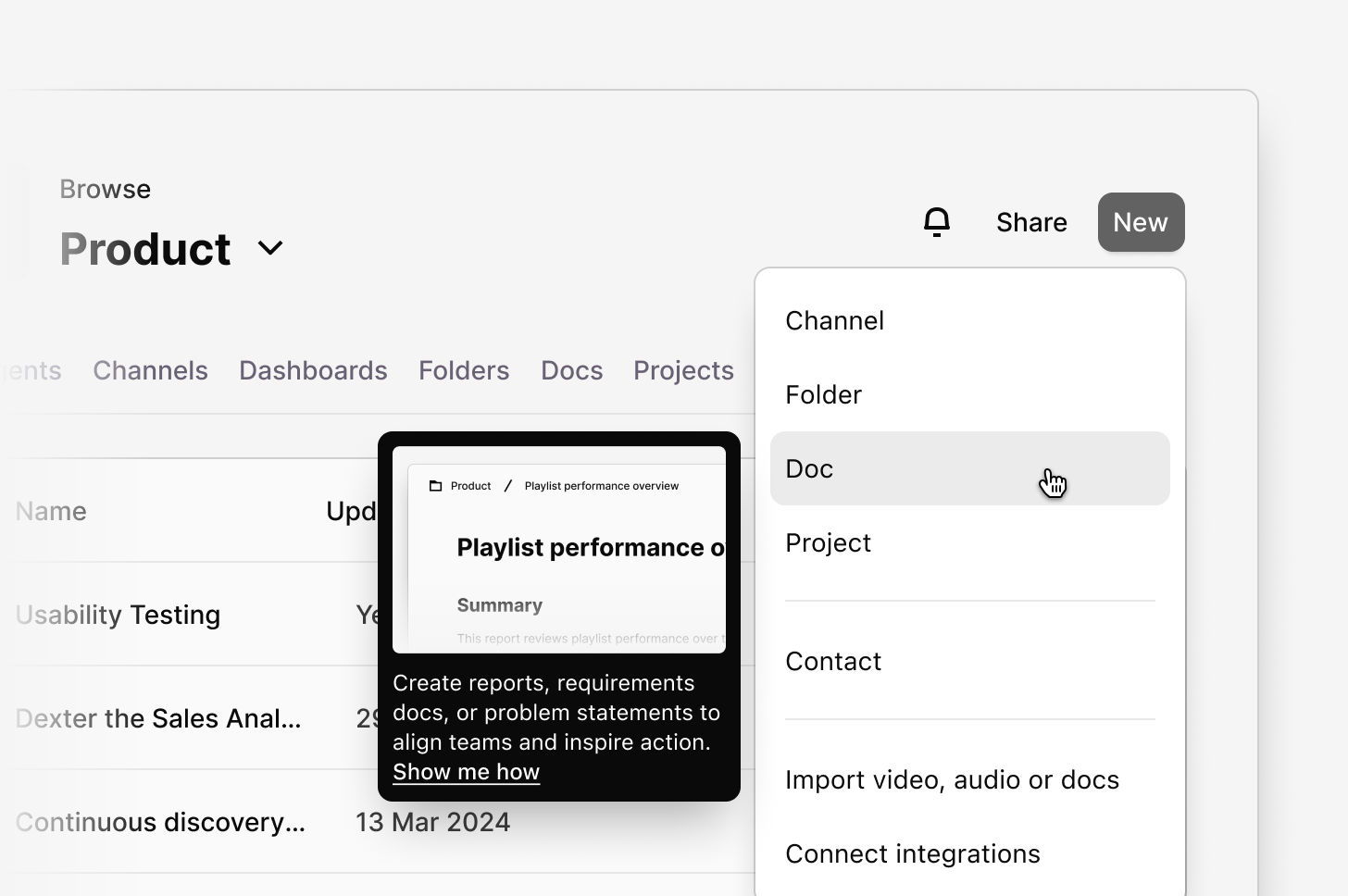
If you want to create a Doc that isn’t tied to a specific project or folder:
1. Go to the sidebar.
2. Select `+ New` and select `Doc`.
Or, if you want to create a doc from a specific folder:
* Go to the folder.
* click `New` and select `Doc`.
* To generate a Doc, choose a framework or write your own prompt.
* To create a doc manually, simply start typing.
You can create a Doc directly from a theme within a Channel to quickly synthesize and share Docs.
### Create a Doc
1. Open the Channel topic you want to analyze.
2. Select a theme.
3. Click the **Create Doc** icon.
4. Choose a predefined prompt.
Dovetail will automatically generate a Doc by synthesizing relevant data points from the selected theme.
***
### Refine and Share Your Doc
After the Doc is created, you can:
* Edit or add text.
* Insert references and supporting evidence.
* Apply formatting and other editing tools.
* Review and refine the content for your audience.
When you're ready, share the Doc with stakeholders to communicate your findings and recommendations.
Docs (formerly known as insights) let you create a Doc, equivalent to an insight, anywhere in Dovetail, including folders, making it easier to organize, share, and collaborate with your team.
If you want to create a Doc that isn’t tied to a specific project or folder:
1. Go to the sidebar.
2. Select `+ New` and select `Doc`.
Or, if you want to create a doc from a specific folder:
* Go to the folder.
* click `New` and select `Doc`.
* To generate a Doc, choose a framework or write your own prompt.
* To create a doc manually, simply start typing.
 **Flexible starting points**\
Start from a framework for structure, or use a custom prompt for full flexibility. Over time, AI Docs will support both guided and conversational creation.\
\
**Why use Docs**\
AI Docs turns time-intensive synthesis into minutes of work. It gives PMs and designers a clear starting point to refine strategy and share Docs—without getting lost in the data.
***
## Center direct evidence
A bullet point in a presentation saying "5/8 users found the checkout confusing" lacks impact and can be easily challenged by stakeholders. It fails to convey the *emotional weight* of the user's struggle, making it hard to create alignment and urgency within the engineering team or with leadership.
Draw attention to your customer's thoughts and feelings by embedding a video **reel** directly in your Doc. This isn't a summary of the problem; it *is* the problem. Stakeholders can watch a 60-second clip showing multiple users sighing in frustration, expressing confusion, or abandoning a task at the exact same point in the workflow.
In most cases, one will be made automatically for you after adding highlights to your Doc from anywhere in your project. With this reel, you can embed, customize, and re-order video and audio highlights into a reel directly within Docs.
Reels make the user's pain undeniable. They build empathy and create a shared understanding across the entire team in a way that no summary can. For a designer, it’s a powerful tool for illustrating a usability issue. For a product manager, it's a critical asset for making a business case, justifying prioritization, and ensuring the team is truly solving a felt user problem.
***
## Curate a concise narrative
Presenting stakeholders with a raw data dump is overwhelming and ineffective. Without a clear narrative, people will draw their own conclusions, or worse, none at all. Your key recommendations can get lost in the noise.
Ease stakeholders through your findings by polishing how your data and supporting text is presented. Once your key highlights are in a Doc, create a narrative around your findings in whatever way you want. Type `/` within the editor to pick a template that works for you or create a Doc in your style with available formatting options.
When adding structure to your Doc, ensure you:
* Arrange content in visually appealing ways and group related references into 2 or 3-column layouts. You can create distinct side-by-side text sections, feature callouts, and embed references, images, or files.
* Establish clear headings with different sizes, quote blocks, and bulleted lists to summarize key points.
Strong information hierarchy makes your findings persuasive and professional. It allows you to control the story, ensuring that the evidence you present logically supports your proposed product decisions. This transforms your Doc from a simple report into a powerful tool of persuasion.
***
## Share with key stakeholders
Docs are often shared as a PDF or PowerPoint, immediately severing the connection to the raw data. You can share your Docs in a variety of ways to ensure they are seen by the right audience.
***
### Share your findings in Present mode
Use Present Mode to showcase your findings during team meetings, stakeholder reviews, or presentations. Before presenting, consider who your audience is and focus on the insights that are most relevant to them.
### Open Present Mode:
1. Navigate to the Doc you want to present.
2. Click the **⋯ (More actions)** menu in the top-right corner.
3. Select **Present**.
A new browser tab will open with your Doc displayed in full-screen presentation mode, ready to share with your audience.
***
### Share in tools like Slack or Teams
Drop the Doc's share link into tools like [Slack](https://dovetail.com/help/integrations/slack/), [Notion](https://dovetail.com/help/integrations/notion/), [Productboard](https://dovetail.com/help/integrations/productboard/), or [Atlassian](https://dovetail.com/help/integrations/atlassian/). Anyone with access to Dovetail will be directed straight to your Doc.
This brings the voice of the customer directly into the tools where your team works. An engineer can go from a Jira ticket straight to a video reel of the user problem they are solving. A designer can reference the full context while in Figma. It ensures that the rich user context informs every stage of the product development process, leading to better, more user-centered products.
***
### Share with a unique web link
* To create a unique web link for published docs, navigate to a Doc view or open a single doc and select `Share` in the top right.
* From there, toggle on **Share to web** and copy the unique web link to the doc.
**Flexible starting points**\
Start from a framework for structure, or use a custom prompt for full flexibility. Over time, AI Docs will support both guided and conversational creation.\
\
**Why use Docs**\
AI Docs turns time-intensive synthesis into minutes of work. It gives PMs and designers a clear starting point to refine strategy and share Docs—without getting lost in the data.
***
## Center direct evidence
A bullet point in a presentation saying "5/8 users found the checkout confusing" lacks impact and can be easily challenged by stakeholders. It fails to convey the *emotional weight* of the user's struggle, making it hard to create alignment and urgency within the engineering team or with leadership.
Draw attention to your customer's thoughts and feelings by embedding a video **reel** directly in your Doc. This isn't a summary of the problem; it *is* the problem. Stakeholders can watch a 60-second clip showing multiple users sighing in frustration, expressing confusion, or abandoning a task at the exact same point in the workflow.
In most cases, one will be made automatically for you after adding highlights to your Doc from anywhere in your project. With this reel, you can embed, customize, and re-order video and audio highlights into a reel directly within Docs.
Reels make the user's pain undeniable. They build empathy and create a shared understanding across the entire team in a way that no summary can. For a designer, it’s a powerful tool for illustrating a usability issue. For a product manager, it's a critical asset for making a business case, justifying prioritization, and ensuring the team is truly solving a felt user problem.
***
## Curate a concise narrative
Presenting stakeholders with a raw data dump is overwhelming and ineffective. Without a clear narrative, people will draw their own conclusions, or worse, none at all. Your key recommendations can get lost in the noise.
Ease stakeholders through your findings by polishing how your data and supporting text is presented. Once your key highlights are in a Doc, create a narrative around your findings in whatever way you want. Type `/` within the editor to pick a template that works for you or create a Doc in your style with available formatting options.
When adding structure to your Doc, ensure you:
* Arrange content in visually appealing ways and group related references into 2 or 3-column layouts. You can create distinct side-by-side text sections, feature callouts, and embed references, images, or files.
* Establish clear headings with different sizes, quote blocks, and bulleted lists to summarize key points.
Strong information hierarchy makes your findings persuasive and professional. It allows you to control the story, ensuring that the evidence you present logically supports your proposed product decisions. This transforms your Doc from a simple report into a powerful tool of persuasion.
***
## Share with key stakeholders
Docs are often shared as a PDF or PowerPoint, immediately severing the connection to the raw data. You can share your Docs in a variety of ways to ensure they are seen by the right audience.
***
### Share your findings in Present mode
Use Present Mode to showcase your findings during team meetings, stakeholder reviews, or presentations. Before presenting, consider who your audience is and focus on the insights that are most relevant to them.
### Open Present Mode:
1. Navigate to the Doc you want to present.
2. Click the **⋯ (More actions)** menu in the top-right corner.
3. Select **Present**.
A new browser tab will open with your Doc displayed in full-screen presentation mode, ready to share with your audience.
***
### Share in tools like Slack or Teams
Drop the Doc's share link into tools like [Slack](https://dovetail.com/help/integrations/slack/), [Notion](https://dovetail.com/help/integrations/notion/), [Productboard](https://dovetail.com/help/integrations/productboard/), or [Atlassian](https://dovetail.com/help/integrations/atlassian/). Anyone with access to Dovetail will be directed straight to your Doc.
This brings the voice of the customer directly into the tools where your team works. An engineer can go from a Jira ticket straight to a video reel of the user problem they are solving. A designer can reference the full context while in Figma. It ensures that the rich user context informs every stage of the product development process, leading to better, more user-centered products.
***
### Share with a unique web link
* To create a unique web link for published docs, navigate to a Doc view or open a single doc and select `Share` in the top right.
* From there, toggle on **Share to web** and copy the unique web link to the doc.