> ## Documentation Index
> Fetch the complete documentation index at: https://docs.dovetail.com/llms.txt
> Use this file to discover all available pages before exploring further.
# Intro to workspace tags
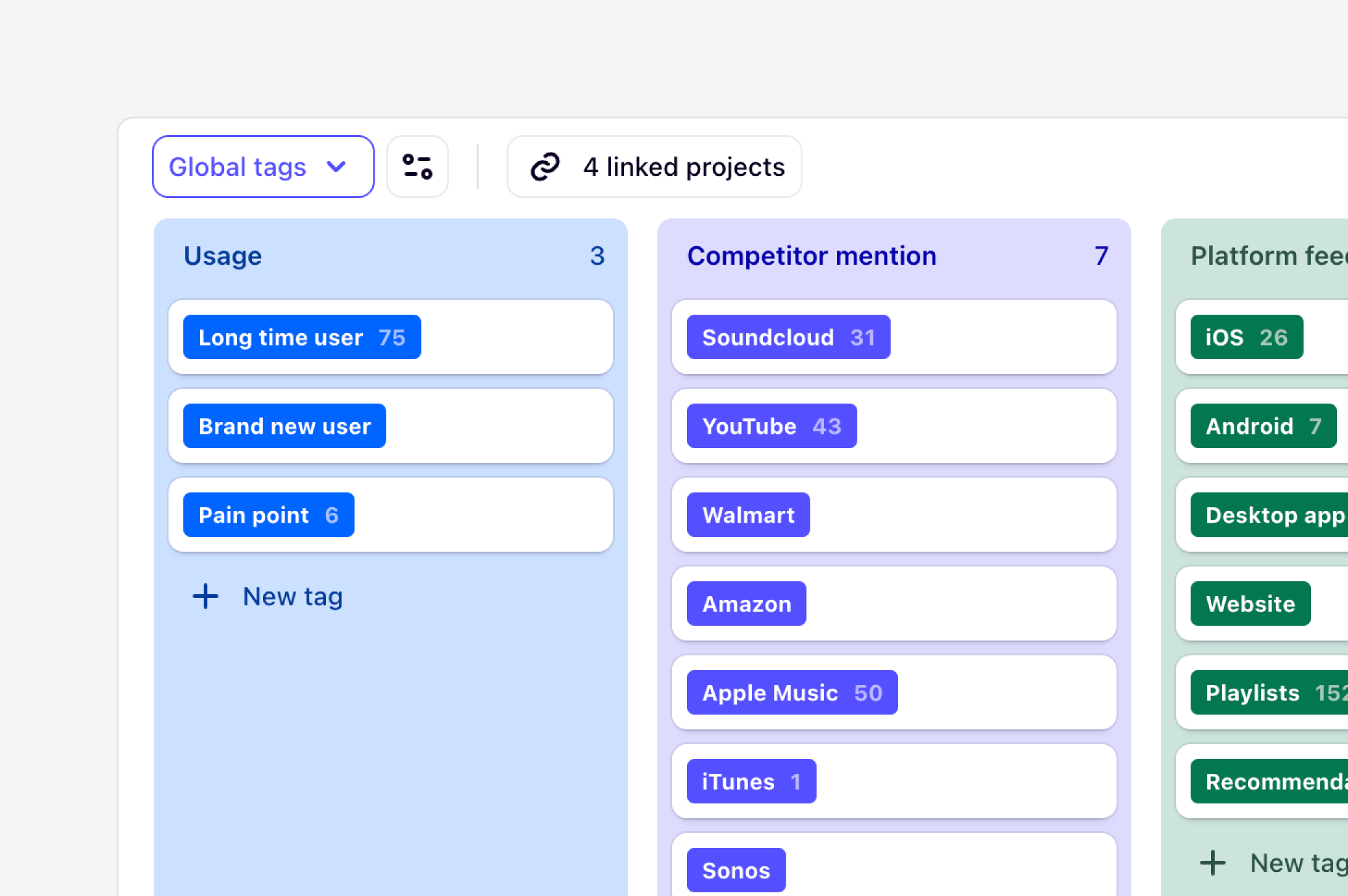
Workspace tags help connect and organize themes across data, projects and teams. They are a global/universal set of tags that enable people in your organization to thoroughly analyze data consistently across projects. In this lesson, you will learn key differences between project and workspace tags, how to create workspace tags, and how to ensure the right people have appropriate access to evolving these tags over time.
***
## Difference between project and workspace tags
In projects, you can use both global tags and project tags to analyze your data.
Global and to be used across an entire organization to connect data across multiple projects to high-level, common themes. \
\
Use these for high-level, recurring themes that apply across many projects . Think of broad topics like `Feature Request`, `Performance`, `Security`, or `Usability`.
Local, specific and commonly based on an individual project.
Use these for themes that are specific and contextual to a single project. For example, in a study about a new dashboard, you might have project tags like `Chart Readability` or `Filter Interaction`, which may not be relevant to other projects.
 ***
## Create workspace tags for global use
Workspace tag boards are commonly used for creating personas, shared feature requests, jobs-to-be-done, platform flows, commercial information, or product features that can be applied to different projects and data across a workspace.
* To create a workspace tag board, navigate to [⚙️ Settings → Tags → Create new workspace tag board](https://dovetail.com/settings/tags).
* Once created, you can populate this board with individual tags by selecting + New tag or importing a spreadsheet of existing global tags.
* From there, link your tags to projects or templates so they can be used to analyze data across multiple projects at once. You can use workspace-level tags alongside project-level tags in a single project.
***
## **Power up your taxonomy with AI**
Manually tagging hundreds of highlights is time-consuming. But relying on AI to auto-tag can be inconsistent if the AI doesn't understand the precise, nuanced meaning of your tags.
Add clear, concise **descriptions** to your Workspace Tags. This teaches Dovetail's AI exactly what you mean by each tag, aligning both your human team and the AI on a shared understanding.
What makes a "good" tag description will vary depending on the tag and what you are looking for but there are, however, some general guidelines and recommendations you can follow:
* If you can say it in three words, use three words instead of a sentence. A
guideline is to try and not use any more than 50 words.
* Do not use different words for the same meaning, even if they are
synonyms. - - - - -
* If a new intern wouldn’t understand the term, assume AI wouldn’t either.
* Provide examples of what to do/what to know rather than examples of what
*not* to do. - - For this, use something concise, or bullet points. A bad
example can throw the LLM off track.
***
## Assign owners of your global tags
A taxonomy is a living system. If anyone can change it at any time, it will quickly descend into chaos with duplicate tags, confusing names, and broken logic.
To ensure the right people are empowered to make changes to a workspace tag board and descriptions, you can select who has access and the appropriate level they should have.
* To do this, open the workspace tag board, select **Share**, and assign **View only** access to the workspace. You will be the only user with **Full access** to the board.
* From there, we recommend adding your core team in a [user group](https://dovetail.com/academy/set-up-user-groups/) or individual team members to share **Full access** or **Edit access** to the board.
Any manager or contributor with View only access to the board can link the tag board to a project, but cannot add or remove tags from this board.
This process establishes clear governance. It empowers a core team to thoughtfully evolve the taxonomy while preventing a "too many cooks in the kitchen" scenario. This ensures your shared language remains clean, consistent, and powerful over the long term.
Jump in to create your first workspace tag board. Start by creating three
common tags relevant to your organization, write clear descriptions explaining
what kind of feedback should be tagged with them, and link to an existing
project or template.\ \ [Create workspace tags
→](https://dovetail.com/settings/tags)
***
## Create workspace tags for global use
Workspace tag boards are commonly used for creating personas, shared feature requests, jobs-to-be-done, platform flows, commercial information, or product features that can be applied to different projects and data across a workspace.
* To create a workspace tag board, navigate to [⚙️ Settings → Tags → Create new workspace tag board](https://dovetail.com/settings/tags).
* Once created, you can populate this board with individual tags by selecting + New tag or importing a spreadsheet of existing global tags.
* From there, link your tags to projects or templates so they can be used to analyze data across multiple projects at once. You can use workspace-level tags alongside project-level tags in a single project.
***
## **Power up your taxonomy with AI**
Manually tagging hundreds of highlights is time-consuming. But relying on AI to auto-tag can be inconsistent if the AI doesn't understand the precise, nuanced meaning of your tags.
Add clear, concise **descriptions** to your Workspace Tags. This teaches Dovetail's AI exactly what you mean by each tag, aligning both your human team and the AI on a shared understanding.
What makes a "good" tag description will vary depending on the tag and what you are looking for but there are, however, some general guidelines and recommendations you can follow:
* If you can say it in three words, use three words instead of a sentence. A
guideline is to try and not use any more than 50 words.
* Do not use different words for the same meaning, even if they are
synonyms. - - - - -
* If a new intern wouldn’t understand the term, assume AI wouldn’t either.
* Provide examples of what to do/what to know rather than examples of what
*not* to do. - - For this, use something concise, or bullet points. A bad
example can throw the LLM off track.
***
## Assign owners of your global tags
A taxonomy is a living system. If anyone can change it at any time, it will quickly descend into chaos with duplicate tags, confusing names, and broken logic.
To ensure the right people are empowered to make changes to a workspace tag board and descriptions, you can select who has access and the appropriate level they should have.
* To do this, open the workspace tag board, select **Share**, and assign **View only** access to the workspace. You will be the only user with **Full access** to the board.
* From there, we recommend adding your core team in a [user group](https://dovetail.com/academy/set-up-user-groups/) or individual team members to share **Full access** or **Edit access** to the board.
Any manager or contributor with View only access to the board can link the tag board to a project, but cannot add or remove tags from this board.
This process establishes clear governance. It empowers a core team to thoughtfully evolve the taxonomy while preventing a "too many cooks in the kitchen" scenario. This ensures your shared language remains clean, consistent, and powerful over the long term.
Jump in to create your first workspace tag board. Start by creating three
common tags relevant to your organization, write clear descriptions explaining
what kind of feedback should be tagged with them, and link to an existing
project or template.\ \ [Create workspace tags
→](https://dovetail.com/settings/tags)