> ## Documentation Index
> Fetch the complete documentation index at: https://docs.dovetail.com/llms.txt
> Use this file to discover all available pages before exploring further.
# Account settings
 ## Overview
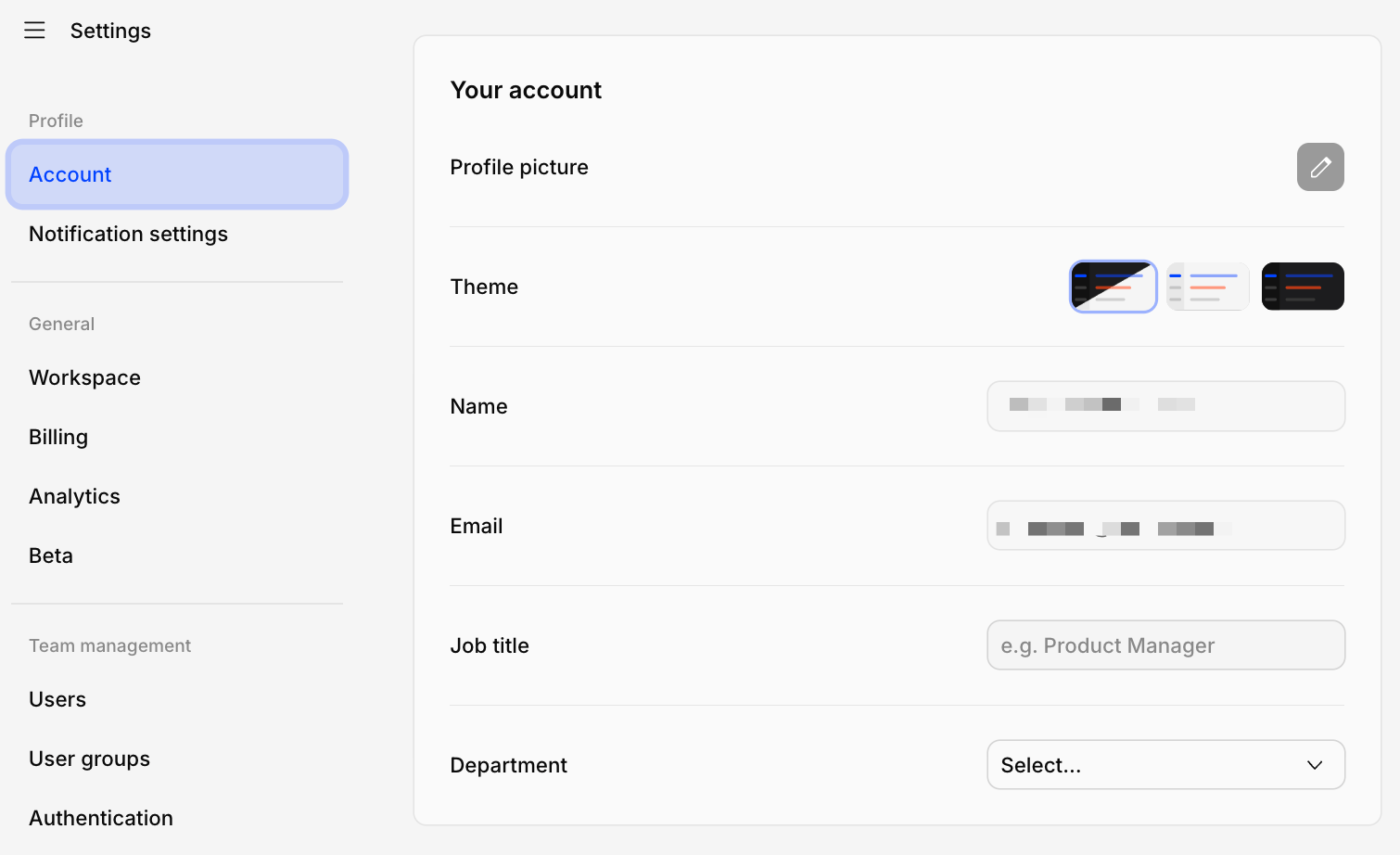
Every user has their own individual account settings. You can update your profile details (including name, email, job title, department/function, and profile photo), reset your password, and log out of sessions remotely.
To navigate to Settings:
1. Click the **(**☰**)** icon at the top left corner of the page to open the main menu. Alternatively, press the **\[** keyboard shortcut.
2. Click **(…) More → Settings**.
***
## Change your profile photo
Help your teammates recognize you in Dovetail by setting a profile image for your user account.
* To do this, go to [⚙️ Settings → Account](https://dovetail.com/settings/user/account) → **Profile picture** and click on the pencil icon and click `Upload photo`.
***
## Change your interface theme
## Overview
Every user has their own individual account settings. You can update your profile details (including name, email, job title, department/function, and profile photo), reset your password, and log out of sessions remotely.
To navigate to Settings:
1. Click the **(**☰**)** icon at the top left corner of the page to open the main menu. Alternatively, press the **\[** keyboard shortcut.
2. Click **(…) More → Settings**.
***
## Change your profile photo
Help your teammates recognize you in Dovetail by setting a profile image for your user account.
* To do this, go to [⚙️ Settings → Account](https://dovetail.com/settings/user/account) → **Profile picture** and click on the pencil icon and click `Upload photo`.
***
## Change your interface theme
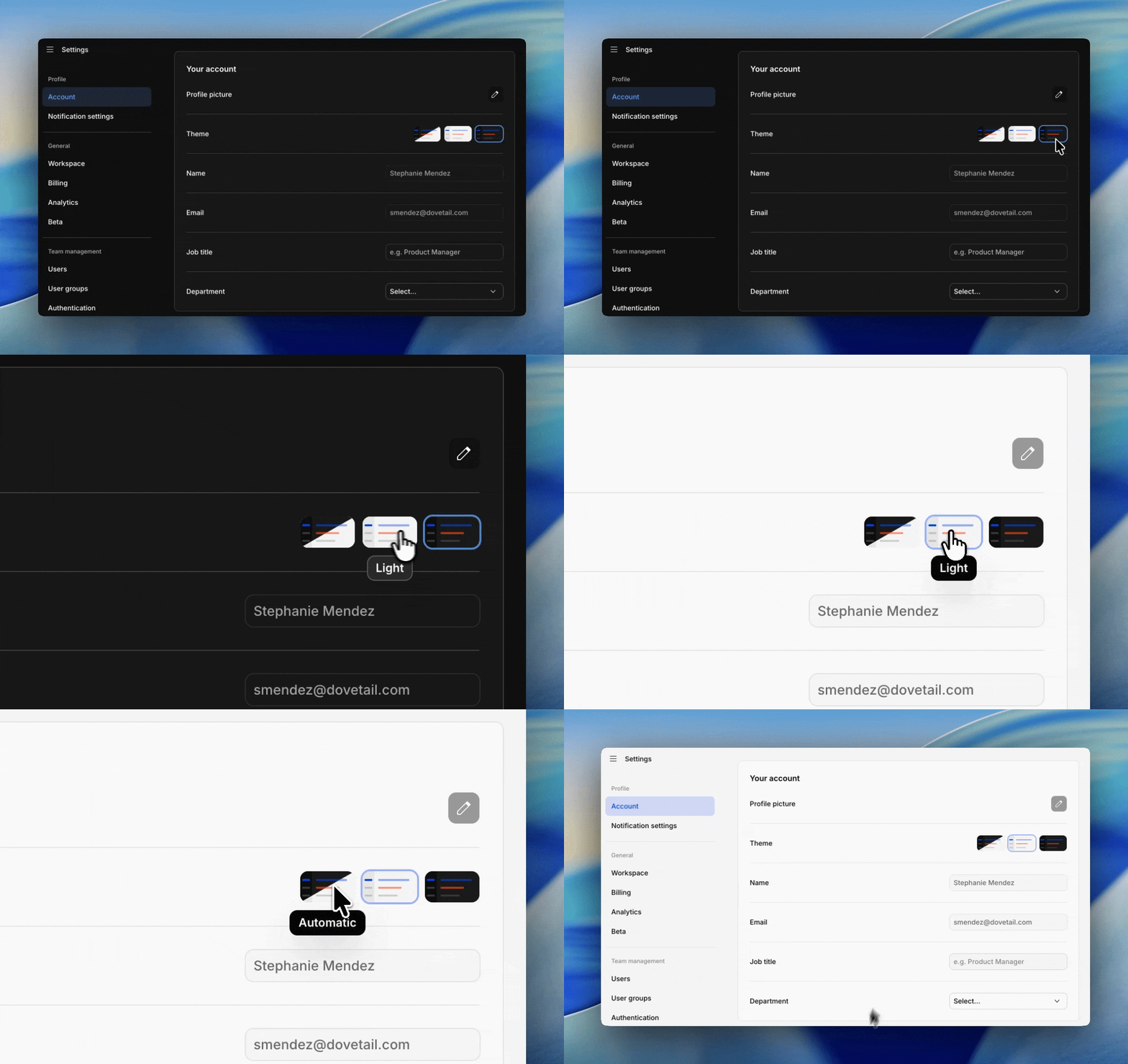 You can now personalize your Dovetail experience with dark and light themes. By default, Dovetail will match your system or browser's appearance settings. You can set a permanent preference in your Account settings via [Settings → Account ](https://dovetail.com/settings/user/account)→Theme → Choose Automatic, light, or dark.
If no system preference is detected, the interface will default to dark mode.
***
## Change your user name
You can change the user name displayed in the workspace by:
1. Navigating to [⚙️ Settings ](https://dovetail.com/settings/user/account)→[ Account](https://dovetail.com/settings/user/account)
2. In the text box under Name, enter your updated name
3. This will be saved automatically and updated across the workspace.
***
## Change your email address
To change your email address:
1. Navigate to [⚙️ Settings → Account ](https://dovetail.com/settings/user/account)→ **Email**
2. In the text box, enter your updated email address.
3. This will trigger an email to be sent to your new address and be saved automatically for future login.
If you signed up or currently log in using your **Google** or **Microsoft** account, you **cannot** change your email address through the workspace settings. Your email address is tied to your Google or Microsoft authentication.
***
## Change your password
If you have forgotten your password or wish to change it, open the login page, enter your email address, and press **Continue**.
* If your email address is associated with only one workspace, select `Reset password` below the form. From there, check your email and follow the instructions to reset your password.
* If your email address is associated with multiple workspaces, check your email to verify your address, select the workspace you’d like to reset your password for, and click `Reset password` below the form. From there, check your email and follow the instructions.
Ensure your password is changed within 30 minutes of receiving the reset link via email. After that, you will need to [resend another reset password email](https://dovetail.com/help/change-your-password/).
***
## Log in with Microsoft or Google
You can log in to Dovetail in one click via OAuth 2.0 with your Google or Microsoft account. By using OAuth 2.0 to create your account, you’ll be able to log in faster without needing to set a password with Dovetail.
***
## Add a password to your account
If you originally signed up for Dovetail using **Google** or **Microsoft**, you can add a password to your account as an **additional** sign-in method.
Adding a password allows you to log in using either:
* **Continue with Google** or **Continue with Microsoft**, or
* Your **email address and password**
To add a password:
1. Navigate to **Settings** → **Account**.
2. Scroll to the **How you log in** section.
3. Next to **Password**, select **Add password**.
4. Follow the prompts to create a password for your account.
Once configured, you'll be able to sign in using your email address and password in addition to your existing Google or Microsoft login method.
**Note:** Adding a password does not remove or replace your existing Google or Microsoft sign-in option. Both login methods will remain available. If you created your Dovetail profile using Google or Microsoft you **cannot** change your email address through the workspace settings. Your email address is tied to your Google or Microsoft authentication.
***
## Troubleshooting login
1. **Confirm your email address**
You can now personalize your Dovetail experience with dark and light themes. By default, Dovetail will match your system or browser's appearance settings. You can set a permanent preference in your Account settings via [Settings → Account ](https://dovetail.com/settings/user/account)→Theme → Choose Automatic, light, or dark.
If no system preference is detected, the interface will default to dark mode.
***
## Change your user name
You can change the user name displayed in the workspace by:
1. Navigating to [⚙️ Settings ](https://dovetail.com/settings/user/account)→[ Account](https://dovetail.com/settings/user/account)
2. In the text box under Name, enter your updated name
3. This will be saved automatically and updated across the workspace.
***
## Change your email address
To change your email address:
1. Navigate to [⚙️ Settings → Account ](https://dovetail.com/settings/user/account)→ **Email**
2. In the text box, enter your updated email address.
3. This will trigger an email to be sent to your new address and be saved automatically for future login.
If you signed up or currently log in using your **Google** or **Microsoft** account, you **cannot** change your email address through the workspace settings. Your email address is tied to your Google or Microsoft authentication.
***
## Change your password
If you have forgotten your password or wish to change it, open the login page, enter your email address, and press **Continue**.
* If your email address is associated with only one workspace, select `Reset password` below the form. From there, check your email and follow the instructions to reset your password.
* If your email address is associated with multiple workspaces, check your email to verify your address, select the workspace you’d like to reset your password for, and click `Reset password` below the form. From there, check your email and follow the instructions.
Ensure your password is changed within 30 minutes of receiving the reset link via email. After that, you will need to [resend another reset password email](https://dovetail.com/help/change-your-password/).
***
## Log in with Microsoft or Google
You can log in to Dovetail in one click via OAuth 2.0 with your Google or Microsoft account. By using OAuth 2.0 to create your account, you’ll be able to log in faster without needing to set a password with Dovetail.
***
## Add a password to your account
If you originally signed up for Dovetail using **Google** or **Microsoft**, you can add a password to your account as an **additional** sign-in method.
Adding a password allows you to log in using either:
* **Continue with Google** or **Continue with Microsoft**, or
* Your **email address and password**
To add a password:
1. Navigate to **Settings** → **Account**.
2. Scroll to the **How you log in** section.
3. Next to **Password**, select **Add password**.
4. Follow the prompts to create a password for your account.
Once configured, you'll be able to sign in using your email address and password in addition to your existing Google or Microsoft login method.
**Note:** Adding a password does not remove or replace your existing Google or Microsoft sign-in option. Both login methods will remain available. If you created your Dovetail profile using Google or Microsoft you **cannot** change your email address through the workspace settings. Your email address is tied to your Google or Microsoft authentication.
***
## Troubleshooting login
1. **Confirm your email address**
Make sure you’re signing in with the same email address you originally used to join Dovetail. Once confirmed, try resetting your password.
2. **Check if your account is locked**
As a security precaution, Dovetail automatically locks accounts after multiple unsuccessful login attempts or unusual activity.
To unlock your account:
1. Go to the **log in page**, enter your email address, and click **Continue**.
2. Follow the steps that apply to you: **If your email is associated with one workspace:**
* Click **Unlock account** below the form.
* Check your email and follow the instructions. **If your email is associated with multiple workspaces:**
* Check your email to verify your address.
* Select the workspace you’re locked out of.
* Click **Unlock account** below the form.
* Check your email and follow the instructions.
3. **Not receiving emails?**
If you aren’t getting any Dovetail emails, contact your organization’s IT team. Ask them to allow-list:
* `mail.dovetailapp.com`
* `dovetailapp.com`
These domains must be approved in your organization’s security firewall and spam filter to ensure messages arrive.
***
### Two-factor authentication (2FA)
Add an extra layer of security to your account by enabling two-factor authentication. Once turned on, you'll enter a code from an authenticator app (like Google Authenticator, Authy, or 1Password) each time you sign in, so your account stays protected even if your password is compromised.
**Note:** 2FA is available only for users who sign in with a password. If you sign in via SSO, Google, or Microsoft, 2FA isn't available in Dovetail — your identity provider may enforce its own MFA policies instead.
**To set up 2FA:**
1. Navigate to **⚙️ Settings → Account**
2. Scroll to the **Multi-factor authentication** section
3. Click **Enable** and scan the QR code with your authenticator app
4. Enter the 6-digit verification code and click **Continue**
For full setup steps, sign-in behavior, disabling 2FA, and what to do if you lose access to your authenticator app, see the dedicated [Two-Factor Authentication](https://docs.dovetail.com/help/two-factor-authentication) article.
***
## Support access consent
Managers and Contributors (paid seats) can grant Dovetail employees temporary access to their workspace for support purposes.
### Grant support access
When chatting with our support team, you may be asked to consent to access your account to help with troubleshooting or recovery. If you are a Manager or Contributor, you can grant support access by following the steps below. If you are a Viewer, you will need to ask a user with a paid seat to grant support access for you.
1. Navigate to ⚙️ [Settings](https://dovetail.com/settings/)
2. Click on `Account`
3. Navigate to `Support access` and click `Allow support access`
Once access is granted, Dovetail's support team can log in to your workspace for 7 days, or until you revoke access. The remaining time will be visible from this same page where access was granted.
### Revoke support access
To revoke support access before the specified expiration date, Managers and Contributors will need to follow the same steps used to grant access.
1. Navigate to ⚙️ [Settings](https://dovetail.com/settings/)
2. Click on `Account`
3. Navigate to `Support access` and click `Revoke support access`
***
## **Reset preferences**
Reset all user preferences, contextual help panels, and onboarding tours by navigating to ⚙️ [Settings](https://dovetail.com/settings/) **→ Account → Reset**
***
## Leave a workspace
Workspaces must have at least one admin, so the last person in a workspace will not be able to leave that workspace.
* To leave a workspace you’re in, open [⚙️ Settings → Users](https://dovetail.com/settings/users) to locate your user and select `Revoke user` in `•••` menu.
***
## FAQs:
Try clearing your browser’s stored data for Dovetail by following these steps:
1. **Right-click** anywhere on the page and choose **“Inspect.”**
2. In the panel that opens, click the **“Application”** tab.
3. Under **“Storage,”** you’ll see sections for **Local Storage**, **Session Storage**, and **Cookies**.
4. For each one, **right-click** on the site name (or any listed items) and select **“Clear.”**
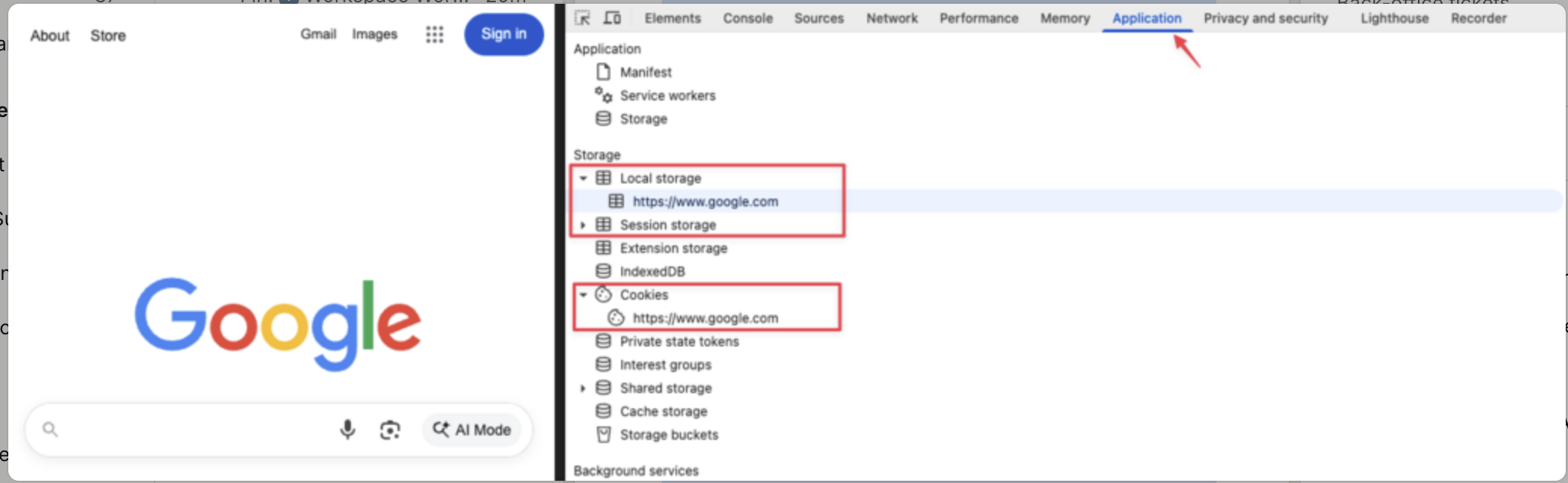 This will remove any locally stored data and cookies for the site, which can help resolve loading or access issues. Alternatively, try using an incognito browser. If the error persists, please reach out to our support team for more assistance.