> ## Documentation Index
> Fetch the complete documentation index at: https://docs.dovetail.com/llms.txt
> Use this file to discover all available pages before exploring further.
# Agents overview
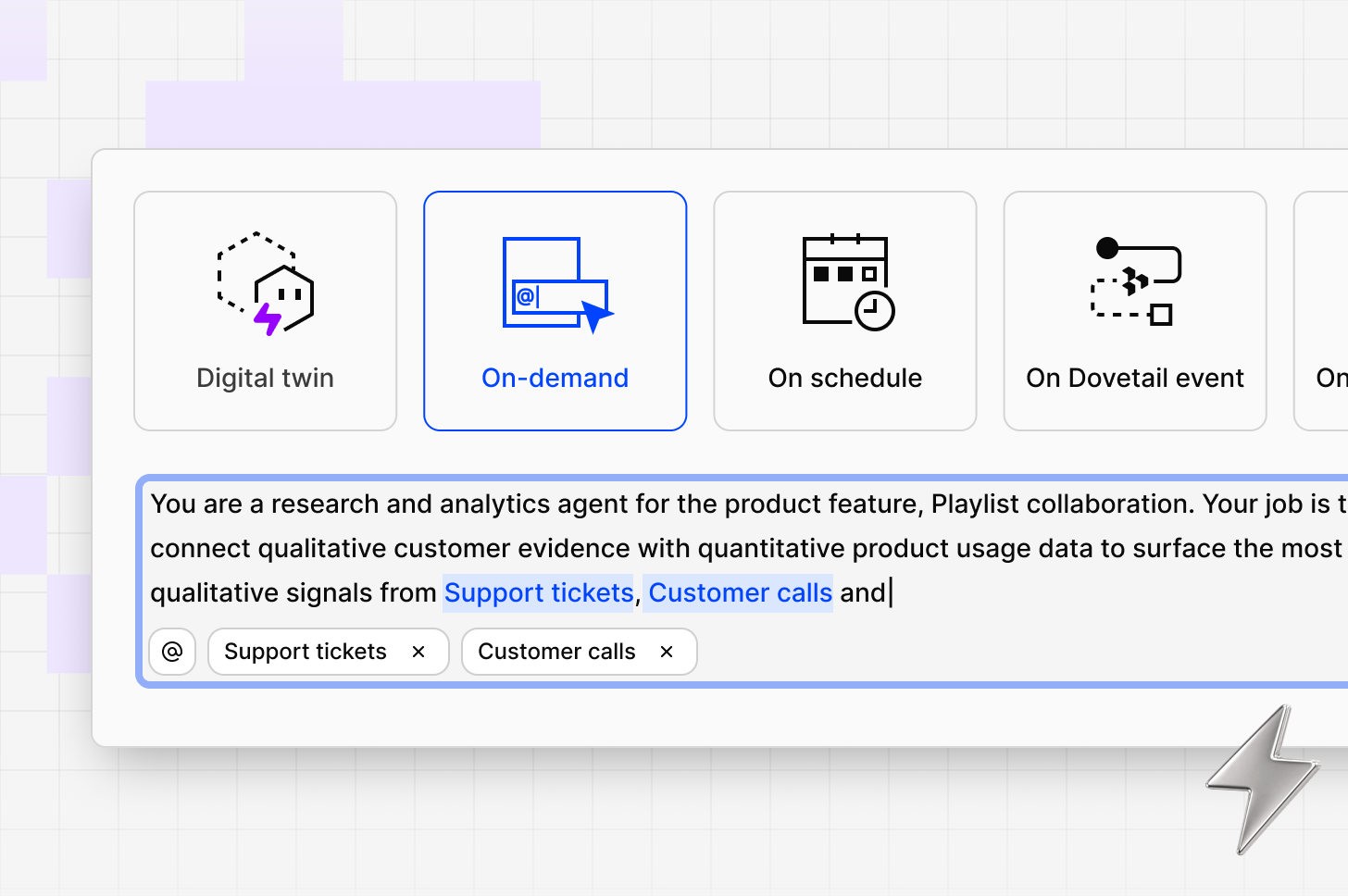 Agents are autonomous workers you configure to take action inside Dovetail and across your connected tools. Define what they know, what they can do, and when they run. Agents handle the work that would otherwise require manual effort.
Each agent is built from five components: **triggers instructions and context**, **skills**, **external connectors** and **Dovetail tools**
## Get started
1. Open **Agents** from your sidebar and select **Create agent** or prompt chat to help you create
2. Set an agent type: Digital twin, on-demand, scheduled, Dovetail event, external webhook.
3. Give the agent a name and write its instructions. Add a persona if you want to shape its tone. Save the configuration.
4. Attach skills—any doc or insight that gives the agent useful context or a template to follow.
5. Enable external connectors if the agent needs to reach outside Dovetail.
6. Review Dovetail tools and disable any the agent doesn't need.
7. If required, click run now to trigger the agent and commence the configuration and flow.
Agents are autonomous workers you configure to take action inside Dovetail and across your connected tools. Define what they know, what they can do, and when they run. Agents handle the work that would otherwise require manual effort.
Each agent is built from five components: **triggers instructions and context**, **skills**, **external connectors** and **Dovetail tools**
## Get started
1. Open **Agents** from your sidebar and select **Create agent** or prompt chat to help you create
2. Set an agent type: Digital twin, on-demand, scheduled, Dovetail event, external webhook.
3. Give the agent a name and write its instructions. Add a persona if you want to shape its tone. Save the configuration.
4. Attach skills—any doc or insight that gives the agent useful context or a template to follow.
5. Enable external connectors if the agent needs to reach outside Dovetail.
6. Review Dovetail tools and disable any the agent doesn't need.
7. If required, click run now to trigger the agent and commence the configuration and flow.
 ## Triggers
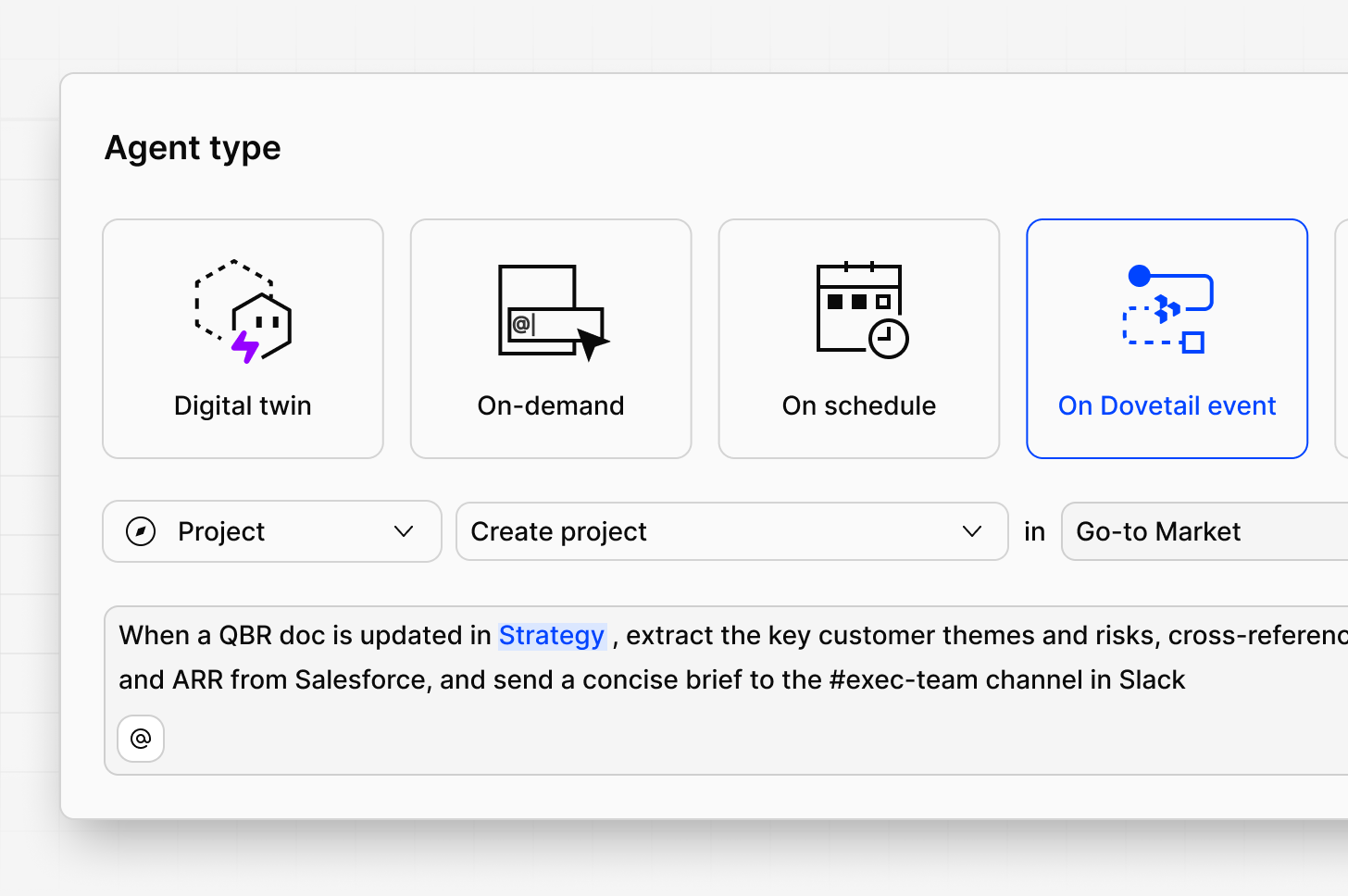
A trigger defines when your agent runs. Choose the mode that fits how the work actually happens.
| Trigger | When the agent runs |
| :------------------ | :------------------------------------------------------------------------------------ |
| **On-demand** | Only when you manually trigger it from the agent page |
| **Scheduled** | On a recurring cadence |
| **Dovetail events** | Specific Dovetail events trigger an agent |
| **External events** | When an event arrives from a connected external system via webhook |
| **Digital twin** | Continuously, as a listener that responds to interactions directed at it through chat |
## Instructions
Instructions are the prompt that shapes how your agent behaves and what it produces. Write them in plain language,
Focus on outcomes rather than steps. Describe what a good result looks like — not every action the agent should take to get there.
Add an optional persona to shape tone and style — for example, *"Concise analyst"* or *"Friendly researcher."* It's a short phrase that gets added to the agent's system prompt. It doesn't change what the agent does, only how it communicates.
**Example:**
## Triggers
A trigger defines when your agent runs. Choose the mode that fits how the work actually happens.
| Trigger | When the agent runs |
| :------------------ | :------------------------------------------------------------------------------------ |
| **On-demand** | Only when you manually trigger it from the agent page |
| **Scheduled** | On a recurring cadence |
| **Dovetail events** | Specific Dovetail events trigger an agent |
| **External events** | When an event arrives from a connected external system via webhook |
| **Digital twin** | Continuously, as a listener that responds to interactions directed at it through chat |
## Instructions
Instructions are the prompt that shapes how your agent behaves and what it produces. Write them in plain language,
Focus on outcomes rather than steps. Describe what a good result looks like — not every action the agent should take to get there.
Add an optional persona to shape tone and style — for example, *"Concise analyst"* or *"Friendly researcher."* It's a short phrase that gets added to the agent's system prompt. It doesn't change what the agent does, only how it communicates.
**Example:**
*Every Monday, summarize new data added to the Support channel over the past week. Group findings by theme, lead with the most urgent issue, and include a direct quote for each theme.*
## Skills
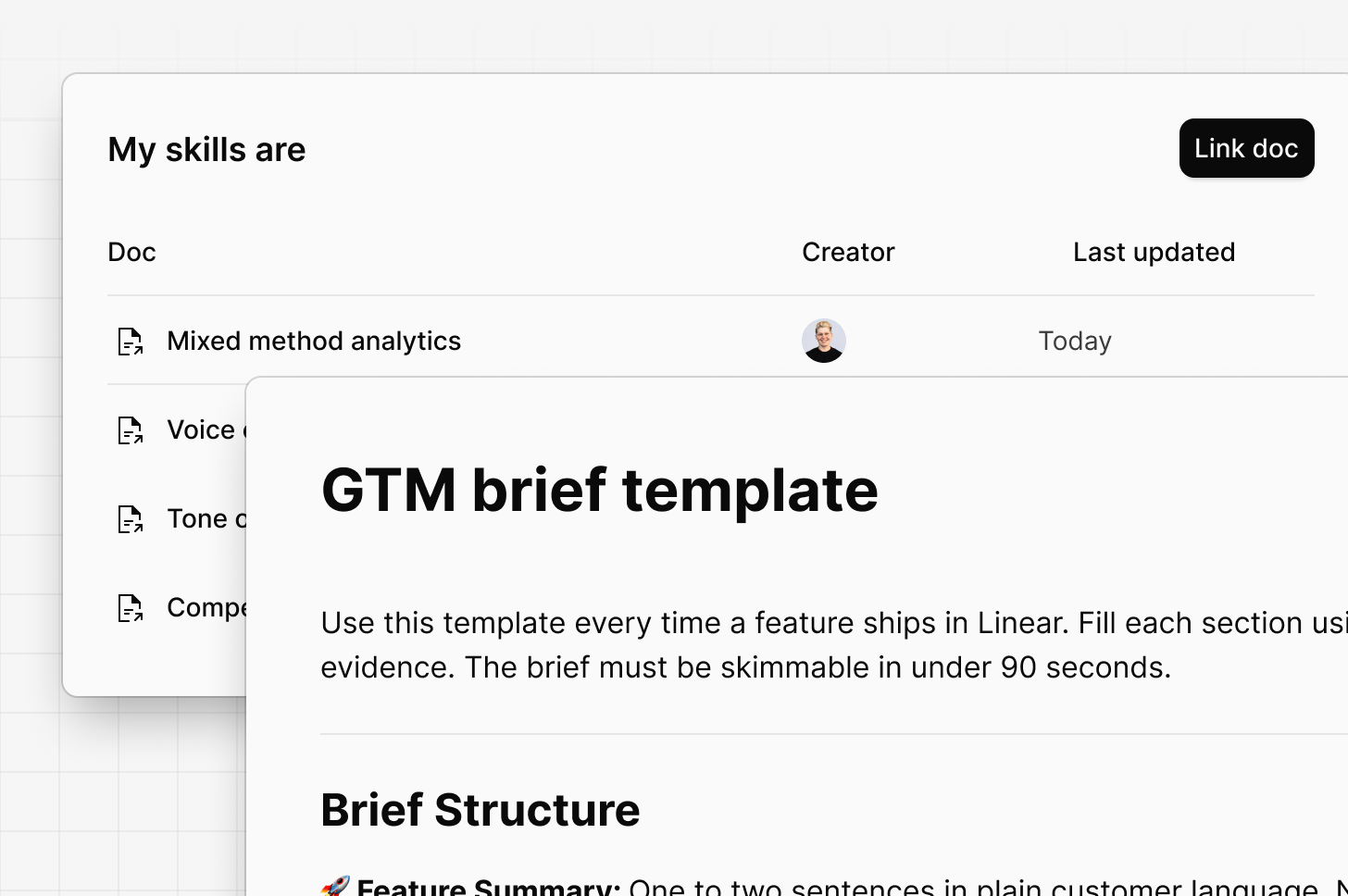
Skills are Dovetail docs or insights you attach to an agent to give it knowledge it can't derive from instructions alone. When the agent runs, the full content of each linked skill is injected into its context.
How teams use this:
* **Templates**—a standard format the agent should follow when writing summaries or reports
* **Reference data**—a tag taxonomy, list of product areas, or internal glossary
* **Examples**—sample outputs that show the quality and style you expect
* **Background context**—information about your product, team, or a specific initiative the agent needs to understand
* **Tone of voice**––Give your agent specific instructions on how speak, engage with you when invoked and style for outputs it creates
Keep skills focused. Each doc is injected in full at run time, so shorter and more targeted docs consistently outperform long, general ones.
 ## Dovetail tools
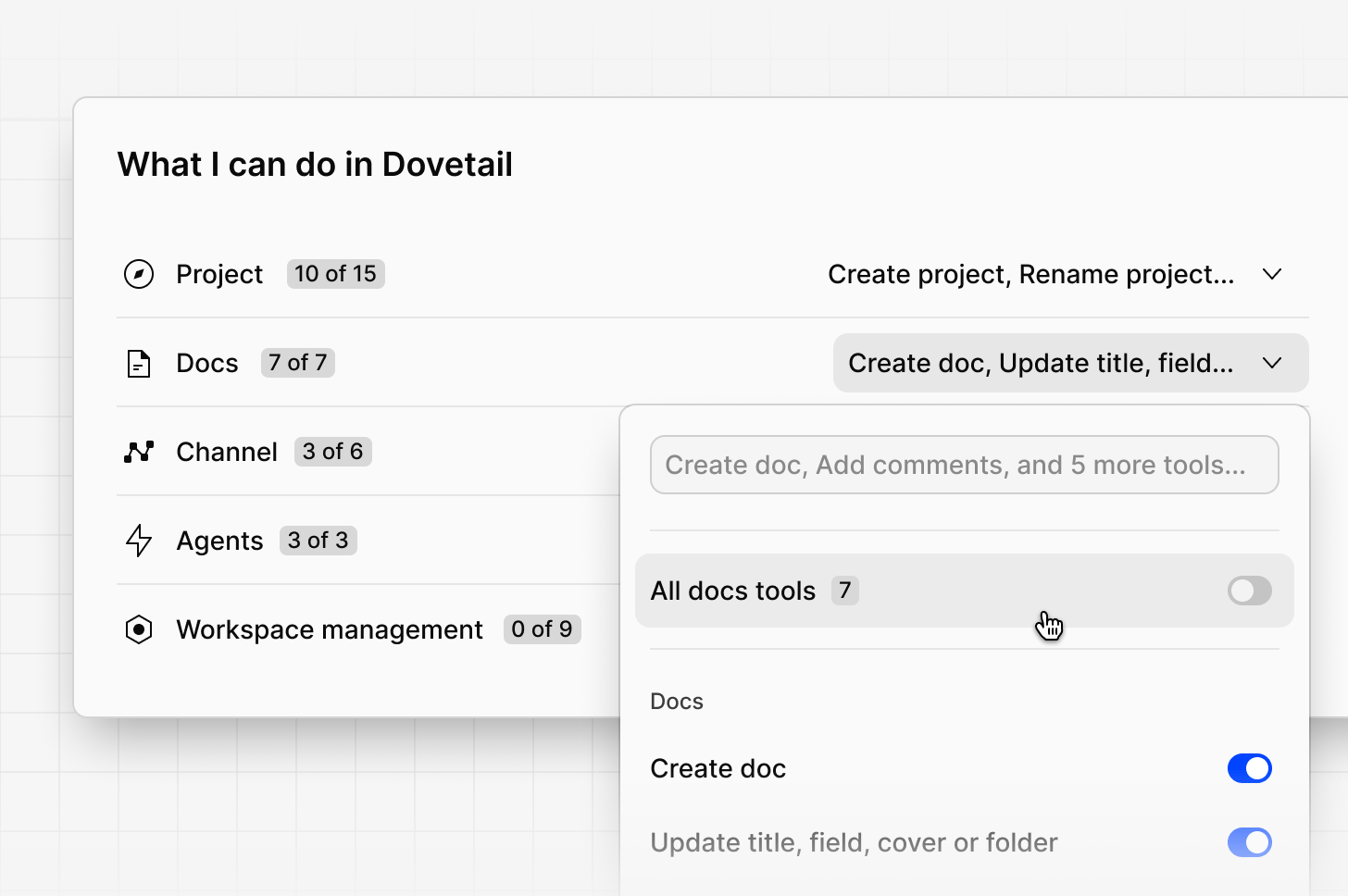
Dovetail tools are the actions an agent can perform inside your workspace. All tools are enabled by default — you can disable individual tools or entire categories to limit what any given agent can do.
| Category | Available actions |
| :------------ | :---------------------------------------------------------------------------------------------------------------------------------- |
| **Projects** | Create, rename, and delete projects; add data; create highlights; attach audio or video; add utterances to transcripts; create tags |
| **Docs** | Create, update, and delete docs; add and resolve comments |
| **Channels** | Create and delete channels; create and update topics; add data points |
| **Workspace** | Create, rename, and delete folders; create, update, and delete contacts and fields |
| **Agents** | Create new agents programmatically during a run |
Scope tools to what the agent actually needs. If an agent only creates docs, disable project and channel tools so it can't make broader workspace. The less tools an agent has to choose from, the more accurate it's execution.
## Dovetail tools
Dovetail tools are the actions an agent can perform inside your workspace. All tools are enabled by default — you can disable individual tools or entire categories to limit what any given agent can do.
| Category | Available actions |
| :------------ | :---------------------------------------------------------------------------------------------------------------------------------- |
| **Projects** | Create, rename, and delete projects; add data; create highlights; attach audio or video; add utterances to transcripts; create tags |
| **Docs** | Create, update, and delete docs; add and resolve comments |
| **Channels** | Create and delete channels; create and update topics; add data points |
| **Workspace** | Create, rename, and delete folders; create, update, and delete contacts and fields |
| **Agents** | Create new agents programmatically during a run |
Scope tools to what the agent actually needs. If an agent only creates docs, disable project and channel tools so it can't make broader workspace. The less tools an agent has to choose from, the more accurate it's execution.
 ## External MCP connectors
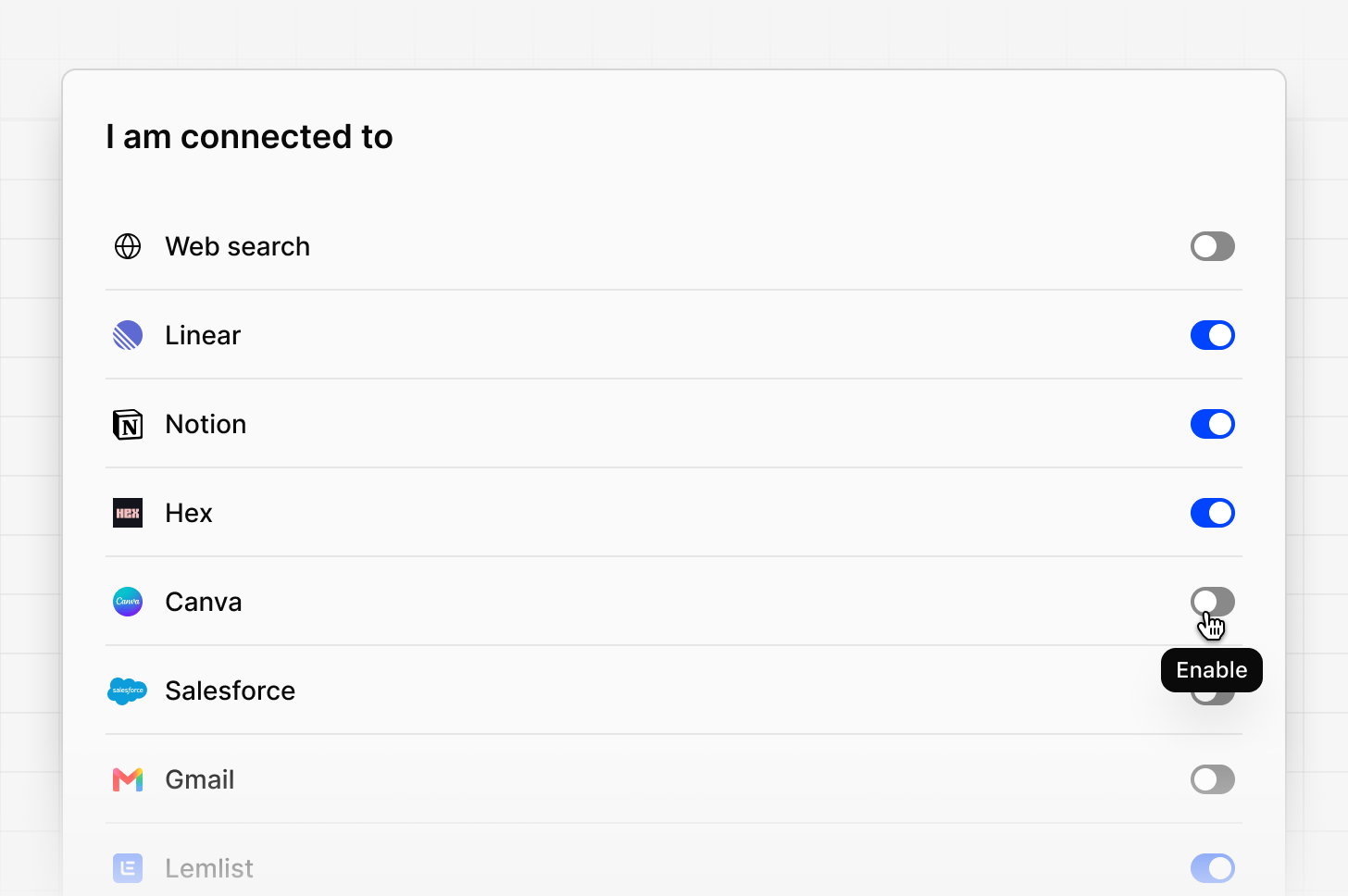
External connectors give agents access to tools outside Dovetail using the Model Context Protocol (MCP). Once a service is connected, an agent can read from and write to it during a run or when invoked in chat.
### Supported connectors
* [Linear](https://linear.app/docs/mcp)
* [Notion](https://developers.notion.com/guides/mcp/overview)
* [Hex](https://learn.hex.tech/docs/api-integrations/mcp-server)
* [Salesforce](https://developer.salesforce.com/docs/atlas.en-us.sfdx_dev.meta/sfdx_dev/sfdx_dev_mcp.htm)
* [Canva](https://www.canva.dev/docs/mcp/)
* [Gmail](https://developers.google.com/workspace/gmail/api/guides/configure-mcp-server)
* [Lemlist](https://help.lemlist.com/en/articles/13728466-set-up-the-lemlist-mcp-server-in-your-llm-client-oauth-or-api-key)
* Custom MCP connectors
## External MCP connectors
External connectors give agents access to tools outside Dovetail using the Model Context Protocol (MCP). Once a service is connected, an agent can read from and write to it during a run or when invoked in chat.
### Supported connectors
* [Linear](https://linear.app/docs/mcp)
* [Notion](https://developers.notion.com/guides/mcp/overview)
* [Hex](https://learn.hex.tech/docs/api-integrations/mcp-server)
* [Salesforce](https://developer.salesforce.com/docs/atlas.en-us.sfdx_dev.meta/sfdx_dev/sfdx_dev_mcp.htm)
* [Canva](https://www.canva.dev/docs/mcp/)
* [Gmail](https://developers.google.com/workspace/gmail/api/guides/configure-mcp-server)
* [Lemlist](https://help.lemlist.com/en/articles/13728466-set-up-the-lemlist-mcp-server-in-your-llm-client-oauth-or-api-key)
* Custom MCP connectors
 ### Web search
Toggle web search on to let your agent query the public web during a run. Useful when the agent needs current information that isn't in your Dovetail workspace — competitor releases, industry benchmarks, or recent coverage tied to a trend in your data.
## Invoke agents in Chat
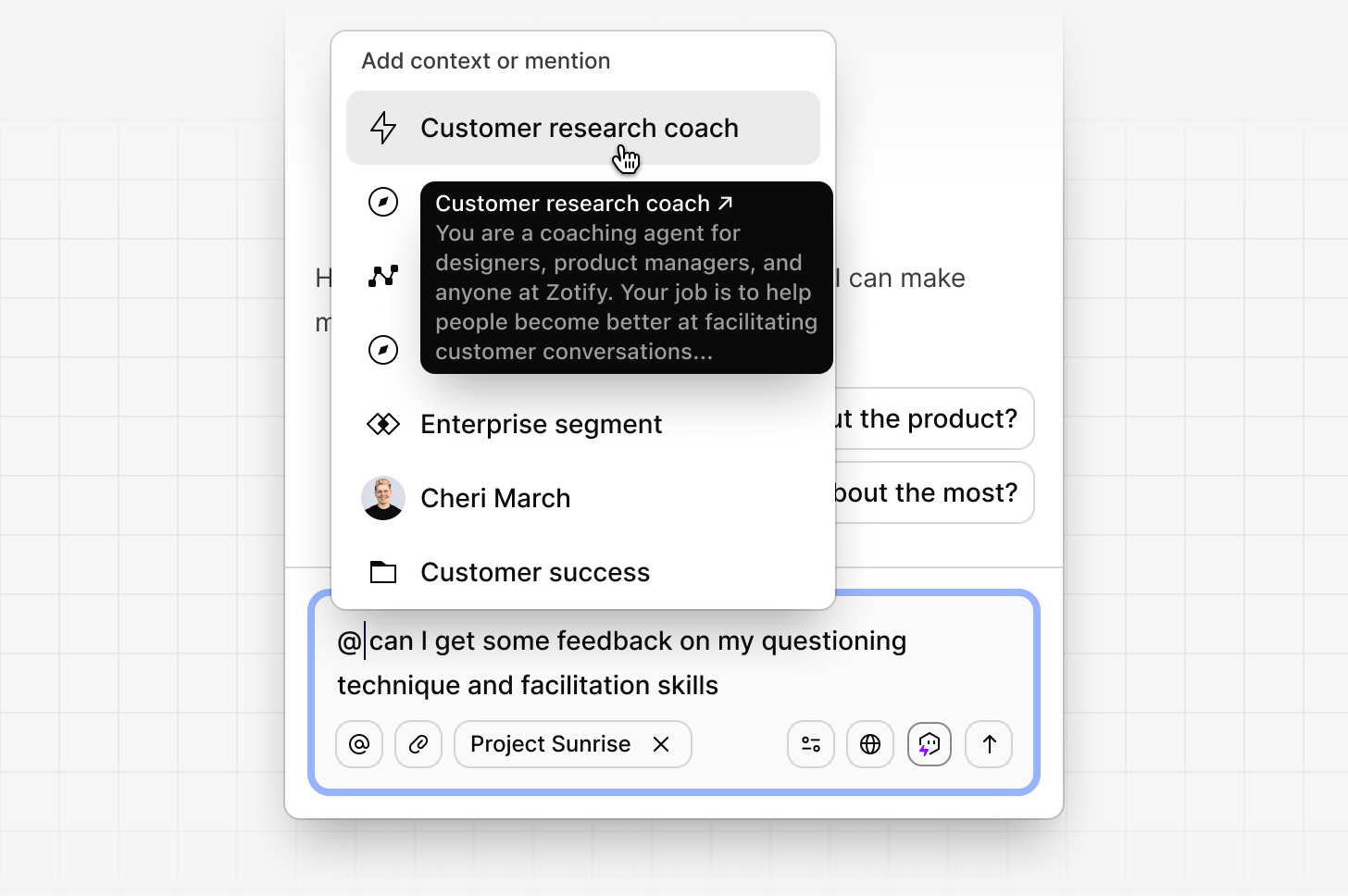
You can also work with agents directly from chat. Type @ followed by an agent's name to mention it—this lets you run the agent on demand or ask it a question without leaving the conversation. If an agent is set up as a digital twin, click the digital twin icon in chat to enter that agent's persona and interact with it continuously as a listener, rather than triggering a single run.
Invoking an agent in Teams and Slack is coming soon.
### Web search
Toggle web search on to let your agent query the public web during a run. Useful when the agent needs current information that isn't in your Dovetail workspace — competitor releases, industry benchmarks, or recent coverage tied to a trend in your data.
## Invoke agents in Chat
You can also work with agents directly from chat. Type @ followed by an agent's name to mention it—this lets you run the agent on demand or ask it a question without leaving the conversation. If an agent is set up as a digital twin, click the digital twin icon in chat to enter that agent's persona and interact with it continuously as a listener, rather than triggering a single run.
Invoking an agent in Teams and Slack is coming soon.
 ## Sharing agents
Share an agent so teammates can run it in Chat or from the agent's configuration page. Sharing controls who can invoke an agent—not who can change how it works.
### Who can do what
| Role | Run the agent | Edit the agent | Delete the agent |
| :-------------------- | :------------ | :---------------------- | :--------------- |
| Creator | Yes | Yes | Yes |
| User with View access | Yes | No | No |
| Use | Yes | No | No |
| Workspace admin | Yes | Only if they created it | Yes |
### Editing an agent
Only the creator can change an agent's instructions, memory, skills, triggers, connections, or tools. If a teammate needs changes, ask the creator to make them.
### Deleting an agent
Workspace admins can delete any agent in the workspace. Creators can also delete any agent they created.
### What View and Edit access mean
View and Edit access both let a teammate invoke and run the agent—in Chat, or from the agent's config page. Neither level lets a teammate modify the agent itself. Only the creator can do that.
Agents are not available on free plans.
## Sharing agents
Share an agent so teammates can run it in Chat or from the agent's configuration page. Sharing controls who can invoke an agent—not who can change how it works.
### Who can do what
| Role | Run the agent | Edit the agent | Delete the agent |
| :-------------------- | :------------ | :---------------------- | :--------------- |
| Creator | Yes | Yes | Yes |
| User with View access | Yes | No | No |
| Use | Yes | No | No |
| Workspace admin | Yes | Only if they created it | Yes |
### Editing an agent
Only the creator can change an agent's instructions, memory, skills, triggers, connections, or tools. If a teammate needs changes, ask the creator to make them.
### Deleting an agent
Workspace admins can delete any agent in the workspace. Creators can also delete any agent they created.
### What View and Edit access mean
View and Edit access both let a teammate invoke and run the agent—in Chat, or from the agent's config page. Neither level lets a teammate modify the agent itself. Only the creator can do that.
Agents are not available on free plans.