> ## Documentation Index
> Fetch the complete documentation index at: https://docs.dovetail.com/llms.txt
> Use this file to discover all available pages before exploring further.
# Channels
 Only paid seats can create and manage channels. **Viewers** will **not** be able to connect a data source to a Channel
## Overview
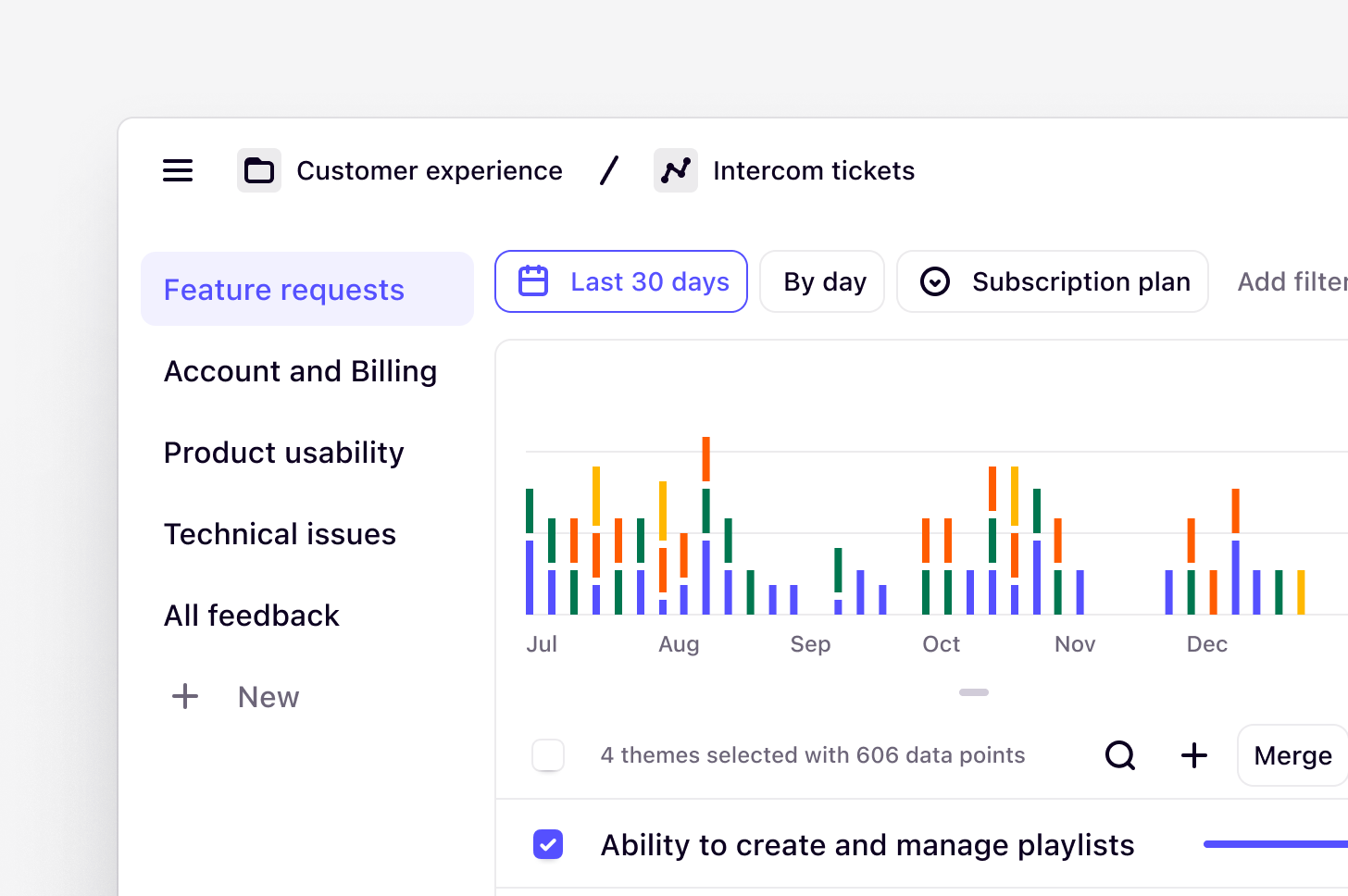
Turn all your customer feedback into real-time insights with channels. Uncover trends and build products people love. Bring your support tickets, product reviews, and continuous feedback into one place and let Dovetail make sense of it.
***
## How Channels work
Channels continuously classifies and tracks themes in large data sets. This is done by connecting to your feedback sources with direct integrations to keep your finger on the pulse of high-volume customer feedback and gain real-time insights.
Channels is powered by generative AI. We build upon established technology from [Anthropic](https://dovetail.com/blog/powering-our-latest-ai-innovation-with-aws-and-anthropic/), ensuring reliability and privacy, and utilize [specific models](https://dovetail.com/help/ai-models/) to manage large data sets efficiently without training on your sensitive data.
Themes are generated from the individual data points imported into a channel. A data point is a single piece of feedback that is imported to a channel in Dovetail. It could be a support ticket, an NPS response, or any kind of continuous product feedback. A theme is a collection of data points with a title.
All workspaces on any plan can import up to 1,000 data points per month, and additional data points can be purchased by [contacting our Sales team](https://dovetail.com/contact-sales/).
***
## Create a new channel
A new Dovetail experience is coming on March 31, 2026. We’re updating the app’s navigation and structure. You may notice changes, as some features appear in new locations.
**Managers** and **Contributors** can create a new channel sidebar under Home or Browse pages. You can create a channel to track themes in support tickets, CSAT/NPS responses, churn responses, app store reviews, and in-product reviews.
* To do this, click `New` and select `Channel`.
* From there, [import data](/help/channels/import-data-to-channels/index) via a first-party integration, Zapier, or the [API](/integrations/dovetail-api). These options will automatically sync data into your channel. You can also import a CSV manually.
***
## Add context to guide AI
In a channel, Dovetail generates high-level topics to organize and refine key themes from your data. You can enhance AI-driven topic generation by adding context.
When creating a new channel, you will be instructed to provide details such as your role, specific goals, or key focus areas to create dynamic, tailored topics that align with what you're interested in.
* To do this, in the textbox under **Context,** enter your details as a prompt. For better results, you can also refine your prompt using `Enhance context`.
* Next, your channel will generate and our AI will surface a list of auto-generated topics and descriptions based on your imported data and context.
You can update or edit context anytime within a channel. Simply open the channel, click `•••` in the top-right corner, and select `Context`. Enter your details as a prompt, hit `Save`, and let the AI generate topics that focus on what truly matters to you. Updating this will only affect future classification.
When adding context to a channel:
1. Highlight the top 2–3 goals that apply across all the data. Keep it concise and under 10,000 characters.
2. Prompt using natural language and have a meaningful and quick-to-understand structure.
3. We recommend to keep it relatively broad. For example, if you go too granular to say “Missing features about intuitive navigation”, you might miss out on other “Missing features” that could be interesting or have to compensate by prompting with more text than necessary.
For example:
*I am a Product Manager interested in feedback related to product intuitiveness in these product reviews. Highlight points where users felt confused, lost, or unsure how to proceed. Include any suggestions for improving clarity, flow, or ease of use.*
***
## Create a topic, category, or area of interest
You can also add your own custom category, topic, or area of interest to organize themes and track what’s important to you. For a Channel, you can create up to ten topics in total that can be updated at any time.
* To do this, select `+ New` in the sidebar.
* Next, add a title and a brief description to help guide how we generate themes and classify data points.
* From there, click `Create`. Once created, we will create new themes and classify any existing and new data points into these.
You can also remove a topic from your channel if it is no longer needed. When removed, this will also remove any themes created within it. Data points classified under these themes will remain in your Channel.
* To delete a topic from your Channel, hover over your topic in the sidebar, click `••• `then select `Move to trash`.
***
## Merge, edit, and create themes
You're always in control of your data. Once themes have been generated, you can merge any that are overlapping, edit to refine the title, or create your own if something was missed!
### Merge themes
* To merge themes, simply select multiple themes and press `Merge` from the top of the theme table.
### Edit themes
* To edit a theme, select the ... menu next to the theme name and, select `Edit`. You will see a dialogue box where you can change the theme title and description. Press Save when done.
### Create a theme
* To create new themes and keep track of what's relevant to you, click `+` New in the sidebar or on the themes list.
* From there, enter the theme name and description to help guide data classification and theme detection.
## Reconfigure meta-data fields
Rename and change your meta-data fields
***
## Manage data sources for a channel
You can add, disconnect, or **permanently delete** data sources within a channel at any time.
### Add an additional data source
* To add an additional data source to a channel, open your channel and click on `Source` in the top right of the screen.
* From there, you will be able to see which sources are connected to your channel as well as connect a new source. Select `Add source` and complete steps to connect a new integration or import a CSV spreadsheet of new data to your channel.
### Disconnect a data source
* Open the channel and go to the `Source`dialogue.
* Find the source you want to disconnect, click `More actions`
* Select `disconnect` and confirm the action.
If you wish to reconnect a data source, ingestion will resume from the earliest data point within your current billing period.
**Please note** that only *integrations* can be disconnected. For CSV uploads, you may delete specific entries or the entire upload to remove the data from your channel.
### Delete a data source
To permanently remove a data source and all its associated data from a channel:
* Open the channel and click `Source` in the top right.
* Find the source you want to remove and click `More actions`
* Select **Delete** and confirm the action.
This action is permanent and cannot be undone. Deleting a source removes its data from this channel only; data in other connected channels remains intact.
***
### Reconnect a data source
To reconnect your integration within a Channel:
1. **Open your channel** and click **Source** in the top right
2. You'll see which sources are connected and disconnected
3. Select **Add source** to reconnect your integration
Alternatively, you can also select 'Reconnect' in the yellow banner that might appear if it's been disconnected.
Things to keep in mind:
* Make sure your account has proper permissions to access both the integration platform and the specific Dovetail channel
* Verify your credentials are correct
* When you reconnect, it will resume syncing from the earliest data point within your current billing period
***
## Track usage across channels
Channels is billed by the total number of data points used in all channels across a single workspace. To help you keep on top of your team's usage, you can quickly review how much data has been used for an entire workspace.
* To do this, open `Settings`, select `Billing` and navigate to **Add ons**.
* From there, you will be able to see **Channels** and review the usage period dates alongside the number of data points used for that period.
For a specific channels, you can also get a quick view of your usage by clicking on `Sources` in the top right corner of your channel.
Admins can purchase a Channels add-on to increase the monthly limit for Channels across a workspace. For more information, see our article [here](/help/update-your-subscription).
Please note that deleting a data source from a channel will not reduce your total data points usage count. Any data previously ingested still counts toward your usage limit for that billing period.
***
## FAQs
When creating your own topics:
* Use clear wording that immediately conveys the high-level category
* Keep titles concise (2-3 words when possible)
* Use customer language rather than internal jargon
* Avoid overlapping categories that could confuse classification
* Use consistent naming patterns across similar topics
**Good examples** include "Mobile App Performance", "Billing and Payment Issues", "Feature Requests ", "Onboarding Confusion"
**Avoid example**s like "Technical problems with updating the software" (too granular), "Issues" (too broad), "Stuff about our platform" (unclear)
With each topic created, you will need to add a description. For these, we recommend that you:
* Explain the theme's scope clearly in 1-2 sentences
* Use keywords that customers might actually use
* Guide the AI on what to look for and what to exclude
* Keep under 200 characters for optimal performance
* Include specific examples but make sure the example and expectation matches the the most common meaning in general English
Once you reach the usage limit for the month, no new data points will appear in your channel. You can continue to access all data that has been imported previously, move data points, and update the themes list.
This also means that there will be no extra charges for overages and if necessary, you can choose to upgrade your data usage for your plan.
The usage period resets every month from the workspace original **billing date**. This is applicable for subscriptions billed on both a monthly and yearly cycle.
Yes. If you have purchased a Channels add-on, a **workspace admin** can upgrade to increase or downgrade to decrease the number of data points you wish to have analyzed per month. For more information, see our article [here](https://dovetail.com/help/update-your-subscription/#add-or-reduce-data-point-limit-for-channels).
There are a few important things you will need to know before upgrading or downgrading your Channels add-on:
* If you upgrade in the **current billing cycle**, the new limit will apply immediately, and data points in the current cycle will be imported and analysed in Channels (up to the new limit).
* If you upgrade in the **next billing cycle**, only the data points that come in during the new cycle will appear in Channels. You will lose the data points from the previous cycle that were not imported.
* When downgrading and decreasing your limit, the new limit will apply immediately and no new data will appear in Channels. Any historical data will still be available.
No, you cannot export data from a channel like regular project data. This includes imported data points, generated themes, or generated summaries.
For details on your data, see Responsible Use on [Dovetail AI features](https://dovetail.com/help/ai-features/).
The current **Artificial intelligence development policy** in our [trust center](https://trust.dovetail.com/) is still relevant and covers what is required to use channels.
*Disconnecting* a source pauses the flow of new data but keeps existing data in your channel. *Deleting* a source permanently removes all previously imported data for that source from the specific channel.
CSV files don’t automatically re-sync or reprocess in the background. Instead, reclassification is mostly triggered by specific events, such as:
* Importing new data from a CSV
* Creating or updating topics/themes
In addition, theme regeneration can only run if:
* At least \~24 hours have passed since the last run, **and**
* More than 200 new datapoints have been added
**200 data points** are the minimum required to generate a theme.
Please make sure you are occupying a paid seat when connecting or reconnecting a Channel. Viewers cannot create or manage data sources within a Channel.
When a Channel integration disconnects due to an expired OAuth token or revoked access, Dovetail notifies you in three ways:
Only paid seats can create and manage channels. **Viewers** will **not** be able to connect a data source to a Channel
## Overview
Turn all your customer feedback into real-time insights with channels. Uncover trends and build products people love. Bring your support tickets, product reviews, and continuous feedback into one place and let Dovetail make sense of it.
***
## How Channels work
Channels continuously classifies and tracks themes in large data sets. This is done by connecting to your feedback sources with direct integrations to keep your finger on the pulse of high-volume customer feedback and gain real-time insights.
Channels is powered by generative AI. We build upon established technology from [Anthropic](https://dovetail.com/blog/powering-our-latest-ai-innovation-with-aws-and-anthropic/), ensuring reliability and privacy, and utilize [specific models](https://dovetail.com/help/ai-models/) to manage large data sets efficiently without training on your sensitive data.
Themes are generated from the individual data points imported into a channel. A data point is a single piece of feedback that is imported to a channel in Dovetail. It could be a support ticket, an NPS response, or any kind of continuous product feedback. A theme is a collection of data points with a title.
All workspaces on any plan can import up to 1,000 data points per month, and additional data points can be purchased by [contacting our Sales team](https://dovetail.com/contact-sales/).
***
## Create a new channel
A new Dovetail experience is coming on March 31, 2026. We’re updating the app’s navigation and structure. You may notice changes, as some features appear in new locations.
**Managers** and **Contributors** can create a new channel sidebar under Home or Browse pages. You can create a channel to track themes in support tickets, CSAT/NPS responses, churn responses, app store reviews, and in-product reviews.
* To do this, click `New` and select `Channel`.
* From there, [import data](/help/channels/import-data-to-channels/index) via a first-party integration, Zapier, or the [API](/integrations/dovetail-api). These options will automatically sync data into your channel. You can also import a CSV manually.
***
## Add context to guide AI
In a channel, Dovetail generates high-level topics to organize and refine key themes from your data. You can enhance AI-driven topic generation by adding context.
When creating a new channel, you will be instructed to provide details such as your role, specific goals, or key focus areas to create dynamic, tailored topics that align with what you're interested in.
* To do this, in the textbox under **Context,** enter your details as a prompt. For better results, you can also refine your prompt using `Enhance context`.
* Next, your channel will generate and our AI will surface a list of auto-generated topics and descriptions based on your imported data and context.
You can update or edit context anytime within a channel. Simply open the channel, click `•••` in the top-right corner, and select `Context`. Enter your details as a prompt, hit `Save`, and let the AI generate topics that focus on what truly matters to you. Updating this will only affect future classification.
When adding context to a channel:
1. Highlight the top 2–3 goals that apply across all the data. Keep it concise and under 10,000 characters.
2. Prompt using natural language and have a meaningful and quick-to-understand structure.
3. We recommend to keep it relatively broad. For example, if you go too granular to say “Missing features about intuitive navigation”, you might miss out on other “Missing features” that could be interesting or have to compensate by prompting with more text than necessary.
For example:
*I am a Product Manager interested in feedback related to product intuitiveness in these product reviews. Highlight points where users felt confused, lost, or unsure how to proceed. Include any suggestions for improving clarity, flow, or ease of use.*
***
## Create a topic, category, or area of interest
You can also add your own custom category, topic, or area of interest to organize themes and track what’s important to you. For a Channel, you can create up to ten topics in total that can be updated at any time.
* To do this, select `+ New` in the sidebar.
* Next, add a title and a brief description to help guide how we generate themes and classify data points.
* From there, click `Create`. Once created, we will create new themes and classify any existing and new data points into these.
You can also remove a topic from your channel if it is no longer needed. When removed, this will also remove any themes created within it. Data points classified under these themes will remain in your Channel.
* To delete a topic from your Channel, hover over your topic in the sidebar, click `••• `then select `Move to trash`.
***
## Merge, edit, and create themes
You're always in control of your data. Once themes have been generated, you can merge any that are overlapping, edit to refine the title, or create your own if something was missed!
### Merge themes
* To merge themes, simply select multiple themes and press `Merge` from the top of the theme table.
### Edit themes
* To edit a theme, select the ... menu next to the theme name and, select `Edit`. You will see a dialogue box where you can change the theme title and description. Press Save when done.
### Create a theme
* To create new themes and keep track of what's relevant to you, click `+` New in the sidebar or on the themes list.
* From there, enter the theme name and description to help guide data classification and theme detection.
## Reconfigure meta-data fields
Rename and change your meta-data fields
***
## Manage data sources for a channel
You can add, disconnect, or **permanently delete** data sources within a channel at any time.
### Add an additional data source
* To add an additional data source to a channel, open your channel and click on `Source` in the top right of the screen.
* From there, you will be able to see which sources are connected to your channel as well as connect a new source. Select `Add source` and complete steps to connect a new integration or import a CSV spreadsheet of new data to your channel.
### Disconnect a data source
* Open the channel and go to the `Source`dialogue.
* Find the source you want to disconnect, click `More actions`
* Select `disconnect` and confirm the action.
If you wish to reconnect a data source, ingestion will resume from the earliest data point within your current billing period.
**Please note** that only *integrations* can be disconnected. For CSV uploads, you may delete specific entries or the entire upload to remove the data from your channel.
### Delete a data source
To permanently remove a data source and all its associated data from a channel:
* Open the channel and click `Source` in the top right.
* Find the source you want to remove and click `More actions`
* Select **Delete** and confirm the action.
This action is permanent and cannot be undone. Deleting a source removes its data from this channel only; data in other connected channels remains intact.
***
### Reconnect a data source
To reconnect your integration within a Channel:
1. **Open your channel** and click **Source** in the top right
2. You'll see which sources are connected and disconnected
3. Select **Add source** to reconnect your integration
Alternatively, you can also select 'Reconnect' in the yellow banner that might appear if it's been disconnected.
Things to keep in mind:
* Make sure your account has proper permissions to access both the integration platform and the specific Dovetail channel
* Verify your credentials are correct
* When you reconnect, it will resume syncing from the earliest data point within your current billing period
***
## Track usage across channels
Channels is billed by the total number of data points used in all channels across a single workspace. To help you keep on top of your team's usage, you can quickly review how much data has been used for an entire workspace.
* To do this, open `Settings`, select `Billing` and navigate to **Add ons**.
* From there, you will be able to see **Channels** and review the usage period dates alongside the number of data points used for that period.
For a specific channels, you can also get a quick view of your usage by clicking on `Sources` in the top right corner of your channel.
Admins can purchase a Channels add-on to increase the monthly limit for Channels across a workspace. For more information, see our article [here](/help/update-your-subscription).
Please note that deleting a data source from a channel will not reduce your total data points usage count. Any data previously ingested still counts toward your usage limit for that billing period.
***
## FAQs
When creating your own topics:
* Use clear wording that immediately conveys the high-level category
* Keep titles concise (2-3 words when possible)
* Use customer language rather than internal jargon
* Avoid overlapping categories that could confuse classification
* Use consistent naming patterns across similar topics
**Good examples** include "Mobile App Performance", "Billing and Payment Issues", "Feature Requests ", "Onboarding Confusion"
**Avoid example**s like "Technical problems with updating the software" (too granular), "Issues" (too broad), "Stuff about our platform" (unclear)
With each topic created, you will need to add a description. For these, we recommend that you:
* Explain the theme's scope clearly in 1-2 sentences
* Use keywords that customers might actually use
* Guide the AI on what to look for and what to exclude
* Keep under 200 characters for optimal performance
* Include specific examples but make sure the example and expectation matches the the most common meaning in general English
Once you reach the usage limit for the month, no new data points will appear in your channel. You can continue to access all data that has been imported previously, move data points, and update the themes list.
This also means that there will be no extra charges for overages and if necessary, you can choose to upgrade your data usage for your plan.
The usage period resets every month from the workspace original **billing date**. This is applicable for subscriptions billed on both a monthly and yearly cycle.
Yes. If you have purchased a Channels add-on, a **workspace admin** can upgrade to increase or downgrade to decrease the number of data points you wish to have analyzed per month. For more information, see our article [here](https://dovetail.com/help/update-your-subscription/#add-or-reduce-data-point-limit-for-channels).
There are a few important things you will need to know before upgrading or downgrading your Channels add-on:
* If you upgrade in the **current billing cycle**, the new limit will apply immediately, and data points in the current cycle will be imported and analysed in Channels (up to the new limit).
* If you upgrade in the **next billing cycle**, only the data points that come in during the new cycle will appear in Channels. You will lose the data points from the previous cycle that were not imported.
* When downgrading and decreasing your limit, the new limit will apply immediately and no new data will appear in Channels. Any historical data will still be available.
No, you cannot export data from a channel like regular project data. This includes imported data points, generated themes, or generated summaries.
For details on your data, see Responsible Use on [Dovetail AI features](https://dovetail.com/help/ai-features/).
The current **Artificial intelligence development policy** in our [trust center](https://trust.dovetail.com/) is still relevant and covers what is required to use channels.
*Disconnecting* a source pauses the flow of new data but keeps existing data in your channel. *Deleting* a source permanently removes all previously imported data for that source from the specific channel.
CSV files don’t automatically re-sync or reprocess in the background. Instead, reclassification is mostly triggered by specific events, such as:
* Importing new data from a CSV
* Creating or updating topics/themes
In addition, theme regeneration can only run if:
* At least \~24 hours have passed since the last run, **and**
* More than 200 new datapoints have been added
**200 data points** are the minimum required to generate a theme.
Please make sure you are occupying a paid seat when connecting or reconnecting a Channel. Viewers cannot create or manage data sources within a Channel.
When a Channel integration disconnects due to an expired OAuth token or revoked access, Dovetail notifies you in three ways:
**Email notification** Dovetail sends an email using the "Channel Integration Disconnected" template. It includes the integration type and the reason for disconnection, so you know exactly what happened and what to do next.
**In-app notification** A notification appears in your notification center. For ingestion failures specifically, an error toast also displays so you're alerted immediately.
**Reconnect banner in the Channel UI** When you visit the Channel page, a "Reconnect Integration" banner appears at the top if the integration needs re-authentication. The Sources dialog also shows a "Disconnected" badge alongside a reconnect action for any affected sources.
To restore the connection, follow the reconnect prompt in the Channel UI or re-authenticate via the Sources dialog.
To restore deleted topics or themes:
1. Open the channel
2. Navigate to the Channel **⋯** menu → Open trash
3. Choose from which tab to restore from: Data points, Themes, or Topics