> ## Documentation Index
> Fetch the complete documentation index at: https://docs.dovetail.com/llms.txt
> Use this file to discover all available pages before exploring further.
# Channel setup
> Create a channel, connect and map data sources, manage them over time, and enrich contacts from Salesforce or HubSpot.
## Create a new channel
1. From your workspace, select `New channel`.
2. Connect `data source`.
3. `Map your data` by configuring your source
4. Input context and select focus area `keywords`, or `add your own`, to shape how the AI classifies and surfaces feedback from the start. Link any relevant `workspace docs`, such as a strategy or tone of voice doc, to sharpen this further.
5. Choose whether you wish to automatically redact PII or not.
6. Connect at least one data source to get your first analysis running.
7. Give your channel a `name` that reflects its focus area, for example "Mobile app retention" or "Enterprise onboarding."
The more evidence synced to a channel, the higher confidence its ideas will be. We recommend a minimum of 200 data points to get started.
***
## Connect your data source(s)
When you create a channel, every data source already connected to your workspace is available immediately. You can also connect a new source directly from the channel.
Supported sources include:
* [App store](https://docs.dovetail.com/integrations/app-store)
* [API](https://docs.dovetail.com/integrations/dovetail-api#get-started-with-dovetails-api)
* [Canny](/integrations/zapier)
* CSV
* [Discord](/integrations/zapier)
* [Email](/integrations/zapier)
* [Freshdesk](/integrations/freshdesk)
* [Front](/integrations/front)
* [G2](/integrations/g2)
* [Gong](/integrations/gong)
* [Google Play reviews](https://docs.dovetail.com/integrations/google-play-store)
* [Grain](/integrations/zapier)
* [HubSpot Service Hub](https://docs.dovetail.com/integrations/hubspot) (conversations and tickets)
* [Intercom](https://docs.dovetail.com/integrations/intercom)
* [Jira Service Management](/integrations/jira-service-management)
* [Pendo](/integrations/pendo)
* [PostHog](/integrations/posthog)
* [Qualtrics](https://docs.dovetail.com/integrations/qualtrics)
* [Salesforce Service Cloud](https://docs.dovetail.com/integrations/salesforce-service-cloud)
* [ServiceNow CSM](/integrations/servicenow-csm)
* [Slack](/integrations/slack)
* [Snowflake](/integrations/snowflake)
* [Sprig](https://docs.dovetail.com/integrations/sprig)
* [Usersnap](/integrations/usersnap)
* [Zapier](https://docs.dovetail.com/integrations/zapier)
* [Zendesk](https://docs.dovetail.com/integrations/zendesk)
* [Zoho Desk](/integrations/zapier)
Use date range and segment filters when adding a source to scope the channel to what’s relevant.
## Manage data sources
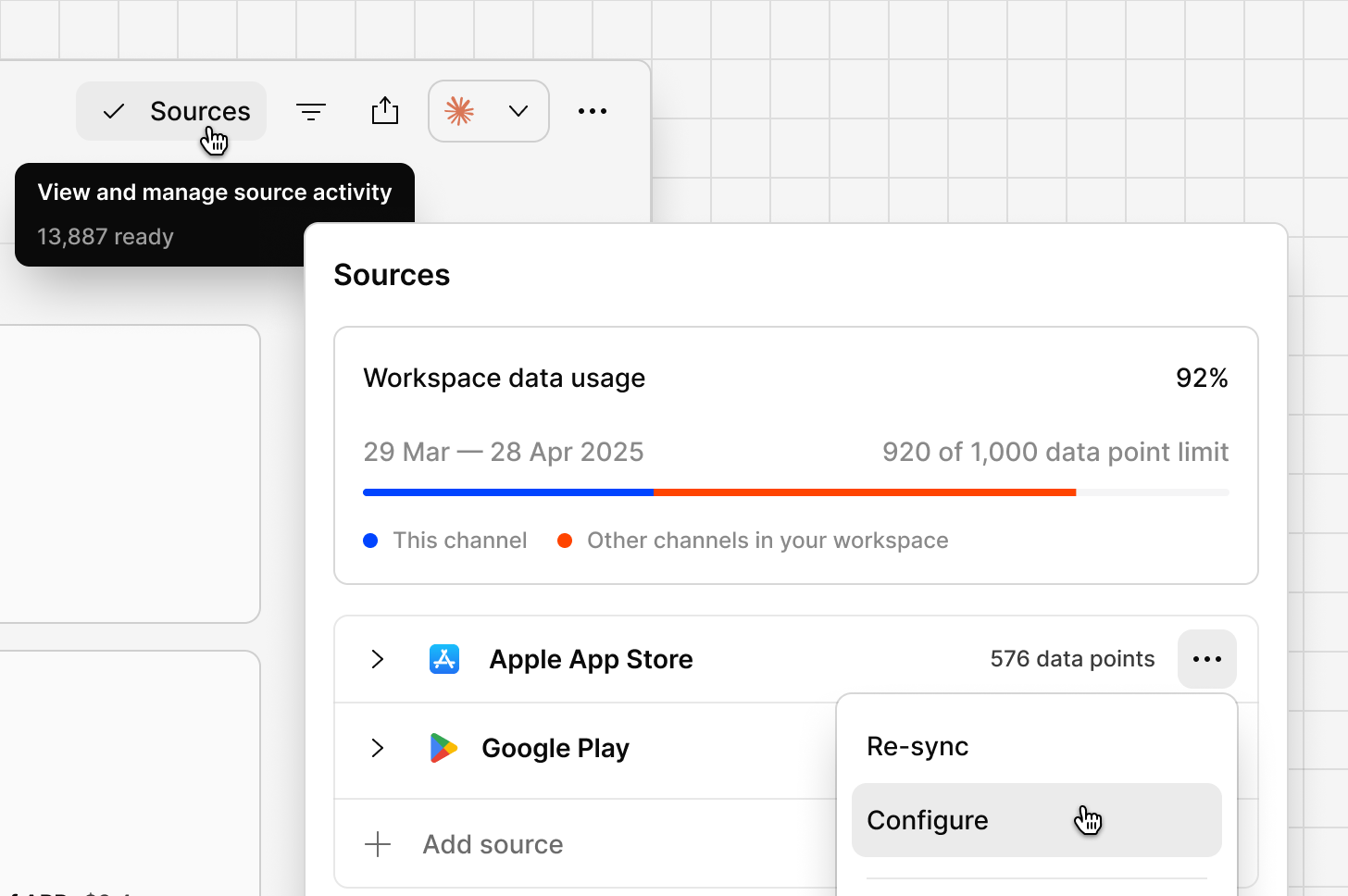
After adding a source to the channel, you can then configure what metadata fields you wish to display and filter. This can be edited at anytime by:
* Click on the `Sources` in the Channel heading
* Find and hover over the source that you wish to change
* Select the `...` more menu
* Select `Configure`
* Make any necessary changes, and select `Save`
You can add as many sources as you like to the channel.
From `Sources` dialog, you can see every source connected to a channel, when it last synced, and add or remove sources without affecting existing data.
Removing a source stops new data from that source flowing in. Data already imported stays in the channel.
 ***
## Contact syncing
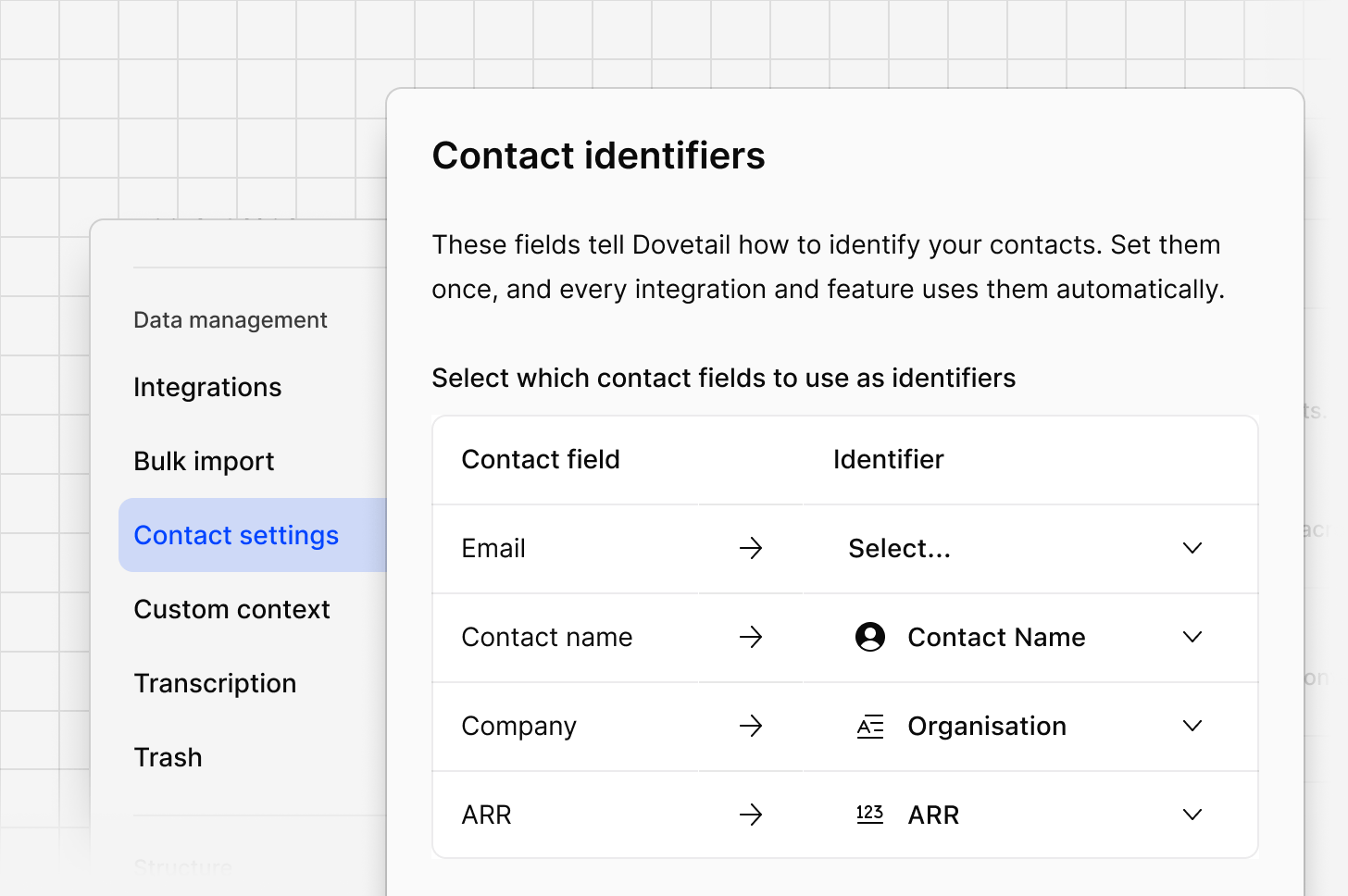
Contact details shown on Ideas and Evidence (name, company, ARR, plan tier, and so on) come from your **Contacts database**, enriched from your CRM.
Channels supports enrichment from either **Salesforce** or **HubSpot**. A workspace can only have one CRM enrichment source connected at a time.
* For Salesforce setup, see [Salesforce contacts](/integrations/salesforce).
* For HubSpot setup, see [HubSpot Contacts](/integrations/hubspot-contacts).
For more on how contact fields work generally, see [Contact automation](/help/contact-automation-settings) and [Contacts](/help/contacts/index).
***
## Contact syncing
Contact details shown on Ideas and Evidence (name, company, ARR, plan tier, and so on) come from your **Contacts database**, enriched from your CRM.
Channels supports enrichment from either **Salesforce** or **HubSpot**. A workspace can only have one CRM enrichment source connected at a time.
* For Salesforce setup, see [Salesforce contacts](/integrations/salesforce).
* For HubSpot setup, see [HubSpot Contacts](/integrations/hubspot-contacts).
For more on how contact fields work generally, see [Contact automation](/help/contact-automation-settings) and [Contacts](/help/contacts/index).
 ***
***