> ## Documentation Index
> Fetch the complete documentation index at: https://docs.dovetail.com/llms.txt
> Use this file to discover all available pages before exploring further.
# Channels 2.0
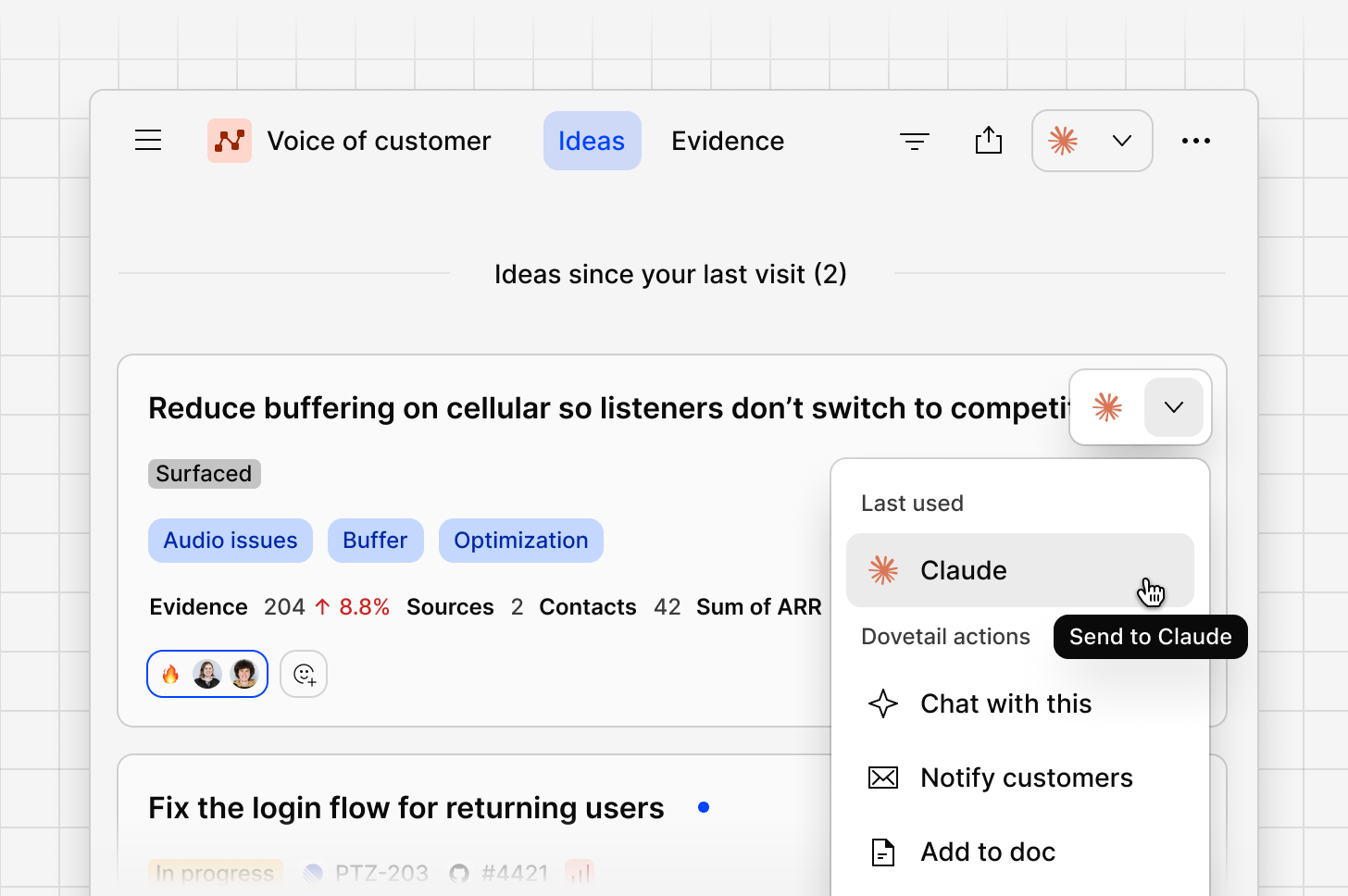 Channels 2.0 turns high-volume qualitative data into ideas your team can act on, then closes the loop with the people whose feedback drove them.
Channels 2.0 is an opt-in beta. To turn it on, go to `Settings `**→** `General `**→** `Beta` and opt in.
Once you've opted in, any channel you create from that point uses the Channels 2.0 experience. Channels you already have keep working exactly as they did, on Channels 1.0. A badge on each channel shows whether it's running on 1.0 or 2.0, so you can tell at a glance which experience you're in.
## Ideas vs Evidence
Channels 2.0 organises everything you see into two views.
**Ideas** are AI-generated, opinionated summaries of what's worth doing next, based on the consolidation of all your high-volume feedback. Each idea groups together the feedback pointing at the same underlying problem or request, and is ranked by how much it matters: your business context, how often it comes up, how many acounts are affected, and how much ARR sits behind it.
Channels 2.0 turns high-volume qualitative data into ideas your team can act on, then closes the loop with the people whose feedback drove them.
Channels 2.0 is an opt-in beta. To turn it on, go to `Settings `**→** `General `**→** `Beta` and opt in.
Once you've opted in, any channel you create from that point uses the Channels 2.0 experience. Channels you already have keep working exactly as they did, on Channels 1.0. A badge on each channel shows whether it's running on 1.0 or 2.0, so you can tell at a glance which experience you're in.
## Ideas vs Evidence
Channels 2.0 organises everything you see into two views.
**Ideas** are AI-generated, opinionated summaries of what's worth doing next, based on the consolidation of all your high-volume feedback. Each idea groups together the feedback pointing at the same underlying problem or request, and is ranked by how much it matters: your business context, how often it comes up, how many acounts are affected, and how much ARR sits behind it.
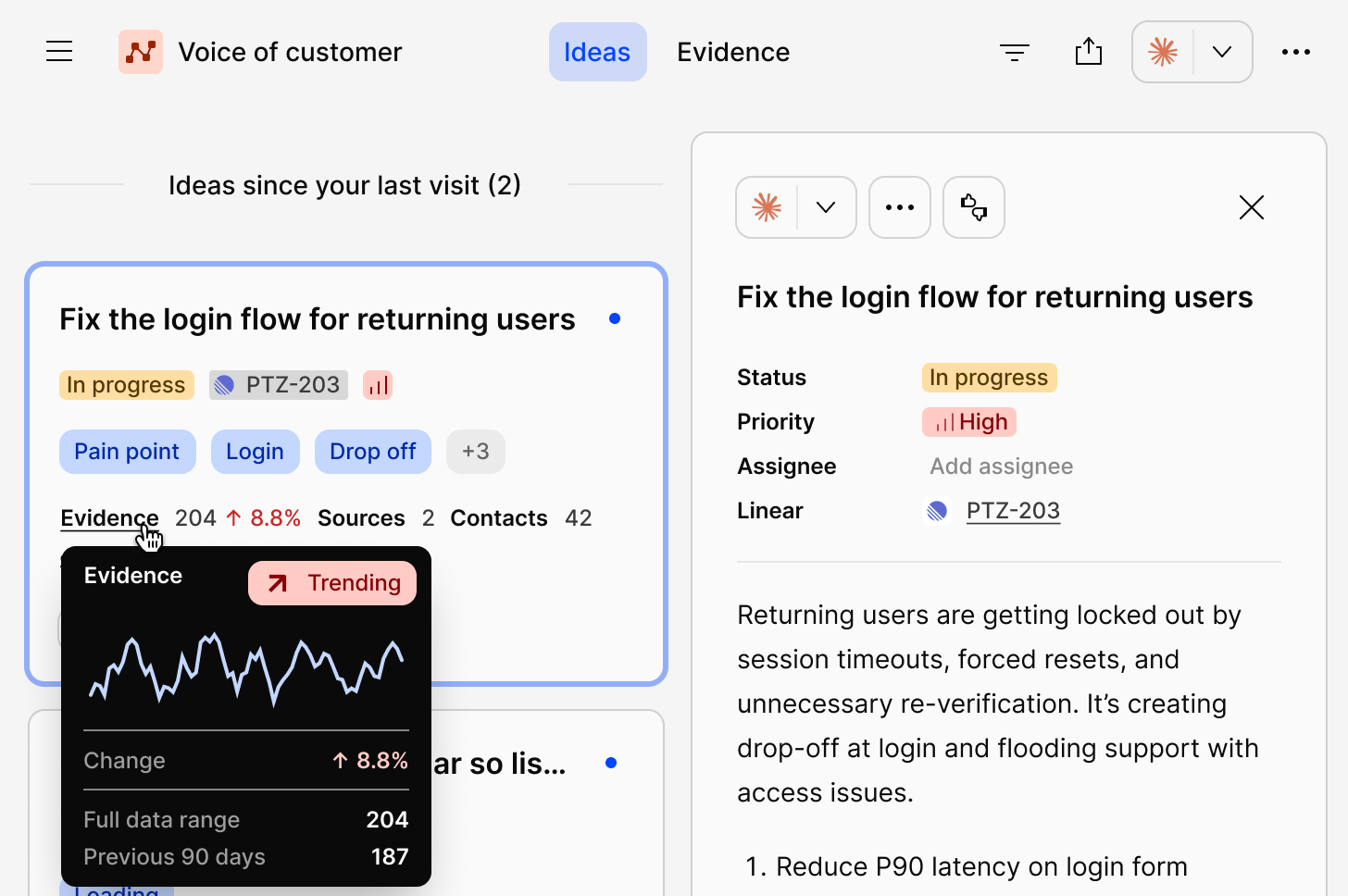 **Evidence** is the raw material behind every idea: the original support tickets, reviews, survey responses, and conversations. Use Evidence to check a claim, pull a quote, or see exactly who said what.
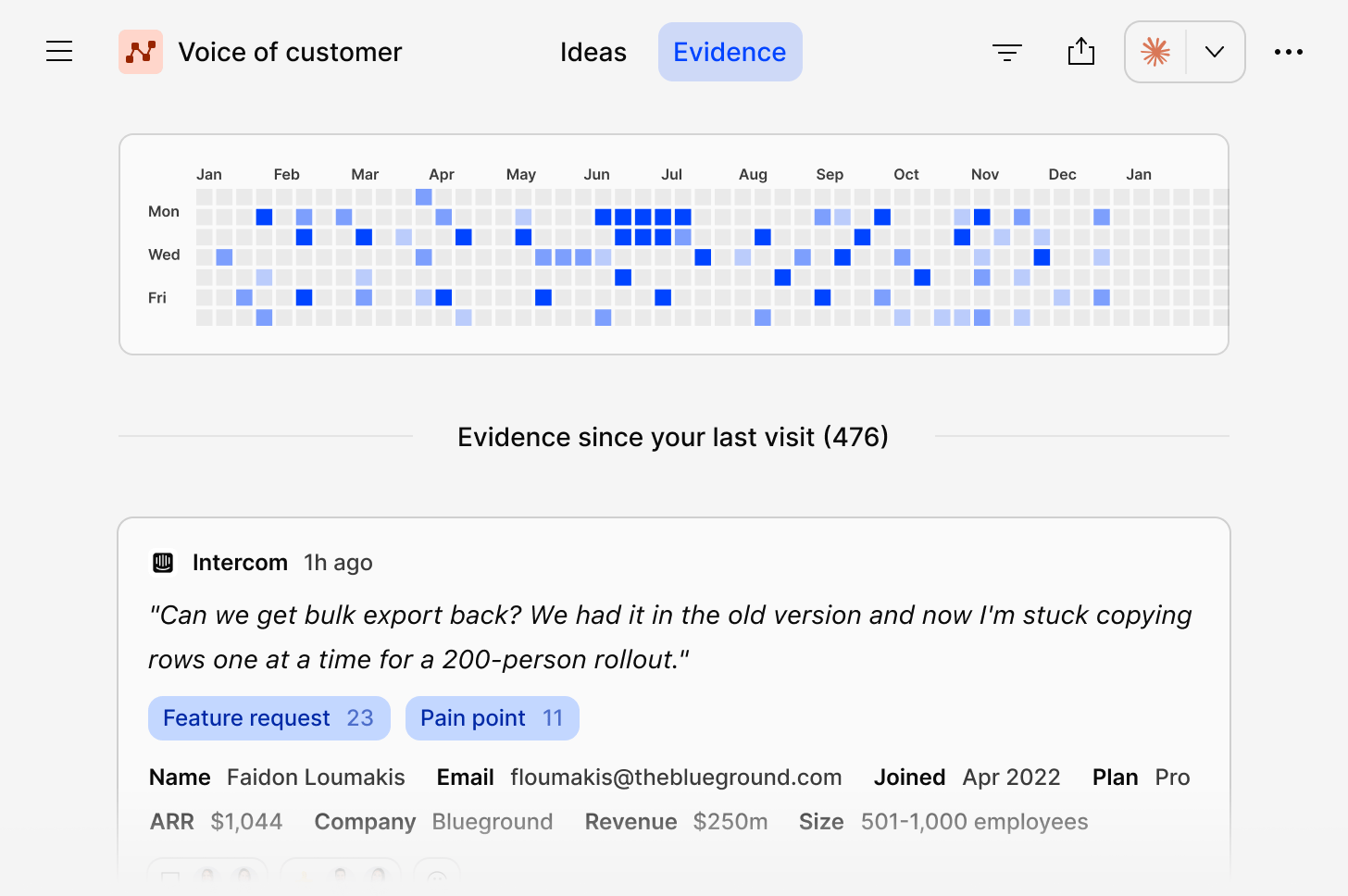 Think of Ideas as what to do, and Evidence as why.
***
## How Channels work
Channels 2.0 is built around four stages.
**Feedback in.** You connect your data sources and scope the channel to what you care about. You can consolidate all of your sources into a single channel, so that you have a combined voice of customer channel. Or you can create separate channels for different sources or areas.
**Ideas surfaced.** As data flows in, Channels groups it into ideas, ranked by severity, frequency, reach, and business context such as ARR. Dovetail will utilise any workspace docs as context to help generate ideas and ensure the right evidence is attached.
**Team acts.** From any idea, send to Jira, Figma Make, Linear, or Claude, comments, assign an owner, and track progress without leaving the feed.
**Close the loop.** When an idea is resolved, Channels enables you to notify the customers whose feedback contributed to it, driving loyalty and engagement.
***
## Create a new channel
1. From your workspace, select `New channel`.
2. Connect `data source`.
3. `Map your data` by configuring your source
4. Input context and select focus area `keywords`, or `add your own`, to shape how the AI classifies and surfaces feedback from the start. Link any relevant `workspace docs`, such as a strategy or tone of voice doc, to sharpen this further.
5. Choose whether you wish to automatically redact PII or not.
6. Connect at least one data source to get your first analysis running.
7. Give your channel a `name` that reflects its focus area, for example "Mobile app retention" or "Enterprise onboarding."
The more evidence synced to a channel, the higher confidence its ideas will be. We recommend a minimum of 200 data points to get started.
***
## Connect your data source(s)
When you create a channel, every data source already connected to your workspace is available immediately. You can also connect a new source directly from the channel.
Supported sources include:
* [App store](https://docs.dovetail.com/integrations/app-store)
* [API](https://docs.dovetail.com/integrations/dovetail-api#get-started-with-dovetails-api)
* [Canny](/integrations/zapier)
* CSV
* [Discord](/integrations/zapier)
* [Email](/integrations/zapier)
* [Freshdesk](/integrations/freshdesk)
* [Front](/integrations/front)
* [G2](/integrations/g2)
* [Gong](/integrations/gong)
* [Google Play reviews](https://docs.dovetail.com/integrations/google-play-store)
* [Grain](/integrations/zapier)
* [HubSpot Service Hub](https://docs.dovetail.com/integrations/hubspot) (conversations and tickets)
* [Intercom](https://docs.dovetail.com/integrations/intercom)
* [Jira Service Management](/integrations/jira-service-management)
* [Pendo](/integrations/pendo)
* [PostHog](/integrations/posthog)
* [Qualtrics](https://docs.dovetail.com/integrations/qualtrics)
* [Salesforce Service Cloud](https://docs.dovetail.com/integrations/salesforce-service-cloud)
* [ServiceNow CSM](/integrations/servicenow-csm)
* [Slack](/integrations/slack)
* [Snowflake](/integrations/snowflake)
* [Sprig](https://docs.dovetail.com/integrations/sprig)
* [Usersnap](/integrations/usersnap)
* [Zapier](https://docs.dovetail.com/integrations/zapier)
* [Zendesk](https://docs.dovetail.com/integrations/zendesk)
* [Zoho Desk](/integrations/zapier)
Use date range and segment filters when adding a source to scope the channel to what's relevant.
## Manage data sources
After adding a source to the channel, you can then configure what metadata fields you wish to display and filter. This can be edited at anytime by:
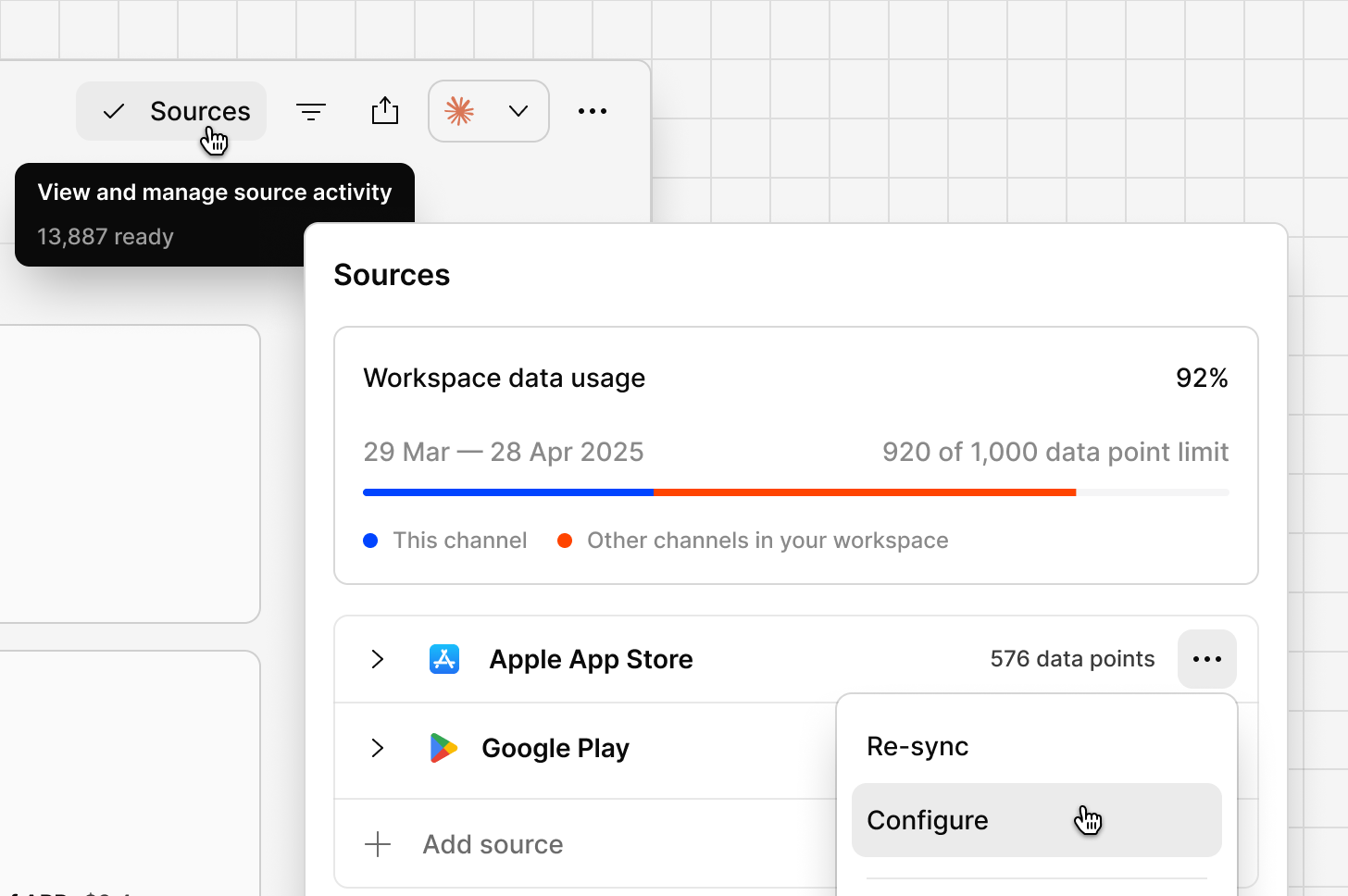
* Click on the `Sources` in the Channel heading
* Find and hover over the source that you wish to change
* Select the `...` more menu
* Select `Configure`
* Make any necessary changes, and select `Save`
You can add as many sources as you like to the channel.
From `Sources` dialog, you can see every source connected to a channel, when it last synced, and add or remove sources without affecting existing data.
Removing a source stops new data from that source flowing in. Data already imported stays in the channel.
Think of Ideas as what to do, and Evidence as why.
***
## How Channels work
Channels 2.0 is built around four stages.
**Feedback in.** You connect your data sources and scope the channel to what you care about. You can consolidate all of your sources into a single channel, so that you have a combined voice of customer channel. Or you can create separate channels for different sources or areas.
**Ideas surfaced.** As data flows in, Channels groups it into ideas, ranked by severity, frequency, reach, and business context such as ARR. Dovetail will utilise any workspace docs as context to help generate ideas and ensure the right evidence is attached.
**Team acts.** From any idea, send to Jira, Figma Make, Linear, or Claude, comments, assign an owner, and track progress without leaving the feed.
**Close the loop.** When an idea is resolved, Channels enables you to notify the customers whose feedback contributed to it, driving loyalty and engagement.
***
## Create a new channel
1. From your workspace, select `New channel`.
2. Connect `data source`.
3. `Map your data` by configuring your source
4. Input context and select focus area `keywords`, or `add your own`, to shape how the AI classifies and surfaces feedback from the start. Link any relevant `workspace docs`, such as a strategy or tone of voice doc, to sharpen this further.
5. Choose whether you wish to automatically redact PII or not.
6. Connect at least one data source to get your first analysis running.
7. Give your channel a `name` that reflects its focus area, for example "Mobile app retention" or "Enterprise onboarding."
The more evidence synced to a channel, the higher confidence its ideas will be. We recommend a minimum of 200 data points to get started.
***
## Connect your data source(s)
When you create a channel, every data source already connected to your workspace is available immediately. You can also connect a new source directly from the channel.
Supported sources include:
* [App store](https://docs.dovetail.com/integrations/app-store)
* [API](https://docs.dovetail.com/integrations/dovetail-api#get-started-with-dovetails-api)
* [Canny](/integrations/zapier)
* CSV
* [Discord](/integrations/zapier)
* [Email](/integrations/zapier)
* [Freshdesk](/integrations/freshdesk)
* [Front](/integrations/front)
* [G2](/integrations/g2)
* [Gong](/integrations/gong)
* [Google Play reviews](https://docs.dovetail.com/integrations/google-play-store)
* [Grain](/integrations/zapier)
* [HubSpot Service Hub](https://docs.dovetail.com/integrations/hubspot) (conversations and tickets)
* [Intercom](https://docs.dovetail.com/integrations/intercom)
* [Jira Service Management](/integrations/jira-service-management)
* [Pendo](/integrations/pendo)
* [PostHog](/integrations/posthog)
* [Qualtrics](https://docs.dovetail.com/integrations/qualtrics)
* [Salesforce Service Cloud](https://docs.dovetail.com/integrations/salesforce-service-cloud)
* [ServiceNow CSM](/integrations/servicenow-csm)
* [Slack](/integrations/slack)
* [Snowflake](/integrations/snowflake)
* [Sprig](https://docs.dovetail.com/integrations/sprig)
* [Usersnap](/integrations/usersnap)
* [Zapier](https://docs.dovetail.com/integrations/zapier)
* [Zendesk](https://docs.dovetail.com/integrations/zendesk)
* [Zoho Desk](/integrations/zapier)
Use date range and segment filters when adding a source to scope the channel to what's relevant.
## Manage data sources
After adding a source to the channel, you can then configure what metadata fields you wish to display and filter. This can be edited at anytime by:
* Click on the `Sources` in the Channel heading
* Find and hover over the source that you wish to change
* Select the `...` more menu
* Select `Configure`
* Make any necessary changes, and select `Save`
You can add as many sources as you like to the channel.
From `Sources` dialog, you can see every source connected to a channel, when it last synced, and add or remove sources without affecting existing data.
Removing a source stops new data from that source flowing in. Data already imported stays in the channel.
 ***
## Adding context to your Channel
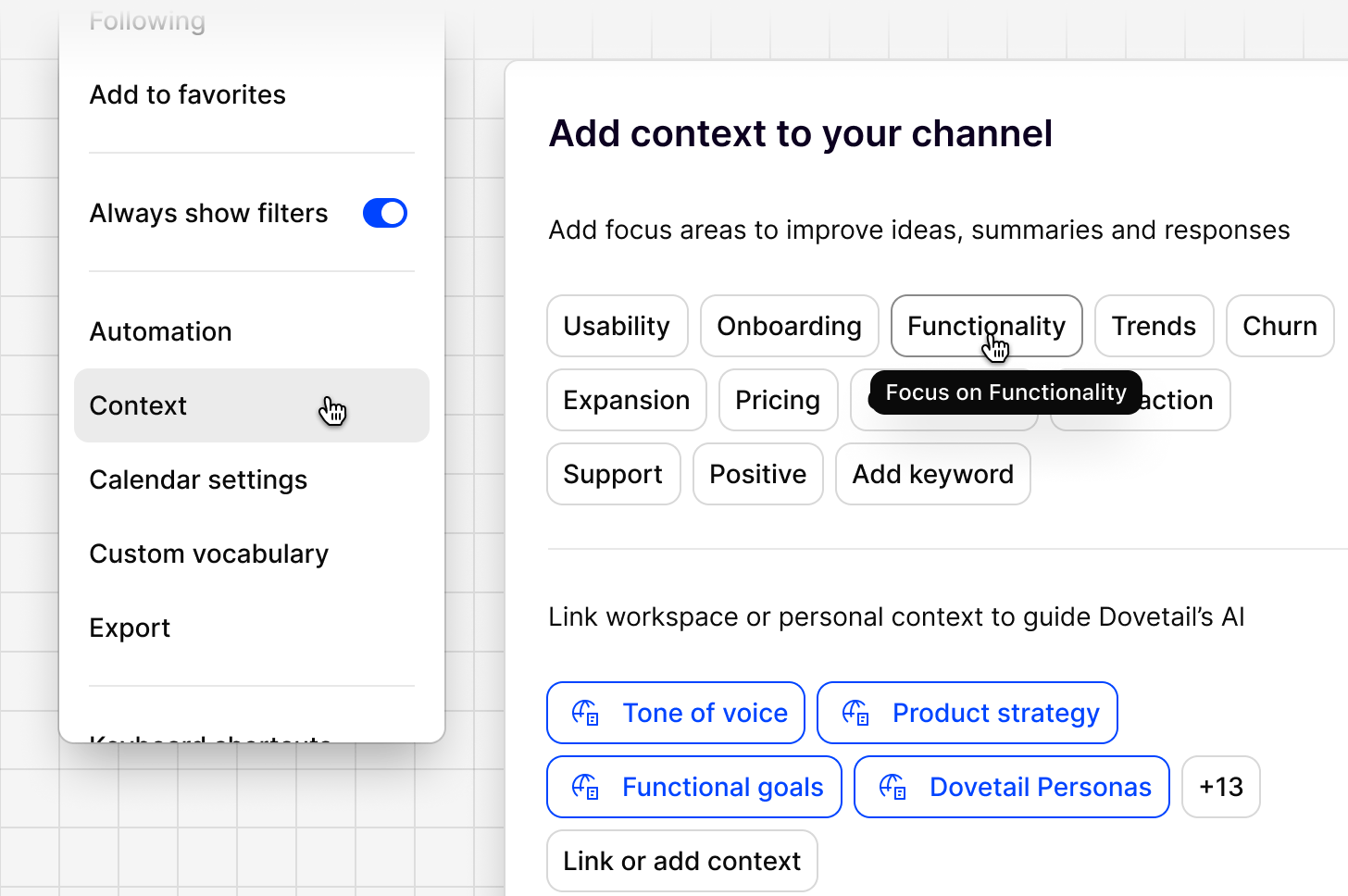
Context helps Channels generate better ideas, summaries, and responses by telling the AI what to focus on and what you already know about your business.
You will be prompted to set the Channel context during onboarding but this can be changed at any time. To do so, all you need to do is:
1. Click the `...` menu in the top right corner of the Channel
2. Select `Context` to configure two sections:
3. **Focus areas.** Select from suggested keywords such as `Usability`, `Onboarding`, `Functionality`, `Trends`, `Churn`, `Expansion`, `Competitors`, `Satisfaction`, and `Support`, or add your own with `Add keyword`
4. **Linked context docs.** Link a workspace or personal doc, such as a strategy doc or tone of voice guide, to guide how Dovetail's AI interprets and writes about your feedback. Docs already in your workspace are suggested automatically, or use `Link or add context` to attach something new.
5. Click `Save` to apply your changes.
You can update focus areas and linked docs at any time, enabling your ideas to be dynamic based on business priorities. Changes apply going forward and don't retroactively reclassify existing ideas.
The more specific your keywords and context, the more relevant your ideas. You can update both at any time from channel settings.
***
## Adding context to your Channel
Context helps Channels generate better ideas, summaries, and responses by telling the AI what to focus on and what you already know about your business.
You will be prompted to set the Channel context during onboarding but this can be changed at any time. To do so, all you need to do is:
1. Click the `...` menu in the top right corner of the Channel
2. Select `Context` to configure two sections:
3. **Focus areas.** Select from suggested keywords such as `Usability`, `Onboarding`, `Functionality`, `Trends`, `Churn`, `Expansion`, `Competitors`, `Satisfaction`, and `Support`, or add your own with `Add keyword`
4. **Linked context docs.** Link a workspace or personal doc, such as a strategy doc or tone of voice guide, to guide how Dovetail's AI interprets and writes about your feedback. Docs already in your workspace are suggested automatically, or use `Link or add context` to attach something new.
5. Click `Save` to apply your changes.
You can update focus areas and linked docs at any time, enabling your ideas to be dynamic based on business priorities. Changes apply going forward and don't retroactively reclassify existing ideas.
The more specific your keywords and context, the more relevant your ideas. You can update both at any time from channel settings.
 ***
## Contact syncing
Contact details shown on Ideas and Evidence (name, company, ARR, plan tier, and so on) come from your **Contacts database**, enriched from your CRM.
Channels supports enrichment from either **Salesforce** or **HubSpot**. A workspace can only have one CRM enrichment source connected at a time.
* For Salesforce setup, see [Salesforce contacts](/integrations/salesforce).
* For HubSpot setup, see [HubSpot Contacts](/integrations/hubspot-contacts).
For more on how contact fields work generally, see [Contact automation](/help/contact-automation-settings) and [Contacts](/help/contacts/index).
***
## Contact syncing
Contact details shown on Ideas and Evidence (name, company, ARR, plan tier, and so on) come from your **Contacts database**, enriched from your CRM.
Channels supports enrichment from either **Salesforce** or **HubSpot**. A workspace can only have one CRM enrichment source connected at a time.
* For Salesforce setup, see [Salesforce contacts](/integrations/salesforce).
* For HubSpot setup, see [HubSpot Contacts](/integrations/hubspot-contacts).
For more on how contact fields work generally, see [Contact automation](/help/contact-automation-settings) and [Contacts](/help/contacts/index).
 ***
## Ideas
The Ideas feed is a ranked list of what's worth acting on, most important first.
### Status, priority, assignee
Each idea moves through a lifecycle: **Surfaced → Assigned → In progress → Resolved**. Set a priority manually, and assign an idea to a teammate so ownership is clear.
### Roll-up breakdown
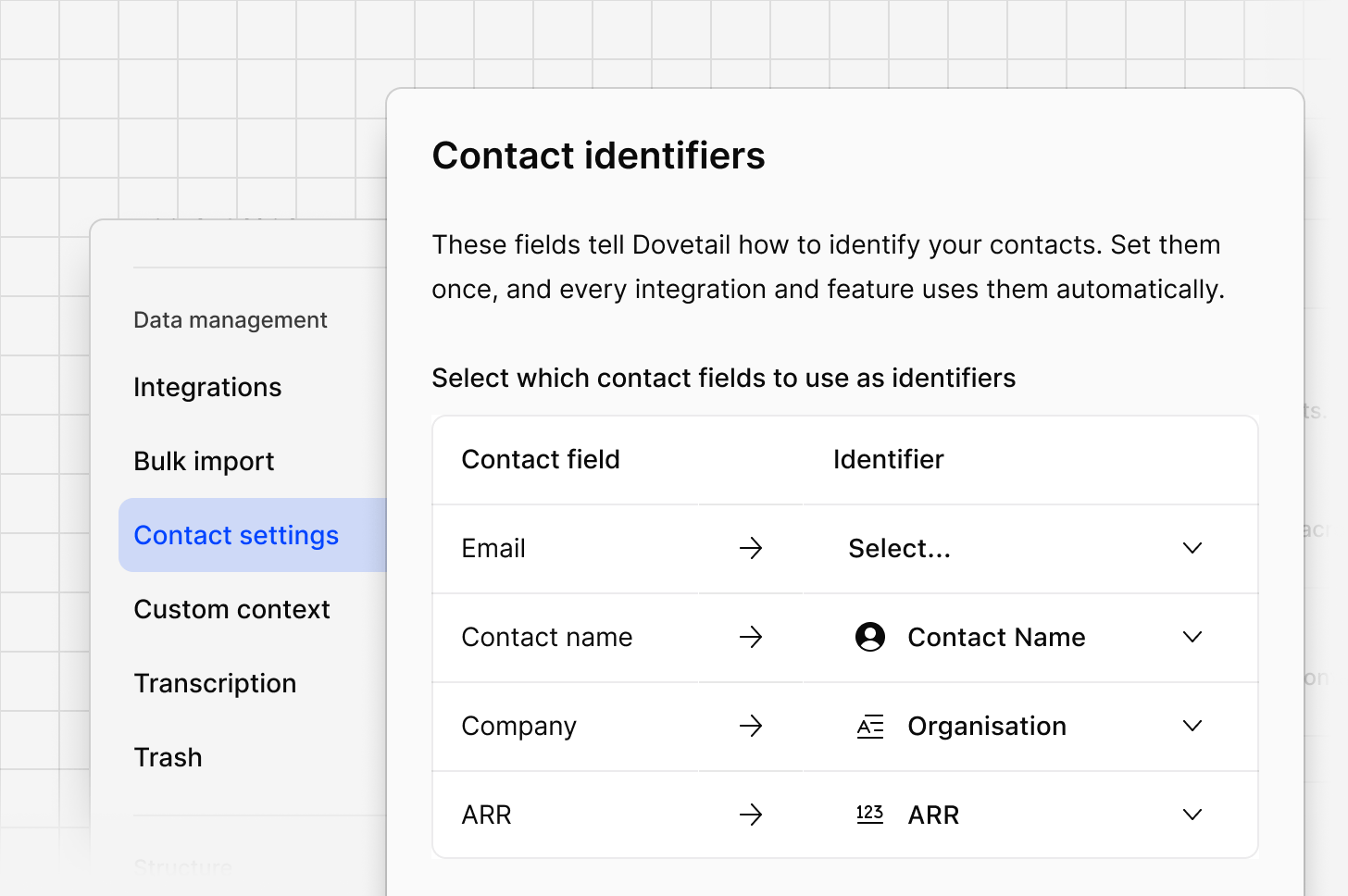
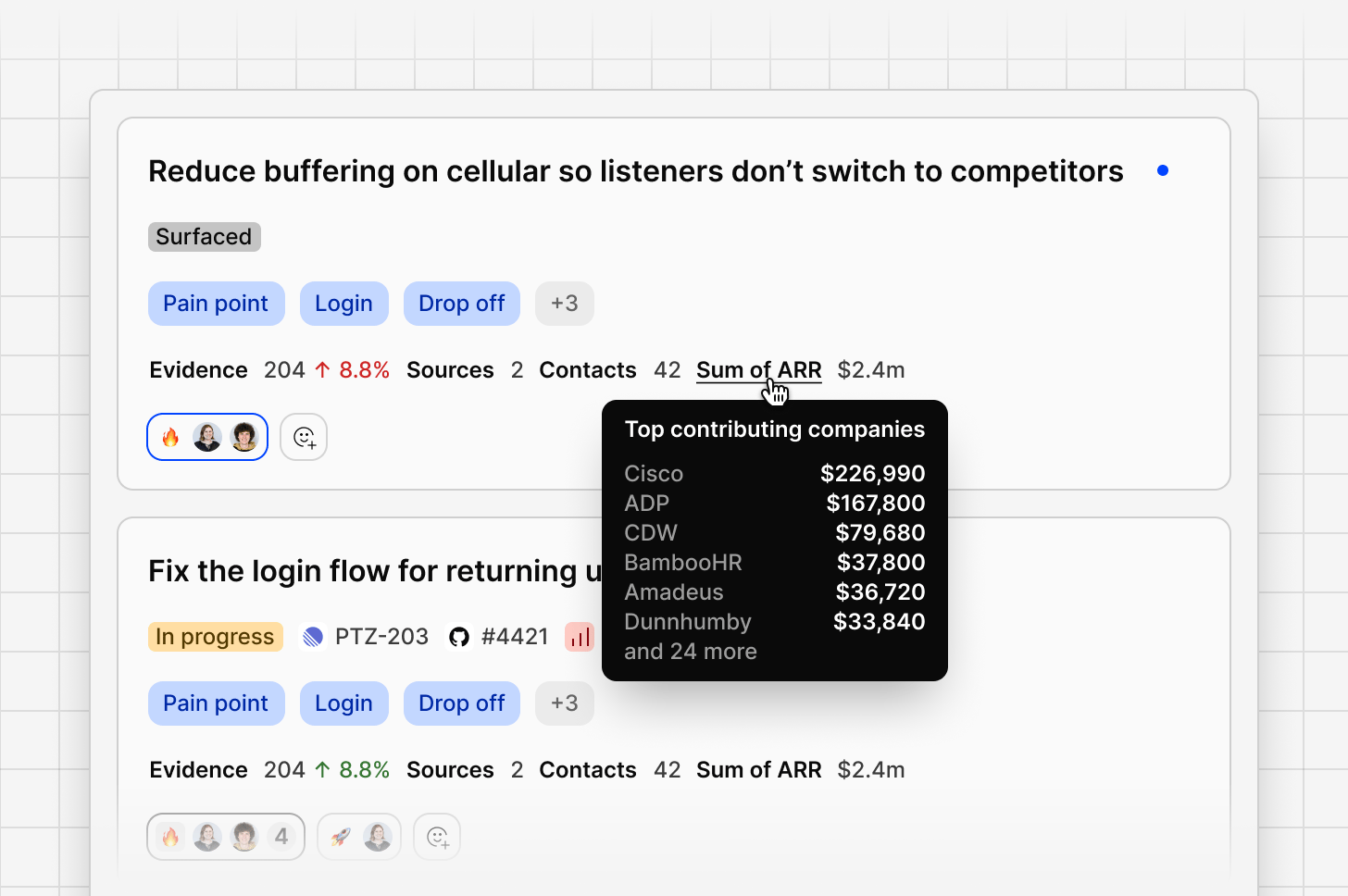
Every idea shows a roll-up of the evidence behind it: number of data points, sources, contacts, and total ARR represented.
This rollup is managed through your contact identifiers, which can be accessed in Dovetail by going to `Settings` **→** `Contact Settings `**→** `Contact Identifiers `**→** `Configure`**.**
***
## Ideas
The Ideas feed is a ranked list of what's worth acting on, most important first.
### Status, priority, assignee
Each idea moves through a lifecycle: **Surfaced → Assigned → In progress → Resolved**. Set a priority manually, and assign an idea to a teammate so ownership is clear.
### Roll-up breakdown
Every idea shows a roll-up of the evidence behind it: number of data points, sources, contacts, and total ARR represented.
This rollup is managed through your contact identifiers, which can be accessed in Dovetail by going to `Settings` **→** `Contact Settings `**→** `Contact Identifiers `**→** `Configure`**.**
 ### Comments
Use @mentions to bring in a teammate, or to reference other objects in your workspace, such as a Project, a Doc, or another Channel, so people can jump straight to the relevant context without leaving the conversation.
### Over-time trending visualisation
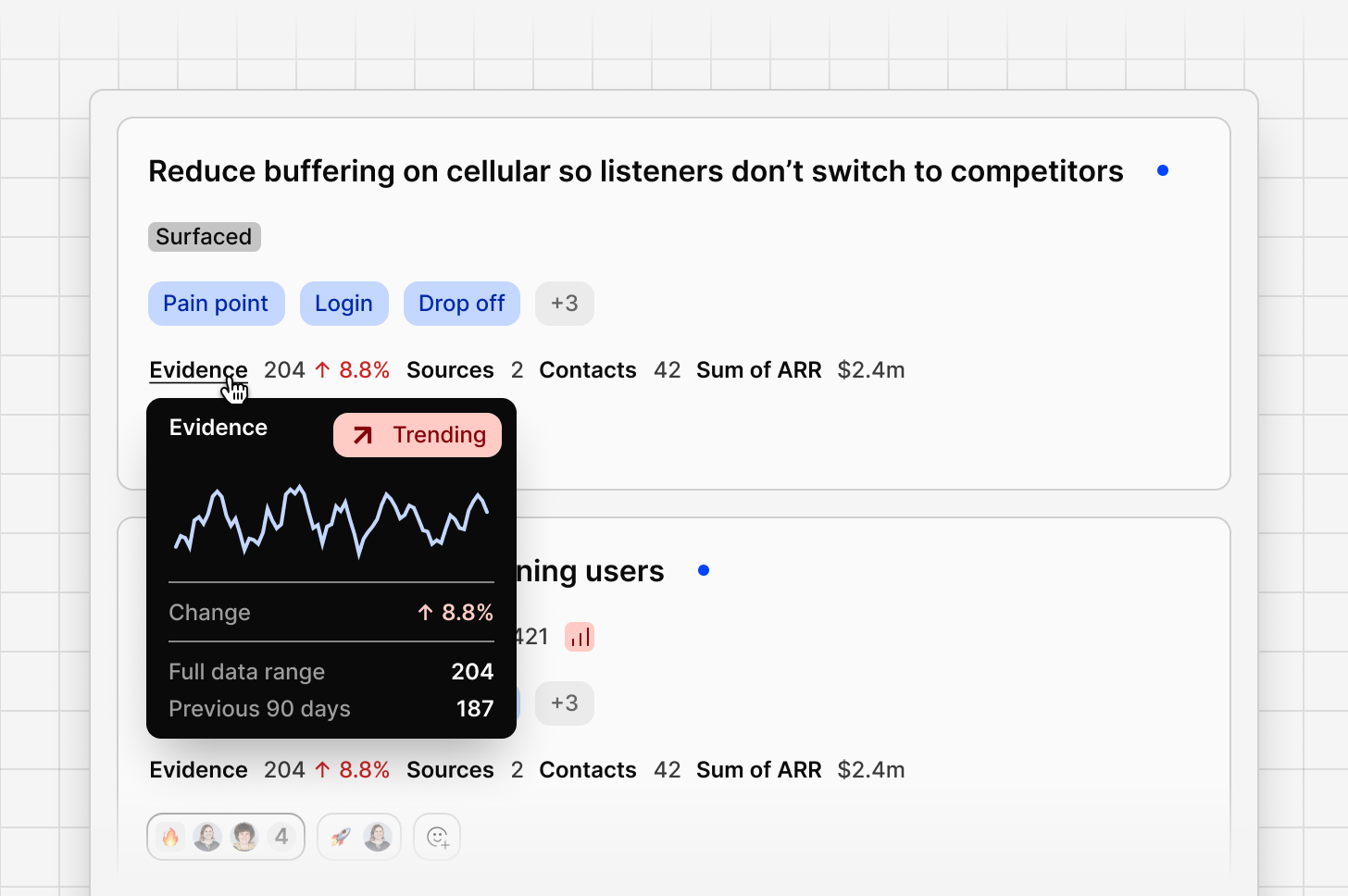
Each idea includes a trend over time graph, showing how signal volume has changed. A rising sparkline means the issue is becoming more prominent; a flat or declining one suggests it's stabilising. Ideas with no recent activity are marked **Dormant**.
Open the full over-time chart on an idea to see demand across your selected date range, useful for spotting whether something is seasonal, tied to a release, or steadily growing.
### Comments
Use @mentions to bring in a teammate, or to reference other objects in your workspace, such as a Project, a Doc, or another Channel, so people can jump straight to the relevant context without leaving the conversation.
### Over-time trending visualisation
Each idea includes a trend over time graph, showing how signal volume has changed. A rising sparkline means the issue is becoming more prominent; a flat or declining one suggests it's stabilising. Ideas with no recent activity are marked **Dormant**.
Open the full over-time chart on an idea to see demand across your selected date range, useful for spotting whether something is seasonal, tied to a release, or steadily growing.
 ### Entities and tags
Entity tags on each idea card show the topics, features, and product areas extracted automatically from the underlying evidence. Filter the whole feed by an entity to see only ideas related to that topic.
### Rename, merge, and archive
You're always in control of how ideas are organised:
* `Rename` an idea's headline in your own words.
* `Merge` overlapping ideas into a single, clearer one.
* `Archive` an idea that's no longer relevant.
### Entities and tags
Entity tags on each idea card show the topics, features, and product areas extracted automatically from the underlying evidence. Filter the whole feed by an entity to see only ideas related to that topic.
### Rename, merge, and archive
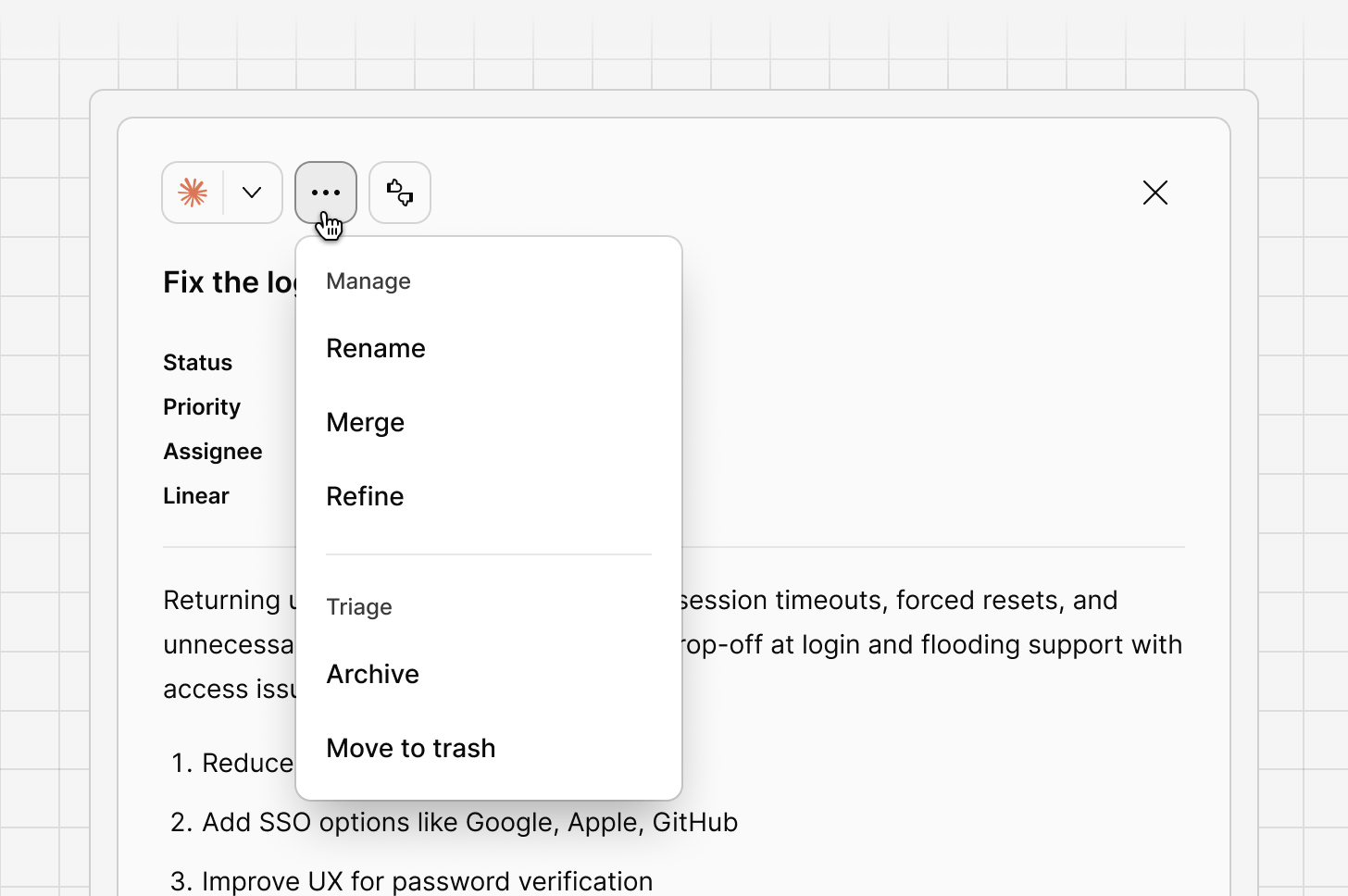
You're always in control of how ideas are organised:
* `Rename` an idea's headline in your own words.
* `Merge` overlapping ideas into a single, clearer one.
* `Archive` an idea that's no longer relevant.
 ### Closing the loop
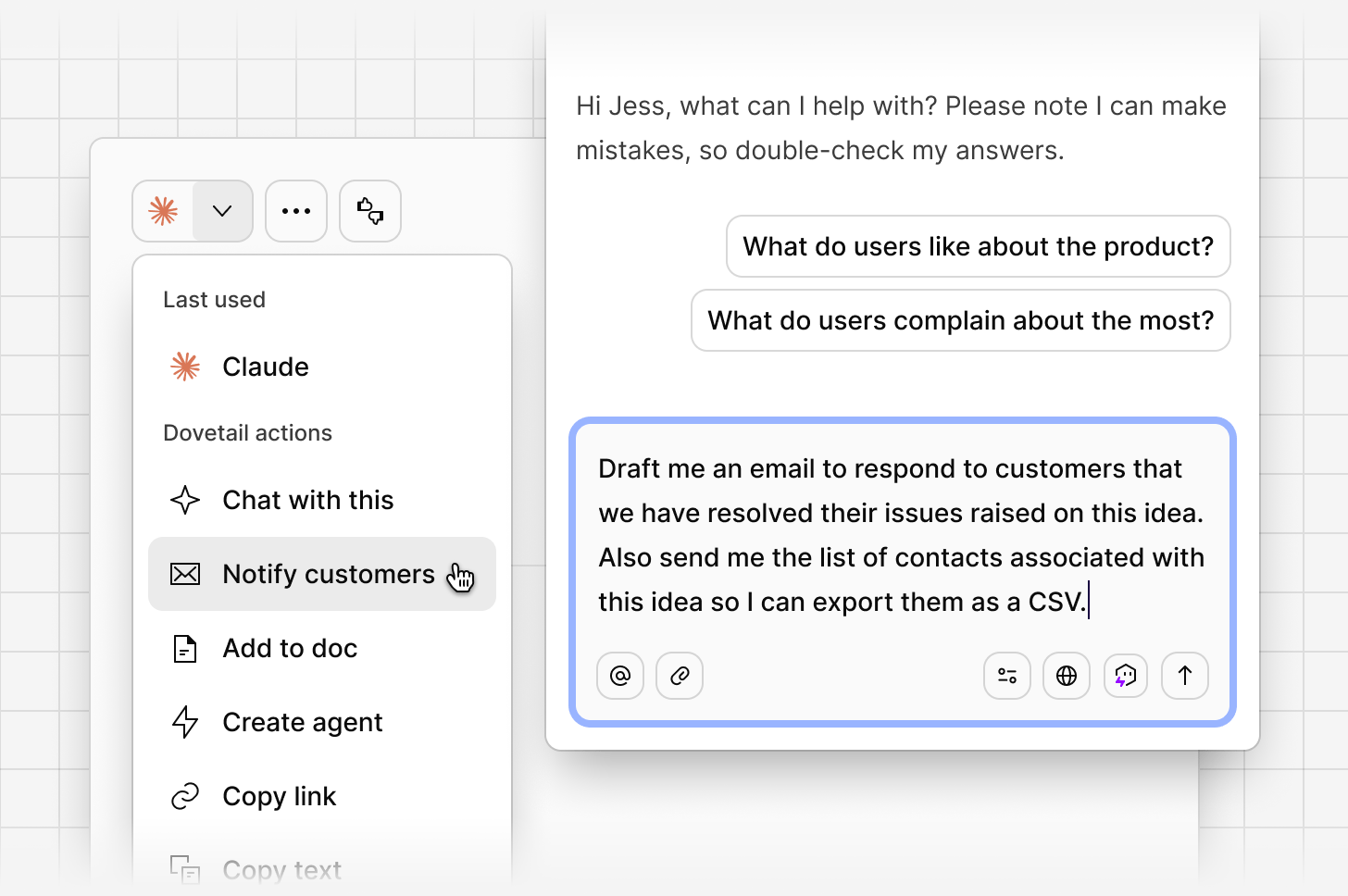
When you move an idea to **Resolved**, use the `Notify customers` action to draft and send a personalised update to the contacts whose feedback contributed to it. Dovetail generates the complete CSV list of contacts that have associated with that idea. You can use chat to review the message, make any edits, and send it from your own email client.
### Closing the loop
When you move an idea to **Resolved**, use the `Notify customers` action to draft and send a personalised update to the contacts whose feedback contributed to it. Dovetail generates the complete CSV list of contacts that have associated with that idea. You can use chat to review the message, make any edits, and send it from your own email client.
 ***
## Sort, filter and save views
### Sort and filter
Use `Sort by` to order the feed by activity, priority, severity, sentiment, data points, and more, including custom rollups like plan or industry.
Use `More` to filter by fields such as entity, intent, ARR, contacts, owner, and archived status. Filters stack, so you can combine, for example, Entity and Intent to narrow to a precise slice of feedback.
***
## Sort, filter and save views
### Sort and filter
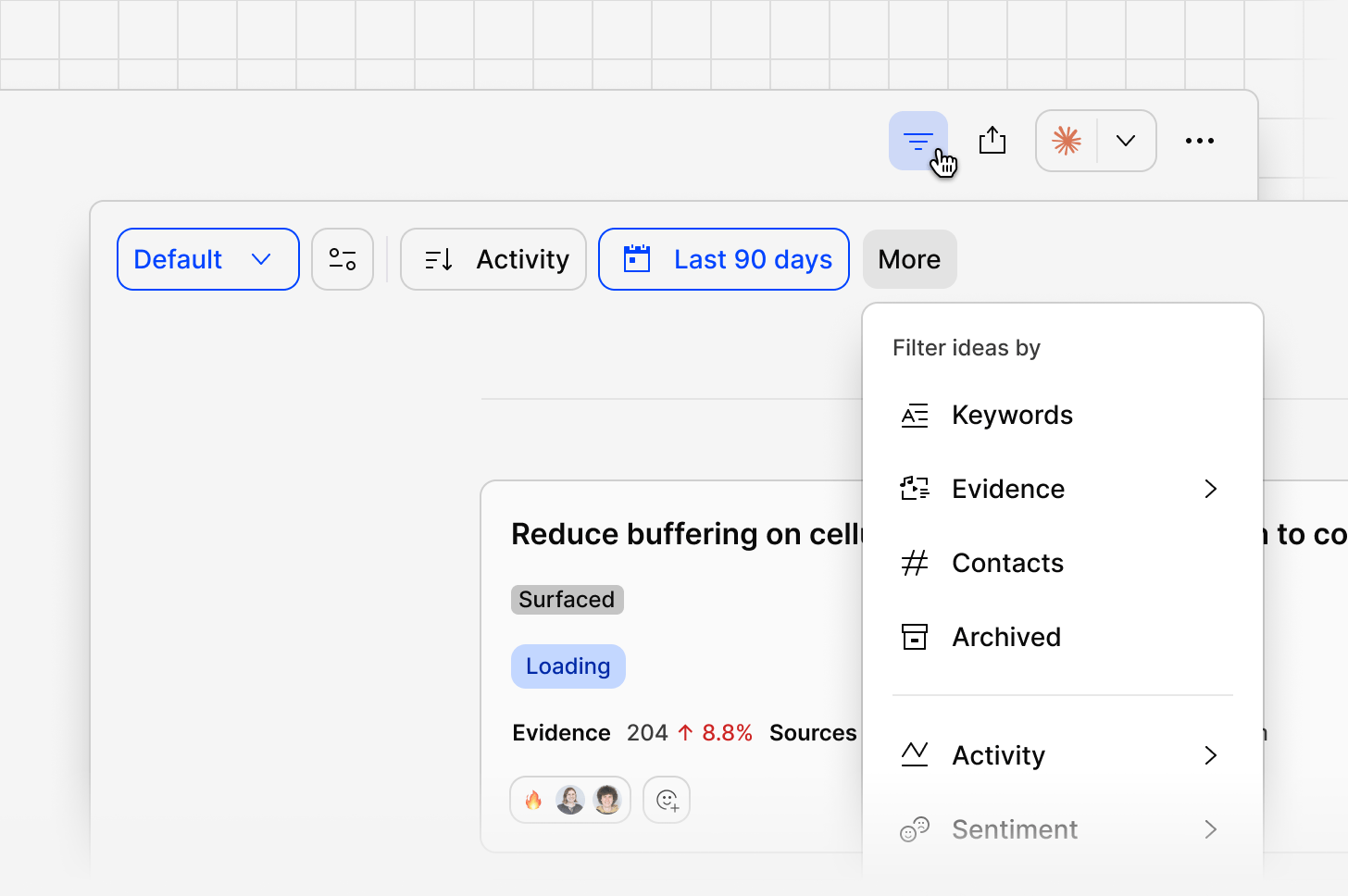
Use `Sort by` to order the feed by activity, priority, severity, sentiment, data points, and more, including custom rollups like plan or industry.
Use `More` to filter by fields such as entity, intent, ARR, contacts, owner, and archived status. Filters stack, so you can combine, for example, Entity and Intent to narrow to a precise slice of feedback.
 ### Saving views
Save a specific combination of filters and sort order as a view, so your team can return to the same slice of feedback without rebuilding it each time. This is a shared way for different squads or product areas to work from the same feed. For example, segmenting and saving views based on product area, industry, region, revenue, etc.
### Saving views
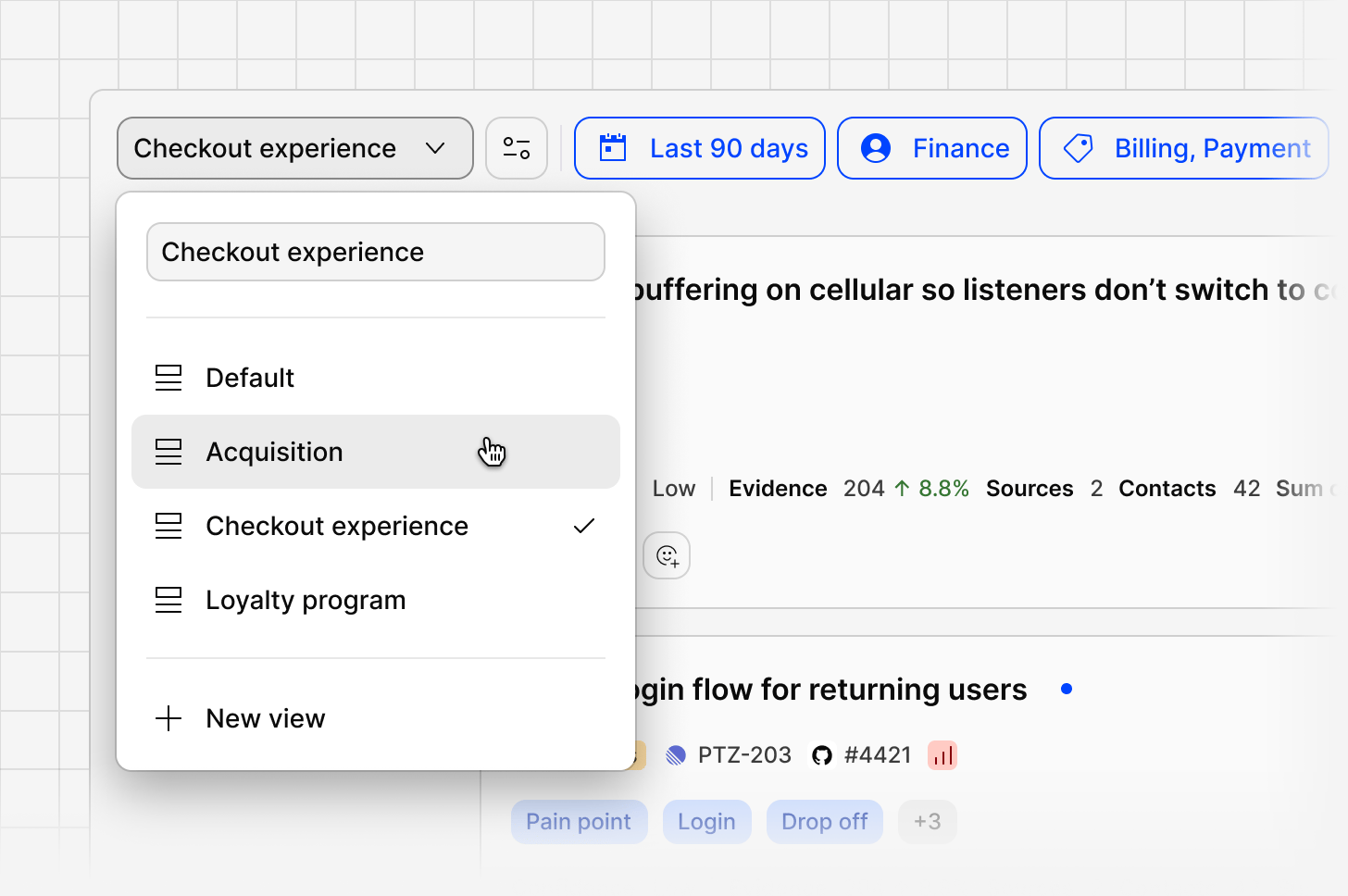
Save a specific combination of filters and sort order as a view, so your team can return to the same slice of feedback without rebuilding it each time. This is a shared way for different squads or product areas to work from the same feed. For example, segmenting and saving views based on product area, industry, region, revenue, etc.
 ***
## Evidence
Evidence is the full list of data points behind a channel, and the place to verify a signal or find a quote worth using.
### Activity over time
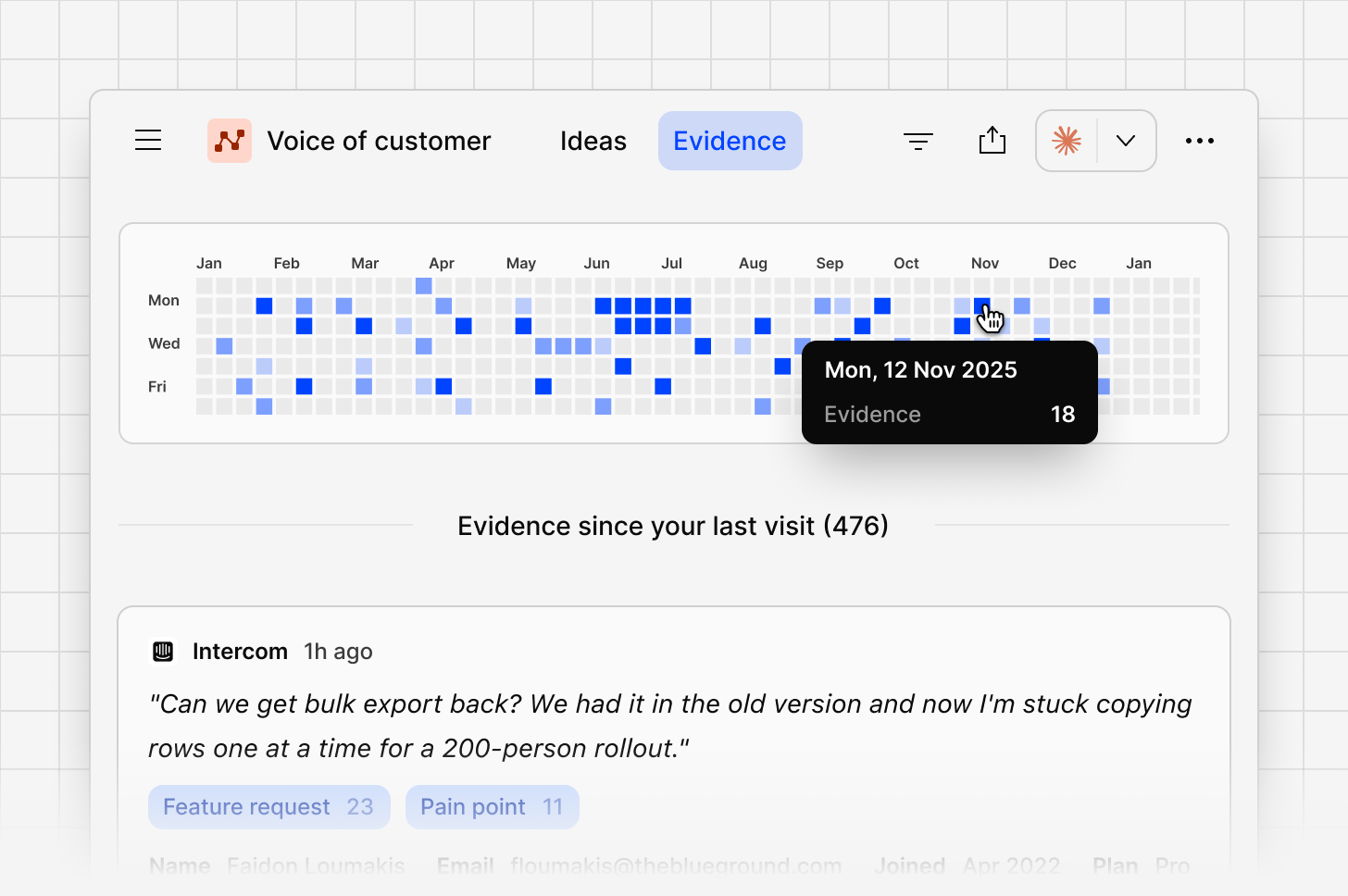
A calendar-style view shows evidence volume by day, so you can see at a glance when feedback spiked or went quiet.
***
## Evidence
Evidence is the full list of data points behind a channel, and the place to verify a signal or find a quote worth using.
### Activity over time
A calendar-style view shows evidence volume by day, so you can see at a glance when feedback spiked or went quiet.
 ### Full evidence list
Every data point across every connected source appears here, most recent first, with a preview of the content and the contact who shared it.
### Evidence panel
Open a data point to see:
* Contact details, if enabled from your [Contacts database](https://docs.dovetail.com/help/contacts/index#contacts)
* Whether this piece of evidence is already linked to an idea or not.
* The full feedback, including the complete thread if it's part of a conversation
From the `...` **More** menu on a data point, you can `configure` which fields are shown, `add to idea`, or `delete evidence`.
### Full evidence list
Every data point across every connected source appears here, most recent first, with a preview of the content and the contact who shared it.
### Evidence panel
Open a data point to see:
* Contact details, if enabled from your [Contacts database](https://docs.dovetail.com/help/contacts/index#contacts)
* Whether this piece of evidence is already linked to an idea or not.
* The full feedback, including the complete thread if it's part of a conversation
From the `...` **More** menu on a data point, you can `configure` which fields are shown, `add to idea`, or `delete evidence`.
 ### Open data point
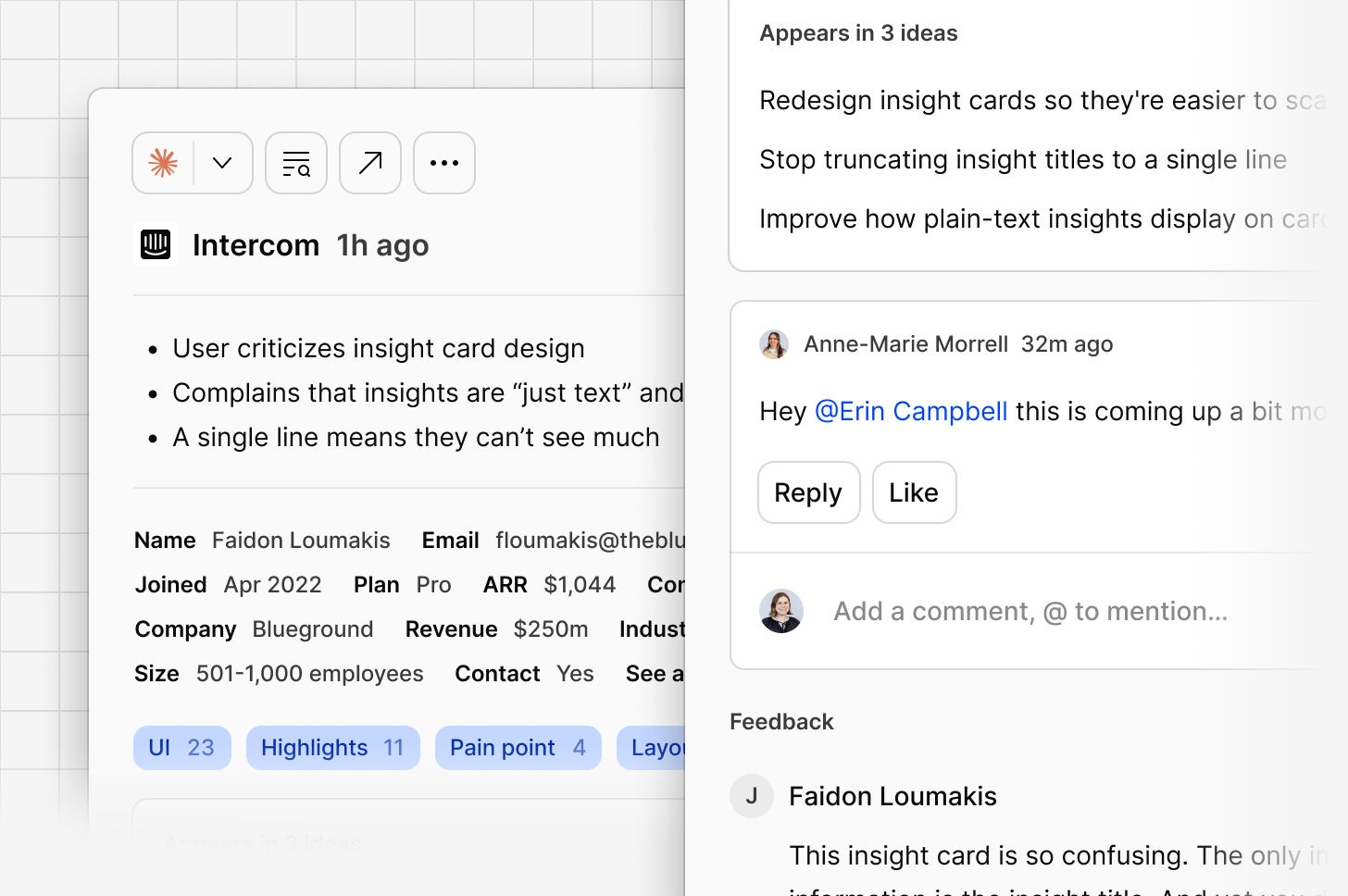
Opening a data point in full shows its complete breakdown: sentiment, the feedback itself, and contact details.
***
## Dovetail actions
Dovetail actions let you send an idea or a piece of evidence straight to the tool you'll actually use it in, with context intact and nothing copied by hand.
Sending content to Claude or Claude Code opens it with a prompt already matched to what you're sending, so you can analyse the evidence or draft a spec straight away.
Send to Figma to turn an idea or a piece of evidence into a starting point for a prototype, rather than starting from a blank canvas.
Send to Jira or Linear to create a ticket directly from an idea. Because the ticket is linked back to the idea it came from, you can trace a straight line from the original feedback through to the roadmap and work your team ships, and report on the outcome once it's resolved.
You can also start a chat, add to a doc, notify customers, or copy a link, text, or generated prompt, depending on what you're working with.
The menu surfaces your most-used actions first, so the one you need is usually right at the top.
Available actions differ depending on whether you're on an idea or a piece of evidence.
| Action | Ideas | Evidence |
| :----------------------------------------------------------- | :---- | :------- |
| Notify customers | ✅ | — |
| Start chat | ✅ | ✅ |
| Add to doc | ✅ | — |
| Copy link | ✅ | — |
| Copy text | ✅ | ✅ |
| Copy as prompt | ✅ | ✅ |
| Create agent | ✅ | — |
| Send to Linear, Jira, Figma, Claude, Claude Code, or ChatGPT | ✅ | ✅ |
***
## MCP and API access
Channels 2.0 ideas are available programmatically through Dovetail's MCP server and API, so other tools your team already uses can query Channels intelligence directly.
You can find more information on our [MCP](/integrations/mcp-server) and [Dovetail API](/integrations/dovetail-api) pages.
### Open data point
Opening a data point in full shows its complete breakdown: sentiment, the feedback itself, and contact details.
***
## Dovetail actions
Dovetail actions let you send an idea or a piece of evidence straight to the tool you'll actually use it in, with context intact and nothing copied by hand.
Sending content to Claude or Claude Code opens it with a prompt already matched to what you're sending, so you can analyse the evidence or draft a spec straight away.
Send to Figma to turn an idea or a piece of evidence into a starting point for a prototype, rather than starting from a blank canvas.
Send to Jira or Linear to create a ticket directly from an idea. Because the ticket is linked back to the idea it came from, you can trace a straight line from the original feedback through to the roadmap and work your team ships, and report on the outcome once it's resolved.
You can also start a chat, add to a doc, notify customers, or copy a link, text, or generated prompt, depending on what you're working with.
The menu surfaces your most-used actions first, so the one you need is usually right at the top.
Available actions differ depending on whether you're on an idea or a piece of evidence.
| Action | Ideas | Evidence |
| :----------------------------------------------------------- | :---- | :------- |
| Notify customers | ✅ | — |
| Start chat | ✅ | ✅ |
| Add to doc | ✅ | — |
| Copy link | ✅ | — |
| Copy text | ✅ | ✅ |
| Copy as prompt | ✅ | ✅ |
| Create agent | ✅ | — |
| Send to Linear, Jira, Figma, Claude, Claude Code, or ChatGPT | ✅ | ✅ |
***
## MCP and API access
Channels 2.0 ideas are available programmatically through Dovetail's MCP server and API, so other tools your team already uses can query Channels intelligence directly.
You can find more information on our [MCP](/integrations/mcp-server) and [Dovetail API](/integrations/dovetail-api) pages.