> ## Documentation Index
> Fetch the complete documentation index at: https://docs.dovetail.com/llms.txt
> Use this file to discover all available pages before exploring further.
# Contact syncing
Contact details shown on Ideas and Evidence (name, company, ARR, plan tier, and so on) come from your **Contacts database**, enriched from your CRM.
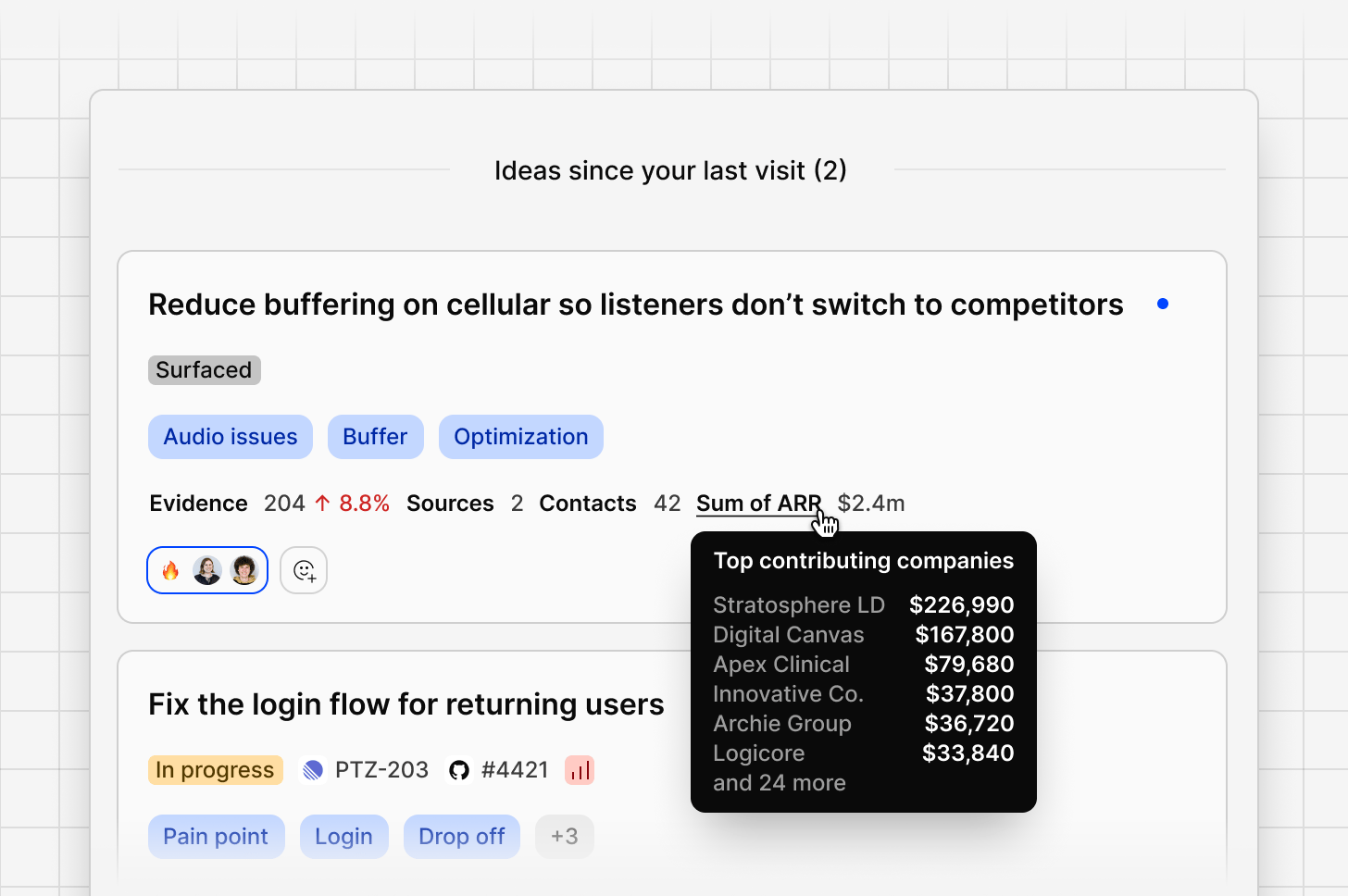 Channels supports enrichment from either **Salesforce** or **HubSpot**. A workspace can only have one CRM enrichment source connected at a time.
* For Salesforce setup, see [Salesforce contacts](/integrations/salesforce).
* For HubSpot setup, see [HubSpot Contacts](/integrations/hubspot-contacts).
For more on how contact fields work generally, see [Contact automation](/help/contact-automation-settings) and [Contacts](/help/contacts).
## Link contacts to ideas and evidence, and display ARR
Getting contact details to show up correctly on your ideas and evidence means setting up three things:
1. Your contact identifier mapping
2. Your CRM connection (Salesforce or Hubspot)
3. Deciding how you want contacts created in Dovetail
Once all three are in place, Dovetail is able to add contacts, enrich them with CRM data, and then automatically link feedback from those contacts to the ideas and evidence they're associated with.
***
### **Step 1. Map your Contact identifiers**
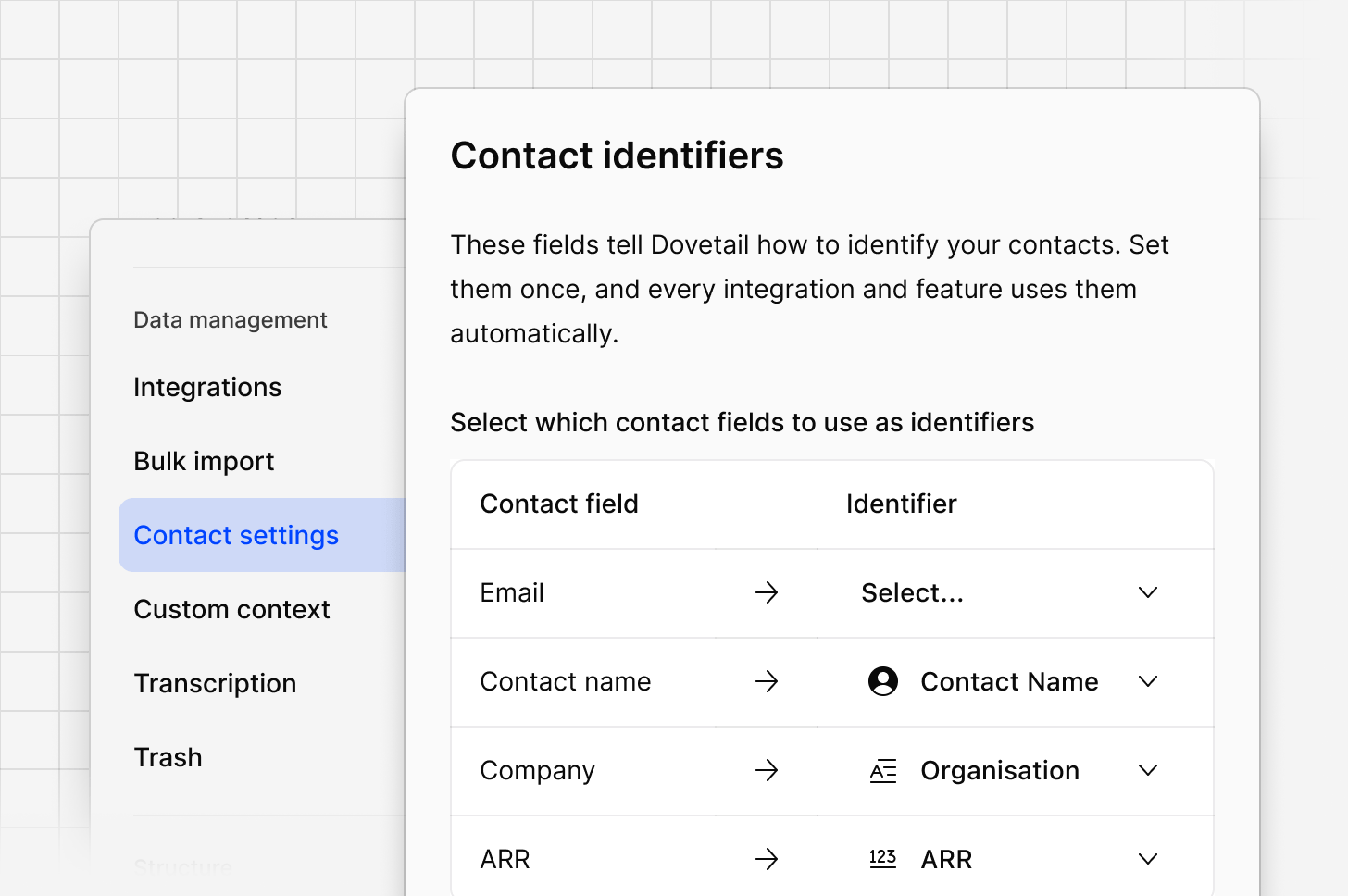
Contact identifiers are a one-time, workspace-wide setting that tells Dovetail which of your contact fields represent email, name, company, job title, and ARR. Every feature that touches contacts, including Channels, reads from this same mapping.
1. Go to `Settings`
2. Under `Data management`, click on `Contact settings`
3. Next to `Contact identifiers,` select `Configure`
4. Map at least Email, Company, and ARR.
Email, Company, and ARR must all be mapped for automated contact creation and ARR-weighted idea rankings to work in Channels. Without them, new contacts won't be created from your channel sources, and rollups won't have data to show.
This is editable at any time, if you remap or remove an identifier later, Dovetail will warn you if other features depend on it.
Channels supports enrichment from either **Salesforce** or **HubSpot**. A workspace can only have one CRM enrichment source connected at a time.
* For Salesforce setup, see [Salesforce contacts](/integrations/salesforce).
* For HubSpot setup, see [HubSpot Contacts](/integrations/hubspot-contacts).
For more on how contact fields work generally, see [Contact automation](/help/contact-automation-settings) and [Contacts](/help/contacts).
## Link contacts to ideas and evidence, and display ARR
Getting contact details to show up correctly on your ideas and evidence means setting up three things:
1. Your contact identifier mapping
2. Your CRM connection (Salesforce or Hubspot)
3. Deciding how you want contacts created in Dovetail
Once all three are in place, Dovetail is able to add contacts, enrich them with CRM data, and then automatically link feedback from those contacts to the ideas and evidence they're associated with.
***
### **Step 1. Map your Contact identifiers**
Contact identifiers are a one-time, workspace-wide setting that tells Dovetail which of your contact fields represent email, name, company, job title, and ARR. Every feature that touches contacts, including Channels, reads from this same mapping.
1. Go to `Settings`
2. Under `Data management`, click on `Contact settings`
3. Next to `Contact identifiers,` select `Configure`
4. Map at least Email, Company, and ARR.
Email, Company, and ARR must all be mapped for automated contact creation and ARR-weighted idea rankings to work in Channels. Without them, new contacts won't be created from your channel sources, and rollups won't have data to show.
This is editable at any time, if you remap or remove an identifier later, Dovetail will warn you if other features depend on it.
 ***
### **Step 2. Connect Salesforce or HubSpot**
HubSpot Contacts is available on the Enterprise plan only.
HubSpot and Salesforce Contacts integration only enriches contacts that already exist in your Dovetail contacts database, matching them by email. It cannot pull in and create new contacts in Dovetail.
If you want contact details enriched from your CRM, connect it to Dovetail **before** you start creating contacts. That way, every contact created from this point forward gets enriched automatically on the next daily sync, rather than sitting incomplete and requiring a manual sync later.
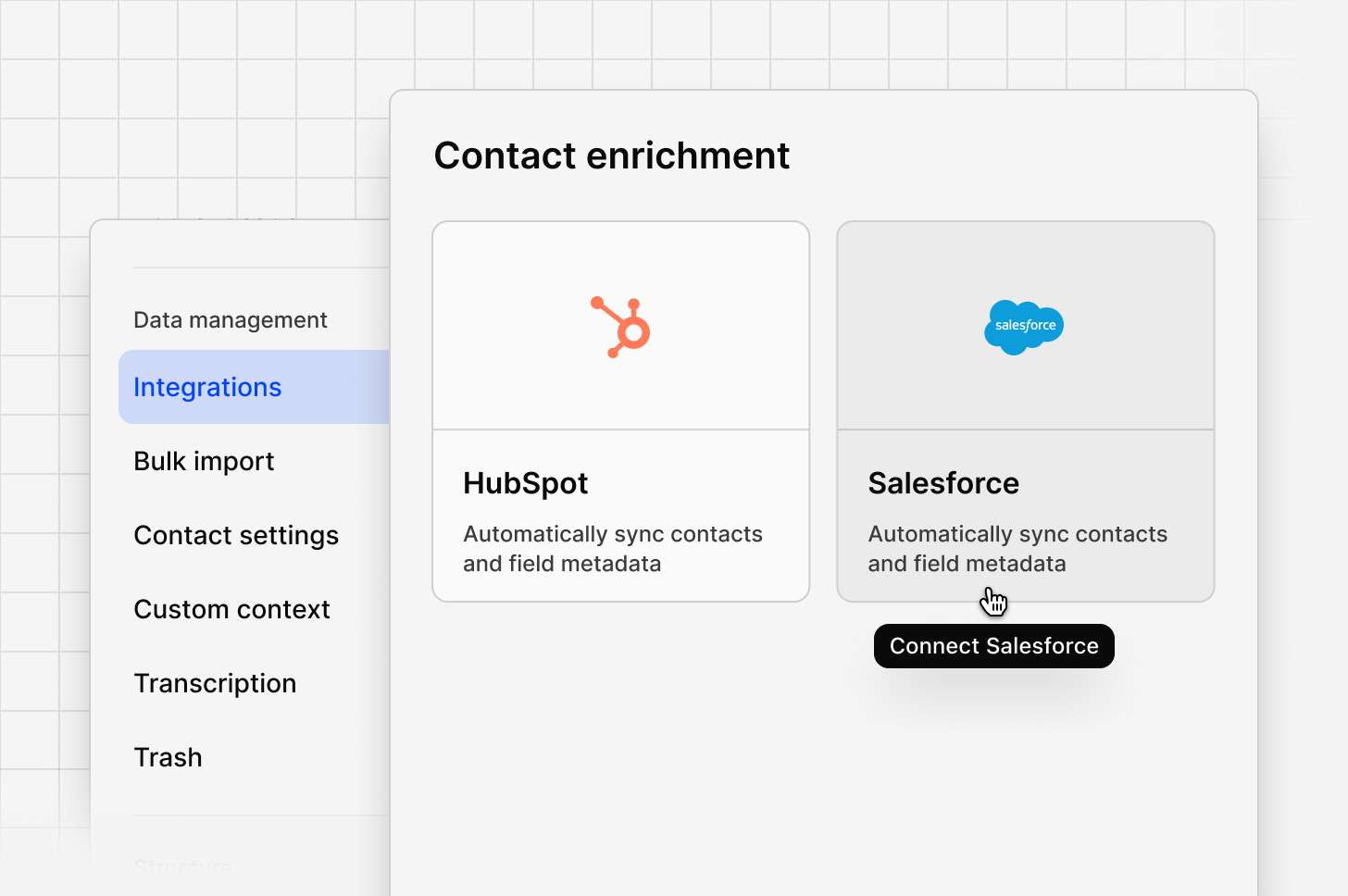
1. Go to `Settings`
2. Under `Data management`, click on `Integrations`
3. Under `Contact enrichment`, click on either **Salesforce** or **HubSpot**
4. Follow the steps outlined for [Salesforce contacts](/integrations/salesforce) or [HubSpot Contacts](/integrations/hubspot-contacts)
If you already have contacts in your database from before you connected a CRM, you can
1. Go to `Contacts`
2. Open the `Sources` dialog in the top right corner
3. Locate your CRM and click `Bulk sync `
This will enable you to enrich those contacts immediately, rather than waiting for the next daily scheduled sync.
***
### **Step 2. Connect Salesforce or HubSpot**
HubSpot Contacts is available on the Enterprise plan only.
HubSpot and Salesforce Contacts integration only enriches contacts that already exist in your Dovetail contacts database, matching them by email. It cannot pull in and create new contacts in Dovetail.
If you want contact details enriched from your CRM, connect it to Dovetail **before** you start creating contacts. That way, every contact created from this point forward gets enriched automatically on the next daily sync, rather than sitting incomplete and requiring a manual sync later.
1. Go to `Settings`
2. Under `Data management`, click on `Integrations`
3. Under `Contact enrichment`, click on either **Salesforce** or **HubSpot**
4. Follow the steps outlined for [Salesforce contacts](/integrations/salesforce) or [HubSpot Contacts](/integrations/hubspot-contacts)
If you already have contacts in your database from before you connected a CRM, you can
1. Go to `Contacts`
2. Open the `Sources` dialog in the top right corner
3. Locate your CRM and click `Bulk sync `
This will enable you to enrich those contacts immediately, rather than waiting for the next daily scheduled sync.
 ***
### **Step 3. Choose how contacts get created**
Contacts can be added to your Contacts database in any of the following ways. You don't need to pick just one, these can be used together:
1. **CSV import**: best for a static, curated list you want full control over. This could be a contacts list that you have exported from a different tool.
***
### **Step 3. Choose how contacts get created**
Contacts can be added to your Contacts database in any of the following ways. You don't need to pick just one, these can be used together:
1. **CSV import**: best for a static, curated list you want full control over. This could be a contacts list that you have exported from a different tool.
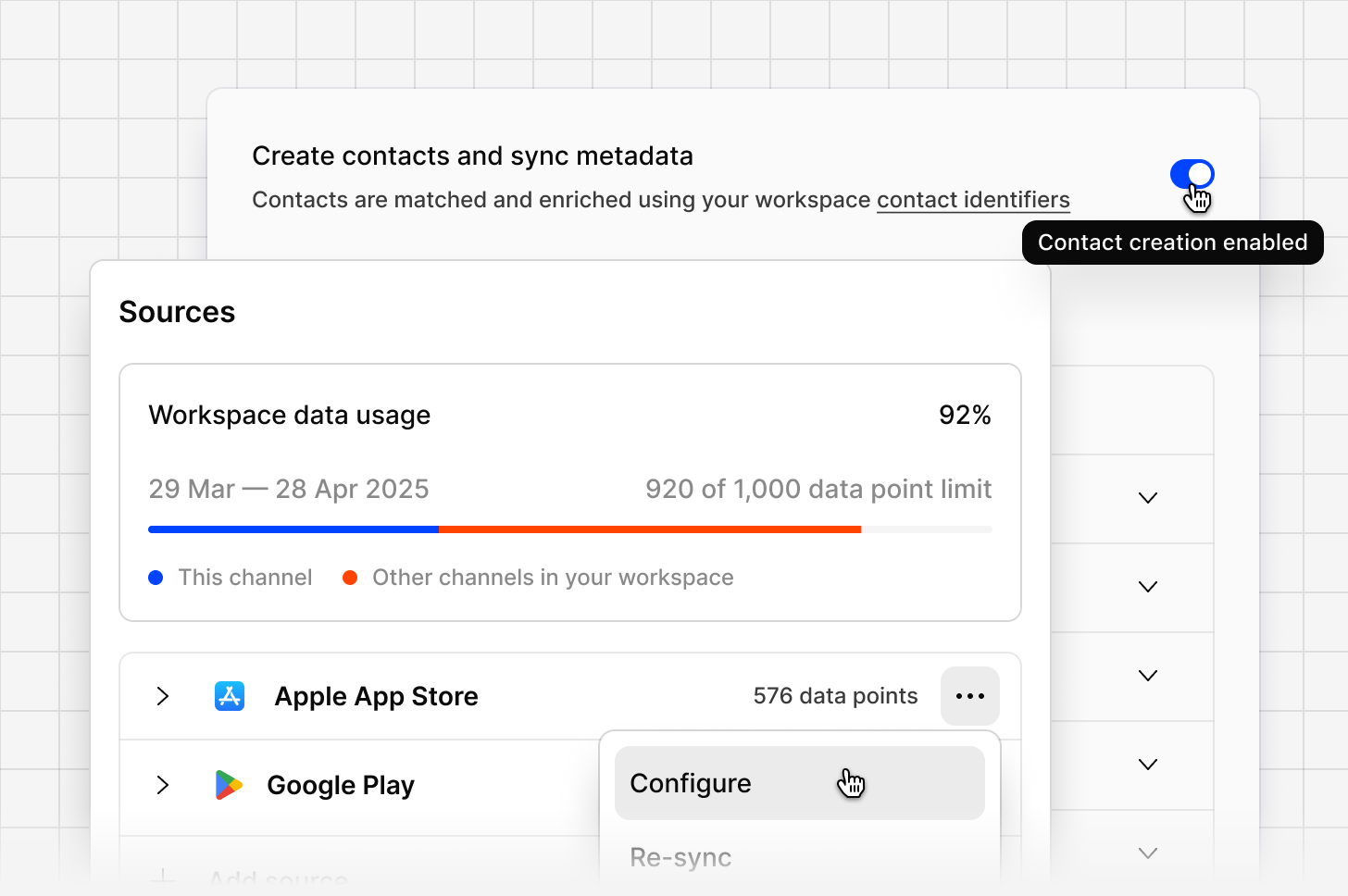
2. **Directly from your Channel**: if you wish to add the contacts that raise feedback directly from your channel, you can turn this on at any time via the channel's source **add to contacts** toggle:
1. Open your channel
2. Click into your `Sources` dialog in the top right corner
3. Select the `...` more next to your source
4. Select `Configure`
5. Turn on the toggle for `Add to contacts database`
6. New contacts who appear in that source's feedback (Intercom, Zendesk, etc) will be added automatically to the Contacts database. Then when the daily scheduled sync occurs, these contacts will be enriched with the metadata from your CRM.
3. **Zapier or API**: best for custom automation into your Contacts database.
4. **Contact automation**: automatically creates contacts from your Project's interview transcripts. To configure this:
1. Go to `Settings`
2. Under `Data management`, click `Contact settings `
3. Next to `Speaker identification`, select `Configure`
4. Toggle the details you wish to save as fields i.e. Email, Company, and Role.
Whichever method you use, each contact just needs an email address to be matched and enriched by your connected CRM on the next sync.
 ***
### **Step 4. See the data reflected in Channels**
Once a contact exists and has been enriched, Channels displays its details, name, company, ARR, plan tier, industry, etc on ideas and evidence automatically. This works the same way regardless of which method above created the contact.
If a contact is missing expected details, check two things:
1. Was the contact actually created (no contact means nothing to enrich),
2. Does that contact's email match a record in Salesforce or HubSpot (matching is email-only, and a mismatch is skipped silently rather than shown as an error).
***
### **Step 4. See the data reflected in Channels**
Once a contact exists and has been enriched, Channels displays its details, name, company, ARR, plan tier, industry, etc on ideas and evidence automatically. This works the same way regardless of which method above created the contact.
If a contact is missing expected details, check two things:
1. Was the contact actually created (no contact means nothing to enrich),
2. Does that contact's email match a record in Salesforce or HubSpot (matching is email-only, and a mismatch is skipped silently rather than shown as an error).