> ## Documentation Index
> Fetch the complete documentation index at: https://docs.dovetail.com/llms.txt
> Use this file to discover all available pages before exploring further.
# Tags, as themes
Tags gives you a quick, continuous way to track themes in Channels 2.0 over time, similar to how **workspace tags** already work across Projects, and how topics work in Channels 1.0
 Tags is rolling out as part of the Channels 2.0 beta. Available on all plans.
## How tags work in Channels
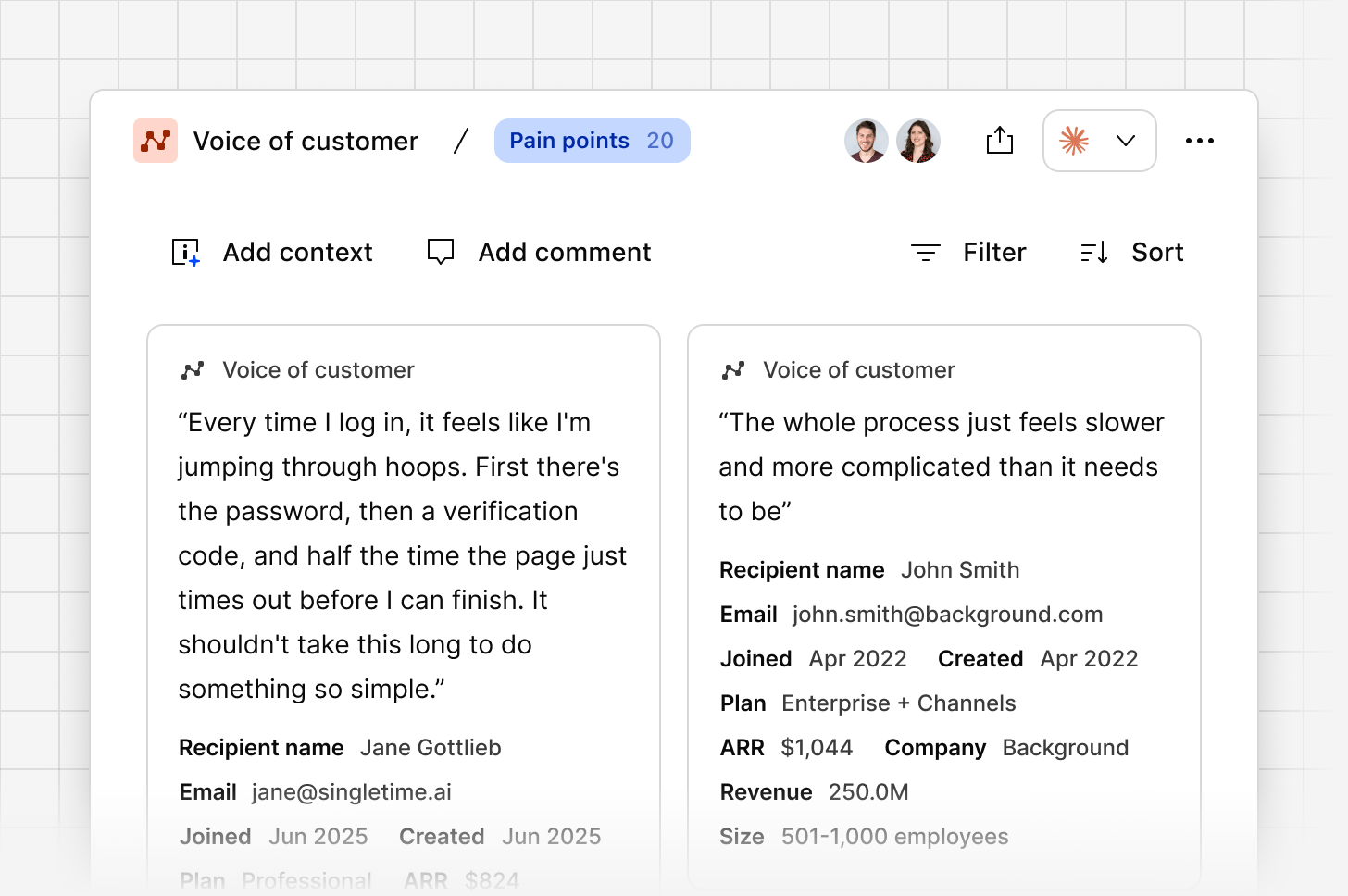
As new evidence arrives in a channel, Dovetail automatically tags it based on its content. Each tag shows how many pieces of evidence it's been applied to, and selecting a tag shows every piece of evidence tagged with it.
Tags will be applied to both ideas and evidence, and can be a powerful way to visualise and track evidence against certain product areas, business units, feature requests, bugs, etc.
Each channel you create will be tied to default tag board, and you can link a channel to an existing workspace tag board to keep your taxonomy consistent across both Channels and Projects.
You're always in control of your tags. You can add a new tag, edit an existing one, or rename any tag Dovetail's created automatically.
Tags is rolling out as part of the Channels 2.0 beta. Available on all plans.
## How tags work in Channels
As new evidence arrives in a channel, Dovetail automatically tags it based on its content. Each tag shows how many pieces of evidence it's been applied to, and selecting a tag shows every piece of evidence tagged with it.
Tags will be applied to both ideas and evidence, and can be a powerful way to visualise and track evidence against certain product areas, business units, feature requests, bugs, etc.
Each channel you create will be tied to default tag board, and you can link a channel to an existing workspace tag board to keep your taxonomy consistent across both Channels and Projects.
You're always in control of your tags. You can add a new tag, edit an existing one, or rename any tag Dovetail's created automatically.
 ***
## Default tag board for your channel
A default tag board will be automatically generated and connected to all of the channels you create, allowing you to view all the evidence and auto-generated tags across your entire workspace.
***
## Default tag board for your channel
A default tag board will be automatically generated and connected to all of the channels you create, allowing you to view all the evidence and auto-generated tags across your entire workspace.
 ***
## Add your own workspace tag board
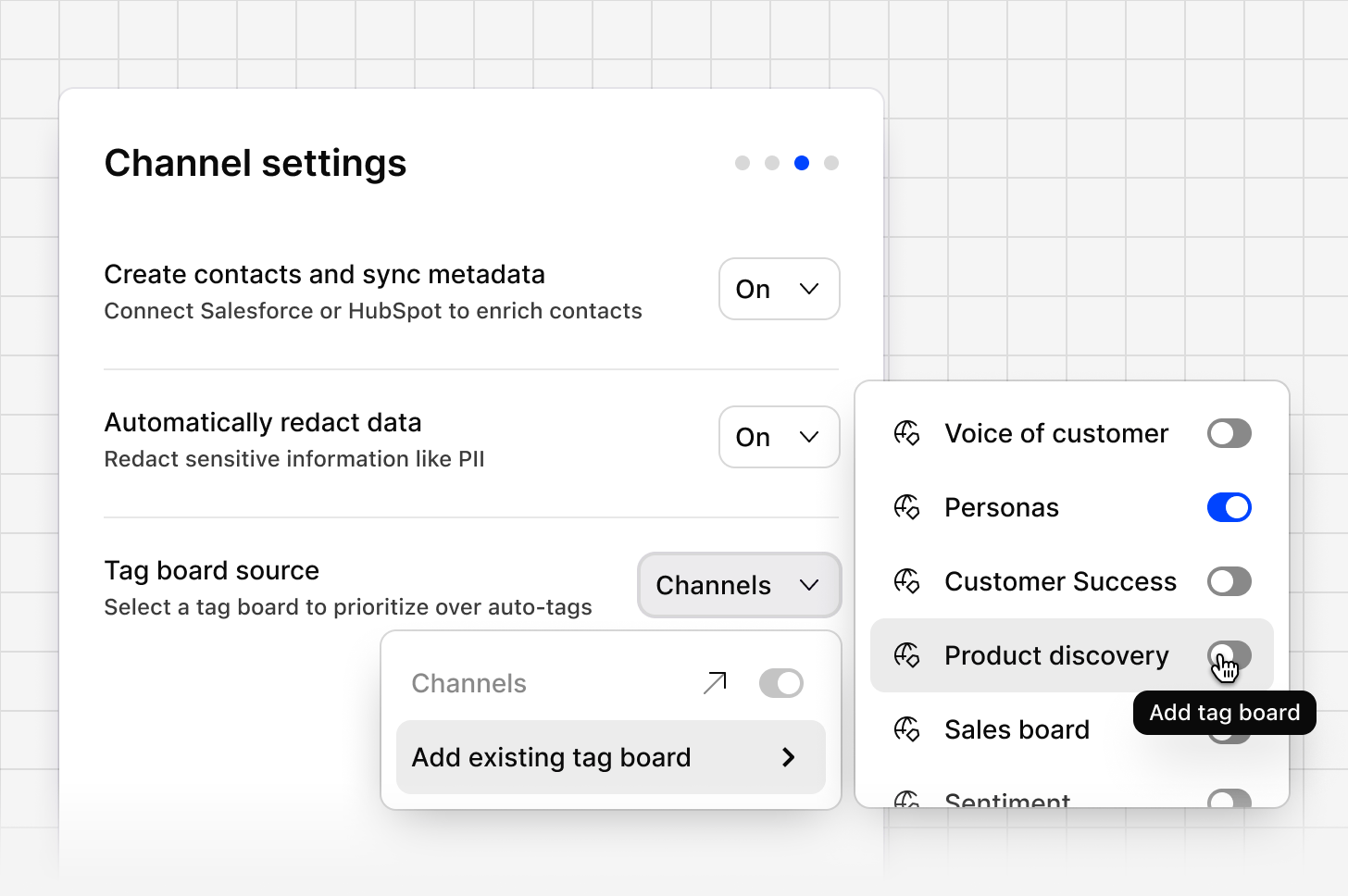
If you already have a workspace tag board you use across Projects, you can link it to a channel instead of relying only on auto-generated tags. To apply your own workspace tag board:
* Select the existing tag board during onboarding.
* Open your channel's settings and select `Tag board source`
* From there, select `Add existing tag board` and choose from your available workspace tag boards.
* You can unlink a workspace tag board at any time, however, all tags from this tag board will be removed from evidence and this channel.
Linking an existing tag board tells Dovetail to prioritise your existing tags over auto-tags. New tags are only added to cover gaps your existing board doesn't.
See [Workspace tags](https://docs.dovetail.com/help/workspace-tags) for further details.
Because workspace tag boards can link to both Projects and Channels, a linked board lets you see feedback from both in one place, a single view of a theme regardless of whether it came from an interview or a support ticket.
***
## Add your own workspace tag board
If you already have a workspace tag board you use across Projects, you can link it to a channel instead of relying only on auto-generated tags. To apply your own workspace tag board:
* Select the existing tag board during onboarding.
* Open your channel's settings and select `Tag board source`
* From there, select `Add existing tag board` and choose from your available workspace tag boards.
* You can unlink a workspace tag board at any time, however, all tags from this tag board will be removed from evidence and this channel.
Linking an existing tag board tells Dovetail to prioritise your existing tags over auto-tags. New tags are only added to cover gaps your existing board doesn't.
See [Workspace tags](https://docs.dovetail.com/help/workspace-tags) for further details.
Because workspace tag boards can link to both Projects and Channels, a linked board lets you see feedback from both in one place, a single view of a theme regardless of whether it came from an interview or a support ticket.
 ***
## View your workspace tag board
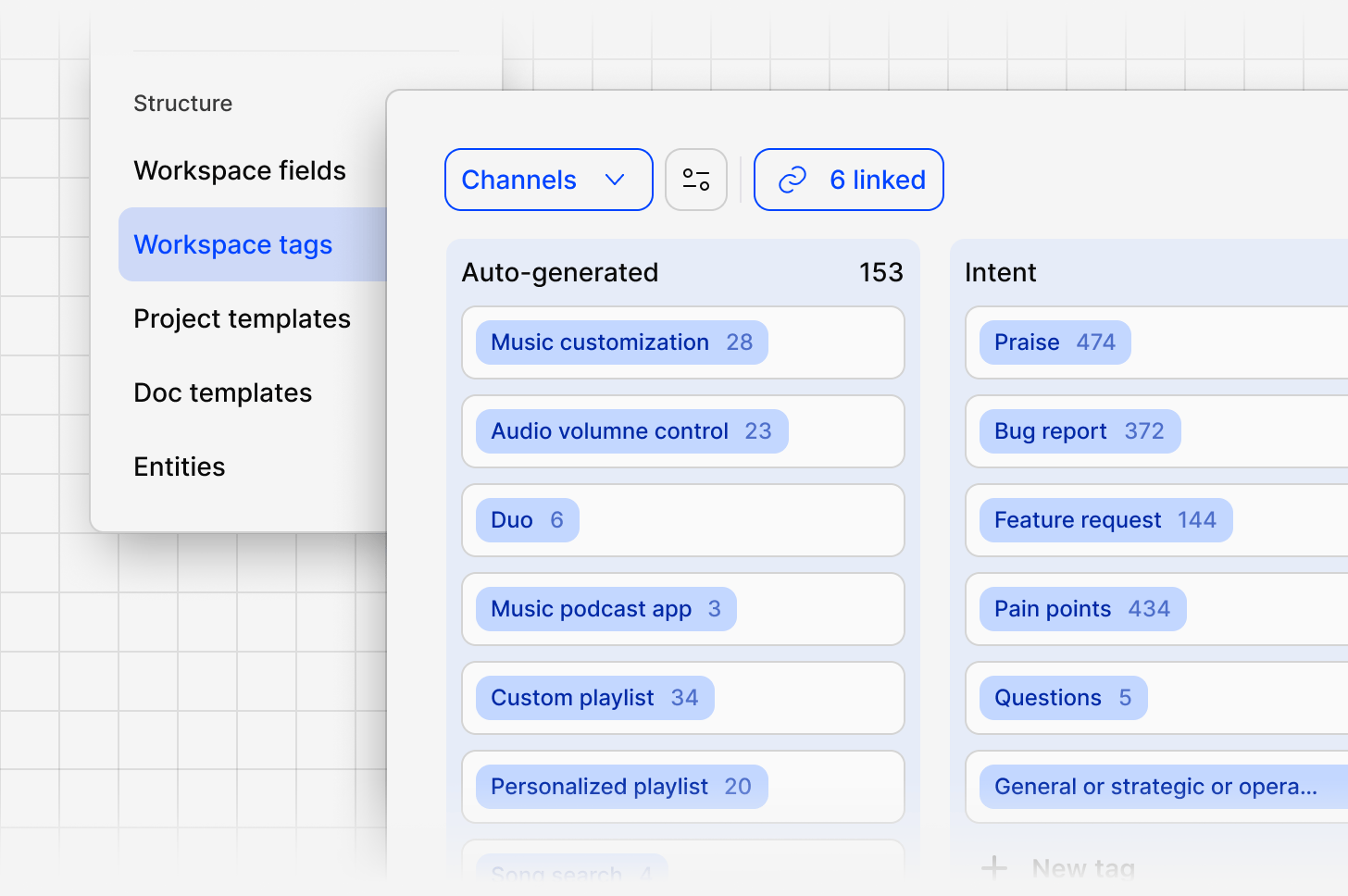
All your workspace tag boards, whether linked to Channels, Projects, or both, are managed in one place.
* To view them, go to `Settings `**→** `Data management `**→** `Workspace tags`. Each board shows what it's linked to, when it was last updated, and who created it.
* To open a board, select its name. From there, you can see tags grouped together (for example, an `Auto-generated` group), add a new tag with `+ New tag`, or organise tags into a new group with `New group`.
* You can also access these boards in a channel, by clicking on the tag on the idea or piece of evidence, navigating to the top left breadcrumb, and selecting the parent tag board.
***
## Tags on ideas and evidence
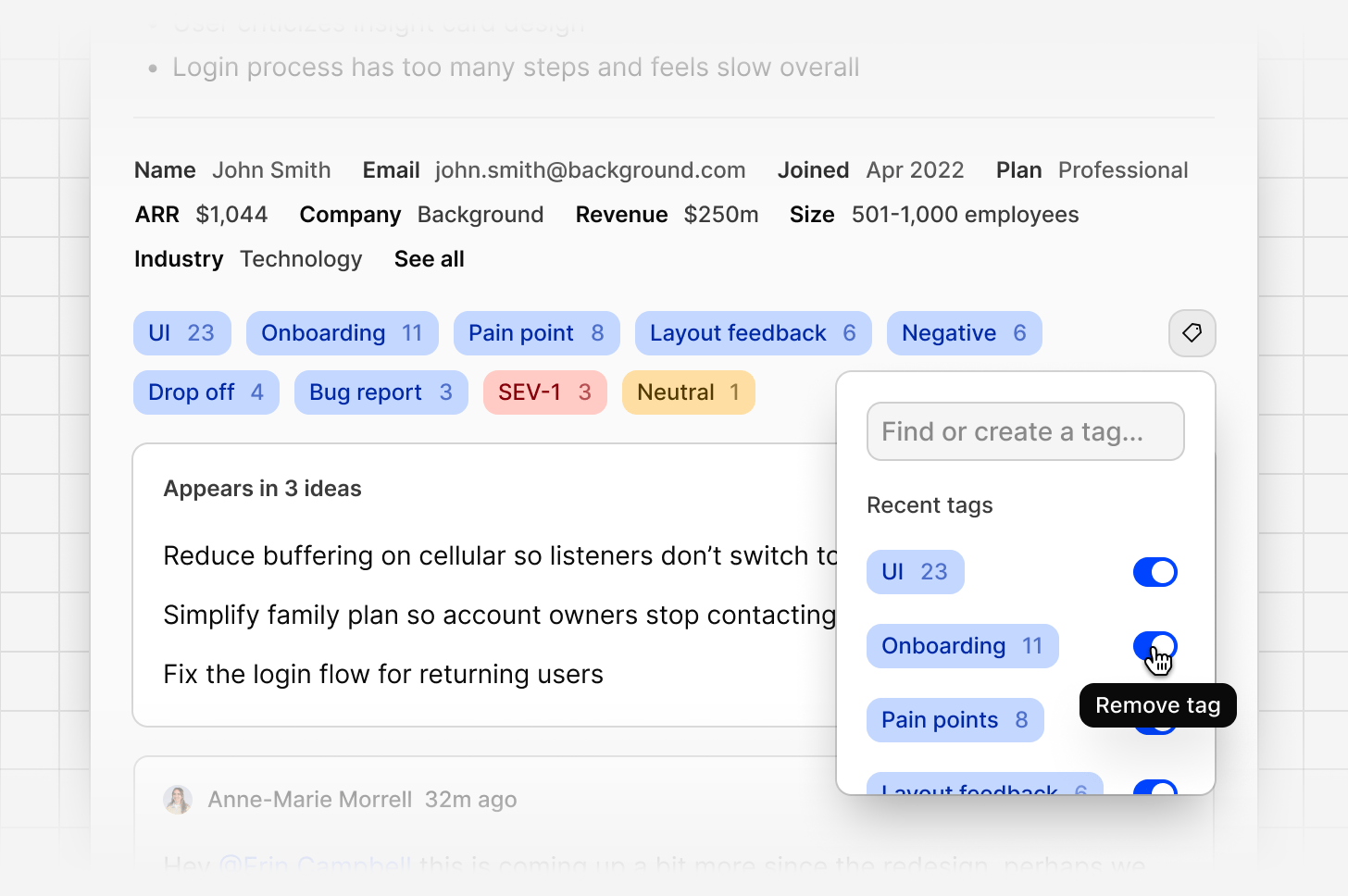
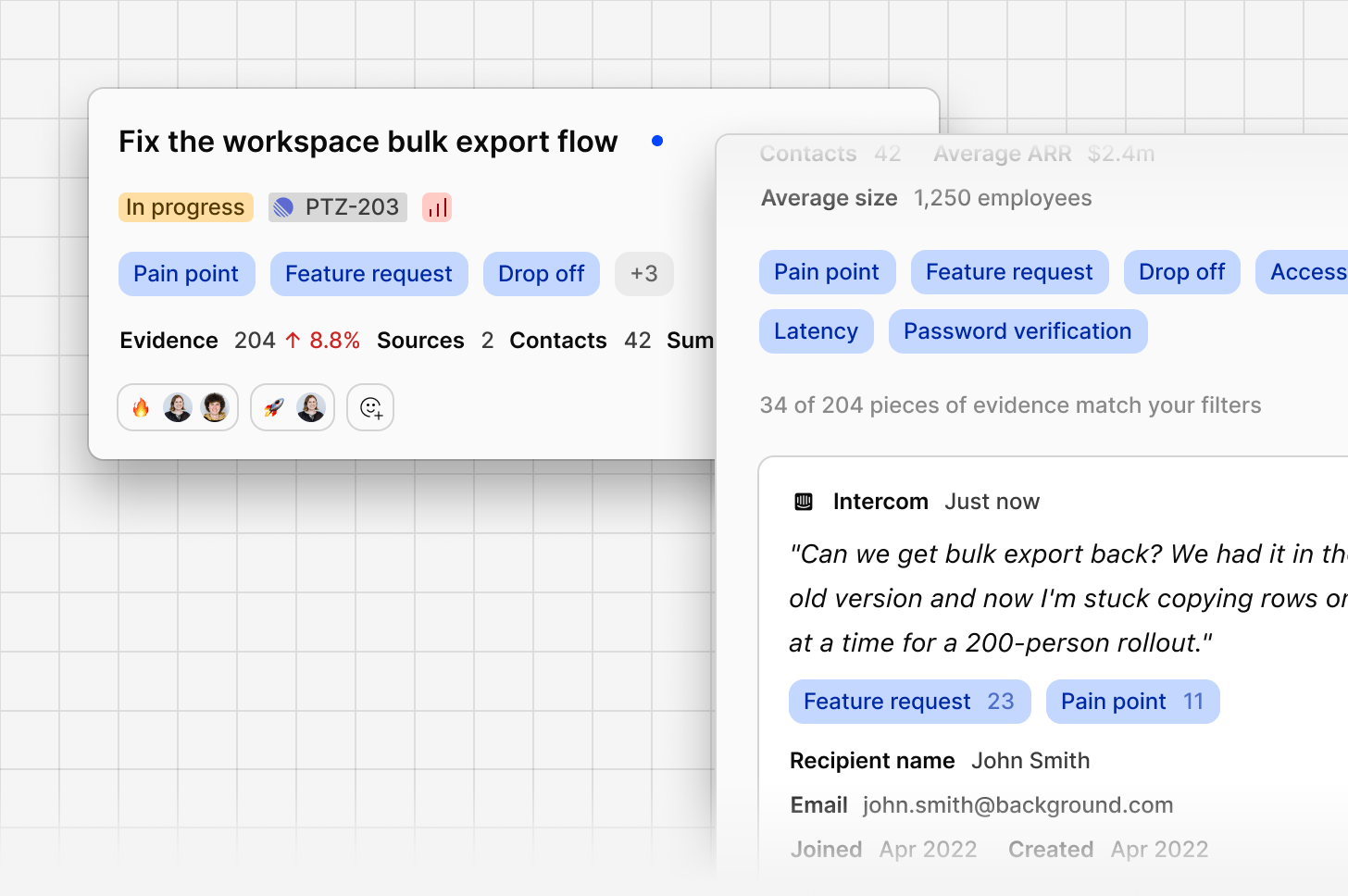
Tags appear directly on each idea, idea side panel and piece of evidence in your channel.
Each tag shows how many pieces of evidence behind that idea carry it, for example, **Pain point**, **Login**, or **Drop off**, each with its own count.
This is dynamic and will update based on the filter or saved view that you apply.
***
## View your workspace tag board
All your workspace tag boards, whether linked to Channels, Projects, or both, are managed in one place.
* To view them, go to `Settings `**→** `Data management `**→** `Workspace tags`. Each board shows what it's linked to, when it was last updated, and who created it.
* To open a board, select its name. From there, you can see tags grouped together (for example, an `Auto-generated` group), add a new tag with `+ New tag`, or organise tags into a new group with `New group`.
* You can also access these boards in a channel, by clicking on the tag on the idea or piece of evidence, navigating to the top left breadcrumb, and selecting the parent tag board.
***
## Tags on ideas and evidence
Tags appear directly on each idea, idea side panel and piece of evidence in your channel.
Each tag shows how many pieces of evidence behind that idea carry it, for example, **Pain point**, **Login**, or **Drop off**, each with its own count.
This is dynamic and will update based on the filter or saved view that you apply.
 ***
## Creating and saving views on tags
You can also filter and save views for specific tags. This makes it possible to dynamically track a theme over time, rather than checking back manually.
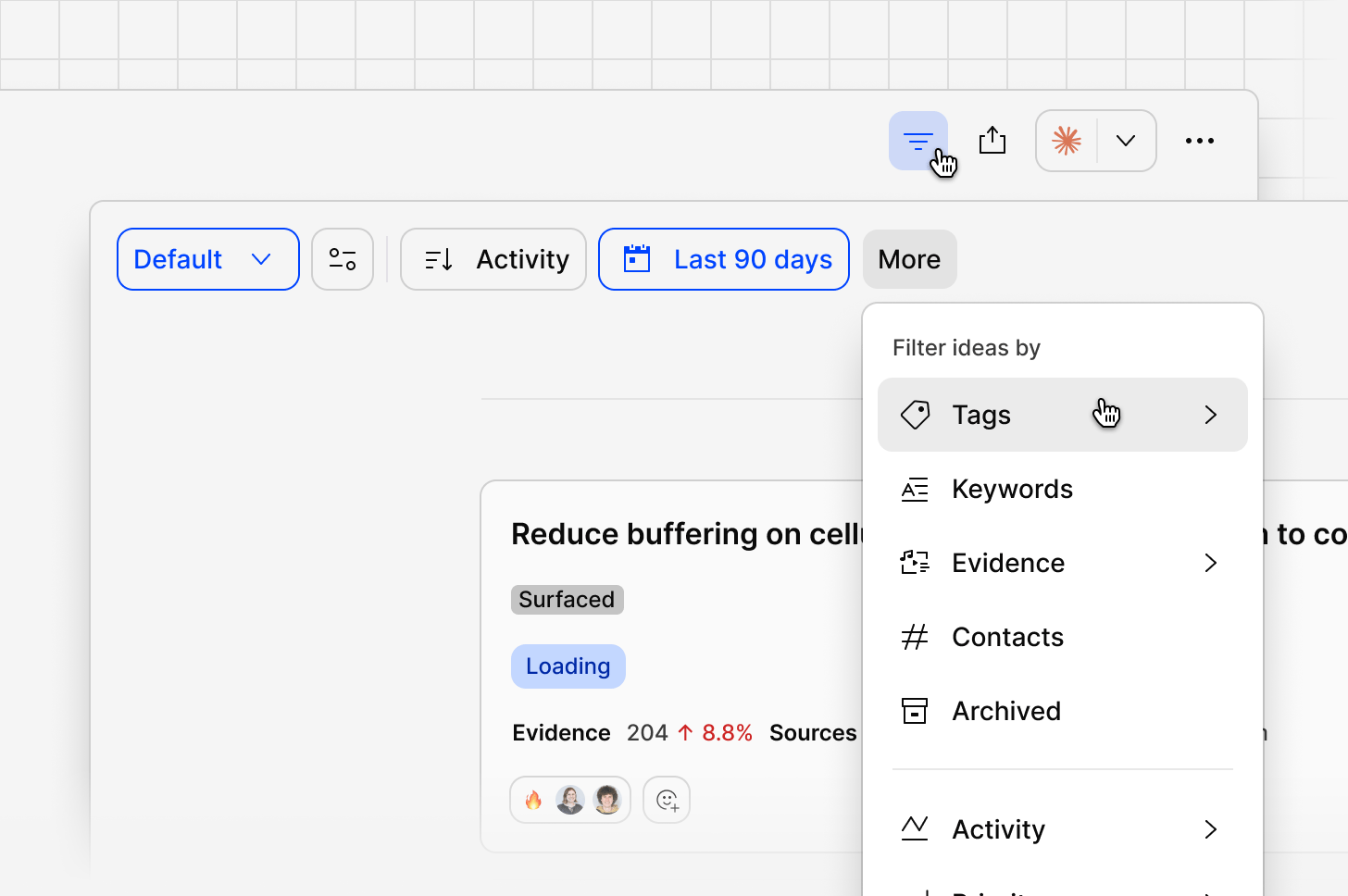
Use `More` to filter by `Tags`, then select the specific tag or tags you want to track, and save this as a view.
You can also set up an agent to alert you automatically whenever new evidence is added to that tag.
***
## Creating and saving views on tags
You can also filter and save views for specific tags. This makes it possible to dynamically track a theme over time, rather than checking back manually.
Use `More` to filter by `Tags`, then select the specific tag or tags you want to track, and save this as a view.
You can also set up an agent to alert you automatically whenever new evidence is added to that tag.
 ***
## Related guides
Create global tags that stay consistent across Projects and Channels.
See how contact details, including ARR, can be tied to ideas and evidence.
***
## Related guides
Create global tags that stay consistent across Projects and Channels.
See how contact details, including ARR, can be tied to ideas and evidence.