> ## Documentation Index
> Fetch the complete documentation index at: https://docs.dovetail.com/llms.txt
> Use this file to discover all available pages before exploring further.
# Connected apps
> Connect your own accounts in tools like Zoom, Google Drive, Jira, and Claude, and see how workspace admins review the apps users have connected.
 ## Overview
Connected apps are the tools that each user connects to Dovetail with their own account, such as Zoom, Google Drive, Jira, and Claude. Once an app is connected, you can use it to import recordings and files into projects, create Jira and Linear issues from customer feedback, embed Dovetail content in other tools, get notifications, or work with Dovetail from an AI tool.
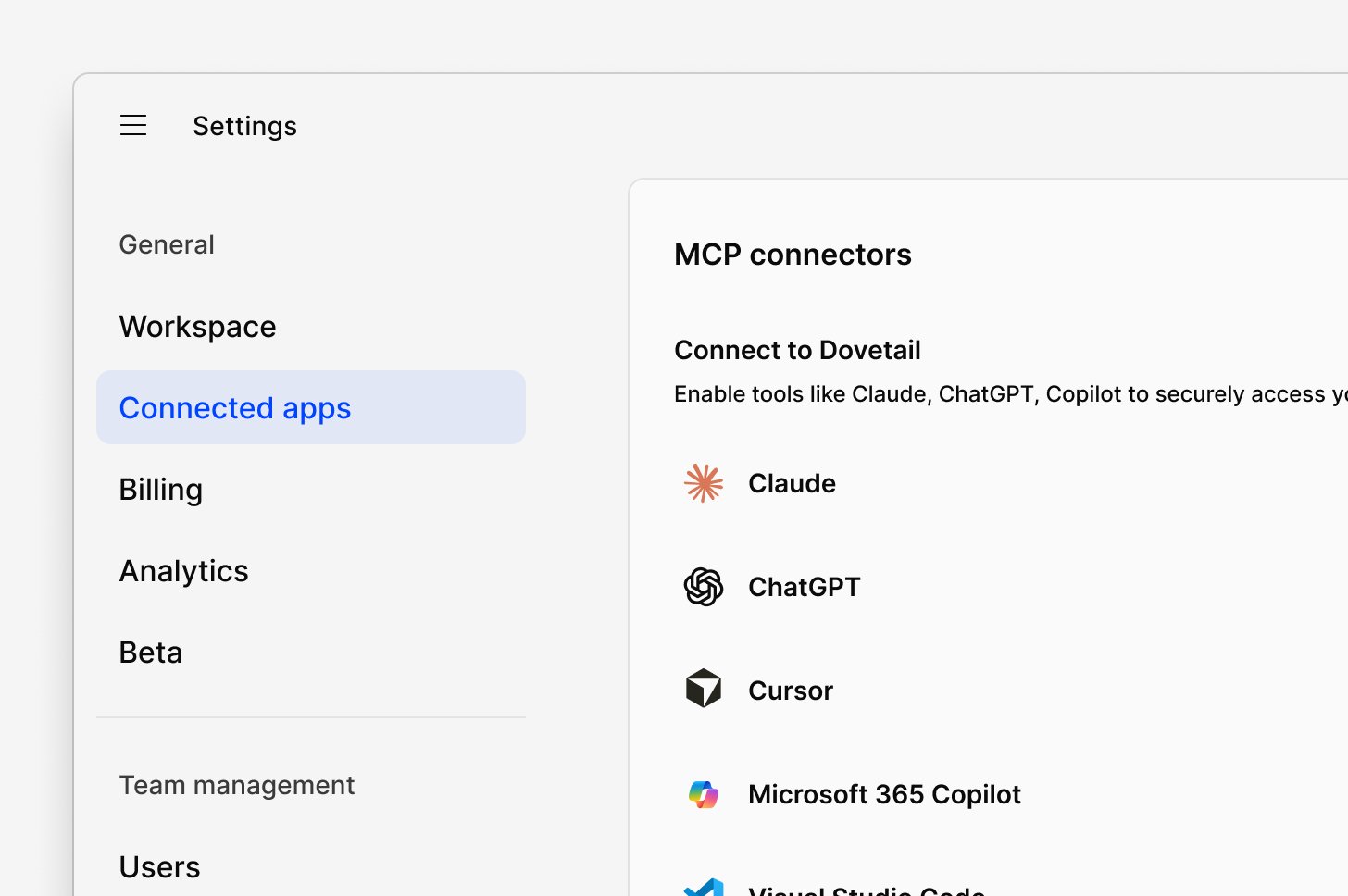
To open the page, go to [**Settings → Connected apps**](https://dovetail.com/settings/integrations), or select **More → Connected apps** in the sidebar. The page was previously called Integrations.
A connection belongs to the user who made it, and other users connect their own accounts. Workspace admins can review all users’ connections and remove them. See [Manage team connections](#manage-team-connections).
Connected apps work differently from sources, which workspace admins create once for the whole workspace. See [Sources and connected apps](/help/sources#sources-and-connected-apps).
***
## MCP connectors
The **MCP connectors** area connects Dovetail with other tools through the Model Context Protocol (MCP), in two directions.
### Connect AI tools to Dovetail
Under **Connect to Dovetail**, you can give AI tools such as Claude, ChatGPT, Microsoft 365 Copilot, Cursor, and Visual Studio Code access to your Dovetail data. Select `Enable` next to a tool and follow the steps it shows. Tools other than Claude, ChatGPT, and Microsoft 365 Copilot connect with a personal API key, which needs access to the Dovetail API.
For setup steps and examples, see [MCP server](/integrations/mcp-server), [Claude](/integrations/claude), [ChatGPT](/integrations/chatgpt), and [Microsoft Copilot](/integrations/microsoft-copilot).
### Connect Dovetail to other apps
Under **Connect Dovetail to other apps**, you can connect apps such as Linear, Notion, Slack, and Salesforce so that Dovetail Chat and Agents can use their data and take actions in them for you. See [External MCP in chat](/help/chat/external-tools#external-mcp-in-chat).
These connections are separate from the app connectors below, even when an app appears in both places.
***
## App connectors
The **App connectors** area lists the apps you can connect with your own account. Find an app in the list or search for it by name. Each app’s guide covers its setup and use.
| App | What it’s for | Guide |
| :- | :- | :- |
| Atlassian | Embed previews of Dovetail content in Jira issues, Confluence pages, and Trello cards | [Atlassian](/integrations/atlassian) |
| Figma | Use Dovetail data as context in Figma Make prototypes | [Figma Make](/integrations/figma-make) |
| Google Calendar | Import and transcribe recordings of calendar meetings into projects, based on rules you set | [Google Calendar](/integrations/google-calendar) |
| Google Drive | Import files and recordings into projects | [Google Drive](/integrations/google-drive) |
| Google Meet | Import and transcribe Google Meet recordings into projects | [Google Meet](/integrations/google-meet) |
| Jira | Create and link Jira issues from customer feedback | [Jira](/integrations/jira) |
| Linear | Create and link Linear issues from customer feedback | [Linear](/integrations/linear) |
| Microsoft OneDrive | Import files and recordings from OneDrive and SharePoint into projects | [Microsoft OneDrive](/integrations/microsoft-onedrive) |
| Microsoft Outlook | Import and transcribe recordings of Outlook Calendar meetings into projects, based on rules you set | [Microsoft Outlook Calendar](/integrations/microsoft-outlook-calendar) |
| Microsoft Teams | Get notifications, query Dovetail in Teams, and import Teams meeting recordings | [Microsoft Teams](/integrations/microsoft-teams) |
| Notion | Embed previews of Dovetail content in Notion pages | [Notion](/integrations/notion) |
| Outset | Import reports from Outset interviews into projects | [Outset](/integrations/outset) |
| Productboard | Send highlights and docs to Productboard as notes | [Productboard](/integrations/productboard) |
| Slack | Get notifications, preview and share Dovetail links, reply to comments, and query Dovetail in Slack | [Slack](/integrations/slack#set-up-slack-integration) |
| Zoom | Import and transcribe Zoom cloud recordings into projects | [Zoom](/integrations/zoom) |
***
## Connect an app
1. Go to **Settings → Connected apps**.
2. Under **App connectors**, find the app.
3. Select `Connect` next to the app, then sign in to the app and approve access.
Some apps need more setup after you connect, such as the rules that decide which calendar meetings are imported into which project. The app’s guide covers these steps. For Atlassian, Figma Make, and Outset, you start the connection from the other tool. See [Atlassian](/integrations/atlassian), [Figma Make](/integrations/figma-make), and [Outset](/integrations/outset).
### Reconnect an app
If Dovetail can no longer use one of your connections, select `Reconnect` next to the app and sign in again.
***
## Disconnect an app
To remove one of your connections, go to **Settings → Connected apps**, select `Configure` next to the app, then select `Remove connection` next to your connection.
Projects that import through your connection, for example through calendar rules, stop receiving new data from it. Data you imported before you disconnected stays in Dovetail.
If you created your workspace’s Slack source, removing your Slack connection stops the source from syncing until it’s reconnected. See [Reconnect a source](/help/sources/manage-a-source#reconnect-a-source).
***
## Manage team connections
[Workspace admins](/help/user-roles#grant-admin-access-to-users) can see every connection that users in the workspace have made to an app under **App connectors**, and remove any of them. Select the button next to the app to list its connections, then select `Remove connection` next to one. The user isn’t notified and needs to reconnect, and removing the connection has the same effect as when they disconnect it themselves.
Some settings on this page apply to the whole workspace, and only workspace admins can change them:
* **Querying Dovetail in Slack and Microsoft Teams.** This connection belongs to the workspace rather than to one user. See [Chat in Slack and Teams](/help/chat/chat-in-slack-and-teams).
* **Slack security settings.** Admins can limit Slack connections to authorized subdomains. See [Restrict Slack connections to authorized subdomains](/integrations/slack#restrict-slack-connections-to-authorized-subdomains).
***
## Looking for feedback tools or your CRM
Customer feedback tools, such as Zendesk, Gong, Qualtrics, and Zapier, aren’t on this page. A workspace admin creates a source for each one, once for the whole workspace, and a customer context source for your CRM, which adds CRM details to your contacts. See [Sources](/help/sources), and for a CRM, [HubSpot Contacts](/integrations/hubspot-contacts) or [Salesforce Contacts](/integrations/salesforce).
***
## Related guides
Connect customer feedback and CRM tools once for the whole workspace.
Find every tool you can connect to Dovetail, and its guide.
Connect AI tools to your Dovetail data through MCP.
Connect other apps to Chat so it can use their data and take actions.
This documentation is built and hosted on [Mintlify](https://mintlify.com), a developer documentation platform.
## Overview
Connected apps are the tools that each user connects to Dovetail with their own account, such as Zoom, Google Drive, Jira, and Claude. Once an app is connected, you can use it to import recordings and files into projects, create Jira and Linear issues from customer feedback, embed Dovetail content in other tools, get notifications, or work with Dovetail from an AI tool.
To open the page, go to [**Settings → Connected apps**](https://dovetail.com/settings/integrations), or select **More → Connected apps** in the sidebar. The page was previously called Integrations.
A connection belongs to the user who made it, and other users connect their own accounts. Workspace admins can review all users’ connections and remove them. See [Manage team connections](#manage-team-connections).
Connected apps work differently from sources, which workspace admins create once for the whole workspace. See [Sources and connected apps](/help/sources#sources-and-connected-apps).
***
## MCP connectors
The **MCP connectors** area connects Dovetail with other tools through the Model Context Protocol (MCP), in two directions.
### Connect AI tools to Dovetail
Under **Connect to Dovetail**, you can give AI tools such as Claude, ChatGPT, Microsoft 365 Copilot, Cursor, and Visual Studio Code access to your Dovetail data. Select `Enable` next to a tool and follow the steps it shows. Tools other than Claude, ChatGPT, and Microsoft 365 Copilot connect with a personal API key, which needs access to the Dovetail API.
For setup steps and examples, see [MCP server](/integrations/mcp-server), [Claude](/integrations/claude), [ChatGPT](/integrations/chatgpt), and [Microsoft Copilot](/integrations/microsoft-copilot).
### Connect Dovetail to other apps
Under **Connect Dovetail to other apps**, you can connect apps such as Linear, Notion, Slack, and Salesforce so that Dovetail Chat and Agents can use their data and take actions in them for you. See [External MCP in chat](/help/chat/external-tools#external-mcp-in-chat).
These connections are separate from the app connectors below, even when an app appears in both places.
***
## App connectors
The **App connectors** area lists the apps you can connect with your own account. Find an app in the list or search for it by name. Each app’s guide covers its setup and use.
| App | What it’s for | Guide |
| :- | :- | :- |
| Atlassian | Embed previews of Dovetail content in Jira issues, Confluence pages, and Trello cards | [Atlassian](/integrations/atlassian) |
| Figma | Use Dovetail data as context in Figma Make prototypes | [Figma Make](/integrations/figma-make) |
| Google Calendar | Import and transcribe recordings of calendar meetings into projects, based on rules you set | [Google Calendar](/integrations/google-calendar) |
| Google Drive | Import files and recordings into projects | [Google Drive](/integrations/google-drive) |
| Google Meet | Import and transcribe Google Meet recordings into projects | [Google Meet](/integrations/google-meet) |
| Jira | Create and link Jira issues from customer feedback | [Jira](/integrations/jira) |
| Linear | Create and link Linear issues from customer feedback | [Linear](/integrations/linear) |
| Microsoft OneDrive | Import files and recordings from OneDrive and SharePoint into projects | [Microsoft OneDrive](/integrations/microsoft-onedrive) |
| Microsoft Outlook | Import and transcribe recordings of Outlook Calendar meetings into projects, based on rules you set | [Microsoft Outlook Calendar](/integrations/microsoft-outlook-calendar) |
| Microsoft Teams | Get notifications, query Dovetail in Teams, and import Teams meeting recordings | [Microsoft Teams](/integrations/microsoft-teams) |
| Notion | Embed previews of Dovetail content in Notion pages | [Notion](/integrations/notion) |
| Outset | Import reports from Outset interviews into projects | [Outset](/integrations/outset) |
| Productboard | Send highlights and docs to Productboard as notes | [Productboard](/integrations/productboard) |
| Slack | Get notifications, preview and share Dovetail links, reply to comments, and query Dovetail in Slack | [Slack](/integrations/slack#set-up-slack-integration) |
| Zoom | Import and transcribe Zoom cloud recordings into projects | [Zoom](/integrations/zoom) |
***
## Connect an app
1. Go to **Settings → Connected apps**.
2. Under **App connectors**, find the app.
3. Select `Connect` next to the app, then sign in to the app and approve access.
Some apps need more setup after you connect, such as the rules that decide which calendar meetings are imported into which project. The app’s guide covers these steps. For Atlassian, Figma Make, and Outset, you start the connection from the other tool. See [Atlassian](/integrations/atlassian), [Figma Make](/integrations/figma-make), and [Outset](/integrations/outset).
### Reconnect an app
If Dovetail can no longer use one of your connections, select `Reconnect` next to the app and sign in again.
***
## Disconnect an app
To remove one of your connections, go to **Settings → Connected apps**, select `Configure` next to the app, then select `Remove connection` next to your connection.
Projects that import through your connection, for example through calendar rules, stop receiving new data from it. Data you imported before you disconnected stays in Dovetail.
If you created your workspace’s Slack source, removing your Slack connection stops the source from syncing until it’s reconnected. See [Reconnect a source](/help/sources/manage-a-source#reconnect-a-source).
***
## Manage team connections
[Workspace admins](/help/user-roles#grant-admin-access-to-users) can see every connection that users in the workspace have made to an app under **App connectors**, and remove any of them. Select the button next to the app to list its connections, then select `Remove connection` next to one. The user isn’t notified and needs to reconnect, and removing the connection has the same effect as when they disconnect it themselves.
Some settings on this page apply to the whole workspace, and only workspace admins can change them:
* **Querying Dovetail in Slack and Microsoft Teams.** This connection belongs to the workspace rather than to one user. See [Chat in Slack and Teams](/help/chat/chat-in-slack-and-teams).
* **Slack security settings.** Admins can limit Slack connections to authorized subdomains. See [Restrict Slack connections to authorized subdomains](/integrations/slack#restrict-slack-connections-to-authorized-subdomains).
***
## Looking for feedback tools or your CRM
Customer feedback tools, such as Zendesk, Gong, Qualtrics, and Zapier, aren’t on this page. A workspace admin creates a source for each one, once for the whole workspace, and a customer context source for your CRM, which adds CRM details to your contacts. See [Sources](/help/sources), and for a CRM, [HubSpot Contacts](/integrations/hubspot-contacts) or [Salesforce Contacts](/integrations/salesforce).
***
## Related guides
Connect customer feedback and CRM tools once for the whole workspace.
Find every tool you can connect to Dovetail, and its guide.
Connect AI tools to your Dovetail data through MCP.
Connect other apps to Chat so it can use their data and take actions.
This documentation is built and hosted on [Mintlify](https://mintlify.com), a developer documentation platform.