> ## Documentation Index
> Fetch the complete documentation index at: https://docs.dovetail.com/llms.txt
> Use this file to discover all available pages before exploring further.
# Contacts
 Available on [**Legacy and Enterprise plans**](https://dovetail.com/pricing/).
By default, on legacy and Enterprise plans, Managers and Contributors can create and edit contacts. On our current Free plans, all users are assigned a paid seat, and any user can create contacts.
## Overview
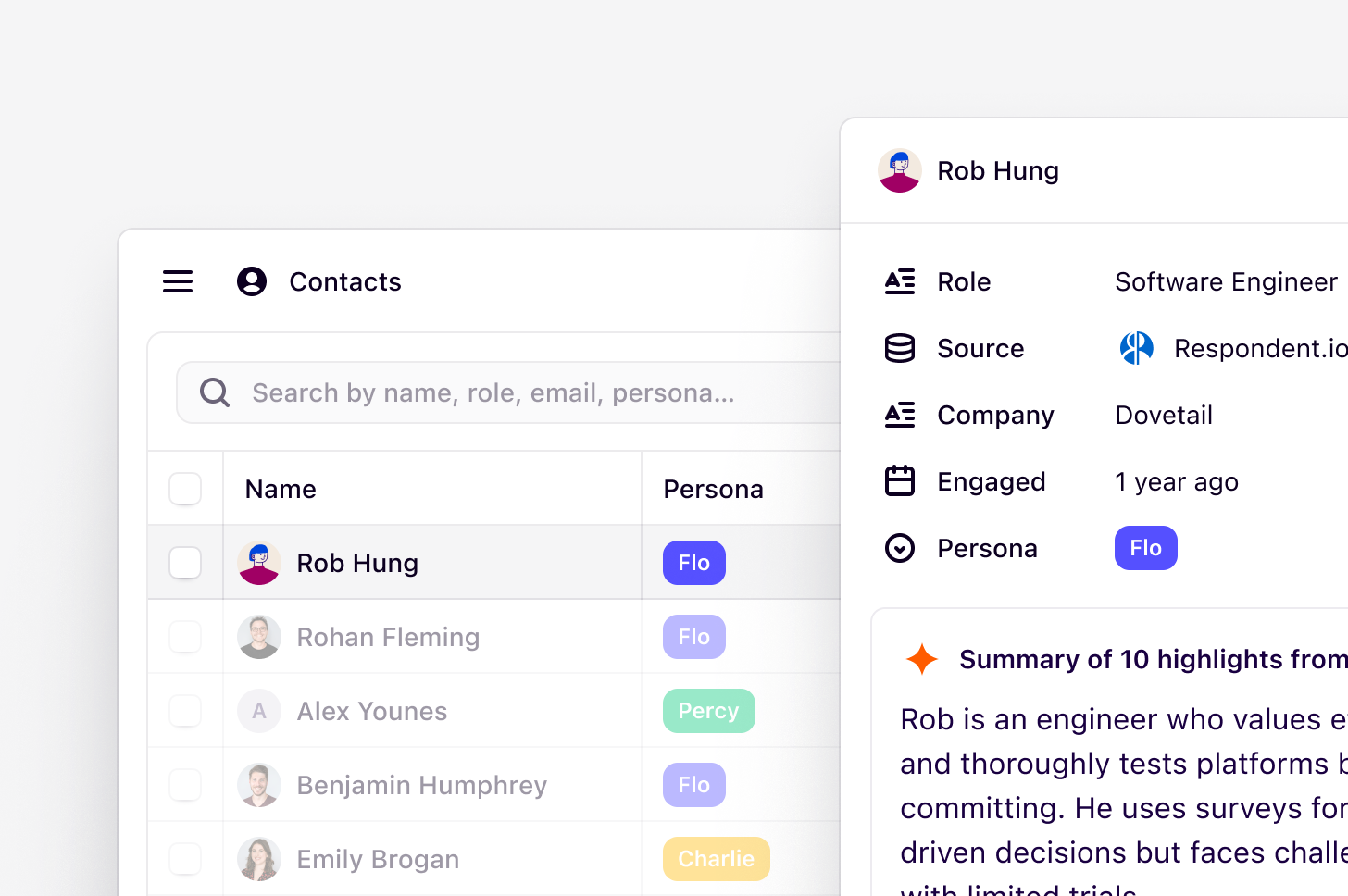
Contacts is where you can store, track, and manage your contacts and participants. A contact can be linked to raw data and docs created across projects in your workspace, allowing you to trace every interaction with an individual or participant. Contacts are available across your entire workspace and are not specific to a project.
Contacts can be added manually, imported via CSV, or created automatically when Dovetail transcribes your video or audio files. See Contact automation (Beta) below for more information.
***
## Add a new contact to your database
A new Dovetail experience is coming on March 31, 2026. We’re updating the app’s navigation and structure. You may notice changes, as some features appear in new locations.
Users with edit access can add new contacts to the contacts database to store and track participants and individuals involved in project work, such as interviews, surveys, and usability tests.
* To create a new person, go to ⚙️ [**Settings → Contacts**](https://dovetail.com/settings/people) and click `New`.
* From there, enter a name or unique identifier and any important information in fields. Your contact will also be allocated a randomized [Dove-atar](https://dovetail.com/blog/dovetail-profile-avatars/).
These users can also add multiple contacts at once via CSV import.
* To do this, go to ⚙️ [**Settings → Contacts**](https://dovetail.com/settings/people) and select `Import`.
* From there, upload your **CSV file** containing a list of your contacts and map columns to a person’s metadata. You must have at least 1 column mapped to **Name** to ensure a successful import.
The file should be UTF-8 encoded Comma Separated Value (CSV) file and if importing **date** information, the format must be in [ISO 8601](https://en.wikipedia.org/wiki/ISO_8601) date format or YYYY-MM-DD HH:MM.
Please note that we only support 500 rows per import for Contact CSV file uploads.
In addition, the contact database supports up to 50,000 contacts.
***
## Contact automation (Beta)
When a video or audio file is uploaded and transcribed in a Project, Dovetail can automatically find contact information in the transcript and use it to create new contacts or update existing ones. This feature currently applies to transcripts in Projects only and does not apply to data in Channels.
Dovetail uses a combination of sources to find contact details:
* If your file is imported from Zoom or Microsoft Teams, Dovetail pulls the contact name and email where available.
* For meetings imported automatically via calendar integrations, participant details are pulled from the calendar event.
* All other information, including role, company, or name if not available from the above sources, is inferred by AI directly from the transcript itself.
*For example, if a participant mentions their company name or job title during an interview, Dovetail can capture that and add it to their contact record.*
You can choose how enrichment behaves by selecting one of three modes:
* **Auto-create and update** – Dovetail creates new contacts and updates existing ones automatically.
* **Update existing only** – only contacts already in your database are updated. No new contacts are created.
* **Off** – contact enrichment is disabled entirely.
To configure enrichment, go to ⚙️ **Settings → Data management → Contact automation** and select the enrichment mode that suits your workflow. You can also map custom contact fields (like company name, job title, or department) so they are populated automatically when a contact is created or updated. If you haven’t mapped any fields yet, Dovetail will do its best to match the information to the correct fields automatically.
***
## Add fields to categorize contacts
You can store metadata on contacts using fields. Fields allow you to categorize your participants for search and analysis purposes and commonly capture demographic information (like participant age, location), contact details (like email address or phone number), and other information (like interview date or persona type).
**Users with edit access** can create and edit fields on contacts.
* To do this, go to ⚙️ [**Settings → Contacts**](https://dovetail.com/settings/people) and select `Fields`.
* In the menu, click `+ New field`, enter a field title and select the field type. This field will then appear across all contacts profiles stored in your database.
To delete a contact field, open a contact card, select the field you want to delete, and click **Move to trash**
Fields can also be populated automatically when contacts are created or updated through contact enrichment. You can configure which fields are mapped in your contact enrichment settings.
***
## Sort and filter contacts in your database
You can sort and filter your view to segment contacts in your database.
* To do this, open ⚙️ [**Settings → Contacts**](https://dovetail.com/settings/people), click `Filter` and apply your filters. You can also filter results by specific contacts or the values you’ve stored in fields.
***
## Link contacts to data or docs
Contacts can be added to **data** or **docs** in projects using [fields](https://dovetail.com/help/add-structured-data-with-fields/). This provides traceability of specific research you've done related to a particular person.
* To add a contact to a data object or doc, click `+ New field` and select the field type `Contact`.
* From there, you can proceed to select contact stored in the contact database as values in the field itself.
You can also link a contact to an interview, call, or meeting by adding them as a speaker in your **transcript**. When a video or audio file is transcribed, Dovetail can also automatically create or update contacts from the transcript. See Contact automation (Beta) above for more information.
***
## Manage duplicate contacts
If you're importing contacts, you can choose how you would like to deal with duplicate contacts if found. There are three options, for managing duplicate data:
* **Keep both** - all imported spreadsheet rows will create new contacts.
* **Replace** - spreadsheet rows with a duplicate in the contacts database will replace the duplicate.
* **Discard** - spreadsheet rows with a duplicate in the contacts database will not be imported.
If you select **replace** or **discard** duplicates, you must choose which column to use as a unique identifier. A unique column is one in which no two entries are the same (e.g. an email column, or a unique id column). We use this column to search for matches between your CSV and your existing contacts database.
***
## Restrict access to your contacts database
Only available on our Enterprise plan
**Users always inherit their highest assigned access level**
A user’s access to contacts is always determined by their highest assigned permission. To restrict them, you must first lower the workspace's permission level, then grant higher access back to other users individually.
Anyone with full access to the contact database can adjust its access controls from the share menu on the contacts database.
You can assign a different level of access to each user, group, or workspace you share. This is helpful if:
* You want only a few people to manage access to contacts, while everyone can interact with it.
* You want contacts metadata only to be visible to a specific team.
* You want your stakeholders to know the names of speakers, but not let them edit all the metadata.
The four cascading permission levels are **Full access**, **Can edit**, **Can use**, and **No access**:
| Permission | Full access | Can edit | Can use | No access |
| ------------------- | ----------- | -------- | ------- | --------- |
| Manage access | ✓ | | | |
| Create contacts | ✓ | ✓ | | |
| Edit contacts | ✓ | ✓ | | |
| Add comments | ✓ | ✓ | ✓ | |
| Link to contacts | ✓ | ✓ | ✓ | |
| View contacts | ✓ | ✓ | ✓ | |
| Contacts are hidden | | | | ✓ |
Access to the contact database has recently changed. Here is everything you need to know:
* For any **new** workspaces created after July 2nd, 2025:
* By default, everyone in the workspace has full access.
* For workspaces created **before** July 2nd, 2025:
* Existing permissions have been carried over, so you shouldn't notice any changes. \
Here's how old permissions map to the new system:
* Admins at *the time of the implementation* were granted Full access.
* Admins added after July 2, 2025, will need to be granted Full access. To receive Full access, you'll need to navigate to the "Share" button on the top right on the Contacts page and reach out to a user with Full access to grant you Full access.
* Other roles that previously had access now have "Can edit permissions", they can create, edit, link, and comment on contacts, but can't manage access levels.
* If a role didn't have access before, it still doesn't.
***
## Download contacts data
**Managers** can download a spreadsheet of stored contacts from the workspace.
* To export your contacts database, navigate to [**⚙️ Settings → Contacts database**](https://dovetail.com/settings/people) and in the top right corner, select `Download CSV`.
This spreadsheet will contain a number of columns with field data in a CSV format, and can be opened with Apple Numbers, Google Sheets, Microsoft Excel, or other spreadsheet software.
Available on [**Legacy and Enterprise plans**](https://dovetail.com/pricing/).
By default, on legacy and Enterprise plans, Managers and Contributors can create and edit contacts. On our current Free plans, all users are assigned a paid seat, and any user can create contacts.
## Overview
Contacts is where you can store, track, and manage your contacts and participants. A contact can be linked to raw data and docs created across projects in your workspace, allowing you to trace every interaction with an individual or participant. Contacts are available across your entire workspace and are not specific to a project.
Contacts can be added manually, imported via CSV, or created automatically when Dovetail transcribes your video or audio files. See Contact automation (Beta) below for more information.
***
## Add a new contact to your database
A new Dovetail experience is coming on March 31, 2026. We’re updating the app’s navigation and structure. You may notice changes, as some features appear in new locations.
Users with edit access can add new contacts to the contacts database to store and track participants and individuals involved in project work, such as interviews, surveys, and usability tests.
* To create a new person, go to ⚙️ [**Settings → Contacts**](https://dovetail.com/settings/people) and click `New`.
* From there, enter a name or unique identifier and any important information in fields. Your contact will also be allocated a randomized [Dove-atar](https://dovetail.com/blog/dovetail-profile-avatars/).
These users can also add multiple contacts at once via CSV import.
* To do this, go to ⚙️ [**Settings → Contacts**](https://dovetail.com/settings/people) and select `Import`.
* From there, upload your **CSV file** containing a list of your contacts and map columns to a person’s metadata. You must have at least 1 column mapped to **Name** to ensure a successful import.
The file should be UTF-8 encoded Comma Separated Value (CSV) file and if importing **date** information, the format must be in [ISO 8601](https://en.wikipedia.org/wiki/ISO_8601) date format or YYYY-MM-DD HH:MM.
Please note that we only support 500 rows per import for Contact CSV file uploads.
In addition, the contact database supports up to 50,000 contacts.
***
## Contact automation (Beta)
When a video or audio file is uploaded and transcribed in a Project, Dovetail can automatically find contact information in the transcript and use it to create new contacts or update existing ones. This feature currently applies to transcripts in Projects only and does not apply to data in Channels.
Dovetail uses a combination of sources to find contact details:
* If your file is imported from Zoom or Microsoft Teams, Dovetail pulls the contact name and email where available.
* For meetings imported automatically via calendar integrations, participant details are pulled from the calendar event.
* All other information, including role, company, or name if not available from the above sources, is inferred by AI directly from the transcript itself.
*For example, if a participant mentions their company name or job title during an interview, Dovetail can capture that and add it to their contact record.*
You can choose how enrichment behaves by selecting one of three modes:
* **Auto-create and update** – Dovetail creates new contacts and updates existing ones automatically.
* **Update existing only** – only contacts already in your database are updated. No new contacts are created.
* **Off** – contact enrichment is disabled entirely.
To configure enrichment, go to ⚙️ **Settings → Data management → Contact automation** and select the enrichment mode that suits your workflow. You can also map custom contact fields (like company name, job title, or department) so they are populated automatically when a contact is created or updated. If you haven’t mapped any fields yet, Dovetail will do its best to match the information to the correct fields automatically.
***
## Add fields to categorize contacts
You can store metadata on contacts using fields. Fields allow you to categorize your participants for search and analysis purposes and commonly capture demographic information (like participant age, location), contact details (like email address or phone number), and other information (like interview date or persona type).
**Users with edit access** can create and edit fields on contacts.
* To do this, go to ⚙️ [**Settings → Contacts**](https://dovetail.com/settings/people) and select `Fields`.
* In the menu, click `+ New field`, enter a field title and select the field type. This field will then appear across all contacts profiles stored in your database.
To delete a contact field, open a contact card, select the field you want to delete, and click **Move to trash**
Fields can also be populated automatically when contacts are created or updated through contact enrichment. You can configure which fields are mapped in your contact enrichment settings.
***
## Sort and filter contacts in your database
You can sort and filter your view to segment contacts in your database.
* To do this, open ⚙️ [**Settings → Contacts**](https://dovetail.com/settings/people), click `Filter` and apply your filters. You can also filter results by specific contacts or the values you’ve stored in fields.
***
## Link contacts to data or docs
Contacts can be added to **data** or **docs** in projects using [fields](https://dovetail.com/help/add-structured-data-with-fields/). This provides traceability of specific research you've done related to a particular person.
* To add a contact to a data object or doc, click `+ New field` and select the field type `Contact`.
* From there, you can proceed to select contact stored in the contact database as values in the field itself.
You can also link a contact to an interview, call, or meeting by adding them as a speaker in your **transcript**. When a video or audio file is transcribed, Dovetail can also automatically create or update contacts from the transcript. See Contact automation (Beta) above for more information.
***
## Manage duplicate contacts
If you're importing contacts, you can choose how you would like to deal with duplicate contacts if found. There are three options, for managing duplicate data:
* **Keep both** - all imported spreadsheet rows will create new contacts.
* **Replace** - spreadsheet rows with a duplicate in the contacts database will replace the duplicate.
* **Discard** - spreadsheet rows with a duplicate in the contacts database will not be imported.
If you select **replace** or **discard** duplicates, you must choose which column to use as a unique identifier. A unique column is one in which no two entries are the same (e.g. an email column, or a unique id column). We use this column to search for matches between your CSV and your existing contacts database.
***
## Restrict access to your contacts database
Only available on our Enterprise plan
**Users always inherit their highest assigned access level**
A user’s access to contacts is always determined by their highest assigned permission. To restrict them, you must first lower the workspace's permission level, then grant higher access back to other users individually.
Anyone with full access to the contact database can adjust its access controls from the share menu on the contacts database.
You can assign a different level of access to each user, group, or workspace you share. This is helpful if:
* You want only a few people to manage access to contacts, while everyone can interact with it.
* You want contacts metadata only to be visible to a specific team.
* You want your stakeholders to know the names of speakers, but not let them edit all the metadata.
The four cascading permission levels are **Full access**, **Can edit**, **Can use**, and **No access**:
| Permission | Full access | Can edit | Can use | No access |
| ------------------- | ----------- | -------- | ------- | --------- |
| Manage access | ✓ | | | |
| Create contacts | ✓ | ✓ | | |
| Edit contacts | ✓ | ✓ | | |
| Add comments | ✓ | ✓ | ✓ | |
| Link to contacts | ✓ | ✓ | ✓ | |
| View contacts | ✓ | ✓ | ✓ | |
| Contacts are hidden | | | | ✓ |
Access to the contact database has recently changed. Here is everything you need to know:
* For any **new** workspaces created after July 2nd, 2025:
* By default, everyone in the workspace has full access.
* For workspaces created **before** July 2nd, 2025:
* Existing permissions have been carried over, so you shouldn't notice any changes. \
Here's how old permissions map to the new system:
* Admins at *the time of the implementation* were granted Full access.
* Admins added after July 2, 2025, will need to be granted Full access. To receive Full access, you'll need to navigate to the "Share" button on the top right on the Contacts page and reach out to a user with Full access to grant you Full access.
* Other roles that previously had access now have "Can edit permissions", they can create, edit, link, and comment on contacts, but can't manage access levels.
* If a role didn't have access before, it still doesn't.
***
## Download contacts data
**Managers** can download a spreadsheet of stored contacts from the workspace.
* To export your contacts database, navigate to [**⚙️ Settings → Contacts database**](https://dovetail.com/settings/people) and in the top right corner, select `Download CSV`.
This spreadsheet will contain a number of columns with field data in a CSV format, and can be opened with Apple Numbers, Google Sheets, Microsoft Excel, or other spreadsheet software.