> ## Documentation Index
> Fetch the complete documentation index at: https://docs.dovetail.com/llms.txt
> Use this file to discover all available pages before exploring further.
# Dashboards
> Dashboards help center article
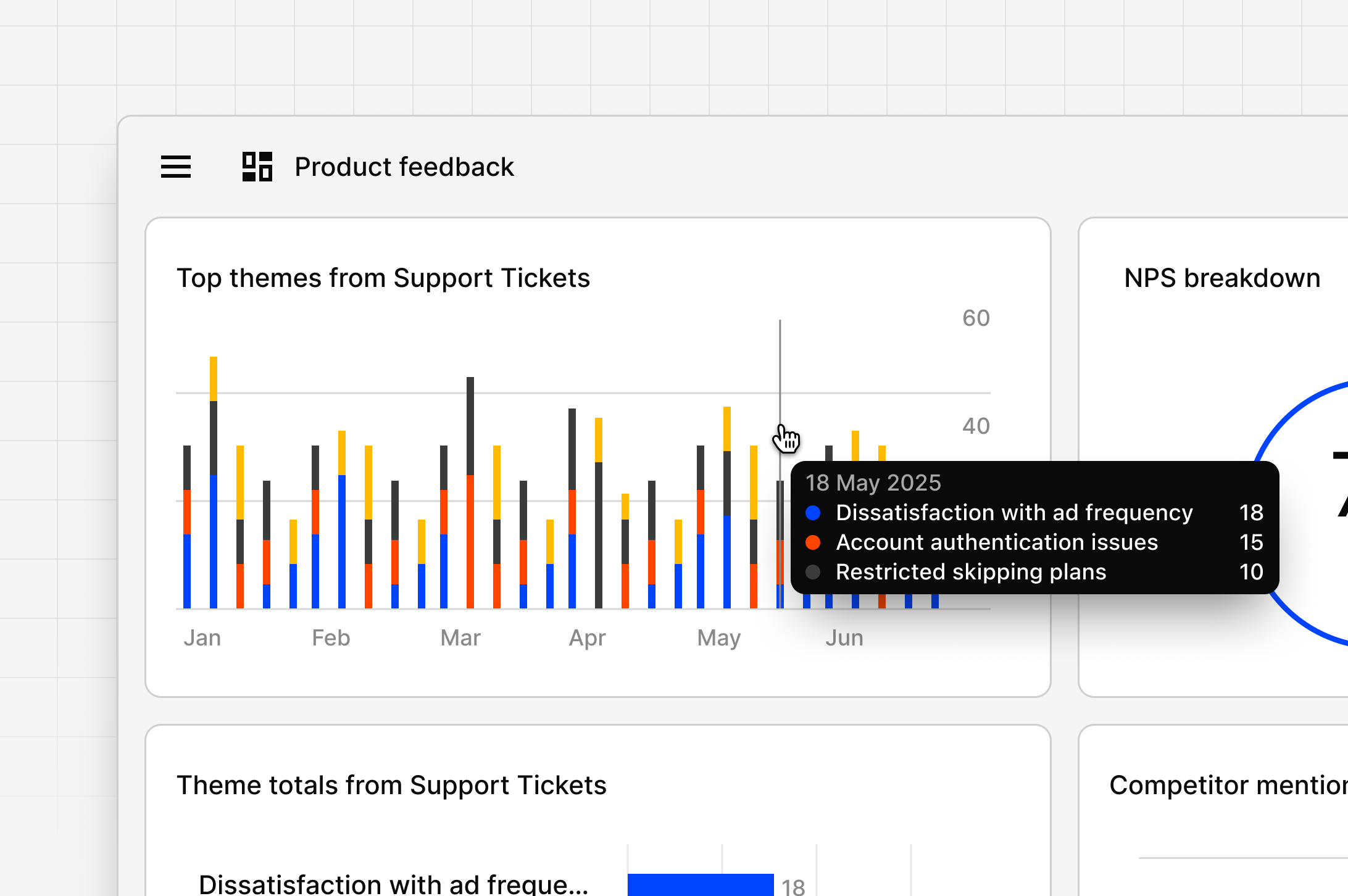 Dashboards are available in beta for Professional, Business and Enterprise workspaces. Admins can enable this feature for their workspace in Settings.
## Overview
Dashboards let you track feedback and metrics over time. You can combine quantitative data (like CSAT and NPS) with qualitative insights (like themes and sentiment) in one view. They show real-time shifts in scores, sentiment, and themes, helping you spot what’s improving or declining.
***
## Create a dashboard
Managers and contributors can create and edit dashboards, while viewers can only see those shared with them. By default, all users can access any dashboards created in their workspace.
* To create a dashboard, select + New → Dashboard in the global side menu, or in a folder or project.
* Dovetail automatically analyzes your workspace and will populate widgets based on the type of data you have available.
Data displayed on a dashboard will honor any permission controls enforced on the original source data in your workspace. If a user views a chart and does not have access to the original source data (channel or project), they will not be able to view any of the contents within the chart.
***
## Types of visualizations
Dovetail has built powerful visualizations designed to deliver the greatest impact when visualizing qualitative data. The types of visualizations available to choose from will depend on the metric you’re looking to measure and whether that data is available in your workspace. For example, tracking NPS over time. You must have a Channel that is ingesting your NPS metric.
| Widget | Data source | Value |
| :----------------- | :------------------------------- | ------------------------------------------------------------------------------------------------------------------------- |
| **Keyword search** | Platform (Projects and Channels) | Identify emerging trends and shifts in customer vocabulary by tracking keyword frequency over time. |
| **NPS** | Channels | Measure customer loyalty at a glance with a summary score, and also track relationship health trends over the long term. |
| **CSAT** | Channels | Assess immediate satisfaction levels with a summary score, and also track service quality consistency over the long term. |
| **Themes totals** | Channels | Quantify the "noise" level of specific themes by comparing the total volume of data points across up to 4 themes. |
| **Theme trends** | Channels | Visualize the trajectory of up to 4 specific themes to understand if a topic is gaining or losing momentum. |
| **Sentiment** | Channels | Monitor the emotional health of your feedback to correlate positive or negative shifts with specific dates or releases. |
***
## Add a widget
You can visualize different metrics in set ways that make sense for that data type. A single dashboard can have an unlimited amount of widgets.
* To add a widget to a dashboard, click + in the top right corner.
* Next, select a metric (**Sentiment, CSAT, NPS, Theme**) and choose the channel
* If selecting the **Keywords** widget, you do not need to select a source. You are able to refine where the results are sourced from using **Filter**.
* From there, refine results further by selecting a time frame, interval, and applying filters.
* Once done, click **Save** in the bottom right.
***
## View source data
Every widget includes links to the underlying data powering it. This lets you trace insights back to the original feedback for full context.
* Hover over a widget and select the **Drill in** icon. Dovetail will open up the Channel that contains the data powering the widget.
Use this to explore the data behind a theme, verify trends, or read more feedback contributing to a score or sentiment change. Note, **Keyword** does not yet have the traceability experience.
***
## Chat with a Dashboard
Chat directly from a dashboard or an individual widget to explore the data behind what you see.
* **Chat with a dashboard:** Opens Chat connected to all datasets powering the widgets in that dashboard. Use this to ask questions about overall trends or patterns. *Example: “Why did CSAT drop this month?”*
* **Chat with a widget:** Hover over a widget, and select the **Chat** icon that appears in the floating toolbar. This opens chat in a focused context, concentrating on the dataset behind that widget. Use this to dig deeper into a specific metric or visualization. *Example: “What quotes are users saying that is driving negative senitment about pricing.”*
Chat uses the same data that powers your dashboard, so responses reflect the latest information in your workspace and uses citations for traceability.
***
## Edit or remove a widget
### **Edit a widget**
* To edit a widget on a dashboard, hover over the widget and select the **Edit** icon.
* From there, this will open the chart editor where you can make any appropriate changes. Once ready, click **Save**.
### **Remove a widget**
* To remove a widget from a dashboard, hover over the widget and select the **Trash** icon.
* Once confirmed and removed, you will not be able to restore this chart to the dashboard.
***
## Delete a dashboard
* To delete an entire dashboard, select the Dashboard from **Your Work** or **Browse** page.
* From there, click **Move to trash**. The dashboard will be available to restore in workspace trash for up to 30 days.
***
## Permissions and sharing
Manage and change permissions by clicking on the **Share** button on a dashbaord.
***
## Share your feedback
Dashboards is currently in beta! Use the **Give feedback** button to let us know how it’s doing. All feedback is shared with the Dovetail team to help us improve the experience. In addition to speed and performance, we’re working hard on supporting additional widget types like summarize, and powering Dashboards with more Projects data.
***
## FAQs
Ensure the associated Channel has CSAT selected as a CSAT `field`
The CSAT dashboard widget calculates satisfaction percentage based on responses to 1–5 scale rating fields.
What counts as “Satisfied” vs “Unsatisfied”?
* **Satisfied:** scores of **4** and **5**
* **Unsatisfied:** scores of **1**, **2**, and **3**
Dashboards are available in beta for Professional, Business and Enterprise workspaces. Admins can enable this feature for their workspace in Settings.
## Overview
Dashboards let you track feedback and metrics over time. You can combine quantitative data (like CSAT and NPS) with qualitative insights (like themes and sentiment) in one view. They show real-time shifts in scores, sentiment, and themes, helping you spot what’s improving or declining.
***
## Create a dashboard
Managers and contributors can create and edit dashboards, while viewers can only see those shared with them. By default, all users can access any dashboards created in their workspace.
* To create a dashboard, select + New → Dashboard in the global side menu, or in a folder or project.
* Dovetail automatically analyzes your workspace and will populate widgets based on the type of data you have available.
Data displayed on a dashboard will honor any permission controls enforced on the original source data in your workspace. If a user views a chart and does not have access to the original source data (channel or project), they will not be able to view any of the contents within the chart.
***
## Types of visualizations
Dovetail has built powerful visualizations designed to deliver the greatest impact when visualizing qualitative data. The types of visualizations available to choose from will depend on the metric you’re looking to measure and whether that data is available in your workspace. For example, tracking NPS over time. You must have a Channel that is ingesting your NPS metric.
| Widget | Data source | Value |
| :----------------- | :------------------------------- | ------------------------------------------------------------------------------------------------------------------------- |
| **Keyword search** | Platform (Projects and Channels) | Identify emerging trends and shifts in customer vocabulary by tracking keyword frequency over time. |
| **NPS** | Channels | Measure customer loyalty at a glance with a summary score, and also track relationship health trends over the long term. |
| **CSAT** | Channels | Assess immediate satisfaction levels with a summary score, and also track service quality consistency over the long term. |
| **Themes totals** | Channels | Quantify the "noise" level of specific themes by comparing the total volume of data points across up to 4 themes. |
| **Theme trends** | Channels | Visualize the trajectory of up to 4 specific themes to understand if a topic is gaining or losing momentum. |
| **Sentiment** | Channels | Monitor the emotional health of your feedback to correlate positive or negative shifts with specific dates or releases. |
***
## Add a widget
You can visualize different metrics in set ways that make sense for that data type. A single dashboard can have an unlimited amount of widgets.
* To add a widget to a dashboard, click + in the top right corner.
* Next, select a metric (**Sentiment, CSAT, NPS, Theme**) and choose the channel
* If selecting the **Keywords** widget, you do not need to select a source. You are able to refine where the results are sourced from using **Filter**.
* From there, refine results further by selecting a time frame, interval, and applying filters.
* Once done, click **Save** in the bottom right.
***
## View source data
Every widget includes links to the underlying data powering it. This lets you trace insights back to the original feedback for full context.
* Hover over a widget and select the **Drill in** icon. Dovetail will open up the Channel that contains the data powering the widget.
Use this to explore the data behind a theme, verify trends, or read more feedback contributing to a score or sentiment change. Note, **Keyword** does not yet have the traceability experience.
***
## Chat with a Dashboard
Chat directly from a dashboard or an individual widget to explore the data behind what you see.
* **Chat with a dashboard:** Opens Chat connected to all datasets powering the widgets in that dashboard. Use this to ask questions about overall trends or patterns. *Example: “Why did CSAT drop this month?”*
* **Chat with a widget:** Hover over a widget, and select the **Chat** icon that appears in the floating toolbar. This opens chat in a focused context, concentrating on the dataset behind that widget. Use this to dig deeper into a specific metric or visualization. *Example: “What quotes are users saying that is driving negative senitment about pricing.”*
Chat uses the same data that powers your dashboard, so responses reflect the latest information in your workspace and uses citations for traceability.
***
## Edit or remove a widget
### **Edit a widget**
* To edit a widget on a dashboard, hover over the widget and select the **Edit** icon.
* From there, this will open the chart editor where you can make any appropriate changes. Once ready, click **Save**.
### **Remove a widget**
* To remove a widget from a dashboard, hover over the widget and select the **Trash** icon.
* Once confirmed and removed, you will not be able to restore this chart to the dashboard.
***
## Delete a dashboard
* To delete an entire dashboard, select the Dashboard from **Your Work** or **Browse** page.
* From there, click **Move to trash**. The dashboard will be available to restore in workspace trash for up to 30 days.
***
## Permissions and sharing
Manage and change permissions by clicking on the **Share** button on a dashbaord.
***
## Share your feedback
Dashboards is currently in beta! Use the **Give feedback** button to let us know how it’s doing. All feedback is shared with the Dovetail team to help us improve the experience. In addition to speed and performance, we’re working hard on supporting additional widget types like summarize, and powering Dashboards with more Projects data.
***
## FAQs
Ensure the associated Channel has CSAT selected as a CSAT `field`
The CSAT dashboard widget calculates satisfaction percentage based on responses to 1–5 scale rating fields.
What counts as “Satisfied” vs “Unsatisfied”?
* **Satisfied:** scores of **4** and **5**
* **Unsatisfied:** scores of **1**, **2**, and **3**