> ## Documentation Index
> Fetch the complete documentation index at: https://docs.dovetail.com/llms.txt
> Use this file to discover all available pages before exploring further.
# Edit and format docs
 ## Format, style, and structure your doc
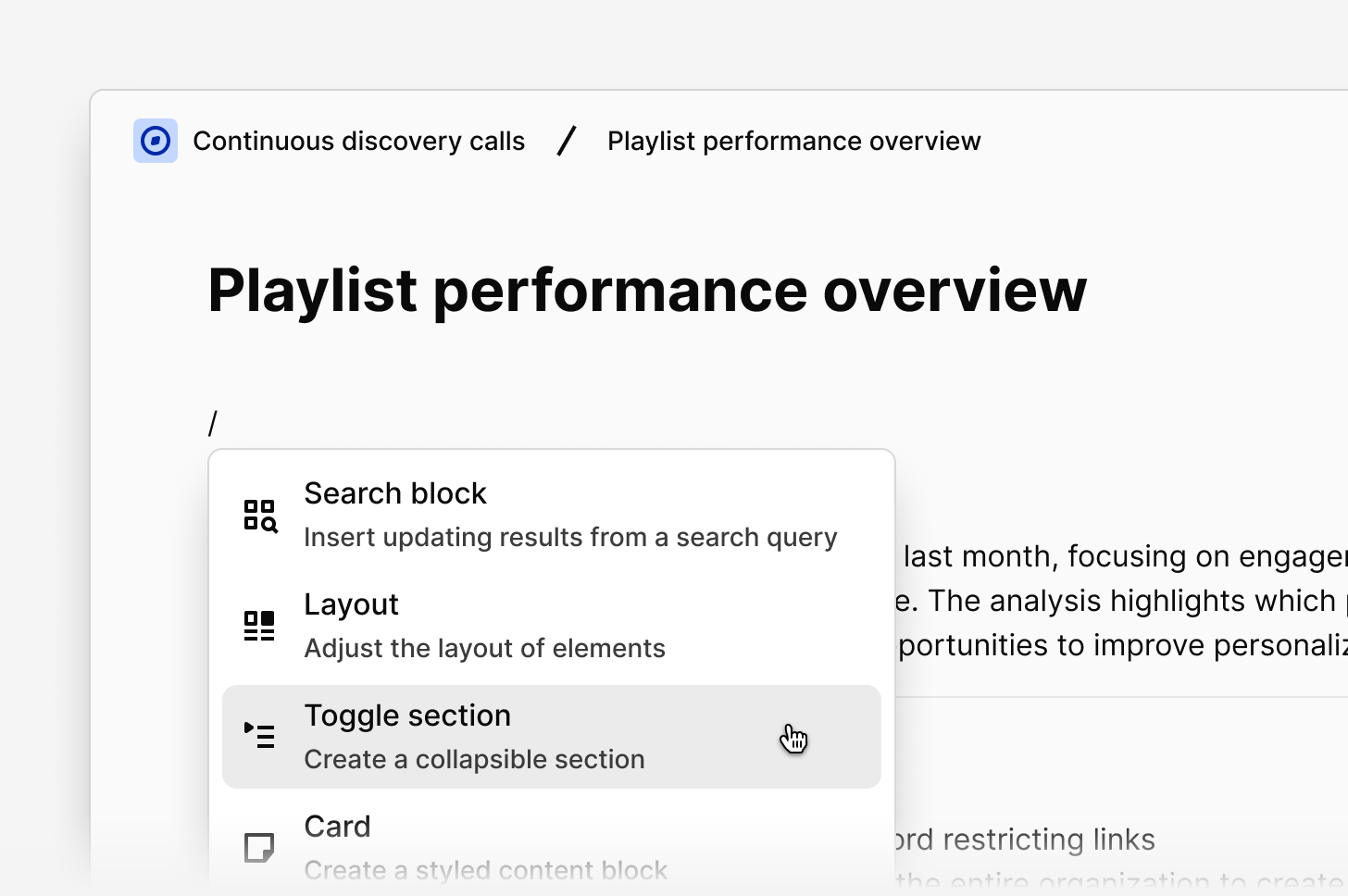
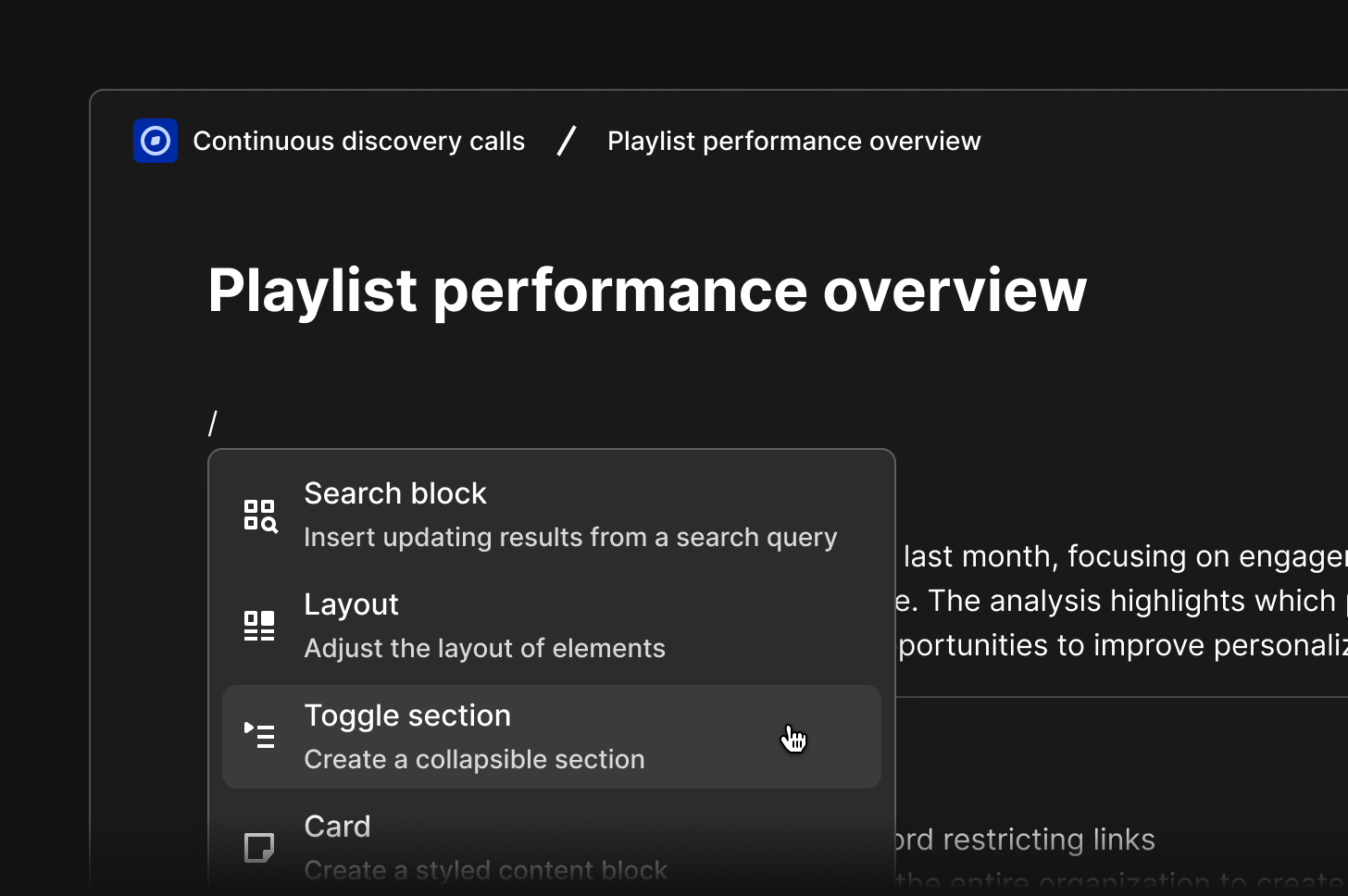
Ease stakeholders through your findings by polishing how text and data is displayed in your doc. In a doc, type `/` within the editor to see all blocks for formatting and structure options that you can drag and drop with `⋮⋮` anywhere on your page. [Learn how to edit and format your doc →](https://docs.dovetail.com/help/projects/edit-and-format/)
Formatting options include
* [Headings and text styling →](https://docs.dovetail.com/help/projects/edit-and-format#headings-and-text-styling)
* [Add cards, layouts and dividers →](https://docs.dovetail.com/help/projects/edit-and-format#add-cards-layouts-and-dividers)
* [Add a table of contents →](https://docs.dovetail.com/help/projects/edit-and-format#add-a-table-of-contents)
* [Add, modify, and remove tables →](https://docs.dovetail.com/help/projects/edit-and-format#add-modify-and-remove-question-blocks)
* [Toggle sections →](https://docs.dovetail.com/help/projects/edit-and-format#add-a-toggle-section)
* [Code block →](https://docs.dovetail.com/help/projects/edit-and-format#add-a-code-block)
***
## Add a cover image to your doc
Doc cover photos give you a quick way to make your doc more visual with a banner. You can upload your own image as a cover photo or search for one from thousands of free photos using our [Unsplash](https://unsplash.com/) integration.
1. To do this, click the `...` menu
2. Click `Update cover` and select your image
3. Once selected, it will be automatically applied and saved to your doc
***
## @ mention objects
You can @ mention objects directly inside any doc to create inline links to other content in your workspace.
To mention an object:
1. Type `@` anywhere in the doc editor
2. Search for the object you want to reference
3. Select it from the results to insert it inline
Mentions support the following object types: channels, data points, docs, projects, and folders. Clicking a mention opens the linked object directly in Dovetail.
***
## Add captions to images
You can add a caption to any image in a doc to provide context or label your visuals.
To add a caption:
1. Insert or select an image in your doc
2. Click below the image to add a caption
3. Type your caption text
## Version history
You'll need `can edit` access to view version history.
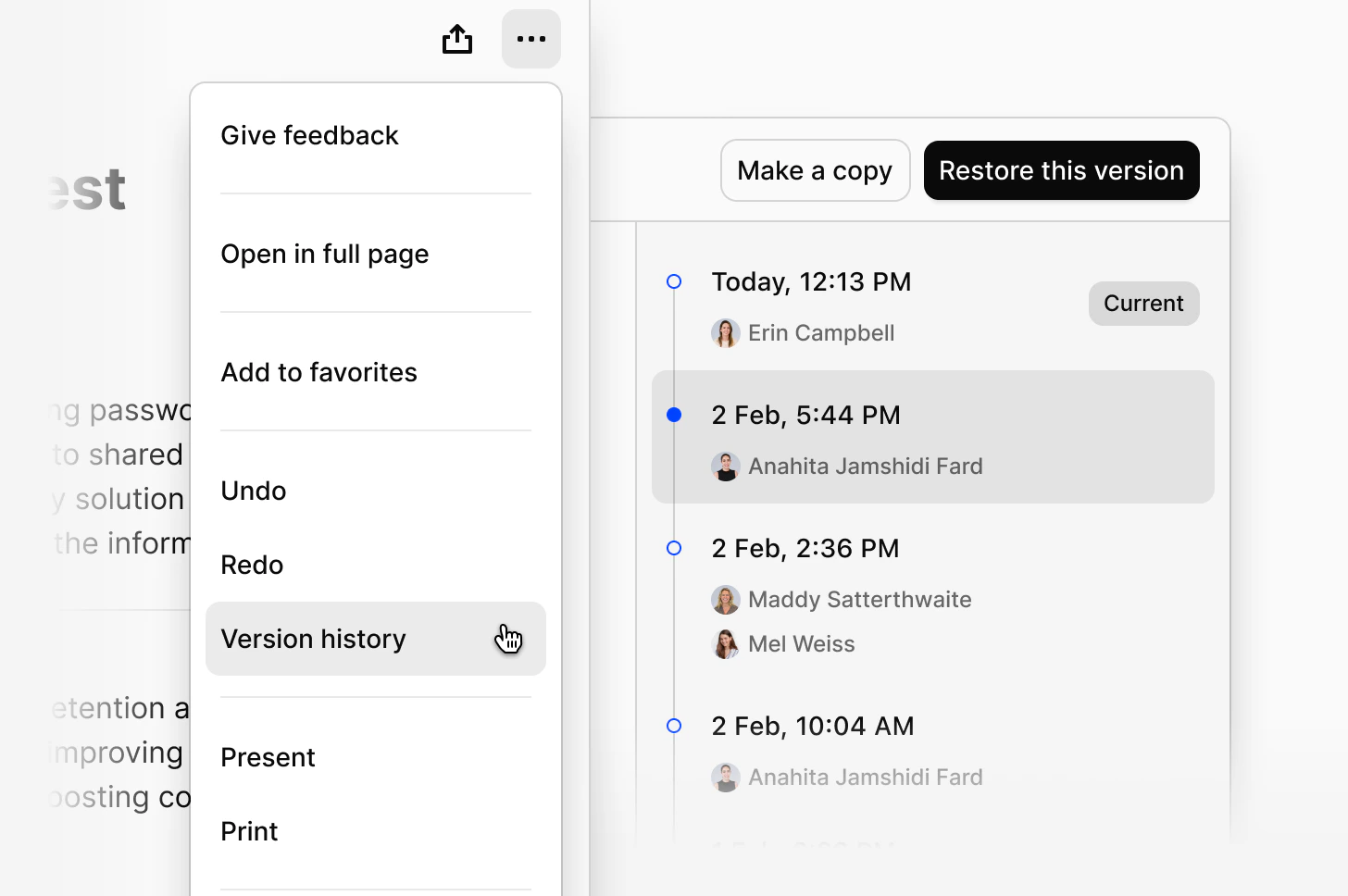
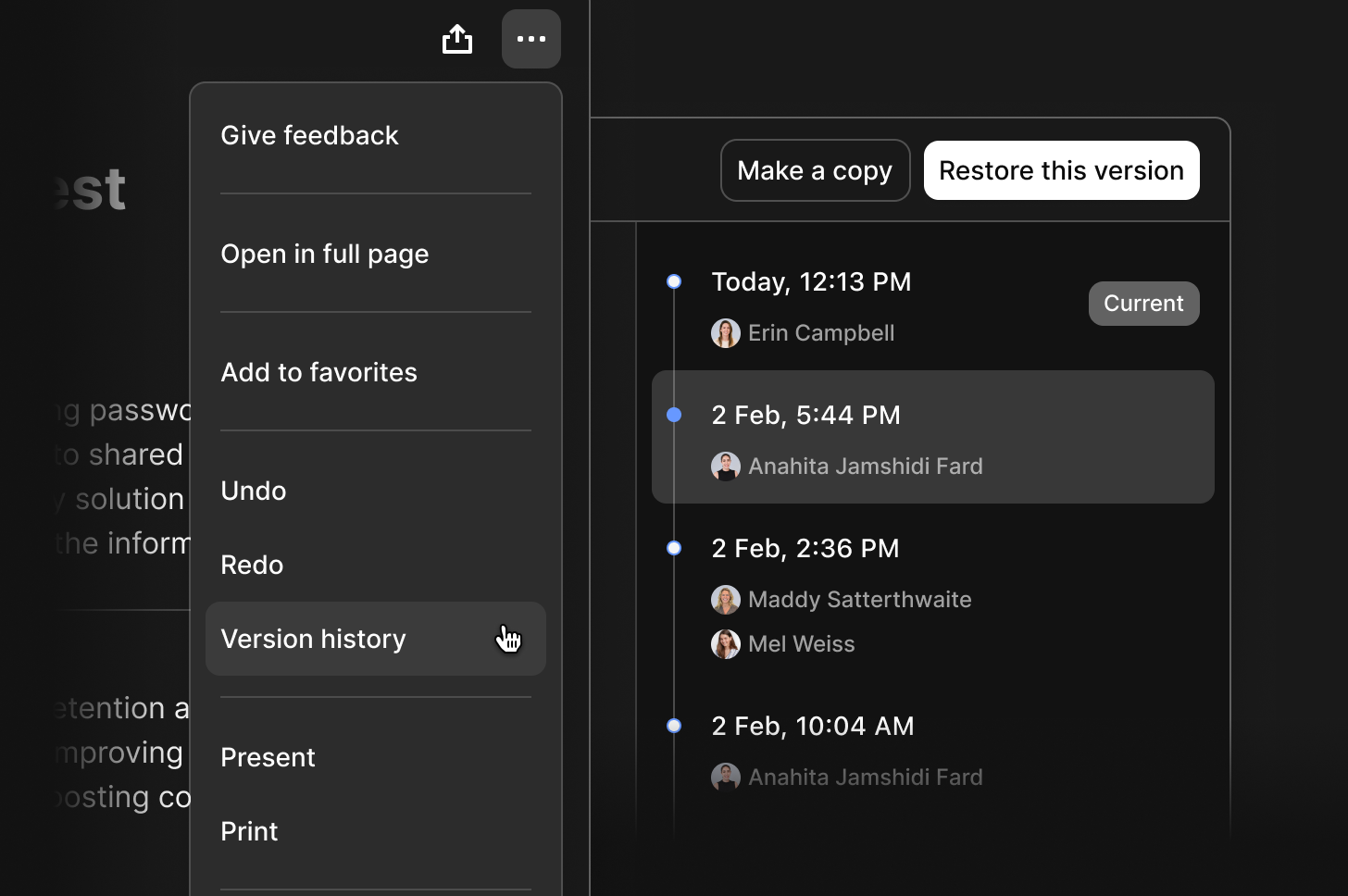
1. Click the `...` menu in the top right corner of the doc
2. Select `Version history`
From here, you can:
* View all previous versions of the page
* Open a version to see how the page looked at that point in time
Version history saves automatically as you edit. A new version is created when you stop editing for 10 seconds.
### Restore a previous version
1. Open the version you want to restore
2. Click `Restore this version`
The restored version becomes the current version.
* Previous versions remain in the history
* The restored version is added as the current one
### Make a copy of a previous version
1. Open the version you want to copy
2. Click `Make a copy`
A new doc is created:
* In the same location as the original
* With the same permissions
## Format, style, and structure your doc
Ease stakeholders through your findings by polishing how text and data is displayed in your doc. In a doc, type `/` within the editor to see all blocks for formatting and structure options that you can drag and drop with `⋮⋮` anywhere on your page. [Learn how to edit and format your doc →](https://docs.dovetail.com/help/projects/edit-and-format/)
Formatting options include
* [Headings and text styling →](https://docs.dovetail.com/help/projects/edit-and-format#headings-and-text-styling)
* [Add cards, layouts and dividers →](https://docs.dovetail.com/help/projects/edit-and-format#add-cards-layouts-and-dividers)
* [Add a table of contents →](https://docs.dovetail.com/help/projects/edit-and-format#add-a-table-of-contents)
* [Add, modify, and remove tables →](https://docs.dovetail.com/help/projects/edit-and-format#add-modify-and-remove-question-blocks)
* [Toggle sections →](https://docs.dovetail.com/help/projects/edit-and-format#add-a-toggle-section)
* [Code block →](https://docs.dovetail.com/help/projects/edit-and-format#add-a-code-block)
***
## Add a cover image to your doc
Doc cover photos give you a quick way to make your doc more visual with a banner. You can upload your own image as a cover photo or search for one from thousands of free photos using our [Unsplash](https://unsplash.com/) integration.
1. To do this, click the `...` menu
2. Click `Update cover` and select your image
3. Once selected, it will be automatically applied and saved to your doc
***
## @ mention objects
You can @ mention objects directly inside any doc to create inline links to other content in your workspace.
To mention an object:
1. Type `@` anywhere in the doc editor
2. Search for the object you want to reference
3. Select it from the results to insert it inline
Mentions support the following object types: channels, data points, docs, projects, and folders. Clicking a mention opens the linked object directly in Dovetail.
***
## Add captions to images
You can add a caption to any image in a doc to provide context or label your visuals.
To add a caption:
1. Insert or select an image in your doc
2. Click below the image to add a caption
3. Type your caption text
## Version history
You'll need `can edit` access to view version history.
1. Click the `...` menu in the top right corner of the doc
2. Select `Version history`
From here, you can:
* View all previous versions of the page
* Open a version to see how the page looked at that point in time
Version history saves automatically as you edit. A new version is created when you stop editing for 10 seconds.
### Restore a previous version
1. Open the version you want to restore
2. Click `Restore this version`
The restored version becomes the current version.
* Previous versions remain in the history
* The restored version is added as the current one
### Make a copy of a previous version
1. Open the version you want to copy
2. Click `Make a copy`
A new doc is created:
* In the same location as the original
* With the same permissions
 ***
***