> ## Documentation Index
> Fetch the complete documentation index at: https://docs.dovetail.com/llms.txt
> Use this file to discover all available pages before exploring further.
# Folders
 Available on [Professional (legacy) and Enterprise plans](https://dovetail.com/pricing/)
**The new Dovetail experience is now live.** We've updated the app's navigation and structure, so you may notice some features have moved to new locations. We're currently updating our Help Center articles to reflect these changes. If you encounter any discrepancies between the product and our documentation, please refer to the latest in-app experience.
## Overview
Organize your projects and channels into folders so your team can find and share their work with ease. Content can be re-ordered and stored in folders, and your most important folders, projects, and channels can be pinned for quick access by everyone in your organization.
***
## Where to find folders
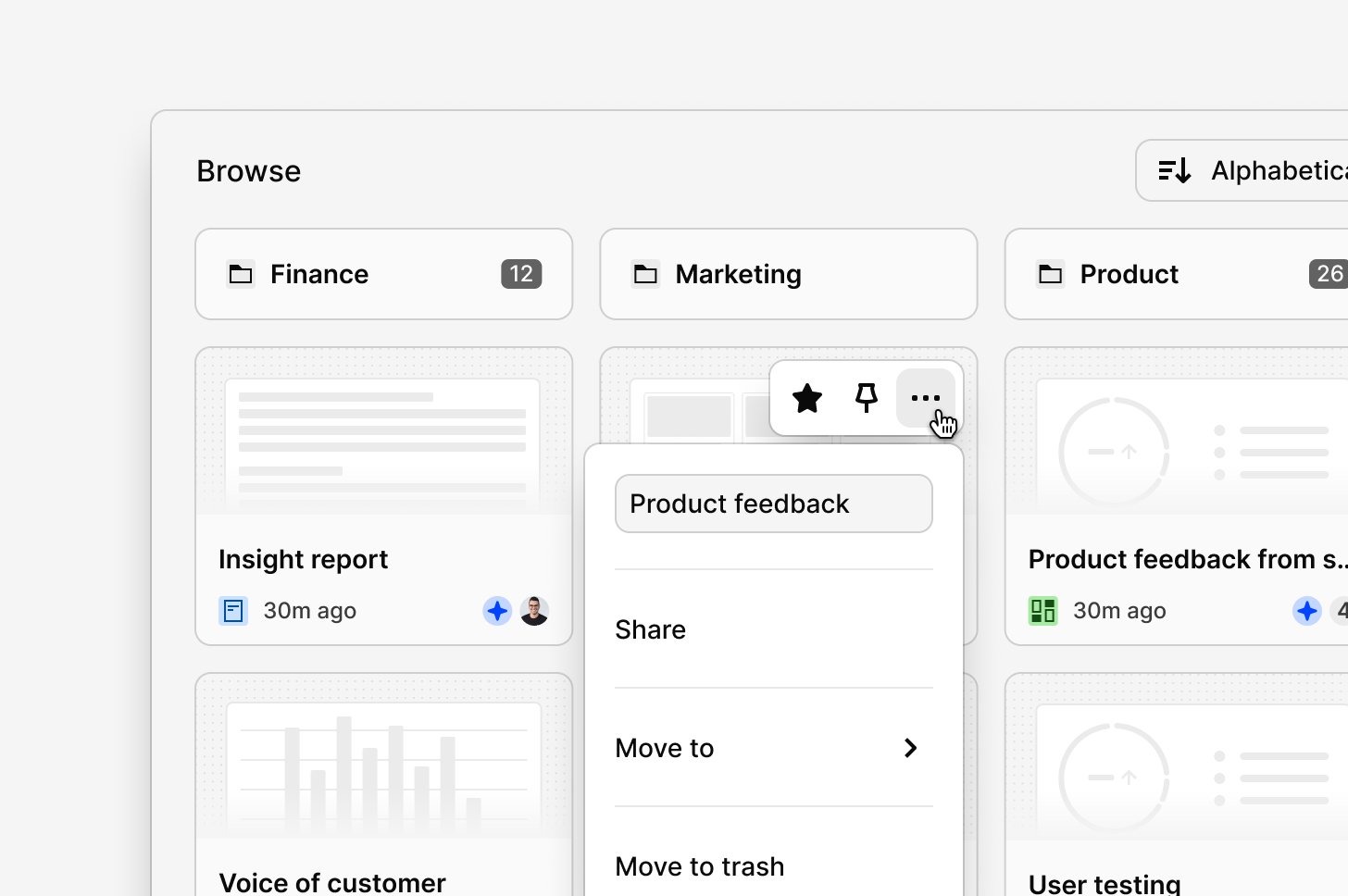
Find folders using the tabs on the **Browse** section of your **Home** page. These tabs let you navigate your projects and find your work quickly.
* **Folders, Channels, Projects** → Shows a list of all projects, channels, or folders at the highest level.
* **Docs** → Show all Docs from projects you have access to across the workspace.
***
## Create and edit a folder
**Managers** and **Contributors** can create a new folder for their workspace via the sidebar by clicking on + New
* To create a new folder, click +`New` and select `Folder`.
You can also create a **subfolder** inside a folder, and another folder inside that folder, and so on. With this, the biggest limit you need to know is that you can go **5 folders deep** in your folder structure.
At any time, you can rename, move, share, and delete your folder by hovering over the folder and clicking `•••` to apply relevant options.
***
## Organize projects into folders
To make projects easy for users in your workspace to find, organize your projects into folders and reorder them with drag and drop. Group related projects into folders by:
* **Type of research →** Customer interviews, usability testing, survey responses.
* **Product team →** Core product, search and navigation, growth.
* **Department/role →** Design, user research, content strategy.
***
## Assign users or groups access to a folder
If you are on a **Business** or **Enterprise** plan with **Full access** to a folder, you can also limit who can view, edit, and create new objects that live within a folder. [**View more information about sharing and access controls →**](https://dovetail.com/help/sharing-and-access-control/)
* To do this, click `•••` next to the folder and select `Share.`
* From there, enter users or groups and assign the appropriate access level to them.
***
## Pin and reorder objects
**Admins** can pin projects, channels, and folders to the top of the Home page for quick access across the workspace — useful for surfacing ongoing research or active work.
* To pin a project, open `•••` next to it and select `Pin for everyone`.
* Once pinned, the item appears at the top of your Home page.
* To reorder pinned items, drag and drop them into your preferred order. The new order applies to the entire workspace.
Projects and folders outside the pinned section can also be reordered by dragging them to their desired position.
***
## Select objects to pin, move, archive, or delete
You can select one or multiple objects on the Browse page by clicking on the **checkbox** that appears while hovering over them. From there, you'll be able to use the **actions menu** that appears at the bottom of your screen to edit your selection. In this menu, you will see different options depending on what you have selected.
* If you have only selected projects, you can **pin**, **move**, **archive**, or **delete** your selection.
* If you have only selected folders, you will be able to **move**, or **delete** your selection.
* If you have selected both projects and folders, you will be able to **move**, or **delete** your selection.
When deleting an object, you have access to restore it in the [workspace trash](https://dovetail.com/settings/trash) within 30 days after deletion.
***
## For you
Available on [Professional and Enterprise plans](https://dovetail.com/pricing/)
From within the **Home** page, you can navigate to the **For you** section and filter by:
* **Created by me** → All projects, channels, and folders you've created across the workspace.
* **Viewed by me** → Objects you've recently viewed across the workspace.
This is a personalized section that surfaces content tailored to your activity, including data, docs, projects, agents, and other objects you’ve recently viewed or created. You can customize how content is displayed using the sorting and filtering options in the dropdown on the right.
Available on [Professional (legacy) and Enterprise plans](https://dovetail.com/pricing/)
**The new Dovetail experience is now live.** We've updated the app's navigation and structure, so you may notice some features have moved to new locations. We're currently updating our Help Center articles to reflect these changes. If you encounter any discrepancies between the product and our documentation, please refer to the latest in-app experience.
## Overview
Organize your projects and channels into folders so your team can find and share their work with ease. Content can be re-ordered and stored in folders, and your most important folders, projects, and channels can be pinned for quick access by everyone in your organization.
***
## Where to find folders
Find folders using the tabs on the **Browse** section of your **Home** page. These tabs let you navigate your projects and find your work quickly.
* **Folders, Channels, Projects** → Shows a list of all projects, channels, or folders at the highest level.
* **Docs** → Show all Docs from projects you have access to across the workspace.
***
## Create and edit a folder
**Managers** and **Contributors** can create a new folder for their workspace via the sidebar by clicking on + New
* To create a new folder, click +`New` and select `Folder`.
You can also create a **subfolder** inside a folder, and another folder inside that folder, and so on. With this, the biggest limit you need to know is that you can go **5 folders deep** in your folder structure.
At any time, you can rename, move, share, and delete your folder by hovering over the folder and clicking `•••` to apply relevant options.
***
## Organize projects into folders
To make projects easy for users in your workspace to find, organize your projects into folders and reorder them with drag and drop. Group related projects into folders by:
* **Type of research →** Customer interviews, usability testing, survey responses.
* **Product team →** Core product, search and navigation, growth.
* **Department/role →** Design, user research, content strategy.
***
## Assign users or groups access to a folder
If you are on a **Business** or **Enterprise** plan with **Full access** to a folder, you can also limit who can view, edit, and create new objects that live within a folder. [**View more information about sharing and access controls →**](https://dovetail.com/help/sharing-and-access-control/)
* To do this, click `•••` next to the folder and select `Share.`
* From there, enter users or groups and assign the appropriate access level to them.
***
## Pin and reorder objects
**Admins** can pin projects, channels, and folders to the top of the Home page for quick access across the workspace — useful for surfacing ongoing research or active work.
* To pin a project, open `•••` next to it and select `Pin for everyone`.
* Once pinned, the item appears at the top of your Home page.
* To reorder pinned items, drag and drop them into your preferred order. The new order applies to the entire workspace.
Projects and folders outside the pinned section can also be reordered by dragging them to their desired position.
***
## Select objects to pin, move, archive, or delete
You can select one or multiple objects on the Browse page by clicking on the **checkbox** that appears while hovering over them. From there, you'll be able to use the **actions menu** that appears at the bottom of your screen to edit your selection. In this menu, you will see different options depending on what you have selected.
* If you have only selected projects, you can **pin**, **move**, **archive**, or **delete** your selection.
* If you have only selected folders, you will be able to **move**, or **delete** your selection.
* If you have selected both projects and folders, you will be able to **move**, or **delete** your selection.
When deleting an object, you have access to restore it in the [workspace trash](https://dovetail.com/settings/trash) within 30 days after deletion.
***
## For you
Available on [Professional and Enterprise plans](https://dovetail.com/pricing/)
From within the **Home** page, you can navigate to the **For you** section and filter by:
* **Created by me** → All projects, channels, and folders you've created across the workspace.
* **Viewed by me** → Objects you've recently viewed across the workspace.
This is a personalized section that surfaces content tailored to your activity, including data, docs, projects, agents, and other objects you’ve recently viewed or created. You can customize how content is displayed using the sorting and filtering options in the dropdown on the right.