> ## Documentation Index
> Fetch the complete documentation index at: https://docs.dovetail.com/llms.txt
> Use this file to discover all available pages before exploring further.
# Home
> How the Home page works — Chat, pinned items, For You, Browse, featured authors — and how admins configure what everyone sees.
## Overview
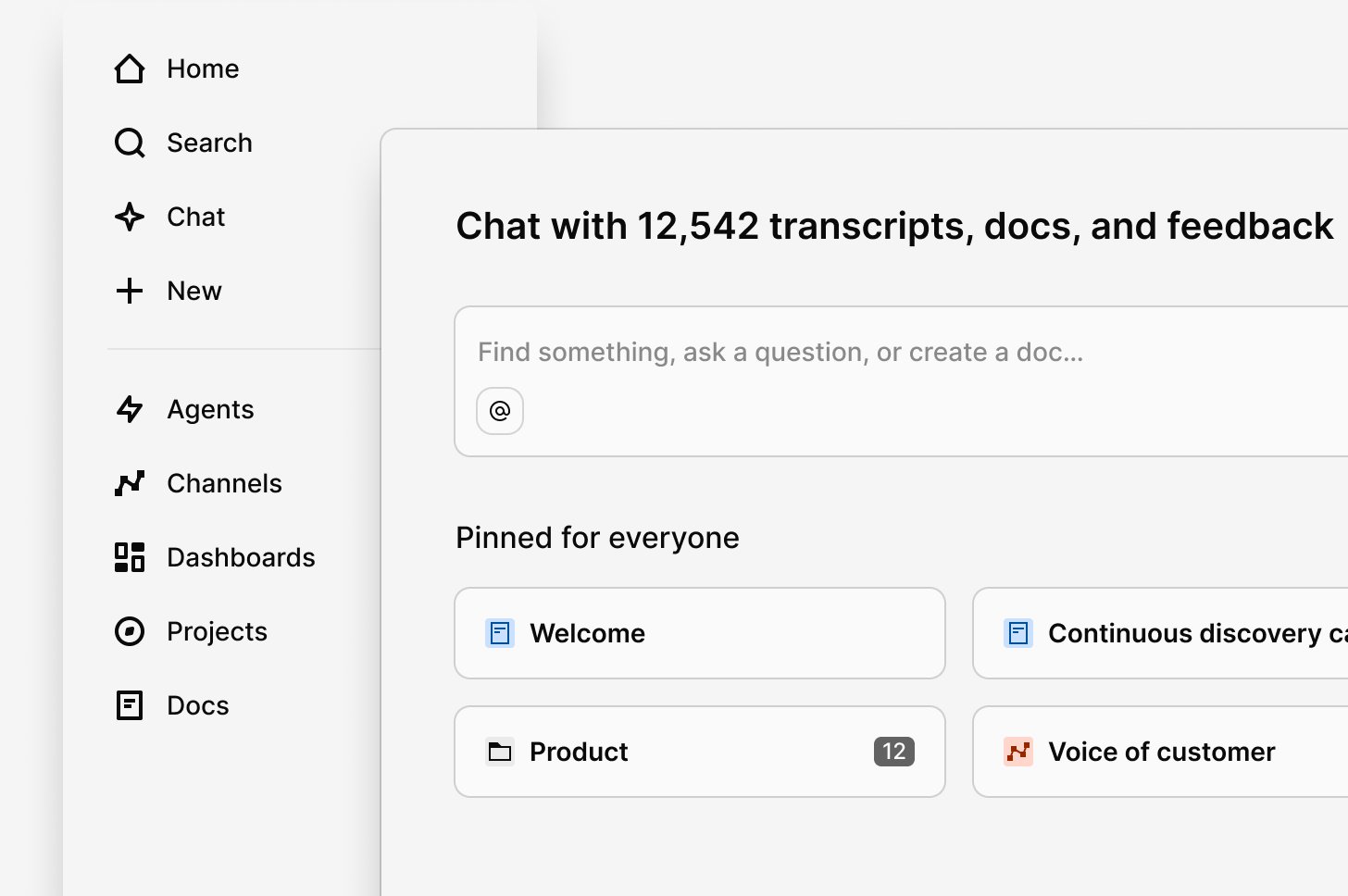
Home is the central hub of your workspace. It’s personalized for every user by default, with no setup required, and it stays relevant as your team and workspace grow.
 ***
## What’s on Home
### Chat
[Chat](/help/chat) sits at the top of Home and is the fastest way to find something. Ask a question in natural language and get an answer grounded in your data, with citations you can follow back to the source. Use @ mentions to point a question at a specific folder or project.
***
## What’s on Home
### Chat
[Chat](/help/chat) sits at the top of Home and is the fastest way to find something. Ask a question in natural language and get an answer grounded in your data, with citations you can follow back to the source. Use @ mentions to point a question at a specific folder or project.
 ### Welcome
The Welcome section gives new users a starting point, surfacing quick actions like connecting a data source, inviting teammates, or asking a question. You can dismiss it at any time.
### Announcement banner
Admins can add a banner to Home to display important information — updates, resources, or notices — so key messages don’t get missed.
If you’ve dismissed the announcement, a workspace admin can bring it back for everyone. On the Home page, click **Edit home for everyone**, toggle Announcements off, then toggle them back on.
### Pinned for everyone
Admins can pin docs, projects, and folders so key resources stay visible to the whole team. Drag and drop pinned items to reorder them.
### Welcome
The Welcome section gives new users a starting point, surfacing quick actions like connecting a data source, inviting teammates, or asking a question. You can dismiss it at any time.
### Announcement banner
Admins can add a banner to Home to display important information — updates, resources, or notices — so key messages don’t get missed.
If you’ve dismissed the announcement, a workspace admin can bring it back for everyone. On the Home page, click **Edit home for everyone**, toggle Announcements off, then toggle them back on.
### Pinned for everyone
Admins can pin docs, projects, and folders so key resources stay visible to the whole team. Drag and drop pinned items to reorder them.
 ### For You
A personalized section surfacing content based on your activity — data, docs, projects, agents, and other objects you’ve recently viewed or created. Use the dropdown on the right to change sorting and filtering.
### Browse
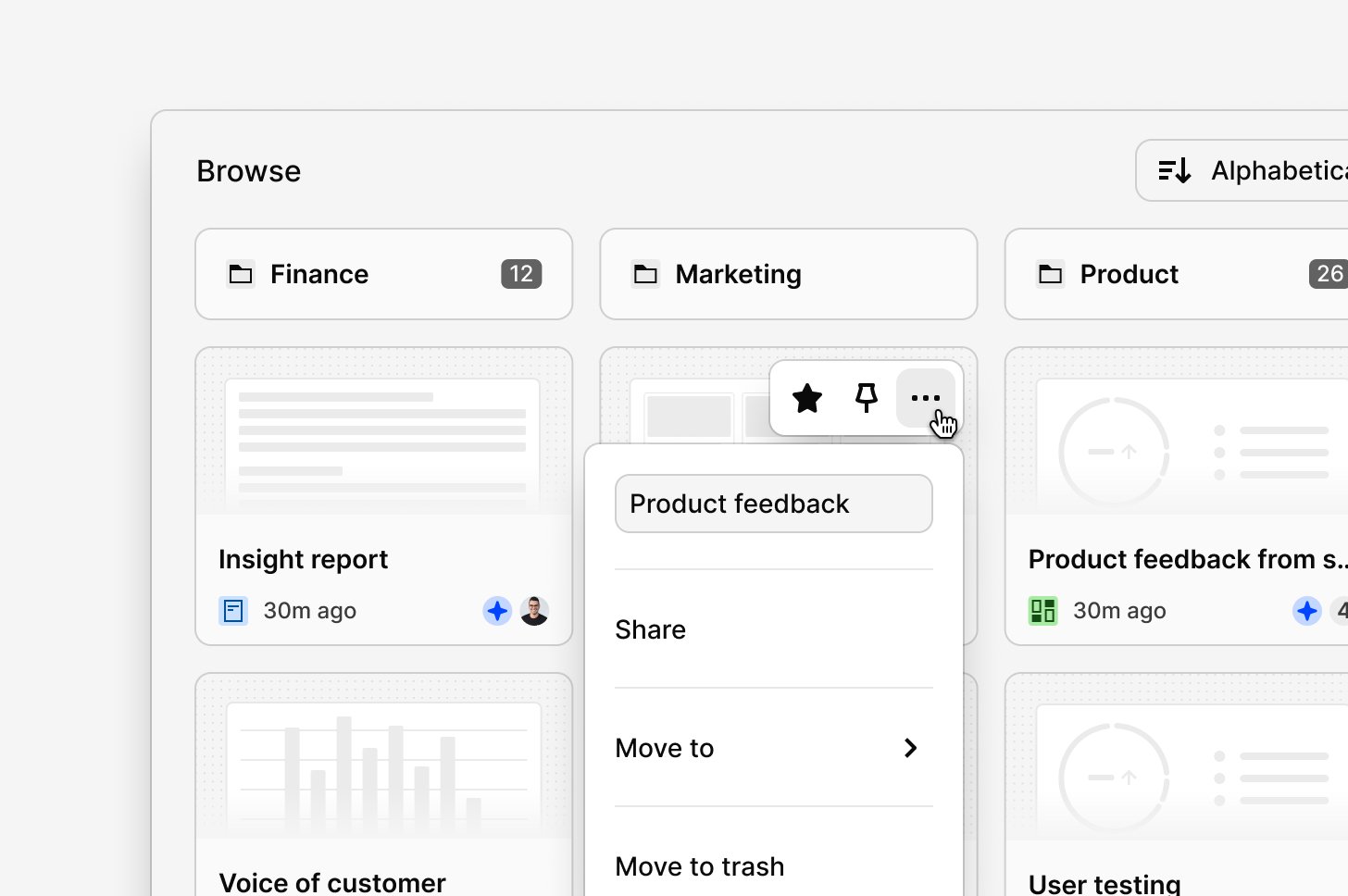
Browse shows the top-level folder structure of your workspace: folders, projects, channels, dashboards, agents, and docs. It’s alphabetical by default, and folders always appear at the top, separated from individual items. Within a folder, use Sort and Filter in the top right.
### For You
A personalized section surfacing content based on your activity — data, docs, projects, agents, and other objects you’ve recently viewed or created. Use the dropdown on the right to change sorting and filtering.
### Browse
Browse shows the top-level folder structure of your workspace: folders, projects, channels, dashboards, agents, and docs. It’s alphabetical by default, and folders always appear at the top, separated from individual items. Within a folder, use Sort and Filter in the top right.
 ### Featured authors
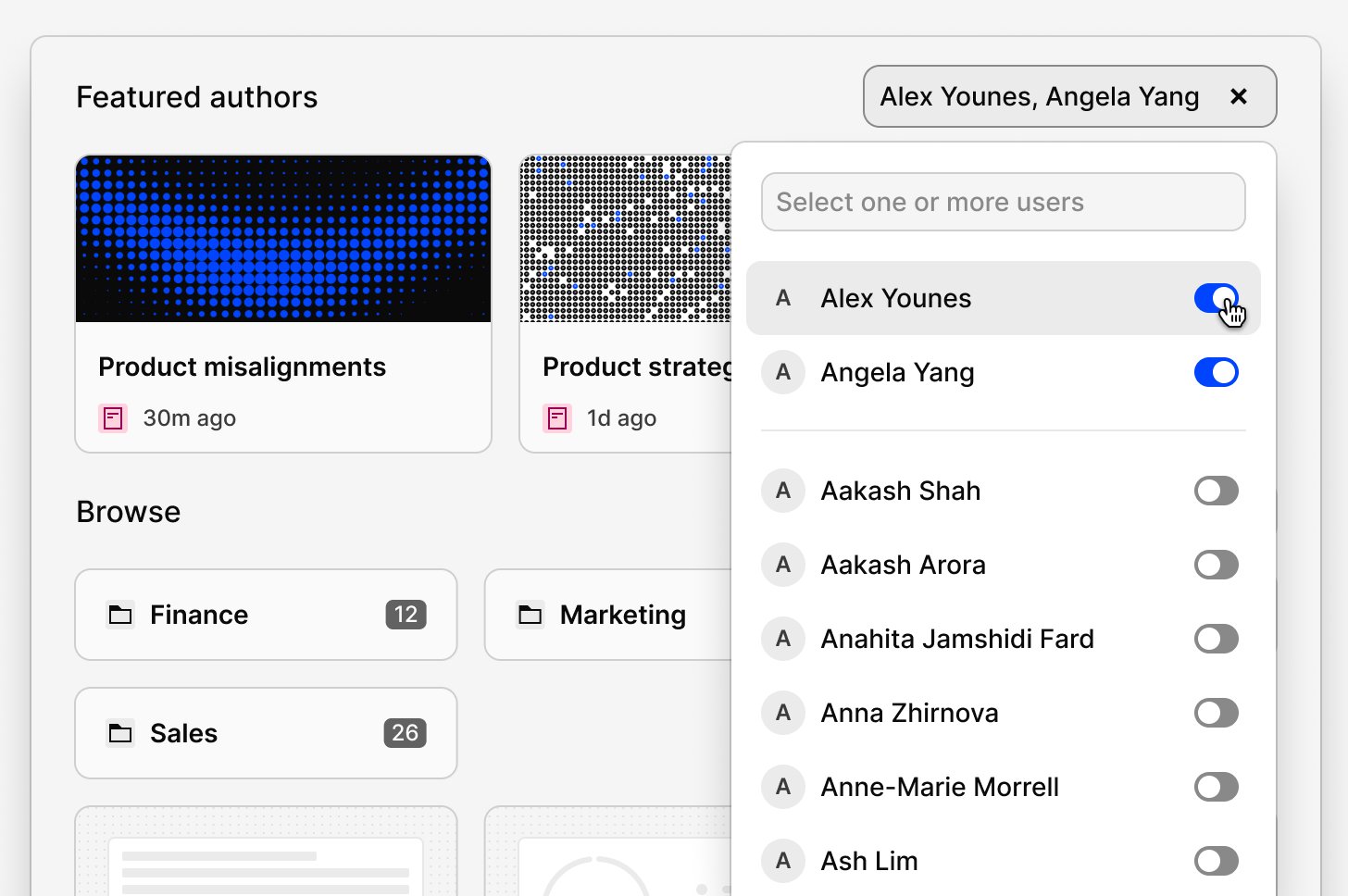
Highlights docs created by selected team members and shared with the whole workspace. Admins can feature up to 50 authors. Docs are sorted newest first.
### Featured authors
Highlights docs created by selected team members and shared with the whole workspace. Admins can feature up to 50 authors. Docs are sorted newest first.
 ### Featured doc
Admins can embed a single doc directly on Home, rendered inline for everyone. It’s a good way to surface something like an onboarding guide where your team will find it first. The doc must be shared with the entire workspace to be eligible, and admins can swap it out at any time. Click **See more** to open the full doc in a layer above Home.
***
## Configure Home for your workspace
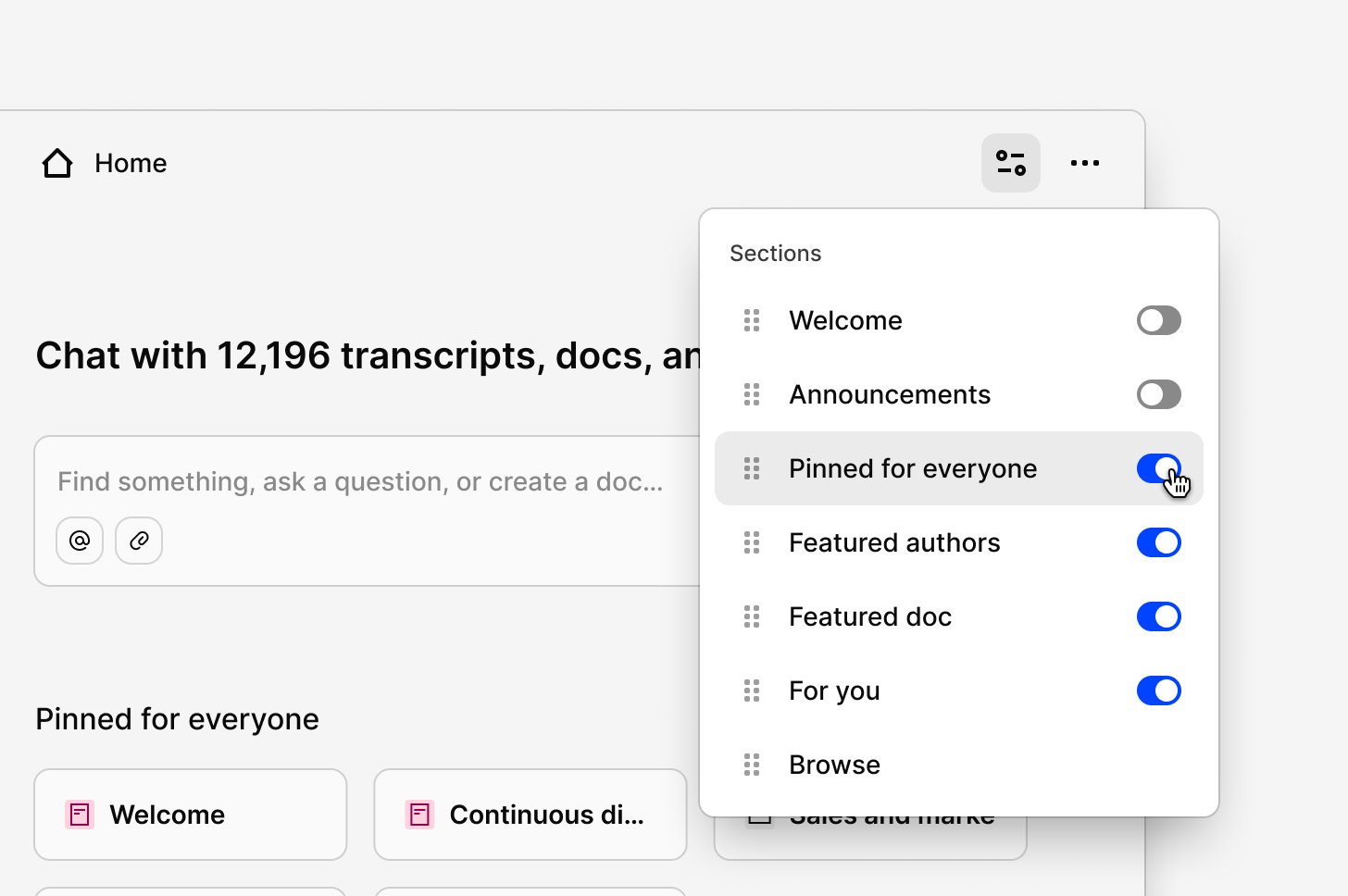
Admins control how Home is organized. Click the settings icon in the top-right corner of Home to open the configuration dropdown, then drag and drop sections to reorder them, or toggle any section on or off. Chat is the exception — it always stays at the top.
Changes apply to everyone in the workspace, so the whole team sees a consistent, curated Home.
### Featured doc
Admins can embed a single doc directly on Home, rendered inline for everyone. It’s a good way to surface something like an onboarding guide where your team will find it first. The doc must be shared with the entire workspace to be eligible, and admins can swap it out at any time. Click **See more** to open the full doc in a layer above Home.
***
## Configure Home for your workspace
Admins control how Home is organized. Click the settings icon in the top-right corner of Home to open the configuration dropdown, then drag and drop sections to reorder them, or toggle any section on or off. Chat is the exception — it always stays at the top.
Changes apply to everyone in the workspace, so the whole team sees a consistent, curated Home.
 ***
## Grid and list layouts
Any page that shows a list of objects — Browse, subfolders, or object pages — can switch between grid and list layout. This applies to individual items like projects, docs, and agents. Folders stay as small cards so they remain easy to tell apart.
To change it, click the `...` icon in the top-right corner and select your preferred view. The change applies to the entire workspace.
***
## Grid and list layouts
Any page that shows a list of objects — Browse, subfolders, or object pages — can switch between grid and list layout. This applies to individual items like projects, docs, and agents. Folders stay as small cards so they remain easy to tell apart.
To change it, click the `...` icon in the top-right corner and select your preferred view. The change applies to the entire workspace.
 ***
## Card thumbnails
You can set a cover image on docs and projects, and it becomes the card thumbnail in Browse and other list views. For best results, use a 9:4 aspect ratio (2.25:1).
For a project, upload a cover image in the project overview. You can also add or change one from anywhere: click the `...` menu on any doc or project — on its card or list item — and select **Update cover**. Upload your own image or pick one from the built-in Unsplash library. Remove a cover from the same menu.
***
## Navigating your workspace
Click the menu icon in the top-left corner, or press `[`, to open the sidebar. The sidebar is available on any screen and stays collapsed while you work.
***
## Card thumbnails
You can set a cover image on docs and projects, and it becomes the card thumbnail in Browse and other list views. For best results, use a 9:4 aspect ratio (2.25:1).
For a project, upload a cover image in the project overview. You can also add or change one from anywhere: click the `...` menu on any doc or project — on its card or list item — and select **Update cover**. Upload your own image or pick one from the built-in Unsplash library. Remove a cover from the same menu.
***
## Navigating your workspace
Click the menu icon in the top-left corner, or press `[`, to open the sidebar. The sidebar is available on any screen and stays collapsed while you work.
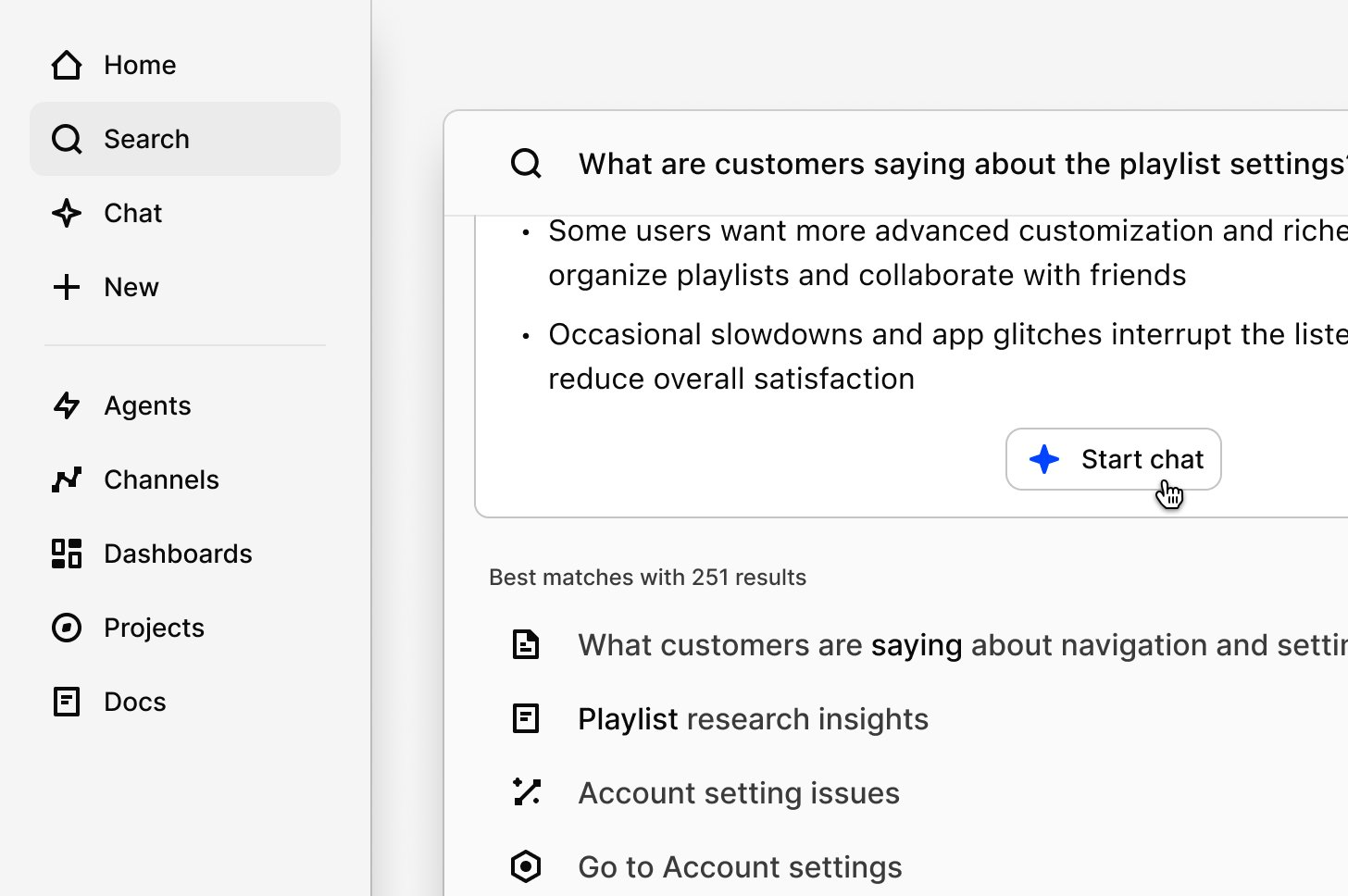 From the side navigation, use Quick Search to find content without returning to Home. Open it by clicking Search, or press `Cmd + K` (Mac) or `Ctrl + K` (Windows). Quick Search reaches key navigation items directly from results, answers questions in natural language with an AI summary, and can open a summary in Chat for follow-up. Contacts, tags, and highlights are excluded from results by default.
To create something, click `+ New` or press `C`. Dovetail suggests what to create based on keywords and semantic matching. Each object type — agents, channels, dashboards, projects, and docs — has its own page. Favorites are behind the star icon, and workspace tools like user invites, notifications, integrations, and settings sit under **More** at the bottom of the side navigation.
***
## FAQs
Folders haven’t been removed — they’re in a different place. Object pages in the side navigation show all items of a given type together. To navigate by folder structure, use the Browse section on Home and select a folder.
The Projects page shows every project across your workspace in one place. Use sorting, filters, or search to narrow the list.
Go to Projects, click Sort and Filter in the top right, then select All → Archived. You can also go to Search, toggle Projects, click More, and select Archived.
No. Those sections sort by Viewed by me, Updated by anyone, Date created, Alphabetical, or Type. Manual ordering is available for **Pinned for everyone**, where admins can drag items into place.
Viewed by me is based on when you last opened an item. Updated by anyone sorts by the last time any collaborator changed it.
In the side navigation, under **More → Contacts**.
Upload an image to the project overview and it becomes the card thumbnail. For best results, use a 9:4 aspect ratio (2.25:1).
A workspace admin can restore it for everyone. On the Home page, click **Edit home for everyone**, toggle Announcements off, then toggle them back on.
Both were retired when Home became personalized by default. To replace a custom home, create a doc with your content and pin it to Home as a team welcome page. To replace a feed, create a doc, open the reference picker, and add a search block with filters — search blocks update automatically as new data arrives.
From the side navigation, use Quick Search to find content without returning to Home. Open it by clicking Search, or press `Cmd + K` (Mac) or `Ctrl + K` (Windows). Quick Search reaches key navigation items directly from results, answers questions in natural language with an AI summary, and can open a summary in Chat for follow-up. Contacts, tags, and highlights are excluded from results by default.
To create something, click `+ New` or press `C`. Dovetail suggests what to create based on keywords and semantic matching. Each object type — agents, channels, dashboards, projects, and docs — has its own page. Favorites are behind the star icon, and workspace tools like user invites, notifications, integrations, and settings sit under **More** at the bottom of the side navigation.
***
## FAQs
Folders haven’t been removed — they’re in a different place. Object pages in the side navigation show all items of a given type together. To navigate by folder structure, use the Browse section on Home and select a folder.
The Projects page shows every project across your workspace in one place. Use sorting, filters, or search to narrow the list.
Go to Projects, click Sort and Filter in the top right, then select All → Archived. You can also go to Search, toggle Projects, click More, and select Archived.
No. Those sections sort by Viewed by me, Updated by anyone, Date created, Alphabetical, or Type. Manual ordering is available for **Pinned for everyone**, where admins can drag items into place.
Viewed by me is based on when you last opened an item. Updated by anyone sorts by the last time any collaborator changed it.
In the side navigation, under **More → Contacts**.
Upload an image to the project overview and it becomes the card thumbnail. For best results, use a 9:4 aspect ratio (2.25:1).
A workspace admin can restore it for everyone. On the Home page, click **Edit home for everyone**, toggle Announcements off, then toggle them back on.
Both were retired when Home became personalized by default. To replace a custom home, create a doc with your content and pin it to Home as a team welcome page. To replace a feed, create a doc, open the reference picker, and add a search block with filters — search blocks update automatically as new data arrives.