> ## Documentation Index
> Fetch the complete documentation index at: https://docs.dovetail.com/llms.txt
> Use this file to discover all available pages before exploring further.
# Move data to a new workspace
 **Managers** and **Contributors** can export and import projects
## Overview
Bring together data from across multiple workspaces into a single, shared hub for your insights. At this time, projects can be exported from one workspace and re-imported to another. They can be bulk exported if you need to move multiple projects to another workspace, or individually if you only need to move one.
There are a few common reasons why you may need to move projects from one workspace to another.
* You, your team, or individual departments in your organization have set up multiple Dovetail workspaces and want to bring together all data into a single workspace to simplify subscription management.
* You have created a free workspace under your personal account and your organization has upgraded a separate, paid workspace.
***
## What to know before moving projects to a new workspace
For organizations looking to move data and manage a single workspace, make sure you are aware of the benefits and limitations on how to ensure a successful move
* There are benefits to having a single workspace where teams across an organization contribute to a shared knowledge base.
* The workspace you are moving projects into must be on a paid subscription plan and have the appropriate number of paid user seats for them to access the workspace.
* If you are moving projects from multiple workspaces to a single workspace, review any active subscriptions. Where appropriate, plan to cancel any subscriptions you no longer need once all data across to a single workspace.
* If you are an **Enterprise** customer, please reach out to your Customer Success Manager or Account Executive for additional support in identifying existing workspaces under your organization and recommendations for the parent workspace to centralize data into.
***
## Export your projects
**Managers** and **Contributors** can export entire projects as an encrypted **.dovetailproject** file. The file is encrypted and cannot be opened or read outside of Dovetail — it may appear as a binary file on your device, which is expected behavior. The export is designed to be securely re-imported back into your Dovetail workspace to restore the project data.
* To export one or multiple projects at a time, navigate to the `Browse` tab and select the projects or folders that you wish to export.
* Once selected, click `•••` and select `Export` from the bulk action menu at the bottom of the page.
Once the export has been prepared, click the `Download` button on the prompt to download the file to your device.
When bulk exporting multiple projects, we recommend selecting up to 5 projects at a time. Bulk project exports will take some time to complete. Please don’t close your browser while projects are being exported.
For more information on project exports, please visit [**Download project data →**](https://docs.dovetail.com/help/projects/download-project-data)
***
## Import projects into a new workspace
**Managers and** **Contributors** can import Dovetail projects at any time. The workspace you are moving projects into must be on an existing paid subscription plan.
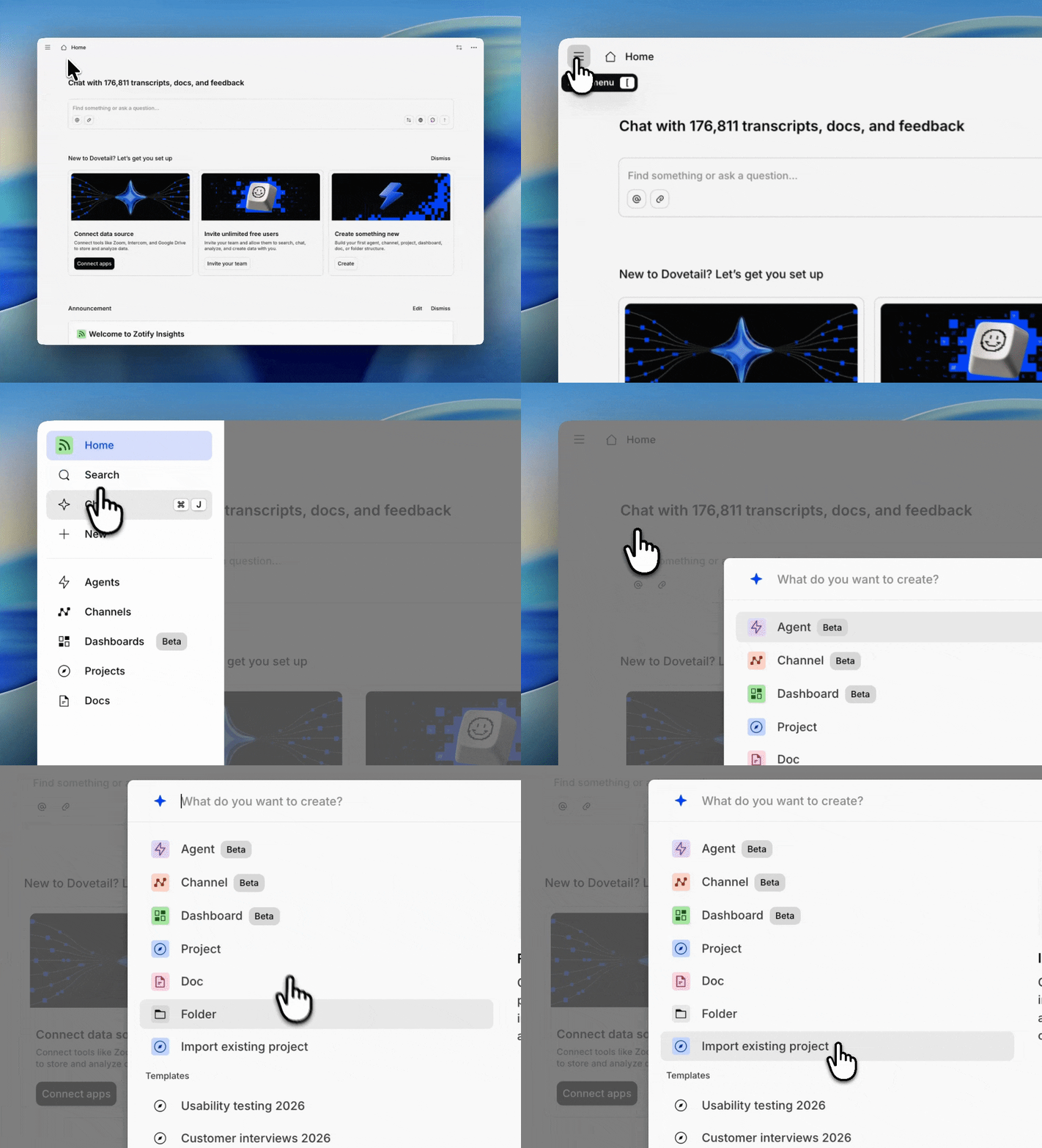
* Import existing projects by accessing the sidebar and clicking "+ New" and select`Import existing project `in the dropdown.
When importing a project into another workspace:
* Any workspace tags or fields will be converted to project-level tags or fields
* Any project access controls or user group access will not be brought across
* Any comments added to the original project will not be brought across
When importing projects into a new workspace, there will be two versions of the same project – one living in the new workspace and the other living in the retired workspace. Data in the retired workspace will exist for 30 days after the subscription has ended. After this period, the data will be deleted according to Dovetail’s [data retention policy](https://dovetail.com/help/data-security-and-privacy/#data-retention).
The Free plan includes **one project**. If you already have a project in your workspace, importing a `.dovetailproject` file will not succeed — the import will begin uploading but will ultimately fail with the message **"Project import failed, please try again or contact support."**
***
## Tips for moving forward with a single workspace
* **Learn how to manage a single workspace for your organization effectively**: Once all data is in the unified Dovetail workspace, complete our [Managing your workspace](https://dovetail.com/academy/managing-your-insights-hub/https://docs.dovetail.com/academy/define-your-team-structure) course in Dovetail Academy. This course will take you through how to effectively implement a secure and compliant workspace as well as onboard new starters, organize work across teams, and standardize processes.
* **Create a schedule for maintenance**:
**Managers** and **Contributors** can export and import projects
## Overview
Bring together data from across multiple workspaces into a single, shared hub for your insights. At this time, projects can be exported from one workspace and re-imported to another. They can be bulk exported if you need to move multiple projects to another workspace, or individually if you only need to move one.
There are a few common reasons why you may need to move projects from one workspace to another.
* You, your team, or individual departments in your organization have set up multiple Dovetail workspaces and want to bring together all data into a single workspace to simplify subscription management.
* You have created a free workspace under your personal account and your organization has upgraded a separate, paid workspace.
***
## What to know before moving projects to a new workspace
For organizations looking to move data and manage a single workspace, make sure you are aware of the benefits and limitations on how to ensure a successful move
* There are benefits to having a single workspace where teams across an organization contribute to a shared knowledge base.
* The workspace you are moving projects into must be on a paid subscription plan and have the appropriate number of paid user seats for them to access the workspace.
* If you are moving projects from multiple workspaces to a single workspace, review any active subscriptions. Where appropriate, plan to cancel any subscriptions you no longer need once all data across to a single workspace.
* If you are an **Enterprise** customer, please reach out to your Customer Success Manager or Account Executive for additional support in identifying existing workspaces under your organization and recommendations for the parent workspace to centralize data into.
***
## Export your projects
**Managers** and **Contributors** can export entire projects as an encrypted **.dovetailproject** file. The file is encrypted and cannot be opened or read outside of Dovetail — it may appear as a binary file on your device, which is expected behavior. The export is designed to be securely re-imported back into your Dovetail workspace to restore the project data.
* To export one or multiple projects at a time, navigate to the `Browse` tab and select the projects or folders that you wish to export.
* Once selected, click `•••` and select `Export` from the bulk action menu at the bottom of the page.
Once the export has been prepared, click the `Download` button on the prompt to download the file to your device.
When bulk exporting multiple projects, we recommend selecting up to 5 projects at a time. Bulk project exports will take some time to complete. Please don’t close your browser while projects are being exported.
For more information on project exports, please visit [**Download project data →**](https://docs.dovetail.com/help/projects/download-project-data)
***
## Import projects into a new workspace
**Managers and** **Contributors** can import Dovetail projects at any time. The workspace you are moving projects into must be on an existing paid subscription plan.
* Import existing projects by accessing the sidebar and clicking "+ New" and select`Import existing project `in the dropdown.
When importing a project into another workspace:
* Any workspace tags or fields will be converted to project-level tags or fields
* Any project access controls or user group access will not be brought across
* Any comments added to the original project will not be brought across
When importing projects into a new workspace, there will be two versions of the same project – one living in the new workspace and the other living in the retired workspace. Data in the retired workspace will exist for 30 days after the subscription has ended. After this period, the data will be deleted according to Dovetail’s [data retention policy](https://dovetail.com/help/data-security-and-privacy/#data-retention).
The Free plan includes **one project**. If you already have a project in your workspace, importing a `.dovetailproject` file will not succeed — the import will begin uploading but will ultimately fail with the message **"Project import failed, please try again or contact support."**
***
## Tips for moving forward with a single workspace
* **Learn how to manage a single workspace for your organization effectively**: Once all data is in the unified Dovetail workspace, complete our [Managing your workspace](https://dovetail.com/academy/managing-your-insights-hub/https://docs.dovetail.com/academy/define-your-team-structure) course in Dovetail Academy. This course will take you through how to effectively implement a secure and compliant workspace as well as onboard new starters, organize work across teams, and standardize processes.
* **Create a schedule for maintenance**:
Appoint one person or a small team to be admins or managers to help users with questions, [audit tags](https://docs.dovetail.com/academy/intro-to-workspace-tags#intro-to-workspace-tags), bring project stakeholders together periodically to evaluate workspace structure, and knowledge requests from external stakeholders.
* **Train the team**:
Train users on standards within the new workspace. Show stakeholders how to effectively search for questions they may have and get them subscribed to relevant feeds.
## FAQs
* Any project access controls or user group access.
* Any comments added to the original project(s).
* Any content referenced from other projects will need to be recreated. (Ex. A highlight from a different project will not be transferred when exporting to another workspace.)
Any URLs found in your project data are only valid for 3 days from the day you exported your project. So, we recommend importing your projects within the 3-day time frame, or you'll need to export the data again.
Project export files are encrypted for security and are only supported for re-import into Dovetail. To access the contents, you must re-import the file into Dovetail.
**Managers** and **Contributors** can export entire projects as an encrypted **.dovetailproject** file. The file is encrypted and cannot be opened or read outside of Dovetail — it may appear as a binary file on your device, which is expected behavior. The export is designed to be securely re-imported back into your Dovetail workspace to restore the project data.