> ## Documentation Index
> Fetch the complete documentation index at: https://docs.dovetail.com/llms.txt
> Use this file to discover all available pages before exploring further.
# Project Docs
 Available on [**Professional and Enterprise plans**](https://dovetail.com/pricing/). **Managers** and **Contributors** can create and edit **Docs** (formerly insights). Users with view-only access can view and comment on Docs.
## Overview
In Dovetail, a Doc is a specific object type for summarizing and sharing your research findings in a simple format, directly connected to your raw data. With docs, you can craft a narrative using editing and formatting tools, alongside highlight reels, as a compelling way to present your data to stakeholders.
***
## Create a Doc
You can create a Doc as a shareable asset that summarizes key findings and takeaways from data from a project or channel. To help you get started on a first draft, we recommend using a **Doc.** You can create a doc as a shareable asset that summarizes key findings and takeaways from data from a project or channel. To help you get started on a first draft, we recommend using a **Doc.**
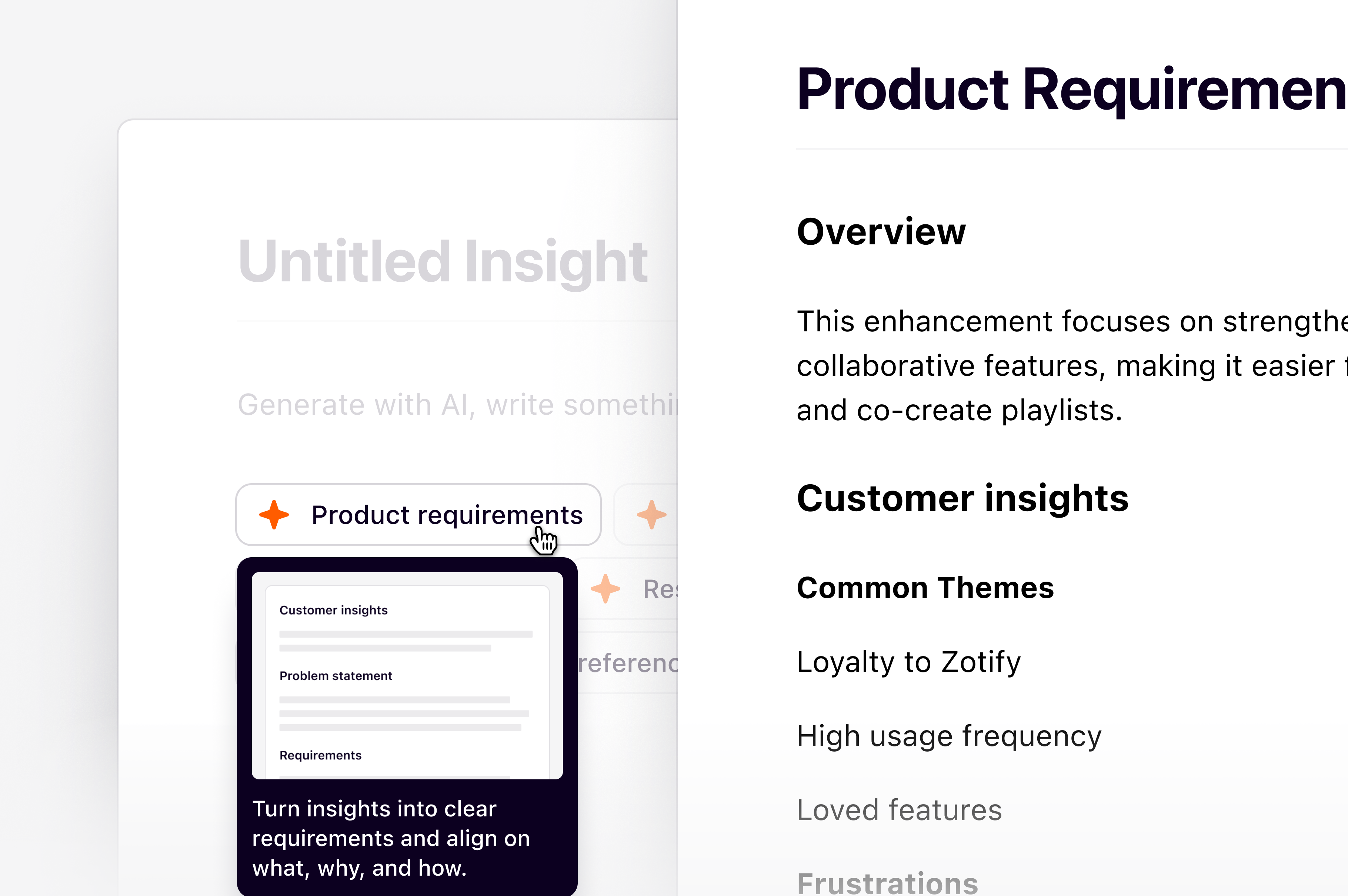
**Docs** lets you generate, structure, and edit docs or reports using AI directly from chat or pre-defined frameworks. Whether you’re drafting a **Voice of Customer report**, **Product requirements document**, or **Feature request**, Docs helps you create a polished first draft in minutes.
**To create a Doc in a project:**
* Select `+` and toggle `Doc` on.
* Next, select `Create a doc.`
* From there, choose how you want to create your doc. You can:
* Ask a question or write a custom prompt in chat (e.g. “Summarize key findings from customer interviews”), with the help of Docs or
* Select a predefined framework like Voice of Customer, Research Report, or PRD.
Available on [**Professional and Enterprise plans**](https://dovetail.com/pricing/). **Managers** and **Contributors** can create and edit **Docs** (formerly insights). Users with view-only access can view and comment on Docs.
## Overview
In Dovetail, a Doc is a specific object type for summarizing and sharing your research findings in a simple format, directly connected to your raw data. With docs, you can craft a narrative using editing and formatting tools, alongside highlight reels, as a compelling way to present your data to stakeholders.
***
## Create a Doc
You can create a Doc as a shareable asset that summarizes key findings and takeaways from data from a project or channel. To help you get started on a first draft, we recommend using a **Doc.** You can create a doc as a shareable asset that summarizes key findings and takeaways from data from a project or channel. To help you get started on a first draft, we recommend using a **Doc.**
**Docs** lets you generate, structure, and edit docs or reports using AI directly from chat or pre-defined frameworks. Whether you’re drafting a **Voice of Customer report**, **Product requirements document**, or **Feature request**, Docs helps you create a polished first draft in minutes.
**To create a Doc in a project:**
* Select `+` and toggle `Doc` on.
* Next, select `Create a doc.`
* From there, choose how you want to create your doc. You can:
* Ask a question or write a custom prompt in chat (e.g. “Summarize key findings from customer interviews”), with the help of Docs or
* Select a predefined framework like Voice of Customer, Research Report, or PRD. 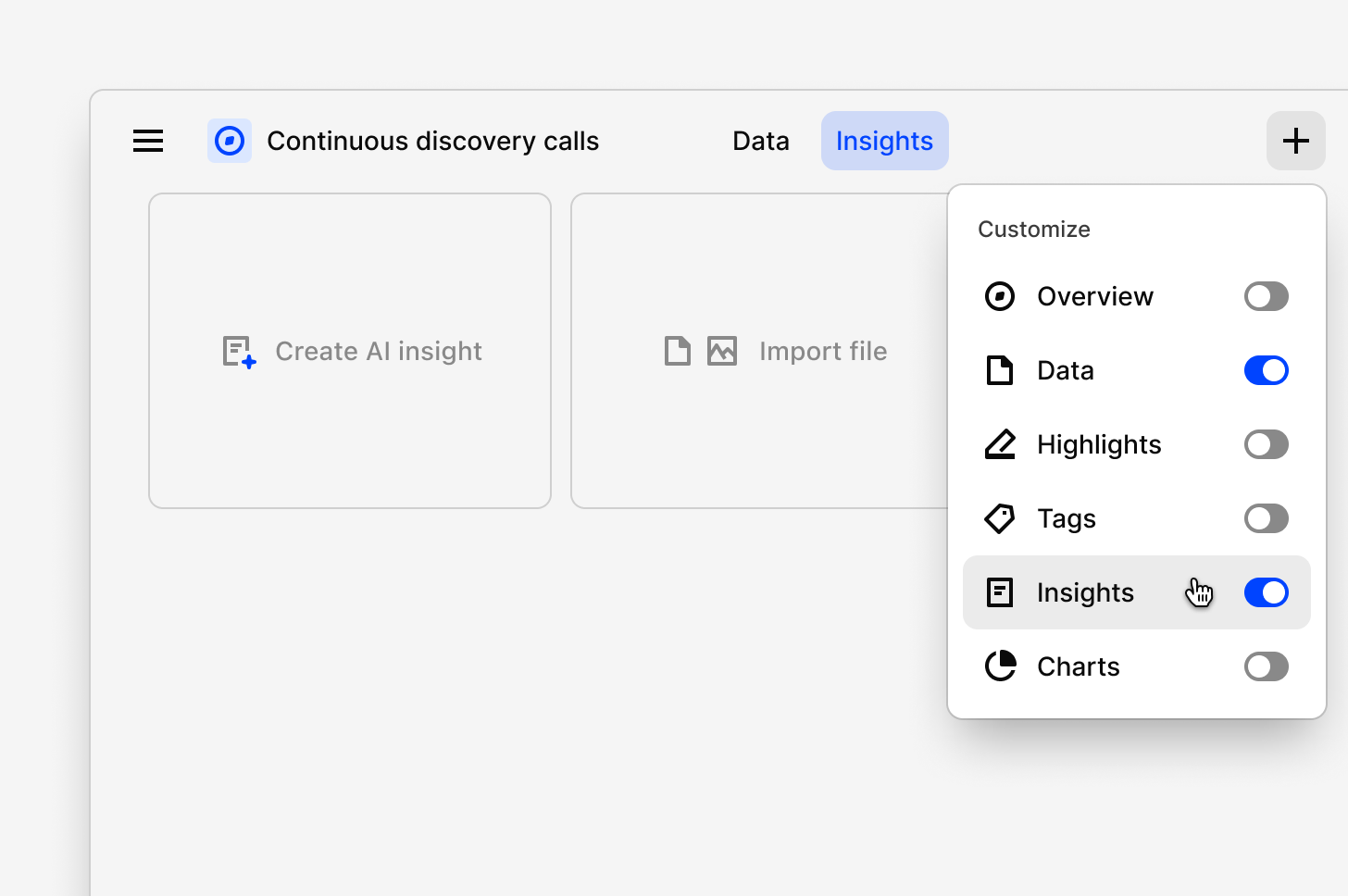 If you prefer to add data to a doc while manually analyzing your data, another way to create a doc from your project's `Highlights` page by selecting your highlights, clicking `Add to doc`, then enter a title for a new blank doc.
**To create a Doc from a Channel:**
1. Open the Channel topic you want to analyze.
2. Select a theme.
3. Click the **Create Doc** icon.
4. Choose a predefined prompt.
Dovetail will automatically generate a Doc by synthesizing relevant data points from the selected theme.
**To create a Doc that is not tied to a specific project or folder:**
1. Go to the sidebar.
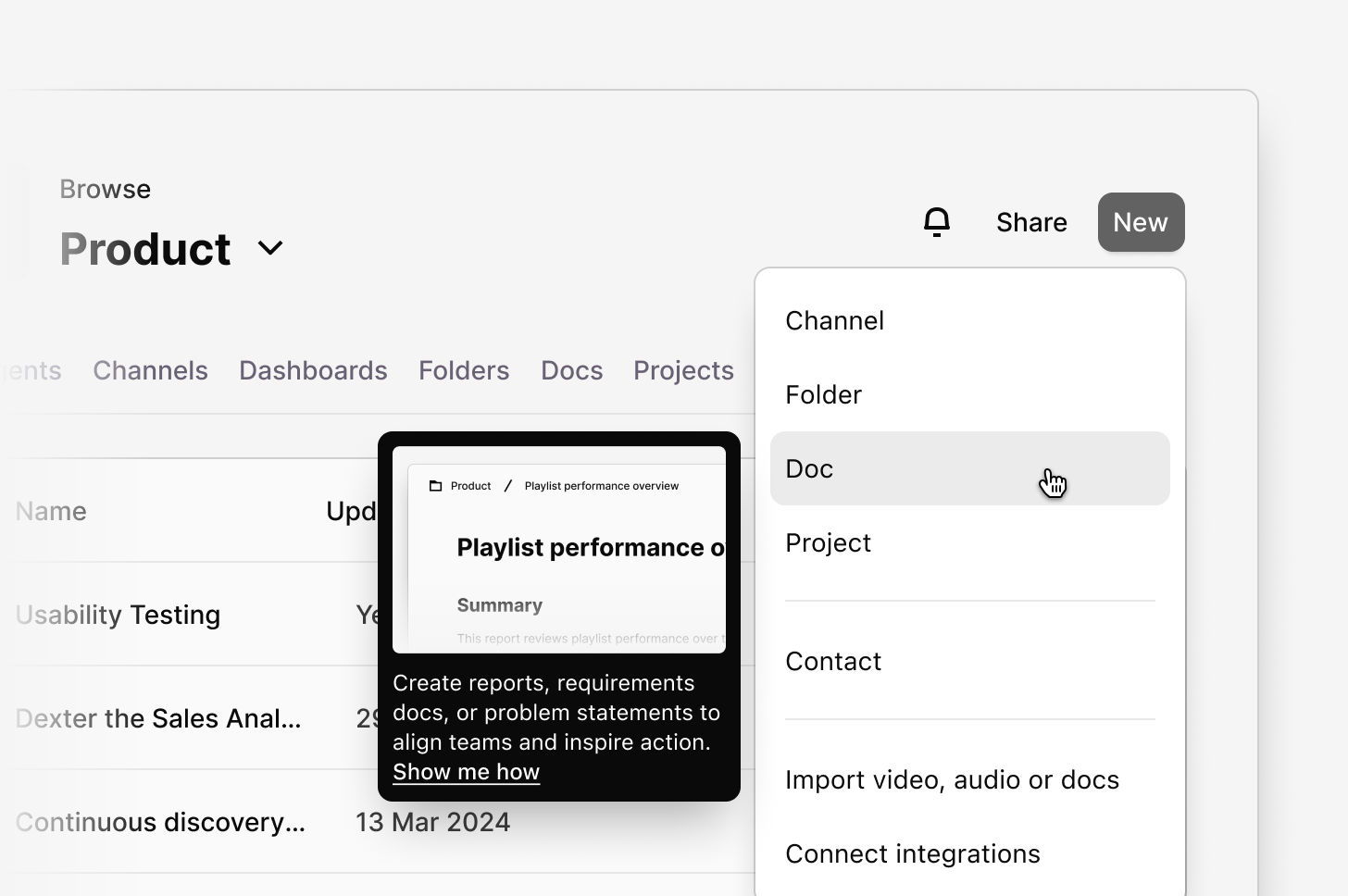
2. Select `+ New` and select `Doc`.
**To create a Doc from a specific folder:**
* Go to the folder.
* click `New` and select `Doc`.
* To generate an AI doc, choose a framework or write your own prompt.
* To create a doc manually, simply start typing.
If you prefer to add data to a doc while manually analyzing your data, another way to create a doc from your project's `Highlights` page by selecting your highlights, clicking `Add to doc`, then enter a title for a new blank doc.
**To create a Doc from a Channel:**
1. Open the Channel topic you want to analyze.
2. Select a theme.
3. Click the **Create Doc** icon.
4. Choose a predefined prompt.
Dovetail will automatically generate a Doc by synthesizing relevant data points from the selected theme.
**To create a Doc that is not tied to a specific project or folder:**
1. Go to the sidebar.
2. Select `+ New` and select `Doc`.
**To create a Doc from a specific folder:**
* Go to the folder.
* click `New` and select `Doc`.
* To generate an AI doc, choose a framework or write your own prompt.
* To create a doc manually, simply start typing.
 ***
## Add data to your Doc
Add data to a Doc from across your Dovetail workspace using the reference picker.
* To do this, open your Doc and type`/`within the editor to see all available options.
* Using this menu, select `References`. You can search for and filter content by object type (highlights, tags, notes, etc.) to select/drag and drop these directly into your doc.
* From there, you can customize how the highlight is presented by toggling on or off the content you want to display.
By default, references won’t show project name and creator information. Dovetail will remember your preferences for each subsequent reference that is added.
***
## Create a reel for your Doc
You can create and embed a custom reel that stitches together key highlights created in your project. [Learn how to curate and edit a highlight reel in your doc →](/help/projects/highlight-reels/)
***
## Generate a summary
Use a Doc summary to quickly create a concise overview of the content in your Doc.
Doc summaries automatically analyze and summarize content embedded in the Doc, including:
* Reels
* Highlights
* Notes
* Documents
* Text content
### Create a Summary
1. Open a Doc that contains embedded content.
2. In the editor, type **/** to open the command menu.
3. Select **Summarize**.
A summary card will be generated and added to the top of your Doc, providing a high-level overview of the key insights and information contained within the document.
***
## Generate summary of survey results
When importing survey data into a project, Dovetail automatically creates a doc of the results. In this doc, you will see a breakdown of each question's results. If your original survey includes single or multi-select data types, you will also have the option to visualize each summary as a chart.
***
## Format, style, and structure your Doc
Ease stakeholders through your findings by polishing how text and data is displayed in your doc. In a doc, type `/` within the editor to see all blocks for formatting and structure options that you can drag and drop with `⋮⋮` anywhere on your page. [Learn how to edit and format your doc →](/help/projects/edit-and-format/)
***
## Add a cover image to your Doc
Doc cover photos give you a quick way to make your Doc more visual with a banner. You can upload your own image as a cover photo or search for one from thousands of free photos using our [Unsplash](https://unsplash.com/) integration.
* To do this, click `Update cover` and select your image. Once selected, it will be automatically applied and saved to your doc.
***
## Present your Docs
Use Present Mode to showcase your findings during team meetings, stakeholder reviews, or presentations. Before presenting, consider who your audience is and focus on the insights that are most relevant to them.
### Open Present Mode
1. Navigate to the Doc you want to present.
2. Click the **⋯ (More actions)** menu in the top-right corner.
3. Select **Present**.
A new browser tab will open with your Doc displayed in full-screen presentation mode, ready to share with your audience.
***
### Share docs with those outside the workspace
You can share your docs with those outside Dovetail by enabling Web links to your project. [Learn more about enabling public access to project docs→](https://docs.dovetail.com/help/web-links)
***
## Measure impact with Doc metrics
Doc metrics help you capture traction and engagement by providing information on who is engaging with your docs and how. These metrics are captured per-doc.
To view a Doc's metrics:
1. Navigate to the Doc
2. Click the **⋯ (More actions)** menu in the top-right corner
3. Click on **Metrics**
Currently, Doc metrics capture:
| **Metric** | Description |
| ---------------- | ---------------------------------------------------------------- |
| Reached audience | Number of unique accounts that have seen the doc |
| Doc discovery | Where users discovered the doc |
| Audience role | Who is accessing the doc |
| Audience access | What level of access in Dovetail |
| Engagement ratio | Percentage of unique accounts who opened content in the doc |
| Full page read | Percentage of unique users who scrolled to the bottom of the doc |
| Most popular | Number of unique users who clicked through a link within a doc |
For privacy reasons, metrics are only tracked for logged in users. Docs shared using a public access link will not have it's metrics tracked.
***
## Update references in a Doc
When you add project data to a Doc—such as notes, highlights, tags, or other Docs—a snapshot of that content is created at the time it is added.
This means the referenced content in the Doc will not automatically change if the original object is later edited or deleted.
To update a referenced item to reflect the latest version of the original content:
1. Ensure you have **Manager** or **Contributor** access and **Can edit** permissions for the project.
2. Open the Doc containing the reference.
3. Hover over the reference you want to update.
4. Click **Update reference (↻)**.
The reference will refresh and display the most recent version of the original object.
***
### Update All References
To update multiple references at once:
1. Open the Doc.
2. Click the **••• (More actions)** menu in the top-right corner.
3. Select **Update all**.
All eligible references in the Doc will be refreshed to their latest versions.
***
### Deleted References
If the original object is deleted, the reference will remain visible in the Doc. An alert will appear on the reference to indicate that the underlying object no longer exists.
***
### Dynamic References
Some blocks, such as search blocks and other dynamic feeds, are live references rather than snapshots.
These blocks automatically update and always display the latest version of the content they reference.
***
## Categorize docs with fields
You can organize and store structured information about and on your docs using fields. Fields help teams categorize findings and support the discovery of prior research in Dovetail. [Learn more about fields and how to use them for organizing your docs in the workspace →](/help/projects/data-and-insight-fields/)
When a doc is uneditable, empty fields will be hidden, making the doc cleaner and easier for your team to consume.
***
## Add data to your Doc
Add data to a Doc from across your Dovetail workspace using the reference picker.
* To do this, open your Doc and type`/`within the editor to see all available options.
* Using this menu, select `References`. You can search for and filter content by object type (highlights, tags, notes, etc.) to select/drag and drop these directly into your doc.
* From there, you can customize how the highlight is presented by toggling on or off the content you want to display.
By default, references won’t show project name and creator information. Dovetail will remember your preferences for each subsequent reference that is added.
***
## Create a reel for your Doc
You can create and embed a custom reel that stitches together key highlights created in your project. [Learn how to curate and edit a highlight reel in your doc →](/help/projects/highlight-reels/)
***
## Generate a summary
Use a Doc summary to quickly create a concise overview of the content in your Doc.
Doc summaries automatically analyze and summarize content embedded in the Doc, including:
* Reels
* Highlights
* Notes
* Documents
* Text content
### Create a Summary
1. Open a Doc that contains embedded content.
2. In the editor, type **/** to open the command menu.
3. Select **Summarize**.
A summary card will be generated and added to the top of your Doc, providing a high-level overview of the key insights and information contained within the document.
***
## Generate summary of survey results
When importing survey data into a project, Dovetail automatically creates a doc of the results. In this doc, you will see a breakdown of each question's results. If your original survey includes single or multi-select data types, you will also have the option to visualize each summary as a chart.
***
## Format, style, and structure your Doc
Ease stakeholders through your findings by polishing how text and data is displayed in your doc. In a doc, type `/` within the editor to see all blocks for formatting and structure options that you can drag and drop with `⋮⋮` anywhere on your page. [Learn how to edit and format your doc →](/help/projects/edit-and-format/)
***
## Add a cover image to your Doc
Doc cover photos give you a quick way to make your Doc more visual with a banner. You can upload your own image as a cover photo or search for one from thousands of free photos using our [Unsplash](https://unsplash.com/) integration.
* To do this, click `Update cover` and select your image. Once selected, it will be automatically applied and saved to your doc.
***
## Present your Docs
Use Present Mode to showcase your findings during team meetings, stakeholder reviews, or presentations. Before presenting, consider who your audience is and focus on the insights that are most relevant to them.
### Open Present Mode
1. Navigate to the Doc you want to present.
2. Click the **⋯ (More actions)** menu in the top-right corner.
3. Select **Present**.
A new browser tab will open with your Doc displayed in full-screen presentation mode, ready to share with your audience.
***
### Share docs with those outside the workspace
You can share your docs with those outside Dovetail by enabling Web links to your project. [Learn more about enabling public access to project docs→](https://docs.dovetail.com/help/web-links)
***
## Measure impact with Doc metrics
Doc metrics help you capture traction and engagement by providing information on who is engaging with your docs and how. These metrics are captured per-doc.
To view a Doc's metrics:
1. Navigate to the Doc
2. Click the **⋯ (More actions)** menu in the top-right corner
3. Click on **Metrics**
Currently, Doc metrics capture:
| **Metric** | Description |
| ---------------- | ---------------------------------------------------------------- |
| Reached audience | Number of unique accounts that have seen the doc |
| Doc discovery | Where users discovered the doc |
| Audience role | Who is accessing the doc |
| Audience access | What level of access in Dovetail |
| Engagement ratio | Percentage of unique accounts who opened content in the doc |
| Full page read | Percentage of unique users who scrolled to the bottom of the doc |
| Most popular | Number of unique users who clicked through a link within a doc |
For privacy reasons, metrics are only tracked for logged in users. Docs shared using a public access link will not have it's metrics tracked.
***
## Update references in a Doc
When you add project data to a Doc—such as notes, highlights, tags, or other Docs—a snapshot of that content is created at the time it is added.
This means the referenced content in the Doc will not automatically change if the original object is later edited or deleted.
To update a referenced item to reflect the latest version of the original content:
1. Ensure you have **Manager** or **Contributor** access and **Can edit** permissions for the project.
2. Open the Doc containing the reference.
3. Hover over the reference you want to update.
4. Click **Update reference (↻)**.
The reference will refresh and display the most recent version of the original object.
***
### Update All References
To update multiple references at once:
1. Open the Doc.
2. Click the **••• (More actions)** menu in the top-right corner.
3. Select **Update all**.
All eligible references in the Doc will be refreshed to their latest versions.
***
### Deleted References
If the original object is deleted, the reference will remain visible in the Doc. An alert will appear on the reference to indicate that the underlying object no longer exists.
***
### Dynamic References
Some blocks, such as search blocks and other dynamic feeds, are live references rather than snapshots.
These blocks automatically update and always display the latest version of the content they reference.
***
## Categorize docs with fields
You can organize and store structured information about and on your docs using fields. Fields help teams categorize findings and support the discovery of prior research in Dovetail. [Learn more about fields and how to use them for organizing your docs in the workspace →](/help/projects/data-and-insight-fields/)
When a doc is uneditable, empty fields will be hidden, making the doc cleaner and easier for your team to consume.