> ## Documentation Index
> Fetch the complete documentation index at: https://docs.dovetail.com/llms.txt
> Use this file to discover all available pages before exploring further.
# Download project data
 ***
## Download videos and highlights
You can download a single video, highlight video, or highlight reel from a project to share in other tools. This will export in a .mp4 format.
**To download a video**: hover over your video and click `••• ,`navigate to the bottom right corner of the video player, and click `Download.`
**To download a single highlight video**: open the data and click onto the highlighted text within the transcript. Click `•••` and select `Download`. This will create an export file for you to download onto your device.
**To download a highlight reel** that has been created within a Doc or tag: open your Doc, navigate to the bottom right corner of the video player, and select `Download`.
This will automatically stitch together all clips in the reel and export them into a single video or audio file.
Please note it can take time to prepare your video. Progress is shown in the bottom right of the screen, and we'll email you when your video is ready to download.
***
## Download a transcript
You can download a transcript from a video or audio file as a VTT file.
* To do this, open your data containing the transcript that you'd like to download and select `···` at the top of the transcript.
* From there, select `Download transcript`.
***
## Download videos and highlights
You can download a single video, highlight video, or highlight reel from a project to share in other tools. This will export in a .mp4 format.
**To download a video**: hover over your video and click `••• ,`navigate to the bottom right corner of the video player, and click `Download.`
**To download a single highlight video**: open the data and click onto the highlighted text within the transcript. Click `•••` and select `Download`. This will create an export file for you to download onto your device.
**To download a highlight reel** that has been created within a Doc or tag: open your Doc, navigate to the bottom right corner of the video player, and select `Download`.
This will automatically stitch together all clips in the reel and export them into a single video or audio file.
Please note it can take time to prepare your video. Progress is shown in the bottom right of the screen, and we'll email you when your video is ready to download.
***
## Download a transcript
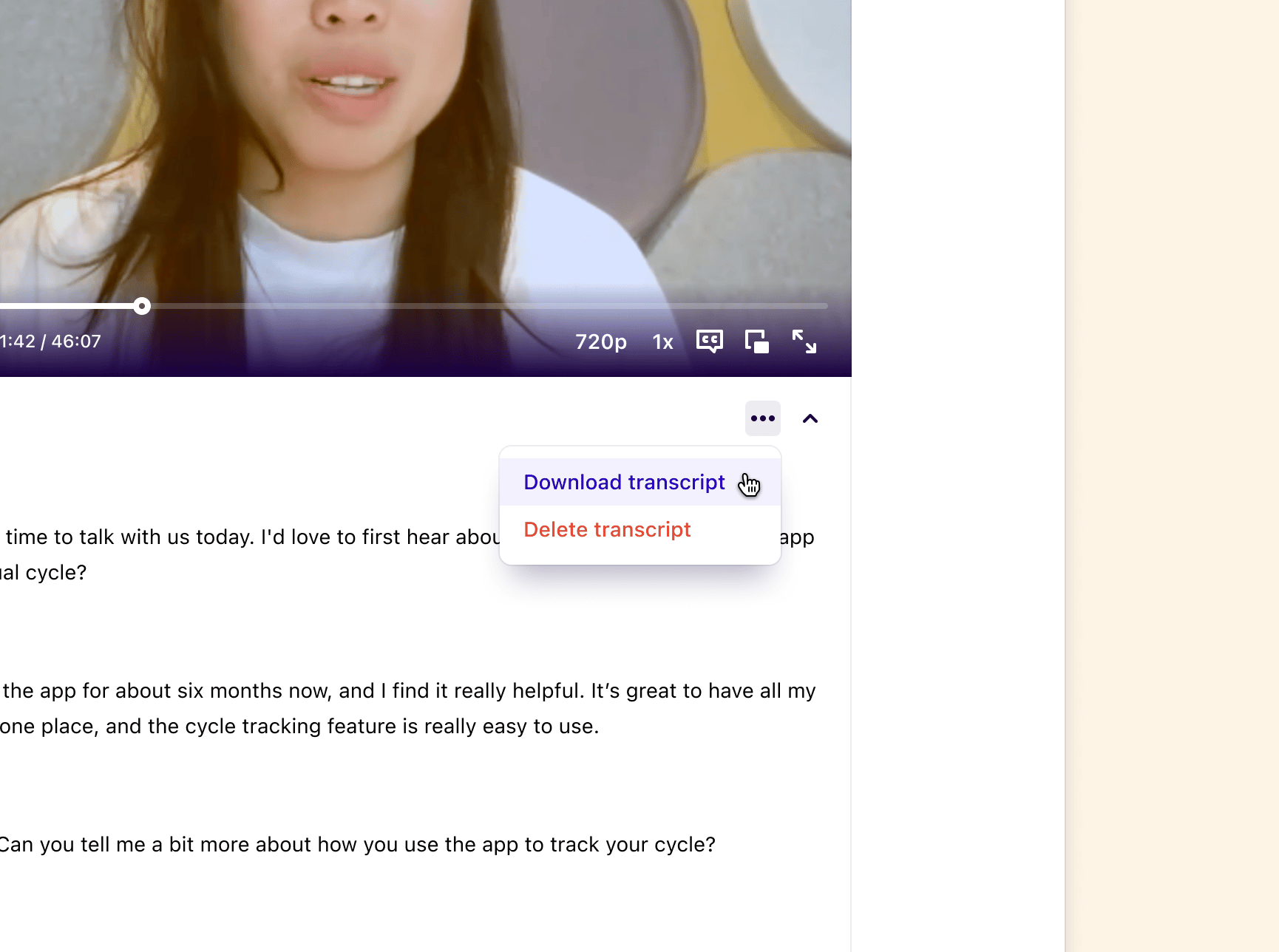
You can download a transcript from a video or audio file as a VTT file.
* To do this, open your data containing the transcript that you'd like to download and select `···` at the top of the transcript.
* From there, select `Download transcript`.
 ***
## Download project data as a spreadsheet
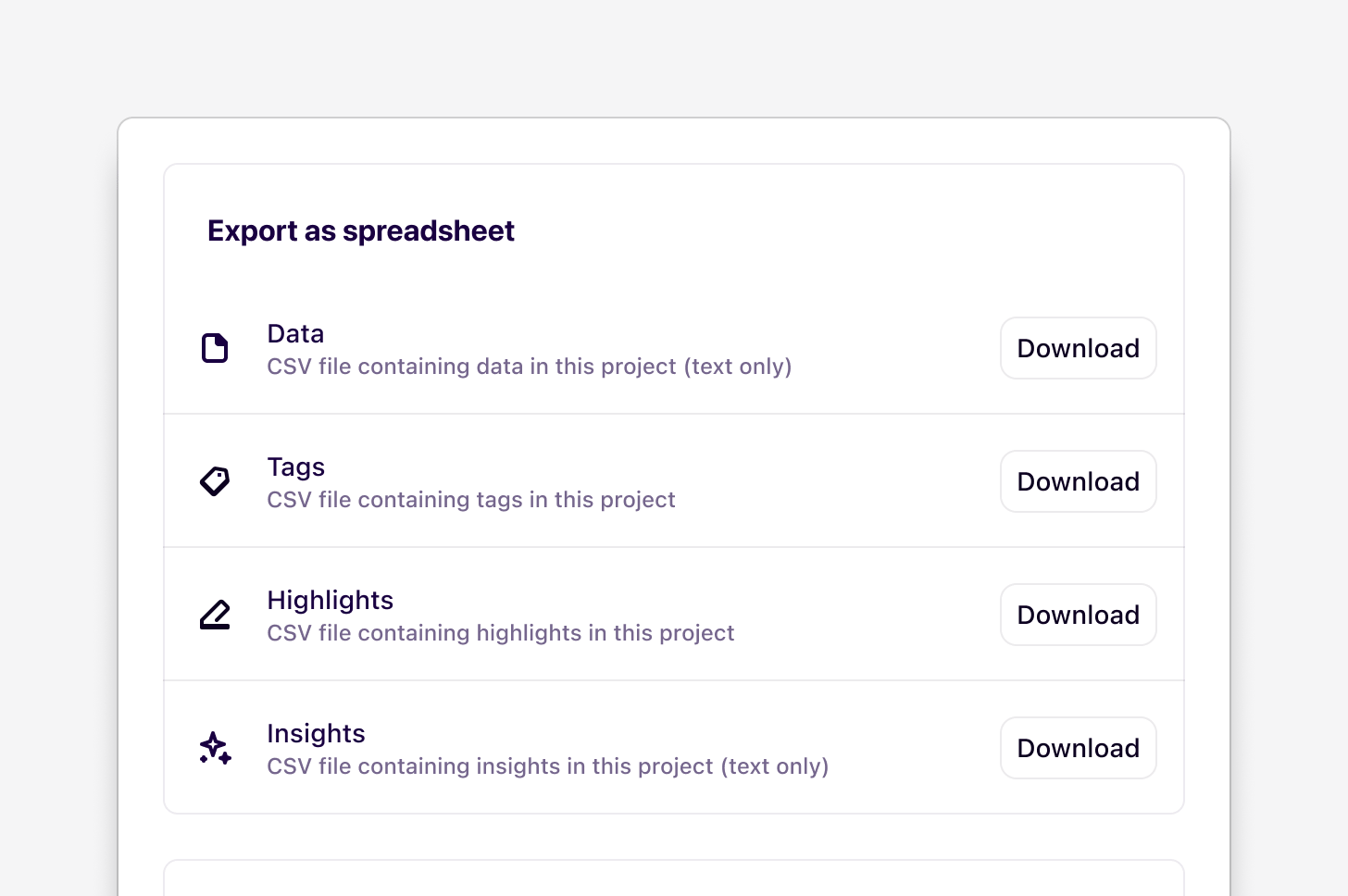
You can download a spreadsheet of your raw data, highlights, tags, and Docs for your entire project. Each spreadsheet contains a number of columns in the CSV format, and can be opened with Apple Numbers, Google Sheets, Microsoft Excel, or other spreadsheet software.
* To do this, open your project and navigate to `•••` in the top right corner.
* From there, navigate to the object type you wish to download as a single CSV file and press `Download`.
If you select data and Docs, the spreadsheet includes text content added to these, any fields created, the date the object was last modified, and the URL of the object in your Dovetail workspace.
Spreadsheet export does not preserve formatting, layout, highlights, and tags. You can download a PDF of each note to maintain formatting.
***
## Export all content in a project to transfer to another workspace
This export is intended for moving projects between workspaces
**Managers** and **Contributors** can export entire projects as an encrypted **.dovetailproject** file.
The file is encrypted and cannot be opened or read outside of Dovetail — it may appear as a binary file on your device, which is expected behavior. The export is designed to be securely re-imported back into your Dovetail workspace to restore the project data.
* To bulk export multiple projects at once, navigate to `Home` or to `Projects`, then select the projects or folders you wish to export. Once selected, click on `•••` and select `Export` from the bulk action menu at the bottom of the page.
* To export a single project, use the same steps as above, selecting only one project, or navigate to the project's settings menu `•••` in the top right corner, click `Export`, navigate to `Export entire project`**,** and select `Download`.
Once the export has been prepared, click the `Download` button in the prompt to download the file to your device, then prepare to import it into a separate Dovetail workspace.
#### What data is included in the export?
| Data (Notes) | Docs | Tags | Fields |
| :----------------------------------------------------------------------------------------------- | :------------------------ | :--------------- | :----------- |
| Files[1](https://dovetail.com/help/projects/download-project-data/#user-content-fn-1) | Tag groups | Tag boards | Field groups |
| Project views | Project field preferences | Project metadata | |
Please note:
* Any URLs found in your project data are only valid for 3 days from the day you exported your project. If they expire, you’ll need to re-export the project.
* This export does not include any comments added to data within projects.
* Channels data will not be included in the export. This includes data points uploaded to channels, themes generated in channels, and summaries generated on themes.
* Our export format is constantly evolving and subject to change. Please keep this in mind when using these exports in your own tooling. Revisit this document and your export files to see the latest changes.
***
## Download raw Data or Docs as a PDF
Individual notes can be downloaded as a PDF, which is the only semi-standard format that preserves selectable text along with formatting, layout, embedded images and files, and highlights. The quality of the PDF export will vary between browsers.
* To download a PDF version of your data:
* To do this, open the data and click "...", click on Open as Full page.
* From there, click `···` in the top right and select `Print` and save as PDF.
You can download a single Doc as a PDF to help preserve selectable text along with formatting, layout, and highlights.
* To do this, open the Doc and click "...", click on Open as Full page.
* From there, click `···` in the top-right corner, then select `Print` and `Save as PDF`.
***
## Troubleshoot PDF export
We rely on the browser’s print feature to create the PDF. Every browser does this a bit differently, so you may have mixed results depending on your browser.
We recommend exporting your notes and Docs to PDF using Google Chrome, as it seems to produce the best output.
Remember to open the note or Doc **as a page** before printing. Otherwise, the text outside of the modal dialog will get cut off.
We're aware of an issue where some tags don't appear in the sidebar when exporting long notes to PDF, and are investigating possible solutions.
***
## FAQs
Project export files are encrypted for security and are only supported for re-import into Dovetail. To access the contents, you must re-import the file into Dovetail. We recommend re-importing within 3 days, as media file links expire after 3 days.
Dovetail does not currently offer a single export option designed for bulk data extraction in a fully readable format outside of the platform.
Project exports (`.dovetailproject` files) are encrypted and intended for:
* Re-importing projects into Dovetail
They are not designed to be opened or processed externally.
Dovetail does not offer a single one-click option to export all workspace data at once. However, we do support several standard, formats for exporting data outside of Dovetail:
**In-app exports:**
* **CSV** — for highlights, tags, insights, and raw data (compatible with Excel, Google Sheets, etc.)
* **PDF** — for individual notes and insights
* **VTT** — for transcripts
* **MP4** — for video and audio highlights
**Via API** ([developers.dovetail.com](http://developers.dovetail.com)):
* **HTML and Markdown** — for document content export
Note that `.dovetailproject` files are encrypted and intended only for re-importing projects into Dovetail — they are not designed to be opened or processed externally.
Some teams choose to use the Dovetail API as a workaround to programmatically retrieve data. However, there are a few important caveats:
* The API is primarily designed for **bringing data into Dovetail**, not bulk exporting it
* There is **no dedicated bulk export endpoint**
* You may need to query multiple endpoints and stitch data together manually
* Our team isn’t able to provide support for building or maintaining custom API export workflows
* If you choose to use the API, this would be considered a custom solution managed by your team
You can explore the developer documentation here: [https://developers.dovetail.com/docs/introduction](https://developers.dovetail.com/docs/introduction)
The `.dovetailproject` format is one of several export options, designed for full project migration between Dovetail workspaces.
Additional export options include:
**In-app exports:**
* **CSV** — for highlights, tags, insights, and raw data (compatible with Excel, Google Sheets, etc.)
* **PDF** — for individual notes and insights
* **VTT** — for transcripts
* **MP4** — for video and audio highlights **Via API** ([developers.dovetail.com](http://developers.dovetail.com)):
* **HTML and Markdown** — for document content export
These are all standard, commonly used formats that are fully usable outside Dovetail.
***
## Download project data as a spreadsheet
You can download a spreadsheet of your raw data, highlights, tags, and Docs for your entire project. Each spreadsheet contains a number of columns in the CSV format, and can be opened with Apple Numbers, Google Sheets, Microsoft Excel, or other spreadsheet software.
* To do this, open your project and navigate to `•••` in the top right corner.
* From there, navigate to the object type you wish to download as a single CSV file and press `Download`.
If you select data and Docs, the spreadsheet includes text content added to these, any fields created, the date the object was last modified, and the URL of the object in your Dovetail workspace.
Spreadsheet export does not preserve formatting, layout, highlights, and tags. You can download a PDF of each note to maintain formatting.
***
## Export all content in a project to transfer to another workspace
This export is intended for moving projects between workspaces
**Managers** and **Contributors** can export entire projects as an encrypted **.dovetailproject** file.
The file is encrypted and cannot be opened or read outside of Dovetail — it may appear as a binary file on your device, which is expected behavior. The export is designed to be securely re-imported back into your Dovetail workspace to restore the project data.
* To bulk export multiple projects at once, navigate to `Home` or to `Projects`, then select the projects or folders you wish to export. Once selected, click on `•••` and select `Export` from the bulk action menu at the bottom of the page.
* To export a single project, use the same steps as above, selecting only one project, or navigate to the project's settings menu `•••` in the top right corner, click `Export`, navigate to `Export entire project`**,** and select `Download`.
Once the export has been prepared, click the `Download` button in the prompt to download the file to your device, then prepare to import it into a separate Dovetail workspace.
#### What data is included in the export?
| Data (Notes) | Docs | Tags | Fields |
| :----------------------------------------------------------------------------------------------- | :------------------------ | :--------------- | :----------- |
| Files[1](https://dovetail.com/help/projects/download-project-data/#user-content-fn-1) | Tag groups | Tag boards | Field groups |
| Project views | Project field preferences | Project metadata | |
Please note:
* Any URLs found in your project data are only valid for 3 days from the day you exported your project. If they expire, you’ll need to re-export the project.
* This export does not include any comments added to data within projects.
* Channels data will not be included in the export. This includes data points uploaded to channels, themes generated in channels, and summaries generated on themes.
* Our export format is constantly evolving and subject to change. Please keep this in mind when using these exports in your own tooling. Revisit this document and your export files to see the latest changes.
***
## Download raw Data or Docs as a PDF
Individual notes can be downloaded as a PDF, which is the only semi-standard format that preserves selectable text along with formatting, layout, embedded images and files, and highlights. The quality of the PDF export will vary between browsers.
* To download a PDF version of your data:
* To do this, open the data and click "...", click on Open as Full page.
* From there, click `···` in the top right and select `Print` and save as PDF.
You can download a single Doc as a PDF to help preserve selectable text along with formatting, layout, and highlights.
* To do this, open the Doc and click "...", click on Open as Full page.
* From there, click `···` in the top-right corner, then select `Print` and `Save as PDF`.
***
## Troubleshoot PDF export
We rely on the browser’s print feature to create the PDF. Every browser does this a bit differently, so you may have mixed results depending on your browser.
We recommend exporting your notes and Docs to PDF using Google Chrome, as it seems to produce the best output.
Remember to open the note or Doc **as a page** before printing. Otherwise, the text outside of the modal dialog will get cut off.
We're aware of an issue where some tags don't appear in the sidebar when exporting long notes to PDF, and are investigating possible solutions.
***
## FAQs
Project export files are encrypted for security and are only supported for re-import into Dovetail. To access the contents, you must re-import the file into Dovetail. We recommend re-importing within 3 days, as media file links expire after 3 days.
Dovetail does not currently offer a single export option designed for bulk data extraction in a fully readable format outside of the platform.
Project exports (`.dovetailproject` files) are encrypted and intended for:
* Re-importing projects into Dovetail
They are not designed to be opened or processed externally.
Dovetail does not offer a single one-click option to export all workspace data at once. However, we do support several standard, formats for exporting data outside of Dovetail:
**In-app exports:**
* **CSV** — for highlights, tags, insights, and raw data (compatible with Excel, Google Sheets, etc.)
* **PDF** — for individual notes and insights
* **VTT** — for transcripts
* **MP4** — for video and audio highlights
**Via API** ([developers.dovetail.com](http://developers.dovetail.com)):
* **HTML and Markdown** — for document content export
Note that `.dovetailproject` files are encrypted and intended only for re-importing projects into Dovetail — they are not designed to be opened or processed externally.
Some teams choose to use the Dovetail API as a workaround to programmatically retrieve data. However, there are a few important caveats:
* The API is primarily designed for **bringing data into Dovetail**, not bulk exporting it
* There is **no dedicated bulk export endpoint**
* You may need to query multiple endpoints and stitch data together manually
* Our team isn’t able to provide support for building or maintaining custom API export workflows
* If you choose to use the API, this would be considered a custom solution managed by your team
You can explore the developer documentation here: [https://developers.dovetail.com/docs/introduction](https://developers.dovetail.com/docs/introduction)
The `.dovetailproject` format is one of several export options, designed for full project migration between Dovetail workspaces.
Additional export options include:
**In-app exports:**
* **CSV** — for highlights, tags, insights, and raw data (compatible with Excel, Google Sheets, etc.)
* **PDF** — for individual notes and insights
* **VTT** — for transcripts
* **MP4** — for video and audio highlights **Via API** ([developers.dovetail.com](http://developers.dovetail.com)):
* **HTML and Markdown** — for document content export
These are all standard, commonly used formats that are fully usable outside Dovetail.