> ## Documentation Index
> Fetch the complete documentation index at: https://docs.dovetail.com/llms.txt
> Use this file to discover all available pages before exploring further.
# Highlight reels
 ## Overview
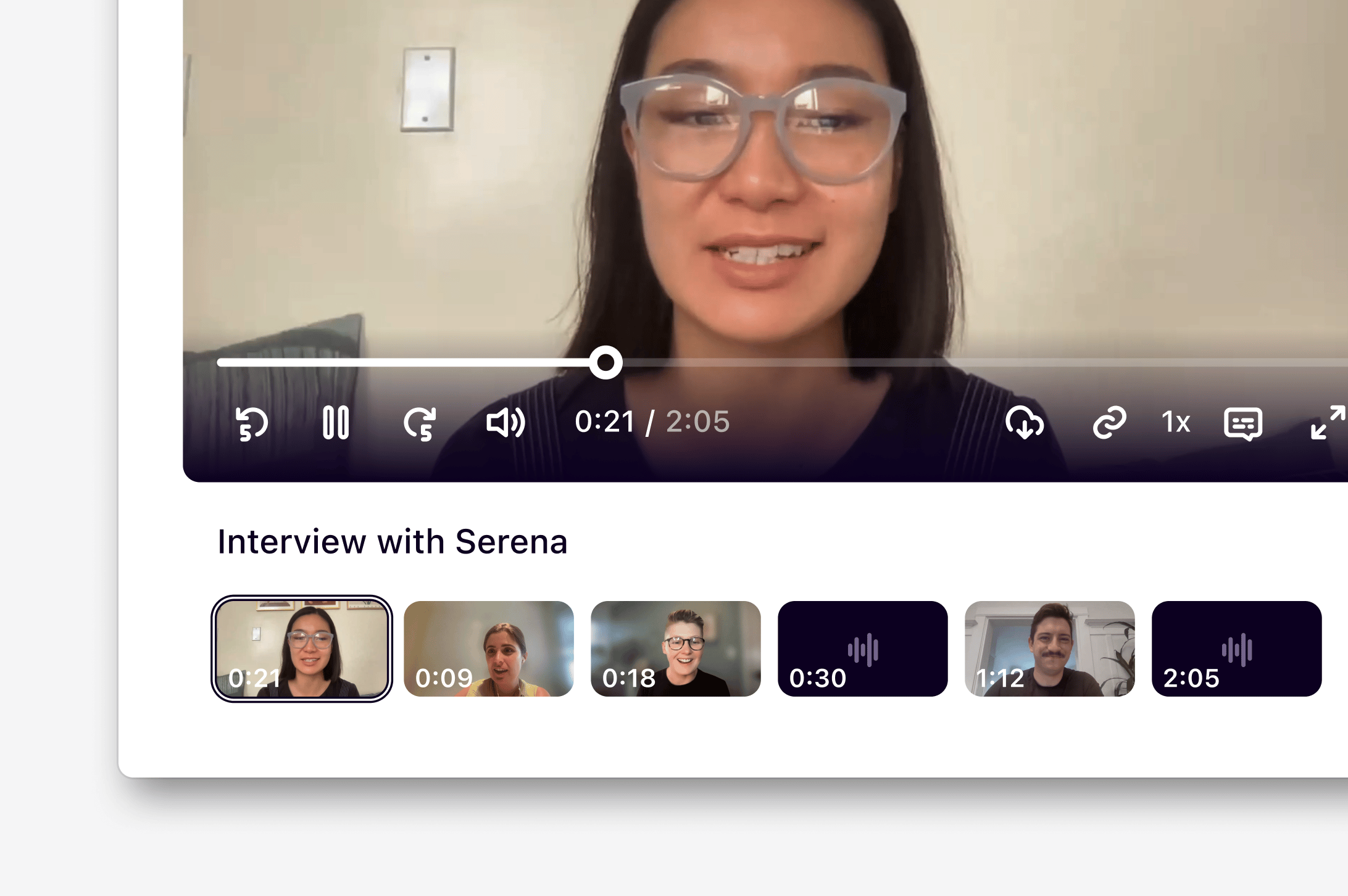
Reels stitch together important moments surfaced in your customer interview, usability tests, and sales calls. Reels are a compelling way to present your raw data in a digestible and shareable format.
***
## Create a highlight reel
Our **Insights** feature will be renamed to **Docs** for all Dovetail workspaces from January 2026.
Reels can be created as a reference within a **doc**. These reels can include highlights from any project within your workspace.
* To do this, make sure "Editable" is toggled "On", type `/` within the editor, and select `Reel`. From there, you can select video or audio highlights to include in the reel.
* If a selection of highlight references have already been added to your doc as a layout, you can convert this into a reel by clicking on the layout and selecting `Add to reel`.
Reels only support highlights that have audio or video. Text highlights that are added to reels won’t appear.
You can add individual highlights to a reel at any time within an insight.
* To do this, open your insight and navigate to the bottom bar of the reel editor.
* From there, click `+` to select your highlights, then `Insert references`. This will add all selected highlights to your reel.
* You can also select and drag highlights directly into the reel.
***
## Arrange highlights in your reel
If you would like your reel to play through highlight clips in a specific order, you can re-arrange these in the editor bar.
* To do this, navigate to the reel editor and click on the highlight you wish to move.
* From there, you can drag and drop the highlight to place it in a different position in the reel. This will automatically save the new order of clips in the reel.
***
## View a highlight reel in tags
In a project, reels can also found under indiviudal tags. These reels are automatically created and capture highlights grouped under a single tag.
* To view a reel for a specific tag in your project, navigate to `Tags` and select your tag.
* From there, you will be able to see a reel that has stitched together any video or audio highlights labelled with your tag.
***
## Download a reel
You can download any video or audio highlight reel to share with your team in other tools for presentations, reports, or papers. This will export in a .mp4 format.
* To do this, navigate to the bottom right corner of the video player and select `Download`.
* This will automatically stitch together all clips in the reel and export them into a single video or audio file.
***
## FAQs
You can download a maximum of 100 highlights in a highlight reel. Subtitles will not be included in the download even if they are enabled in the video player.
## Overview
Reels stitch together important moments surfaced in your customer interview, usability tests, and sales calls. Reels are a compelling way to present your raw data in a digestible and shareable format.
***
## Create a highlight reel
Our **Insights** feature will be renamed to **Docs** for all Dovetail workspaces from January 2026.
Reels can be created as a reference within a **doc**. These reels can include highlights from any project within your workspace.
* To do this, make sure "Editable" is toggled "On", type `/` within the editor, and select `Reel`. From there, you can select video or audio highlights to include in the reel.
* If a selection of highlight references have already been added to your doc as a layout, you can convert this into a reel by clicking on the layout and selecting `Add to reel`.
Reels only support highlights that have audio or video. Text highlights that are added to reels won’t appear.
You can add individual highlights to a reel at any time within an insight.
* To do this, open your insight and navigate to the bottom bar of the reel editor.
* From there, click `+` to select your highlights, then `Insert references`. This will add all selected highlights to your reel.
* You can also select and drag highlights directly into the reel.
***
## Arrange highlights in your reel
If you would like your reel to play through highlight clips in a specific order, you can re-arrange these in the editor bar.
* To do this, navigate to the reel editor and click on the highlight you wish to move.
* From there, you can drag and drop the highlight to place it in a different position in the reel. This will automatically save the new order of clips in the reel.
***
## View a highlight reel in tags
In a project, reels can also found under indiviudal tags. These reels are automatically created and capture highlights grouped under a single tag.
* To view a reel for a specific tag in your project, navigate to `Tags` and select your tag.
* From there, you will be able to see a reel that has stitched together any video or audio highlights labelled with your tag.
***
## Download a reel
You can download any video or audio highlight reel to share with your team in other tools for presentations, reports, or papers. This will export in a .mp4 format.
* To do this, navigate to the bottom right corner of the video player and select `Download`.
* This will automatically stitch together all clips in the reel and export them into a single video or audio file.
***
## FAQs
You can download a maximum of 100 highlights in a highlight reel. Subtitles will not be included in the download even if they are enabled in the video player.