> ## Documentation Index
> Fetch the complete documentation index at: https://docs.dovetail.com/llms.txt
> Use this file to discover all available pages before exploring further.
# Security settings
 ## Overview
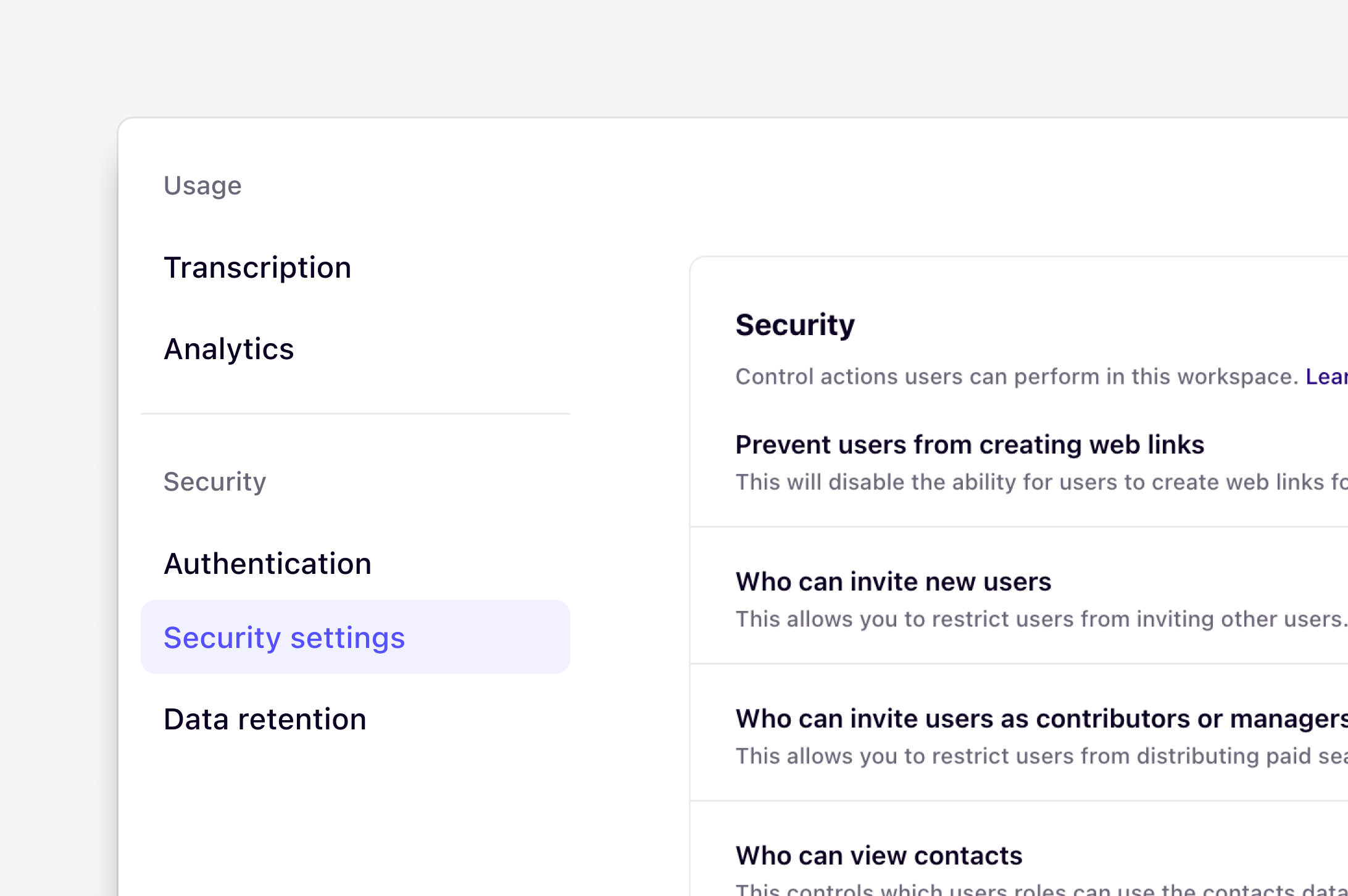
The security settings tab is only available on Business and Enterprise plans for [workspace admins](https://docs.dovetail.com/help/user-roles/#grant-admin-access-to-users)
Workspace admins on our Business and Enterprise plans can configure certain security settings in their workspace to control what actions their users can take within [Security settings](https://dovetail.com/settings/security).
***
## Prevent users from using web links
Admins can disable the ability to create web links for highlights and docs across the entire workspace.
* To do this, navigate to [⚙️ Settings → Security](https://dovetail.com/settings/security) and under Security, toggle on `Prevent users from creating web links`.
In addition, if you have the HIPAA add-on, the ability to create web links will be disabled by default for all projects in the workspace.
***
## Who can invite new users to the workspace
By default, all users can invite new users to join the workspace. Users can only invite new users with a role that is **equal to or lower than their own workspace role**.
Workspace admins on **Business and Enterprise plans** can restrict invitations so that only admins can invite new users.
To update this setting:
1. Navigate to ⚙️ [Settings → Security](https://dovetail.com/settings/security)
2. Under **Who can invite new users to the workspace**, select **Admins only**.
### Prevent users from assigning paid seats
If users are allowed to invite new members, workspace admins can also control whether those users can assign paid seats.
To restrict paid seat assignment:
1. Navigate to ⚙️ [Settings → Security](https://dovetail.com/settings/security)
2. Under **Who can invite users as contributors or managers**, select **Admins only**.
This ensures that only workspace admins can invite users into paid roles, such as **Contributors** or **Managers**.
***
## **Who can remove redactions**
This allows you to restrict who can remove redactions from data in this workspace.
To update this setting:
1. Navigate to ⚙️ [Settings → Security](https://dovetail.com/settings/security)
2. Under **Who can remove redactions**, select **Admins only** or **Anyone**
***
# **AI settings**
### Select your AI processing location
Select where AI models process data to help teams align with data residency, compliance, and governance requirements. This setting does not affect AI transcription, which has a separate [region setting](https://docs.dovetail.com/help/workspace-settings#update-your-workspace-transcription-service).
1. To do this, go to ⚙️ [Settings → Security](https://dovetail.com/settings/security) **→ AI settings**
2. Under **AI processing location**, select your preferred region.
You can choose from the following options:
* **Default** — Uses your workspace’s default region for AI processing
* US workspaces default to the **United States**
* EU workspaces default to the **European Union**
* Australian workspaces default to the **United States** unless manually changed to **Australia**
* **United States** — All AI processing occurs in the United States
* **Europe** — All AI processing occurs in the European Union
* **Australia** — All AI processing occurs in Australia
***
### Show AI disclaimer
When enabled, Dovetail displays a disclaimer on docs that include AI-generated contributions, giving readers visibility into how content was created.
* To enable this, navigate to ⚙️ [Settings → Security](https://dovetail.com/settings/security) and under **AI settings**, toggle on `Show AI disclaimer`.
Once enabled, any doc with AI contributions will show a disclaimer to viewers, so your team always knows when AI has played a role in shaping the content. This setting is turned on by default.
***
# **User management**
### Session age
Session age controls how long users can stay logged in before they are required to authenticate again.
By default, users remain logged in for **90 days**. Workspace admins on **Business and Enterprise plans** can set a shorter session age to require users to log in again more frequently.
To update the session age:
1. Navigate to ⚙️ [Settings → Security](https://dovetail.com/settings/security) **→ User management**
2. Under **Session age**, select your preferred duration
Available options:
* 30 minutes
* 1 hour
* 4 hours
* 12 hours
* 24 hours
* 7 days
* 30 days
* 60 days
* 90 days
### Log out all users
Workspace admins can log out all currently signed-in users from the workspace. This can be useful when you need to require all users to authenticate again.
To log out all users:
1. Navigate to ⚙️ [Settings → Security](https://dovetail.com/settings/security) **→ User management**
2. Click on **Log out all users**
## Overview
The security settings tab is only available on Business and Enterprise plans for [workspace admins](https://docs.dovetail.com/help/user-roles/#grant-admin-access-to-users)
Workspace admins on our Business and Enterprise plans can configure certain security settings in their workspace to control what actions their users can take within [Security settings](https://dovetail.com/settings/security).
***
## Prevent users from using web links
Admins can disable the ability to create web links for highlights and docs across the entire workspace.
* To do this, navigate to [⚙️ Settings → Security](https://dovetail.com/settings/security) and under Security, toggle on `Prevent users from creating web links`.
In addition, if you have the HIPAA add-on, the ability to create web links will be disabled by default for all projects in the workspace.
***
## Who can invite new users to the workspace
By default, all users can invite new users to join the workspace. Users can only invite new users with a role that is **equal to or lower than their own workspace role**.
Workspace admins on **Business and Enterprise plans** can restrict invitations so that only admins can invite new users.
To update this setting:
1. Navigate to ⚙️ [Settings → Security](https://dovetail.com/settings/security)
2. Under **Who can invite new users to the workspace**, select **Admins only**.
### Prevent users from assigning paid seats
If users are allowed to invite new members, workspace admins can also control whether those users can assign paid seats.
To restrict paid seat assignment:
1. Navigate to ⚙️ [Settings → Security](https://dovetail.com/settings/security)
2. Under **Who can invite users as contributors or managers**, select **Admins only**.
This ensures that only workspace admins can invite users into paid roles, such as **Contributors** or **Managers**.
***
## **Who can remove redactions**
This allows you to restrict who can remove redactions from data in this workspace.
To update this setting:
1. Navigate to ⚙️ [Settings → Security](https://dovetail.com/settings/security)
2. Under **Who can remove redactions**, select **Admins only** or **Anyone**
***
# **AI settings**
### Select your AI processing location
Select where AI models process data to help teams align with data residency, compliance, and governance requirements. This setting does not affect AI transcription, which has a separate [region setting](https://docs.dovetail.com/help/workspace-settings#update-your-workspace-transcription-service).
1. To do this, go to ⚙️ [Settings → Security](https://dovetail.com/settings/security) **→ AI settings**
2. Under **AI processing location**, select your preferred region.
You can choose from the following options:
* **Default** — Uses your workspace’s default region for AI processing
* US workspaces default to the **United States**
* EU workspaces default to the **European Union**
* Australian workspaces default to the **United States** unless manually changed to **Australia**
* **United States** — All AI processing occurs in the United States
* **Europe** — All AI processing occurs in the European Union
* **Australia** — All AI processing occurs in Australia
***
### Show AI disclaimer
When enabled, Dovetail displays a disclaimer on docs that include AI-generated contributions, giving readers visibility into how content was created.
* To enable this, navigate to ⚙️ [Settings → Security](https://dovetail.com/settings/security) and under **AI settings**, toggle on `Show AI disclaimer`.
Once enabled, any doc with AI contributions will show a disclaimer to viewers, so your team always knows when AI has played a role in shaping the content. This setting is turned on by default.
***
# **User management**
### Session age
Session age controls how long users can stay logged in before they are required to authenticate again.
By default, users remain logged in for **90 days**. Workspace admins on **Business and Enterprise plans** can set a shorter session age to require users to log in again more frequently.
To update the session age:
1. Navigate to ⚙️ [Settings → Security](https://dovetail.com/settings/security) **→ User management**
2. Under **Session age**, select your preferred duration
Available options:
* 30 minutes
* 1 hour
* 4 hours
* 12 hours
* 24 hours
* 7 days
* 30 days
* 60 days
* 90 days
### Log out all users
Workspace admins can log out all currently signed-in users from the workspace. This can be useful when you need to require all users to authenticate again.
To log out all users:
1. Navigate to ⚙️ [Settings → Security](https://dovetail.com/settings/security) **→ User management**
2. Click on **Log out all users**