> ## Documentation Index
> Fetch the complete documentation index at: https://docs.dovetail.com/llms.txt
> Use this file to discover all available pages before exploring further.
# Segments
 Available on [**Business (as an add-on) and Enterprise plans**](https://dovetail.com/pricing/).
By default, Managers and Contributors can create and edit segments in Contacts database.
## Overview
Segments are dynamic, reusable groups of contacts created using filters and fields. A segment can be applied across search, contacts, and other areas of your workspace to narrow down results and generate summaries to a defined customer group. Segments are maintained automatically, with contacts entering or exiting a segment as they meet or no longer meet its conditions.
***
## Create a segment
Create dynamic contact segments to analyze and compare feedback from your most important customer groups. Segments are titled groups of contacts who share characteristics or behaviors. A segment can have many contacts and a contact can belong to many segments. Anyone with **Full** or **Edit** access to the Contacts database can create a segment that anyone can use to filter results to a subset of contacts in Search or Chat.
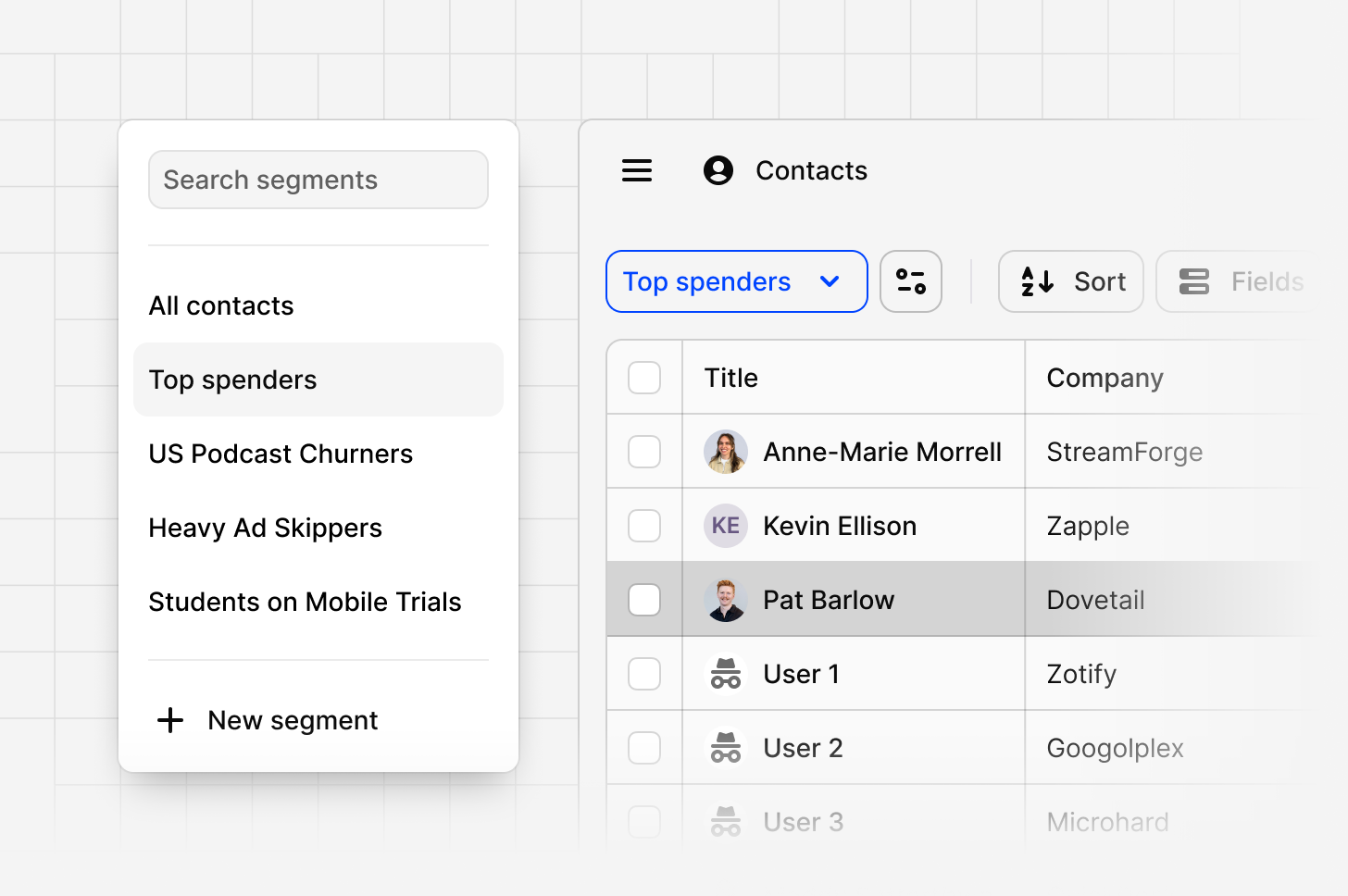
* To create a segment, open Contacts and either click the **plus icon** or select **New segment** from the dropdown.
* Enter a title and description for your segment. A short description gives helpful context when you or your teammates reference the segment later.
* For example, a segment called `Dormant Big Fish` might have the description: 'Contacts at companies with high ARR who haven't engaged recently.'
* Add a **filter** by specific contact fields. This will build a set of rules for your segment.
* For example, you can create a group by filtering the contact field `ARR = over $50M` and field `Industry = Finance`.
* Next, select `Save as segment.`
* Contacts are dynamically included in or excluded from a segment based on whether they satisfy the conditions defined for that segment. No manual updates are required.
***
## Manage a segment
From the Contacts database, you can view, edit, or delete your existing segments.
* **View a segment:** Open the top-left drop-down (set to `All contacts` by default) to see all available segments. Select a segment to review the filtered contacts it contains.
* **Edit a segment:** Select a segment and click the `configuration` icon. From here, you can edit its title, update the description, or adjust filters. You can also edit filters directly in the navigation panel. Make sure to click `Update segment` to save your filter changes or use `Reset` to return to the original filter settings.
* **Delete a segment:** Select the segment and choose `Move segment to trash`. Deleted segments remain in the trash for 30 days and can be restored during that period. After 30 days, they are permanently removed.
**Note:**\
Changes to fields directly impact the segments that use them:
* If you delete a field or edit a field type, the filter using that field is removed from the segment. Changing the title of that field or hiding the field will not affect segments.
* If you delete or edit the only remaining field associated with a segment, the entire segment will be deleted.
***
## Apply a segment
Use segments to focus your analysis on the people or groups that matter most.
* **In Search:** Apply a segment as a filter to narrow your results. When selected, search will only return results from contacts within that segment. To do this, click `More`, choose `Segment` from the drop-down, and select the segment you want your search to focus on.
***
## **What’s coming**
We’re expanding how you can use segments across Dovetail. Soon, you’ll be able to:
* **Apply a segment in Chat** by referencing its title in your message. Dovetail will automatically apply it as a filter to refine the response and keep the output specific to that segment.
* **Apply a segment in Projects** to focus your analysis on a specific group while working in context.
* **Apply a segment in Dashboards** to track trends and metrics for your chosen audience.
These additions will make it easier to bring the right customer lens into every workflow.
Available on [**Business (as an add-on) and Enterprise plans**](https://dovetail.com/pricing/).
By default, Managers and Contributors can create and edit segments in Contacts database.
## Overview
Segments are dynamic, reusable groups of contacts created using filters and fields. A segment can be applied across search, contacts, and other areas of your workspace to narrow down results and generate summaries to a defined customer group. Segments are maintained automatically, with contacts entering or exiting a segment as they meet or no longer meet its conditions.
***
## Create a segment
Create dynamic contact segments to analyze and compare feedback from your most important customer groups. Segments are titled groups of contacts who share characteristics or behaviors. A segment can have many contacts and a contact can belong to many segments. Anyone with **Full** or **Edit** access to the Contacts database can create a segment that anyone can use to filter results to a subset of contacts in Search or Chat.
* To create a segment, open Contacts and either click the **plus icon** or select **New segment** from the dropdown.
* Enter a title and description for your segment. A short description gives helpful context when you or your teammates reference the segment later.
* For example, a segment called `Dormant Big Fish` might have the description: 'Contacts at companies with high ARR who haven't engaged recently.'
* Add a **filter** by specific contact fields. This will build a set of rules for your segment.
* For example, you can create a group by filtering the contact field `ARR = over $50M` and field `Industry = Finance`.
* Next, select `Save as segment.`
* Contacts are dynamically included in or excluded from a segment based on whether they satisfy the conditions defined for that segment. No manual updates are required.
***
## Manage a segment
From the Contacts database, you can view, edit, or delete your existing segments.
* **View a segment:** Open the top-left drop-down (set to `All contacts` by default) to see all available segments. Select a segment to review the filtered contacts it contains.
* **Edit a segment:** Select a segment and click the `configuration` icon. From here, you can edit its title, update the description, or adjust filters. You can also edit filters directly in the navigation panel. Make sure to click `Update segment` to save your filter changes or use `Reset` to return to the original filter settings.
* **Delete a segment:** Select the segment and choose `Move segment to trash`. Deleted segments remain in the trash for 30 days and can be restored during that period. After 30 days, they are permanently removed.
**Note:**\
Changes to fields directly impact the segments that use them:
* If you delete a field or edit a field type, the filter using that field is removed from the segment. Changing the title of that field or hiding the field will not affect segments.
* If you delete or edit the only remaining field associated with a segment, the entire segment will be deleted.
***
## Apply a segment
Use segments to focus your analysis on the people or groups that matter most.
* **In Search:** Apply a segment as a filter to narrow your results. When selected, search will only return results from contacts within that segment. To do this, click `More`, choose `Segment` from the drop-down, and select the segment you want your search to focus on.
***
## **What’s coming**
We’re expanding how you can use segments across Dovetail. Soon, you’ll be able to:
* **Apply a segment in Chat** by referencing its title in your message. Dovetail will automatically apply it as a filter to refine the response and keep the output specific to that segment.
* **Apply a segment in Projects** to focus your analysis on a specific group while working in context.
* **Apply a segment in Dashboards** to track trends and metrics for your chosen audience.
These additions will make it easier to bring the right customer lens into every workflow.