> ## Documentation Index
> Fetch the complete documentation index at: https://docs.dovetail.com/llms.txt
> Use this file to discover all available pages before exploring further.
# Configure source fields
> Rename a source’s fields and change their types, including the NPS and CSAT types that Dashboards need to chart survey scores.
Workspace admins and the user who connected a source can change its fields. Users with **Can use** on the source can add its data to channels, but can’t change its fields. See [Manage source access](/help/sources/source-access).
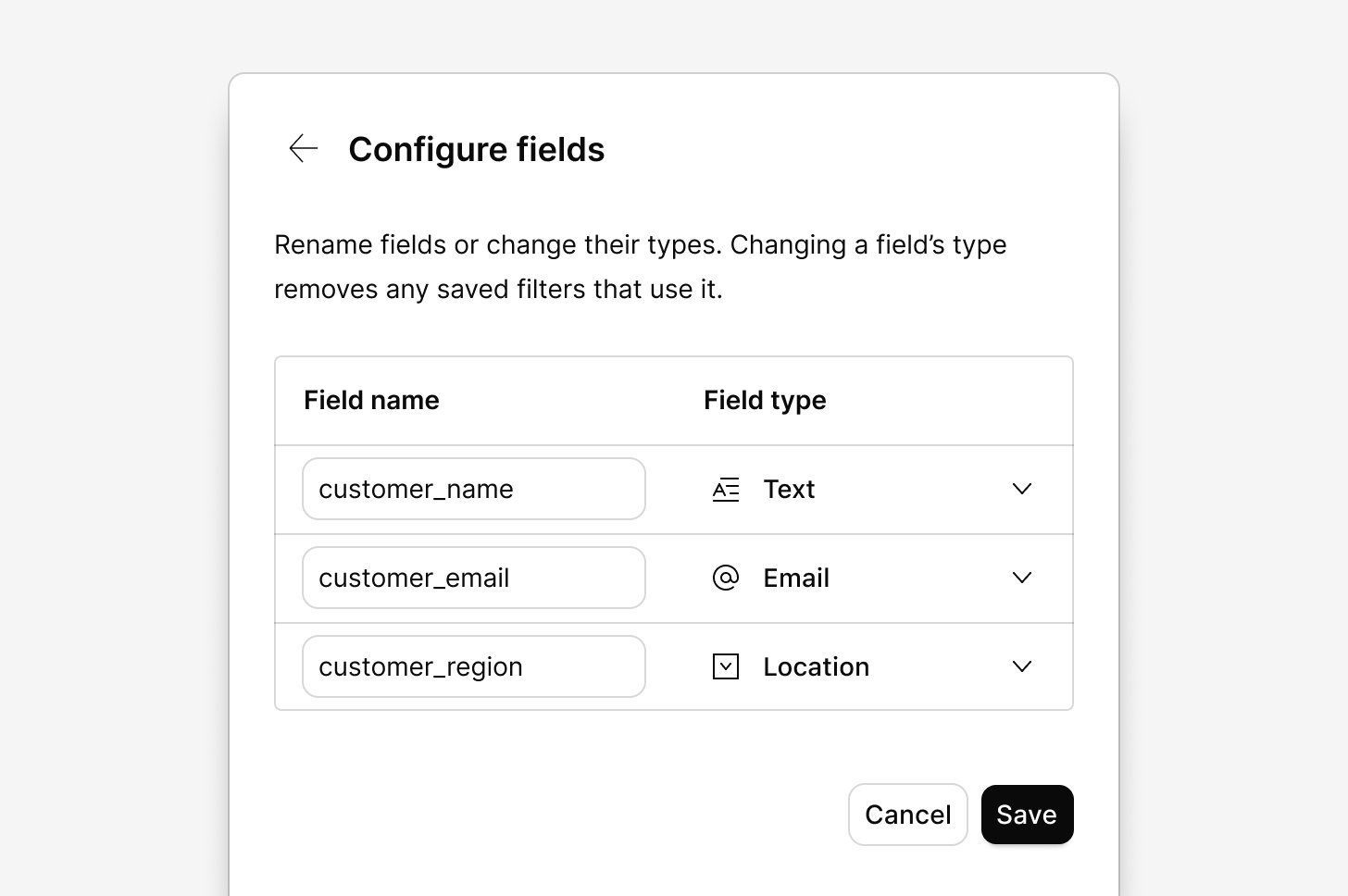 A source’s fields hold the structured details that come with each data point, such as a ticket’s tags, a review’s rating, or a survey’s NPS score. Every channel that uses the source gets the same fields to filter by, and Dashboards uses NPS and CSAT fields to chart scores. [Learn more about Sources →](/help/sources)
***
## Where fields come from
A source has one set of fields, made up of the fields from all of its datasets. Dovetail creates them as data comes into the source. There’s no field step when you create a source.
| Where it comes from | What becomes a field | Starting type |
| :- | :- | :- |
| The integration | Built-in fields, such as **Tags** for Zendesk, **Call date** for Gong, or **Survey name** for Qualtrics | Set by the integration |
| Custom fields and other attributes in the data | Custom fields defined in the tool, and any other attribute Dovetail finds in the imported records | Set by the integration, or Text for an attribute that doesn’t match a known field |
| Survey sources | Each score question and each choice question, named after the question text | NPS, CSAT, or Rating for score questions; Single select or Multi select for choice questions |
| Snowflake | Each column other than the three you map when you add the table, named in sentence case | Taken from the column type: Checkbox, Number, Date, or Text |
| API and Zapier sources | Each metadata key sent with a data point | Taken from the value: Number, Checkbox, Multi select, or Text |
You can rename fields named after a tool’s own key or a long survey question to make them easier to read. When two datasets in a source send the same field, the source keeps one field for both.
For survey sources, you choose surveys (or Pendo guides), not questions. Dovetail analyzes the answers to every open-text question in the surveys you select, and turns each score or choice question into its own field.
Channels use the source’s fields as they are. A channel can’t rename, retype, or hide a source’s fields, so a change on the source shows up in every channel that uses it.
***
## Rename fields and change field types
1. In the sidebar, select **Sources**, then select the source to open it.
2. Select **Source actions** (`•••`) → `Reconfigure fields`.
3. To rename a field, edit its name in the **Name** column.
4. To change a field’s type, open the type menu in the **Field** column and choose a type.
5. Select `Save`.
Changes apply everywhere the source is used, and can take up to an hour to reach data points that are already imported.
* Renaming a field doesn’t affect saved filters.
* Later syncs keep the names and types you set.
* You can’t add, hide, delete, or reorder a source’s fields.
Changing a field’s type removes any saved filters that use the field.
### Field types
| Type | Holds |
| :- | :- |
| Text | A single line of text |
| Number | A numeric value |
| Date | A date |
| Checkbox | A yes or no value |
| URL | A link to a webpage |
| Single select | One option from a list |
| Multi select | Several options from a list |
| Email | An email address |
| Phone | A phone number |
| NPS | A Net Promoter Score rating |
| Revenue | A revenue amount |
| Rating | A star rating or other numeric score |
| CSAT | A customer satisfaction score |
***
## NPS and CSAT scores for Dashboards
To chart scores in [Dashboards](/help/dashboards), a field must use the NPS or CSAT type. Set the type on the source that feeds the channel, and every channel that uses the source gets the field with that type.
* **Survey sources.** Dovetail sets the NPS or CSAT type on a score question when it can reliably recognize it. Check the types after the first sync, and change any score question that arrived as another type, such as Rating. Dashboards doesn’t use Rating fields for NPS or CSAT charts.
* **Snowflake, API, and Zapier sources.** Dovetail doesn’t set the NPS or CSAT type for these sources. Numeric Snowflake columns and numeric metadata values arrive as Number, so change the field to NPS or CSAT yourself.
* **Scales.** Dashboards supports NPS on a 0–10 scale and CSAT on a 1–5 scale.
### If a channel is missing from a widget
If an NPS or CSAT widget’s **From** list leaves out the channel you want, check that:
* The score field uses the NPS or CSAT type on the source. After a type change, allow up to an hour.
* The scores use the scale Dashboards supports: 0–10 for NPS and 1–5 for CSAT.
* You have access to the channel. Widgets list only channels you can open.
***
## Troubleshooting
**The source has no fields yet.** Fields appear after the source’s first sync. Check the source’s status in [Manage a source](/help/sources/manage-a-source#source-statuses). For an API or Zapier source, fields appear once data points with metadata are sent to it.
**You can’t find `Reconfigure fields`.** Only workspace admins and the user who connected the source can change its fields. Ask one of them to make the change.
**A change to Single select or Multi select fails.** Select fields have limits on the number and length of options. If the field’s existing values don’t fit, keep its current type or choose a type that doesn’t use options.
***
## Related guides
How sources import customer data for the whole workspace.
Sync, pause, reconnect, or delete a source and its datasets.
Chart NPS, CSAT, and sentiment over time.
Add a source’s datasets to a channel.
This documentation is built and hosted on [Mintlify](https://mintlify.com), a developer documentation platform.
A source’s fields hold the structured details that come with each data point, such as a ticket’s tags, a review’s rating, or a survey’s NPS score. Every channel that uses the source gets the same fields to filter by, and Dashboards uses NPS and CSAT fields to chart scores. [Learn more about Sources →](/help/sources)
***
## Where fields come from
A source has one set of fields, made up of the fields from all of its datasets. Dovetail creates them as data comes into the source. There’s no field step when you create a source.
| Where it comes from | What becomes a field | Starting type |
| :- | :- | :- |
| The integration | Built-in fields, such as **Tags** for Zendesk, **Call date** for Gong, or **Survey name** for Qualtrics | Set by the integration |
| Custom fields and other attributes in the data | Custom fields defined in the tool, and any other attribute Dovetail finds in the imported records | Set by the integration, or Text for an attribute that doesn’t match a known field |
| Survey sources | Each score question and each choice question, named after the question text | NPS, CSAT, or Rating for score questions; Single select or Multi select for choice questions |
| Snowflake | Each column other than the three you map when you add the table, named in sentence case | Taken from the column type: Checkbox, Number, Date, or Text |
| API and Zapier sources | Each metadata key sent with a data point | Taken from the value: Number, Checkbox, Multi select, or Text |
You can rename fields named after a tool’s own key or a long survey question to make them easier to read. When two datasets in a source send the same field, the source keeps one field for both.
For survey sources, you choose surveys (or Pendo guides), not questions. Dovetail analyzes the answers to every open-text question in the surveys you select, and turns each score or choice question into its own field.
Channels use the source’s fields as they are. A channel can’t rename, retype, or hide a source’s fields, so a change on the source shows up in every channel that uses it.
***
## Rename fields and change field types
1. In the sidebar, select **Sources**, then select the source to open it.
2. Select **Source actions** (`•••`) → `Reconfigure fields`.
3. To rename a field, edit its name in the **Name** column.
4. To change a field’s type, open the type menu in the **Field** column and choose a type.
5. Select `Save`.
Changes apply everywhere the source is used, and can take up to an hour to reach data points that are already imported.
* Renaming a field doesn’t affect saved filters.
* Later syncs keep the names and types you set.
* You can’t add, hide, delete, or reorder a source’s fields.
Changing a field’s type removes any saved filters that use the field.
### Field types
| Type | Holds |
| :- | :- |
| Text | A single line of text |
| Number | A numeric value |
| Date | A date |
| Checkbox | A yes or no value |
| URL | A link to a webpage |
| Single select | One option from a list |
| Multi select | Several options from a list |
| Email | An email address |
| Phone | A phone number |
| NPS | A Net Promoter Score rating |
| Revenue | A revenue amount |
| Rating | A star rating or other numeric score |
| CSAT | A customer satisfaction score |
***
## NPS and CSAT scores for Dashboards
To chart scores in [Dashboards](/help/dashboards), a field must use the NPS or CSAT type. Set the type on the source that feeds the channel, and every channel that uses the source gets the field with that type.
* **Survey sources.** Dovetail sets the NPS or CSAT type on a score question when it can reliably recognize it. Check the types after the first sync, and change any score question that arrived as another type, such as Rating. Dashboards doesn’t use Rating fields for NPS or CSAT charts.
* **Snowflake, API, and Zapier sources.** Dovetail doesn’t set the NPS or CSAT type for these sources. Numeric Snowflake columns and numeric metadata values arrive as Number, so change the field to NPS or CSAT yourself.
* **Scales.** Dashboards supports NPS on a 0–10 scale and CSAT on a 1–5 scale.
### If a channel is missing from a widget
If an NPS or CSAT widget’s **From** list leaves out the channel you want, check that:
* The score field uses the NPS or CSAT type on the source. After a type change, allow up to an hour.
* The scores use the scale Dashboards supports: 0–10 for NPS and 1–5 for CSAT.
* You have access to the channel. Widgets list only channels you can open.
***
## Troubleshooting
**The source has no fields yet.** Fields appear after the source’s first sync. Check the source’s status in [Manage a source](/help/sources/manage-a-source#source-statuses). For an API or Zapier source, fields appear once data points with metadata are sent to it.
**You can’t find `Reconfigure fields`.** Only workspace admins and the user who connected the source can change its fields. Ask one of them to make the change.
**A change to Single select or Multi select fails.** Select fields have limits on the number and length of options. If the field’s existing values don’t fit, keep its current type or choose a type that doesn’t use options.
***
## Related guides
How sources import customer data for the whole workspace.
Sync, pause, reconnect, or delete a source and its datasets.
Chart NPS, CSAT, and sentiment over time.
Add a source’s datasets to a channel.
This documentation is built and hosted on [Mintlify](https://mintlify.com), a developer documentation platform.