> ## Documentation Index
> Fetch the complete documentation index at: https://docs.dovetail.com/llms.txt
> Use this file to discover all available pages before exploring further.
# Add, remove and manage users
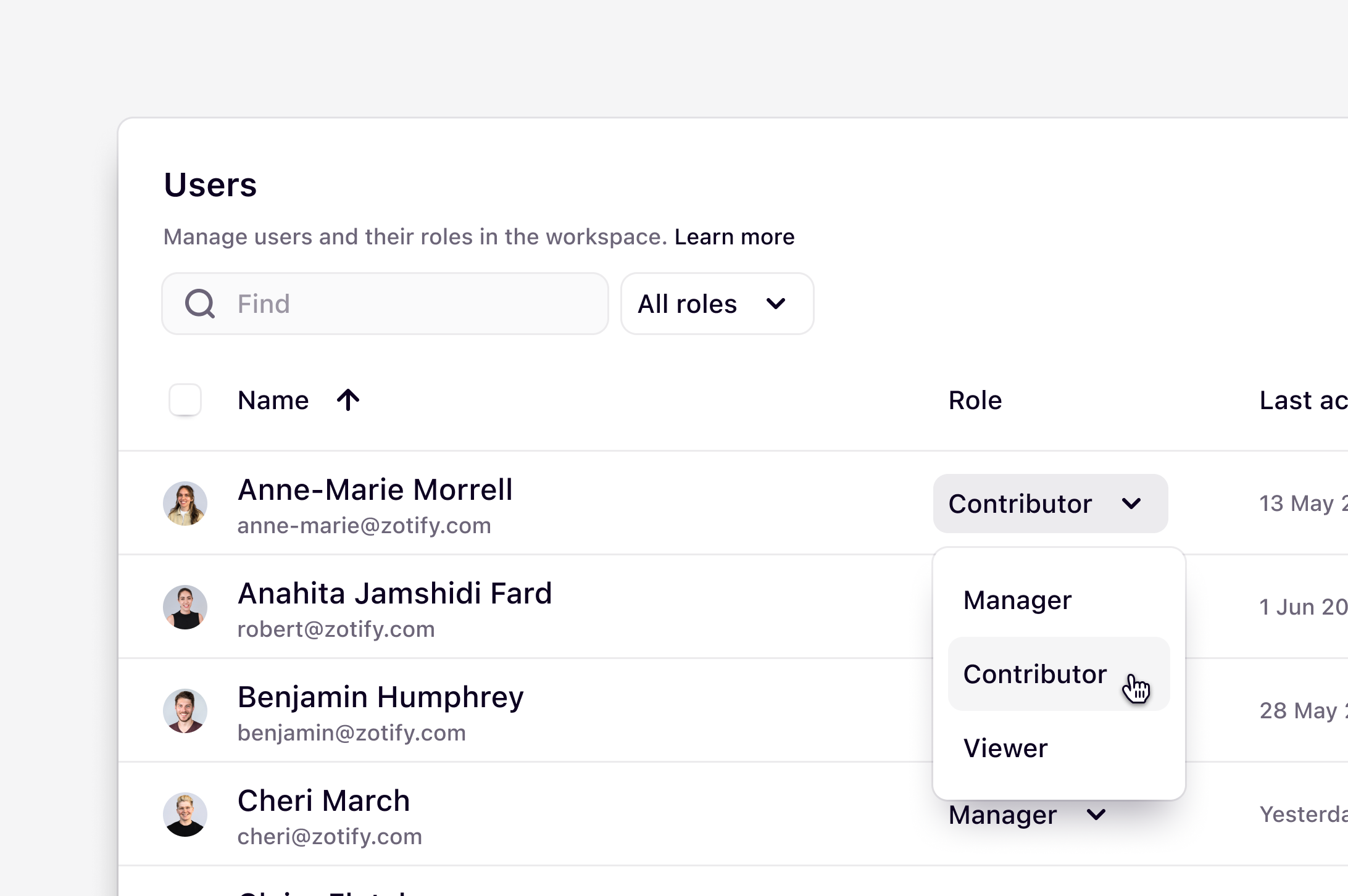 Free and Professional workspaces can invite new users to their workspace. However, user roles are available only on the *legacy* Professional, Business, and Enterprise plans.
**Admin** access can be granted to any user on any plan.
## Add new users to your workspace
All users invited to the most recent Professional plan will occupy a paid seat.
### Invite via email
You can invite new users to your workspace from the **Users** settings page.
### Current Professional plans
1. Navigate to [**⚙️ Settings → Users**.](https://dovetail.com/settings/users)
2. Enter the email address of one or more users.
3. Select **Invite users**.
Once invited, the user will receive an email invitation to join your workspace.
***
### Legacy Professional, Business, and Enterprise workspaces
User invitation permissions depend on your role:
* **Admins** can invite users at **any role level**.
* **Non-admin users** can only invite others at a role **equal to or lower than their own**.
* For example, if you are a **Contributor**, you can invite users as either Contributors or Viewers.
To invite a user:
1. Navigate to **[⚙️ Settings → User](https://dovetail.com/settings/users)s**.
2. Enter the email address of one or more users.
3. Select **Invite users**.
For these workspaces, you will also need to **assign a role** to the user before sending the invite.
***
#### Managing and restricting who invites users
**Workspace admins** on **Business** and **Enterprise** plans with user roles can manage and restrict who invites new users via ⚙️ **[Settings → ](https://dovetail.com/settings/authentication)Security settings.**
**Who can invite new users:**
This allows you to restrict users from inviting other users. Select between "**Admins only**" or "**Anyone**".
**Who can invite users as contributors or managers:**
This allows you to restrict users from distributing paid seats. Select between "**Admins only**" or "**Anyone**".
***
### Manage pending invites
Pending invitations appear at the **top of the Users page**, where you can:
* **Resend** an invitation
* **Revoke** an invitation
**Note:** Invited users who are assigned a role other than **Viewer** will occupy a **paid seat**, even if the invitation has not yet been accepted.
A workspace invite remains active 14 days from the date it was created.
***
### Managing automatic account creation
Workspace admins can enable **automatic account creation**, allowing users with an approved email domain to join a workspace when they create a Dovetail account. Automatic account creation is enabled by default.
For example, if your organization has approved the domain **@[acme.com](http://acme.com)**, anyone who signs up for Dovetail using an **@[acme.com](http://acme.com)** email address will automatically be added to the workspace as a **Viewer**.
**Note:** Automatic account creation is **not** available on the most current Professional plan. If you see a diamond icon next to this setting in **⚙️**[Settings → Authentication](https://dovetail.com/settings/authentication), this feature is **not** available on your plan, and automatic account creation will be enabled by default.
#### Set up automatic account creation
1. If you haven't already, add an approved email domain under **⚙️**[Settings → Authentication](https://dovetail.com/settings/authentication) → **Automatic account creation**
2. Enable or disable **Automatic account creation** by toggling the setting on or off.
Once enabled, any user who creates a Dovetail account with an approved email domain will automatically be granted access to the workspace as a Viewer.
***
## User management
Only admins will be able to manage:
* Users roles
* Deleting or deactivating users
* Granting or revoking admin status
***
## Remove users from your workspace
Workspace admins have two options available if they need to remove a user from the workspace:
* **Deactivate user** → If a user is deactivated, they will no longer have access to the workspace, but their account will still exist in case you wish to reactivate them later. Additionally, deactivated users will continue to appear as authors on their contributions.
* **Delete user** → If a user is deleted, their account will be completely removed and cannot be added back. Their contributions will remain in the workspace, but they will be removed as authors.
***
## User roles
In Free and Professional workspaces, all users count toward a paid seat. In Enterprise, Business, and *legacy* Professional workspaces, three roles can be assigned to users: **Viewer**, **Contributor**, and **Manager**.
To update a user role, navigate to **[⚙️ Settings → User](https://dovetail.com/settings/users)s** → Locate the user and click their role drop-down, and select the new role.
| **Role** | **Description** |
| :---------- | :------------------------------------------------------------------------------------------------------------------------------------------------------------------------------------------------------------------- |
| Manager | Anyone who will be contributing to work as well as managing the workspace, including project settings, workspace-wide tags and fields, should be added as a manager. |
| Contributor | Anyone conducting research by viewing, contributing to, and analyzing data should be added as a contributor. This is the most common user type for people who are using Dovetail for lightweight or formal research. |
| Viewer | Anyone who will only be reading research outputs, but not editing any data, should be added as a viewer. Viewers are free to add and unlimited. |
Each user role has a different set of permissions.
| Permission | Viewer | Contributor | Manager |
| :---------------------------------------------- | :----- | :---------- | :------ |
| Can view, comment, and share projects | ✔ | ✔ | ✔ |
| Can subscribe to notifications | ✔ | ✔ | ✔ |
| Can contribute data to projects | | ✔ | ✔ |
| Can create and manage projects | | ✔ | ✔ |
| Can configure access control 1 | | ✔ | ✔ |
| Can create workspace tags & fields 1 | | ✔ | ✔ |
| Can create templates 1 | | | ✔ |
| Can add transcription vocabulary 1 | | | ✔ |
| Can edit home and feeds 1 | | | ✔ |
1. Available on Enterprise
Please note that Viewers are only available on select legacy plans and on our Enterprise plan.
***
## Grant admin access to users
Any user can be granted admin access in addition to their workspace role. Admin access can only be granted to a user by another admin.
Admin access will allow a user to manage billing, deactivate and remove users, manage workspace branding, manage authentication settings, and delete the workspace.
* To do this, hover next to the user name, click `•••`, and select `Grant admin access`.
For Enterprise workspaces, Managers, Contributors, and Viewers can be granted admin access in addition to their workspace role.
No, Viewers do not have edit access within the workspace. So, they will not be able to add or edit applied filters within a project.
Free and Professional workspaces can invite new users to their workspace. However, user roles are available only on the *legacy* Professional, Business, and Enterprise plans.
**Admin** access can be granted to any user on any plan.
## Add new users to your workspace
All users invited to the most recent Professional plan will occupy a paid seat.
### Invite via email
You can invite new users to your workspace from the **Users** settings page.
### Current Professional plans
1. Navigate to [**⚙️ Settings → Users**.](https://dovetail.com/settings/users)
2. Enter the email address of one or more users.
3. Select **Invite users**.
Once invited, the user will receive an email invitation to join your workspace.
***
### Legacy Professional, Business, and Enterprise workspaces
User invitation permissions depend on your role:
* **Admins** can invite users at **any role level**.
* **Non-admin users** can only invite others at a role **equal to or lower than their own**.
* For example, if you are a **Contributor**, you can invite users as either Contributors or Viewers.
To invite a user:
1. Navigate to **[⚙️ Settings → User](https://dovetail.com/settings/users)s**.
2. Enter the email address of one or more users.
3. Select **Invite users**.
For these workspaces, you will also need to **assign a role** to the user before sending the invite.
***
#### Managing and restricting who invites users
**Workspace admins** on **Business** and **Enterprise** plans with user roles can manage and restrict who invites new users via ⚙️ **[Settings → ](https://dovetail.com/settings/authentication)Security settings.**
**Who can invite new users:**
This allows you to restrict users from inviting other users. Select between "**Admins only**" or "**Anyone**".
**Who can invite users as contributors or managers:**
This allows you to restrict users from distributing paid seats. Select between "**Admins only**" or "**Anyone**".
***
### Manage pending invites
Pending invitations appear at the **top of the Users page**, where you can:
* **Resend** an invitation
* **Revoke** an invitation
**Note:** Invited users who are assigned a role other than **Viewer** will occupy a **paid seat**, even if the invitation has not yet been accepted.
A workspace invite remains active 14 days from the date it was created.
***
### Managing automatic account creation
Workspace admins can enable **automatic account creation**, allowing users with an approved email domain to join a workspace when they create a Dovetail account. Automatic account creation is enabled by default.
For example, if your organization has approved the domain **@[acme.com](http://acme.com)**, anyone who signs up for Dovetail using an **@[acme.com](http://acme.com)** email address will automatically be added to the workspace as a **Viewer**.
**Note:** Automatic account creation is **not** available on the most current Professional plan. If you see a diamond icon next to this setting in **⚙️**[Settings → Authentication](https://dovetail.com/settings/authentication), this feature is **not** available on your plan, and automatic account creation will be enabled by default.
#### Set up automatic account creation
1. If you haven't already, add an approved email domain under **⚙️**[Settings → Authentication](https://dovetail.com/settings/authentication) → **Automatic account creation**
2. Enable or disable **Automatic account creation** by toggling the setting on or off.
Once enabled, any user who creates a Dovetail account with an approved email domain will automatically be granted access to the workspace as a Viewer.
***
## User management
Only admins will be able to manage:
* Users roles
* Deleting or deactivating users
* Granting or revoking admin status
***
## Remove users from your workspace
Workspace admins have two options available if they need to remove a user from the workspace:
* **Deactivate user** → If a user is deactivated, they will no longer have access to the workspace, but their account will still exist in case you wish to reactivate them later. Additionally, deactivated users will continue to appear as authors on their contributions.
* **Delete user** → If a user is deleted, their account will be completely removed and cannot be added back. Their contributions will remain in the workspace, but they will be removed as authors.
***
## User roles
In Free and Professional workspaces, all users count toward a paid seat. In Enterprise, Business, and *legacy* Professional workspaces, three roles can be assigned to users: **Viewer**, **Contributor**, and **Manager**.
To update a user role, navigate to **[⚙️ Settings → User](https://dovetail.com/settings/users)s** → Locate the user and click their role drop-down, and select the new role.
| **Role** | **Description** |
| :---------- | :------------------------------------------------------------------------------------------------------------------------------------------------------------------------------------------------------------------- |
| Manager | Anyone who will be contributing to work as well as managing the workspace, including project settings, workspace-wide tags and fields, should be added as a manager. |
| Contributor | Anyone conducting research by viewing, contributing to, and analyzing data should be added as a contributor. This is the most common user type for people who are using Dovetail for lightweight or formal research. |
| Viewer | Anyone who will only be reading research outputs, but not editing any data, should be added as a viewer. Viewers are free to add and unlimited. |
Each user role has a different set of permissions.
| Permission | Viewer | Contributor | Manager |
| :---------------------------------------------- | :----- | :---------- | :------ |
| Can view, comment, and share projects | ✔ | ✔ | ✔ |
| Can subscribe to notifications | ✔ | ✔ | ✔ |
| Can contribute data to projects | | ✔ | ✔ |
| Can create and manage projects | | ✔ | ✔ |
| Can configure access control 1 | | ✔ | ✔ |
| Can create workspace tags & fields 1 | | ✔ | ✔ |
| Can create templates 1 | | | ✔ |
| Can add transcription vocabulary 1 | | | ✔ |
| Can edit home and feeds 1 | | | ✔ |
1. Available on Enterprise
Please note that Viewers are only available on select legacy plans and on our Enterprise plan.
***
## Grant admin access to users
Any user can be granted admin access in addition to their workspace role. Admin access can only be granted to a user by another admin.
Admin access will allow a user to manage billing, deactivate and remove users, manage workspace branding, manage authentication settings, and delete the workspace.
* To do this, hover next to the user name, click `•••`, and select `Grant admin access`.
For Enterprise workspaces, Managers, Contributors, and Viewers can be granted admin access in addition to their workspace role.
No, Viewers do not have edit access within the workspace. So, they will not be able to add or edit applied filters within a project.