> ## Documentation Index
> Fetch the complete documentation index at: https://docs.dovetail.com/llms.txt
> Use this file to discover all available pages before exploring further.
# HubSpot Service Hub
 ## Overview
Automatically import **HubSpot Service Hub** support data into Channels in real-time, where it's analyzed and grouped into themes so you can track trends across your support volume. [Learn more about Channels →](/help/channels)
When you set up the connection, you choose what to import:
* **Tickets** — support tickets, imported by **pipeline**. Each ticket lands with its originating conversation thread attached, plus its pipeline, stage, priority, and owner.
* **Conversations** — conversation threads, imported by **inbox**.
You also choose how far back to backfill existing data. This page focuses on the tickets import; the conversations import works the same way, scoped by inbox instead of pipeline.
***
## Prerequisites
* A Dovetail workspace with **Channels enabled**, and **Can edit** or **Full access** on the Channel you're adding the source to.
* A HubSpot account with **Service Hub**, and either [**Super Admin**](https://knowledge.hubspot.com/user-management/hubspot-user-permissions-guide) or **App Marketplace Access** permissions (needed to authorize the app during connection).
* The authorizing HubSpot user needs access to the **pipelines** (for tickets) or **inboxes** (for conversations) you want to import, and to the **associated contacts**.
Dovetail's HubSpot Service Hub integration is **read-only** — it imports and analyzes your data and never writes anything back to HubSpot.
***
## Set up the HubSpot Service Hub integration
You can set up the integration from [Settings](https://dovetail.com/settings/integrations), when you create a new Channel, or when you `Add source` to an existing Channel.
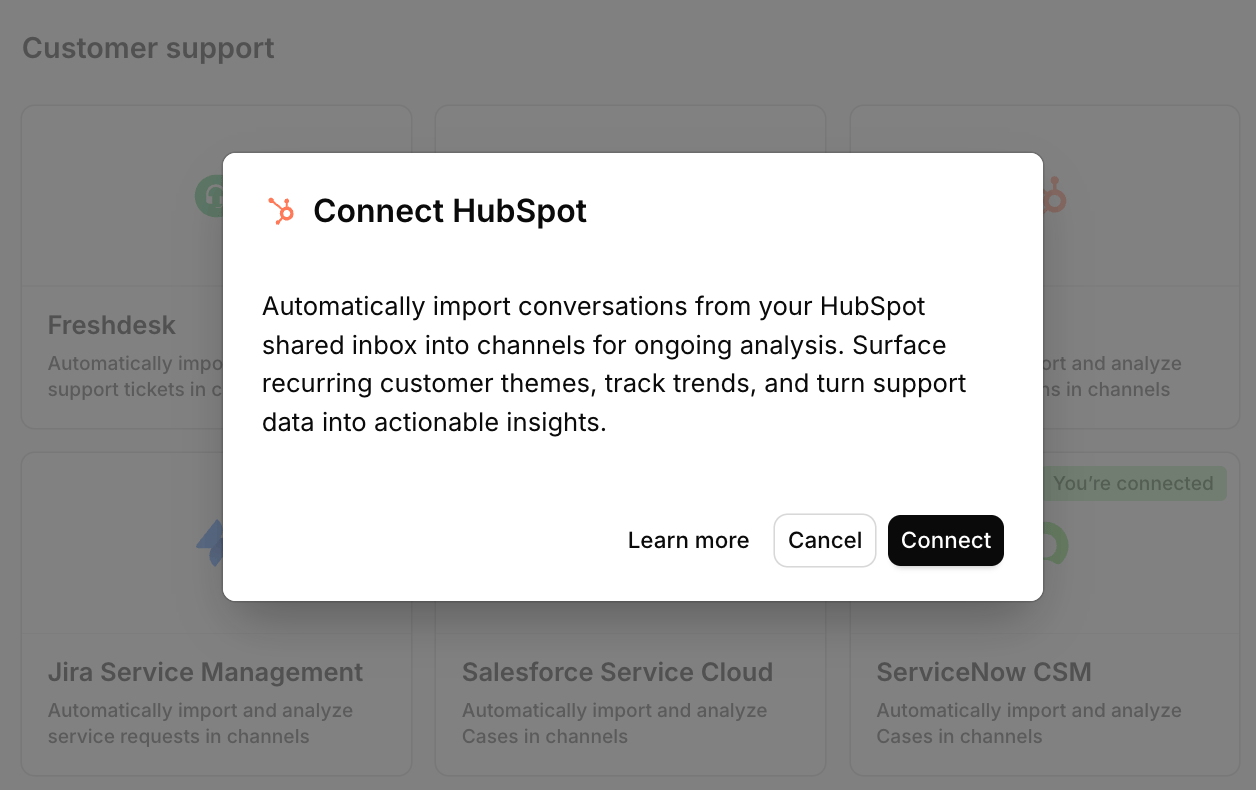
In Dovetail, open the **Connect data source** modal and select `HubSpot Service Hub`.
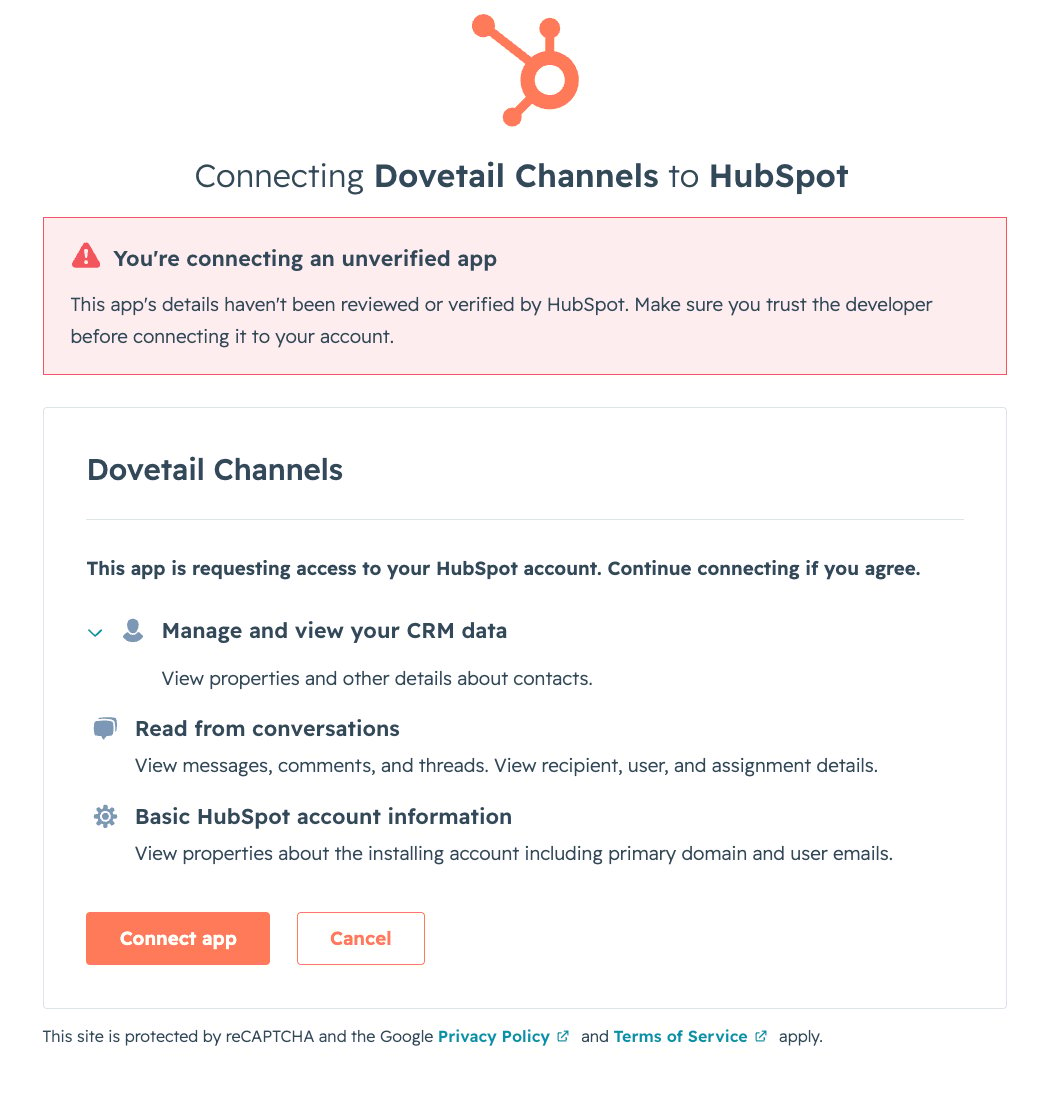
You'll be redirected to HubSpot to log in and approve the requested permissions. Choose the HubSpot account you want to connect and approve. Dovetail returns in a connected state.
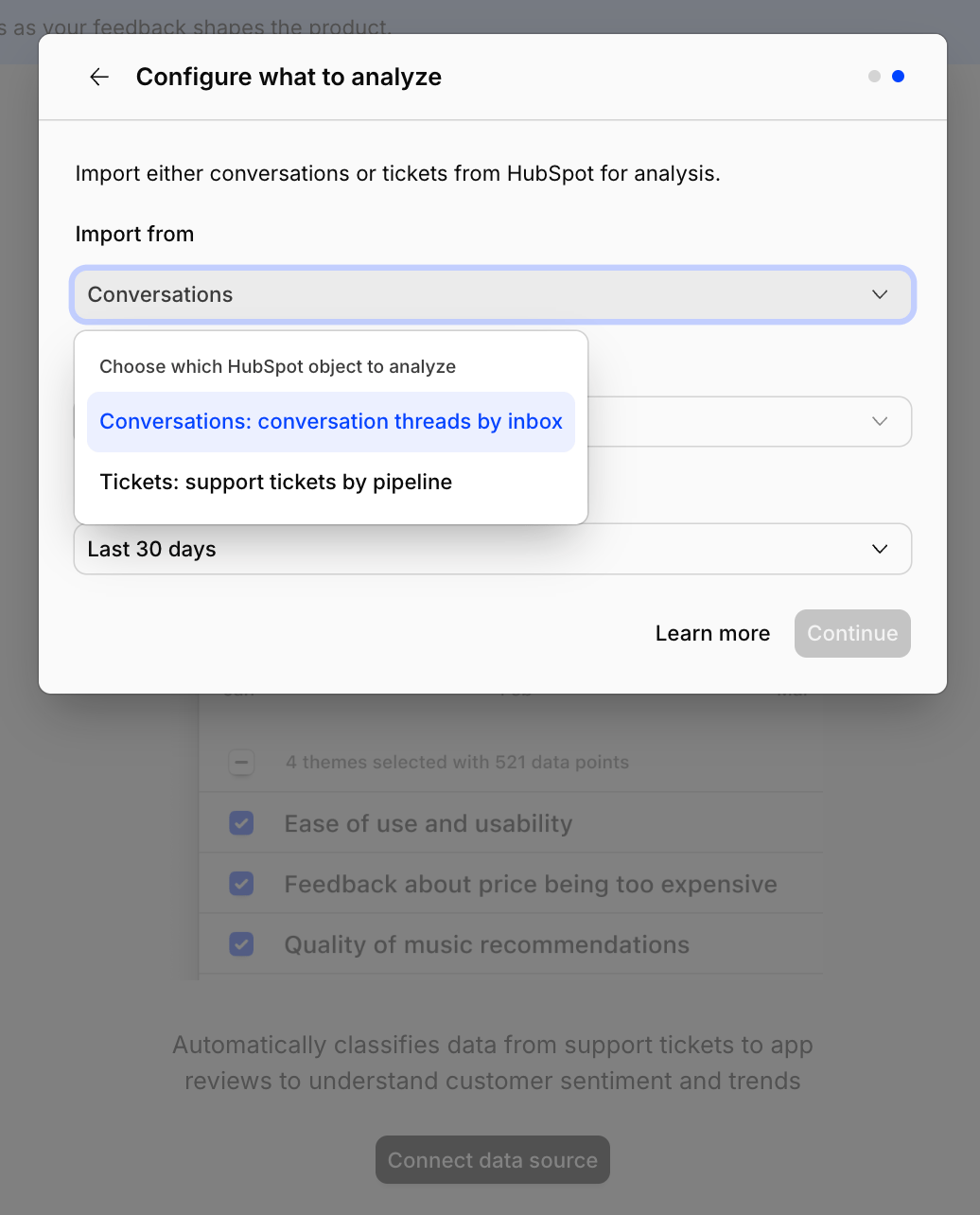
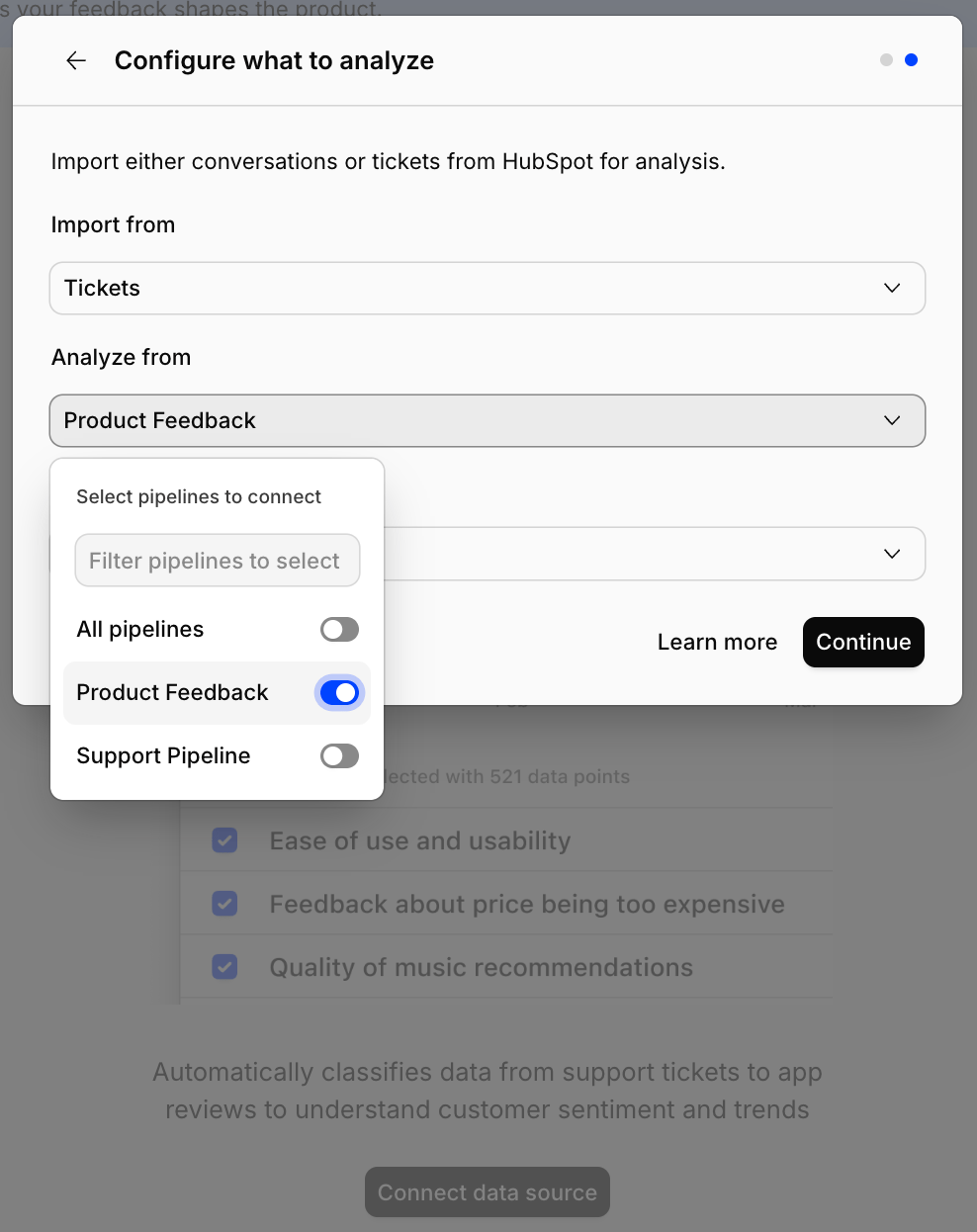
Under **Import from**, choose the HubSpot object to analyze:
* **Tickets** — support tickets by pipeline.
* **Conversations** — conversation threads by inbox.
Under **Analyze from**, select the **pipelines** whose tickets you want to import — or keep **All pipelines** to import from every pipeline. (For conversations, you pick inboxes instead.)
Under **From the last**, choose how far back to import existing data: `Last 7 days`, `Last 30 days`, `Last 90 days`, or `Last 6 months`. The default is `Last 30 days`.
Confirm setup and select `Finish`. Dovetail begins importing and keeps syncing new and updated tickets automatically.
## Overview
Automatically import **HubSpot Service Hub** support data into Channels in real-time, where it's analyzed and grouped into themes so you can track trends across your support volume. [Learn more about Channels →](/help/channels)
When you set up the connection, you choose what to import:
* **Tickets** — support tickets, imported by **pipeline**. Each ticket lands with its originating conversation thread attached, plus its pipeline, stage, priority, and owner.
* **Conversations** — conversation threads, imported by **inbox**.
You also choose how far back to backfill existing data. This page focuses on the tickets import; the conversations import works the same way, scoped by inbox instead of pipeline.
***
## Prerequisites
* A Dovetail workspace with **Channels enabled**, and **Can edit** or **Full access** on the Channel you're adding the source to.
* A HubSpot account with **Service Hub**, and either [**Super Admin**](https://knowledge.hubspot.com/user-management/hubspot-user-permissions-guide) or **App Marketplace Access** permissions (needed to authorize the app during connection).
* The authorizing HubSpot user needs access to the **pipelines** (for tickets) or **inboxes** (for conversations) you want to import, and to the **associated contacts**.
Dovetail's HubSpot Service Hub integration is **read-only** — it imports and analyzes your data and never writes anything back to HubSpot.
***
## Set up the HubSpot Service Hub integration
You can set up the integration from [Settings](https://dovetail.com/settings/integrations), when you create a new Channel, or when you `Add source` to an existing Channel.
In Dovetail, open the **Connect data source** modal and select `HubSpot Service Hub`.
You'll be redirected to HubSpot to log in and approve the requested permissions. Choose the HubSpot account you want to connect and approve. Dovetail returns in a connected state.
Under **Import from**, choose the HubSpot object to analyze:
* **Tickets** — support tickets by pipeline.
* **Conversations** — conversation threads by inbox.
Under **Analyze from**, select the **pipelines** whose tickets you want to import — or keep **All pipelines** to import from every pipeline. (For conversations, you pick inboxes instead.)
Under **From the last**, choose how far back to import existing data: `Last 7 days`, `Last 30 days`, `Last 90 days`, or `Last 6 months`. The default is `Last 30 days`.
Confirm setup and select `Finish`. Dovetail begins importing and keeps syncing new and updated tickets automatically.
 ### Authentication and permissions
Dovetail connects to HubSpot with **OAuth 2.0** and requests these read-only scopes:
* `tickets` — read ticket records and ticket pipelines.
* `conversations.read` — read conversation threads, including the thread that originated a ticket.
* `crm.objects.owners.read` — resolve ticket owners to their names.
* `crm.objects.contacts.read` — read the contacts associated with tickets and conversations.
Dovetail only **reads** from HubSpot — nothing is written back. The authorizing user's HubSpot permissions cap what Dovetail can see: tickets in pipelines (or conversations in inboxes) that user can't access won't be imported.
If you connected HubSpot before the tickets import was added, your existing authorization may not include the `tickets` or `crm.objects.owners.read` scopes. Reconnect the integration to grant them.
***
## What gets imported
Each HubSpot ticket becomes one Channels data point, with the ticket's **conversation thread** attached as the conversation.
### Conversation content
Dovetail pulls the messages from the ticket's originating inbox thread, laid out as a multi-turn conversation. Each message carries its sender and whether it was from an agent or the contact. If a ticket has **no originating thread** — for example, one created from a form, manually, or via the API — Dovetail falls back to the ticket's **description**. Tickets with neither a conversation nor a description are skipped.
### Ticket fields
Attached as fields on each data point:
| Field | HubSpot source |
| ------------ | ------------------------------------------------- |
| Subject | `subject` (used as the data point's title) |
| Pipeline | `hs_pipeline` (resolved to its label) |
| Stage | `hs_pipeline_stage` (resolved to its label) |
| Priority | `hs_ticket_priority` (High, Medium, or Low) |
| Owner | `hubspot_owner_id` (resolved to the owner's name) |
| Created date | `createdate` |
| HubSpot link | Deep link to the ticket record in HubSpot |
**Pipeline**, **Stage**, and **Priority** are also exposed as filterable fields on the Channel, so you can slice imported tickets by them. The contact on the first inbound message is used to identify the customer on the data point.
Pipeline, stage, and owner are stored as IDs in HubSpot; Dovetail resolves them to human-readable labels at sync time. If the connection is missing the pipelines or owners permission, tickets still import — pipeline/stage may show the raw value and owner may be blank.
### Not imported
* **Attachments and files** on tickets or messages.
* **Internal notes** that aren't part of the conversation thread.
* **Custom ticket properties** beyond the standard fields listed above.
* **Tickets in pipelines you didn't select.**
Need a field that isn't on this list? Let us know.
### Sync behavior
* **Backfill window.** When you first connect, Dovetail imports tickets modified within the period you selected (`Last 7 days`, `Last 30 days`, `Last 90 days`, or `Last 6 months`).
* **Ongoing sync.** Dovetail tracks the most recent **last-modified** timestamp it has seen and pulls anything newer on each sync — so newly created tickets, and any ticket that gets re-opened or edited, are picked up.
* **Pipeline filter.** Only tickets in the pipelines you selected are imported. Choose **All pipelines** to import from every pipeline.
* **Rate limiting.** Dovetail respects HubSpot's per-account API limits and backs off automatically.
***
## Troubleshooting
**Authorization fails or the app can't be installed.** The authorizing HubSpot user needs **Super Admin** or **App Marketplace Access** permissions. Ask a HubSpot admin to authorize, or grant those permissions.
**Authentication succeeds, but no tickets import.** Likely causes:
* The selected pipelines contain no tickets in the backfill window.
* Every ticket in the window was skipped because it has neither a conversation thread nor a description.
* The authorizing user can't see the selected pipelines in HubSpot.
**Ticket owners or pipeline/stage names are blank or show raw values.** Your connection is likely missing the `crm.objects.owners.read` or `tickets` scope (common for connections made before the tickets import existed). Reconnect the integration to grant the current scopes.
**A ticket's HubSpot link goes to the wrong place.** Deep links are built from your account's region-specific HubSpot app host. If links look off, reconnect so Dovetail re-captures your account's region.
***
## Disconnect or delete the HubSpot Service Hub source
There are two distinct actions on a Channels source.
**Disconnect.** Stops Dovetail from ingesting any new data from this source. Anything already imported stays in the Channel.
To disconnect, open the Channel, go to the sources list, click `•••` on the HubSpot Service Hub source, and select `Disconnect`. You'll see:
> Are you sure you want to disconnect **\[source name]** from **\[Channel name]**? This will immediately stop the Channel from ingesting any new data. Any data already imported from this source will remain in the Channel.
**Delete.** Removes the source and **deletes every data point** that was imported from it. This is permanent.
To delete, click `•••` on the HubSpot Service Hub source and select `Delete`. You'll see:
> Are you sure you want to delete **\[source name]** from **\[Channel name]**? This will delete all associated data points. This is permanent and cannot be undone.
To revoke Dovetail's access entirely, remove the Dovetail app from your HubSpot account's **Connected apps** settings. Disconnecting in Dovetail stops the sync; revoking in HubSpot ensures the tokens can no longer be used.
### Authentication and permissions
Dovetail connects to HubSpot with **OAuth 2.0** and requests these read-only scopes:
* `tickets` — read ticket records and ticket pipelines.
* `conversations.read` — read conversation threads, including the thread that originated a ticket.
* `crm.objects.owners.read` — resolve ticket owners to their names.
* `crm.objects.contacts.read` — read the contacts associated with tickets and conversations.
Dovetail only **reads** from HubSpot — nothing is written back. The authorizing user's HubSpot permissions cap what Dovetail can see: tickets in pipelines (or conversations in inboxes) that user can't access won't be imported.
If you connected HubSpot before the tickets import was added, your existing authorization may not include the `tickets` or `crm.objects.owners.read` scopes. Reconnect the integration to grant them.
***
## What gets imported
Each HubSpot ticket becomes one Channels data point, with the ticket's **conversation thread** attached as the conversation.
### Conversation content
Dovetail pulls the messages from the ticket's originating inbox thread, laid out as a multi-turn conversation. Each message carries its sender and whether it was from an agent or the contact. If a ticket has **no originating thread** — for example, one created from a form, manually, or via the API — Dovetail falls back to the ticket's **description**. Tickets with neither a conversation nor a description are skipped.
### Ticket fields
Attached as fields on each data point:
| Field | HubSpot source |
| ------------ | ------------------------------------------------- |
| Subject | `subject` (used as the data point's title) |
| Pipeline | `hs_pipeline` (resolved to its label) |
| Stage | `hs_pipeline_stage` (resolved to its label) |
| Priority | `hs_ticket_priority` (High, Medium, or Low) |
| Owner | `hubspot_owner_id` (resolved to the owner's name) |
| Created date | `createdate` |
| HubSpot link | Deep link to the ticket record in HubSpot |
**Pipeline**, **Stage**, and **Priority** are also exposed as filterable fields on the Channel, so you can slice imported tickets by them. The contact on the first inbound message is used to identify the customer on the data point.
Pipeline, stage, and owner are stored as IDs in HubSpot; Dovetail resolves them to human-readable labels at sync time. If the connection is missing the pipelines or owners permission, tickets still import — pipeline/stage may show the raw value and owner may be blank.
### Not imported
* **Attachments and files** on tickets or messages.
* **Internal notes** that aren't part of the conversation thread.
* **Custom ticket properties** beyond the standard fields listed above.
* **Tickets in pipelines you didn't select.**
Need a field that isn't on this list? Let us know.
### Sync behavior
* **Backfill window.** When you first connect, Dovetail imports tickets modified within the period you selected (`Last 7 days`, `Last 30 days`, `Last 90 days`, or `Last 6 months`).
* **Ongoing sync.** Dovetail tracks the most recent **last-modified** timestamp it has seen and pulls anything newer on each sync — so newly created tickets, and any ticket that gets re-opened or edited, are picked up.
* **Pipeline filter.** Only tickets in the pipelines you selected are imported. Choose **All pipelines** to import from every pipeline.
* **Rate limiting.** Dovetail respects HubSpot's per-account API limits and backs off automatically.
***
## Troubleshooting
**Authorization fails or the app can't be installed.** The authorizing HubSpot user needs **Super Admin** or **App Marketplace Access** permissions. Ask a HubSpot admin to authorize, or grant those permissions.
**Authentication succeeds, but no tickets import.** Likely causes:
* The selected pipelines contain no tickets in the backfill window.
* Every ticket in the window was skipped because it has neither a conversation thread nor a description.
* The authorizing user can't see the selected pipelines in HubSpot.
**Ticket owners or pipeline/stage names are blank or show raw values.** Your connection is likely missing the `crm.objects.owners.read` or `tickets` scope (common for connections made before the tickets import existed). Reconnect the integration to grant the current scopes.
**A ticket's HubSpot link goes to the wrong place.** Deep links are built from your account's region-specific HubSpot app host. If links look off, reconnect so Dovetail re-captures your account's region.
***
## Disconnect or delete the HubSpot Service Hub source
There are two distinct actions on a Channels source.
**Disconnect.** Stops Dovetail from ingesting any new data from this source. Anything already imported stays in the Channel.
To disconnect, open the Channel, go to the sources list, click `•••` on the HubSpot Service Hub source, and select `Disconnect`. You'll see:
> Are you sure you want to disconnect **\[source name]** from **\[Channel name]**? This will immediately stop the Channel from ingesting any new data. Any data already imported from this source will remain in the Channel.
**Delete.** Removes the source and **deletes every data point** that was imported from it. This is permanent.
To delete, click `•••` on the HubSpot Service Hub source and select `Delete`. You'll see:
> Are you sure you want to delete **\[source name]** from **\[Channel name]**? This will delete all associated data points. This is permanent and cannot be undone.
To revoke Dovetail's access entirely, remove the Dovetail app from your HubSpot account's **Connected apps** settings. Disconnecting in Dovetail stops the sync; revoking in HubSpot ensures the tokens can no longer be used.