> ## Documentation Index
> Fetch the complete documentation index at: https://docs.dovetail.com/llms.txt
> Use this file to discover all available pages before exploring further.
# ServiceNow CSM
 ## Overview
Automatically import **ServiceNow Customer Service Management (CSM) cases** into Channels in real-time, where they're analyzed and grouped into themes so you can track trends across your support volume. [Learn more about Channels →](/help/channels)
Each case lands in Dovetail with its comment thread attached as the conversation, so themes and sentiment come from the real back-and-forth on the case. When you set up the connection, you choose which **assignment groups** to import cases from.
Unlike most Dovetail integrations, ServiceNow CSM connects to a **private OAuth app that you create inside your own ServiceNow instance**. ServiceNow's OAuth is per-instance — there's no shared app a vendor can ship across customers: your ServiceNow admin registers an OAuth application and you paste the resulting client ID, client secret, and instance subdomain into Dovetail.
***
## Prerequisites
* A Dovetail workspace with **Channels enabled**, and **Can edit** or **Full access** on the Channel you're adding the source to.
* A **Dovetail workspace admin** — only admins can save the ServiceNow credentials for the workspace.
* A **ServiceNow admin** who can create an OAuth Application Registry entry in your ServiceNow instance.
* ServiceNow **Customer Service Management (CSM)** in use. The integration reads cases from the `sn_customerservice_case` table, which is provided by the **Customer Service** plugin (`com.sn_customerservice`). If you already manage customer cases in ServiceNow, this is active on your instance.
* A ServiceNow user, used to authorize the connection, with **read access** to these tables:
* `sn_customerservice_case` — the cases themselves
* `sys_journal_field` — case comments
* `customer_contact` — the contact on each case
* `customer_account` — the account on each case
* `sys_user` — to resolve comment authors to display names
A **workspace admin** saves the OAuth **app credentials** (client ID, secret, instance subdomain) once for the whole workspace. Then **each user authorizes with their own ServiceNow login** — the access token is per-user, like any other OAuth integration.
Each Channel source syncs using the ServiceNow permissions of the **user who connected it**. If a case sits in a record that user can't read, it won't be imported.
***
## Step 1 — Create an OAuth app in ServiceNow
Your **ServiceNow admin** does this once, inside your ServiceNow instance.
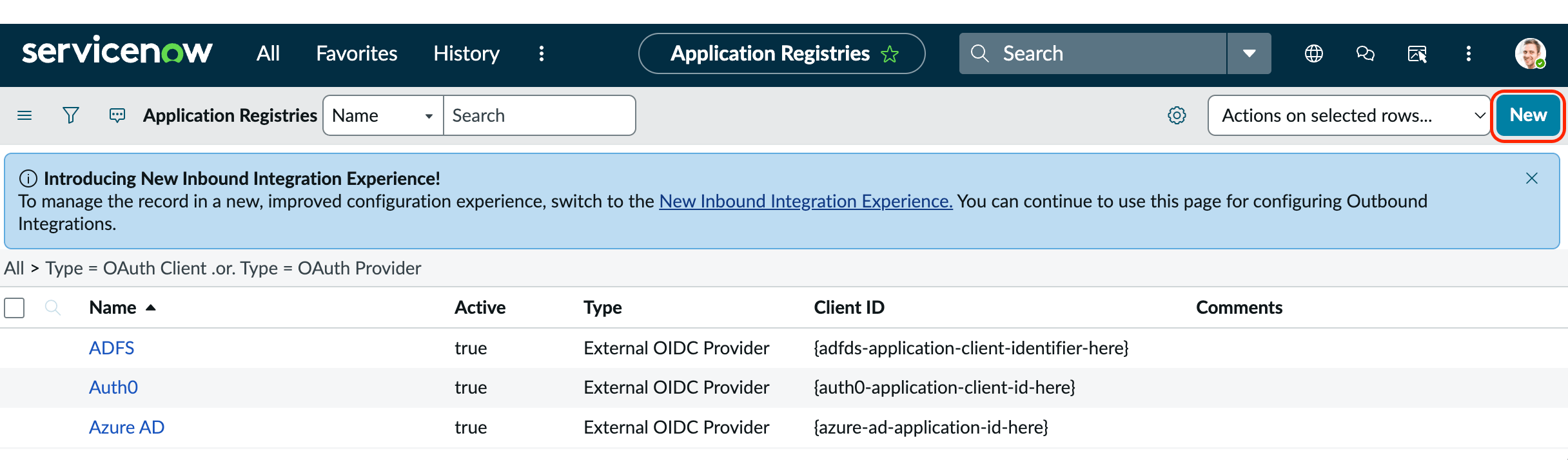
In ServiceNow, go to **System OAuth → Application Registry** and click **New**.
Select **Create an OAuth API endpoint for external clients**.
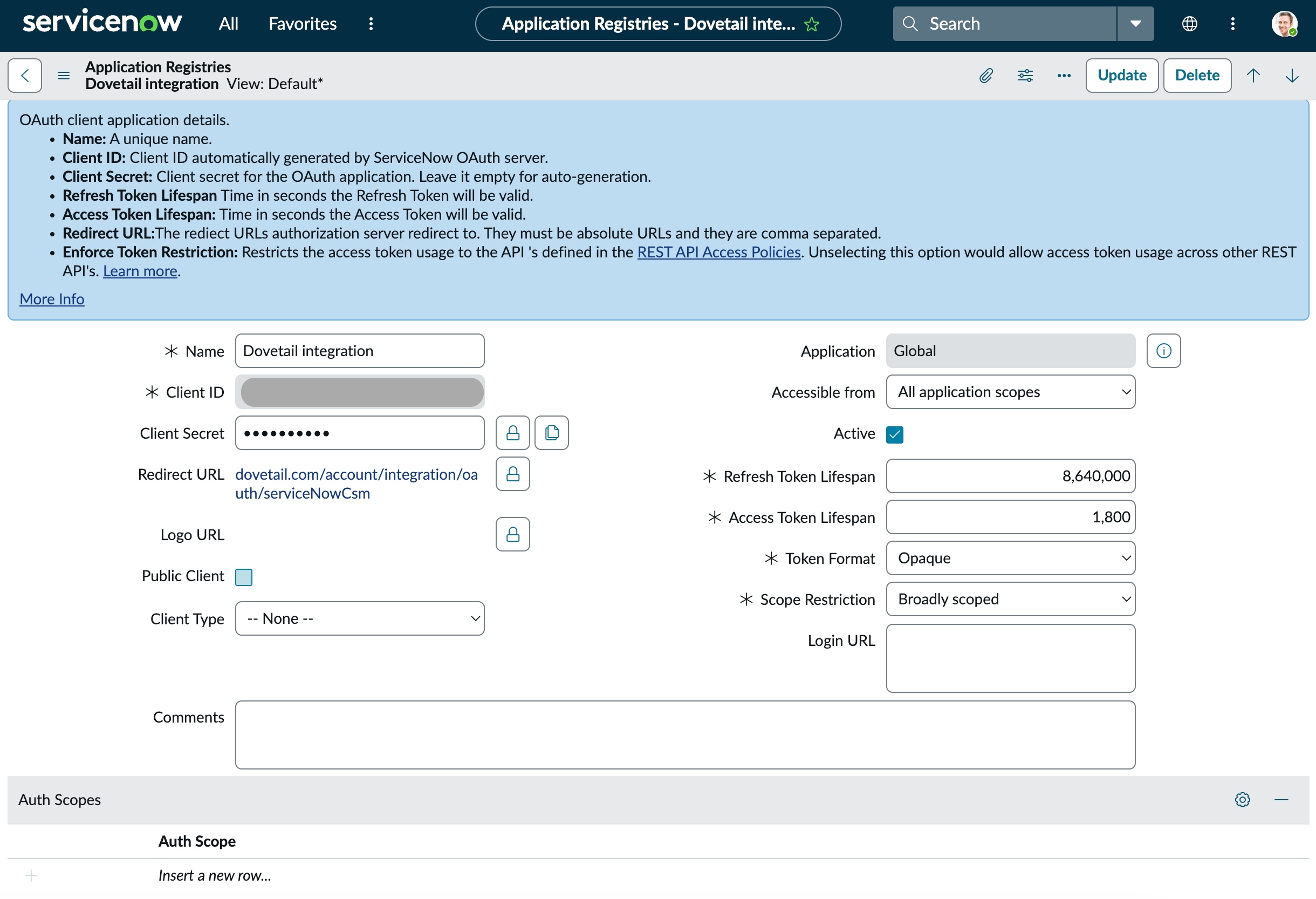
Give it a name (for example, `Dovetail`). In the **Redirect URL** field, enter Dovetail's callback URL exactly:
```text theme={null}
https://dovetail.com/account/integration/oauth/serviceNowCsm
```
Set the scope restriction to **Broadly scoped**. Leave the other fields at their defaults unless your organization requires otherwise, and **Submit**.
Re-open the app you just created. ServiceNow generates a **Client ID** and **Client Secret** — copy both. You'll paste them into Dovetail in Step 2.
Your instance subdomain is the first part of your ServiceNow URL — for example, `dev123456` in `https://dev123456.service-now.com`. You'll need it in Step 2.
## Overview
Automatically import **ServiceNow Customer Service Management (CSM) cases** into Channels in real-time, where they're analyzed and grouped into themes so you can track trends across your support volume. [Learn more about Channels →](/help/channels)
Each case lands in Dovetail with its comment thread attached as the conversation, so themes and sentiment come from the real back-and-forth on the case. When you set up the connection, you choose which **assignment groups** to import cases from.
Unlike most Dovetail integrations, ServiceNow CSM connects to a **private OAuth app that you create inside your own ServiceNow instance**. ServiceNow's OAuth is per-instance — there's no shared app a vendor can ship across customers: your ServiceNow admin registers an OAuth application and you paste the resulting client ID, client secret, and instance subdomain into Dovetail.
***
## Prerequisites
* A Dovetail workspace with **Channels enabled**, and **Can edit** or **Full access** on the Channel you're adding the source to.
* A **Dovetail workspace admin** — only admins can save the ServiceNow credentials for the workspace.
* A **ServiceNow admin** who can create an OAuth Application Registry entry in your ServiceNow instance.
* ServiceNow **Customer Service Management (CSM)** in use. The integration reads cases from the `sn_customerservice_case` table, which is provided by the **Customer Service** plugin (`com.sn_customerservice`). If you already manage customer cases in ServiceNow, this is active on your instance.
* A ServiceNow user, used to authorize the connection, with **read access** to these tables:
* `sn_customerservice_case` — the cases themselves
* `sys_journal_field` — case comments
* `customer_contact` — the contact on each case
* `customer_account` — the account on each case
* `sys_user` — to resolve comment authors to display names
A **workspace admin** saves the OAuth **app credentials** (client ID, secret, instance subdomain) once for the whole workspace. Then **each user authorizes with their own ServiceNow login** — the access token is per-user, like any other OAuth integration.
Each Channel source syncs using the ServiceNow permissions of the **user who connected it**. If a case sits in a record that user can't read, it won't be imported.
***
## Step 1 — Create an OAuth app in ServiceNow
Your **ServiceNow admin** does this once, inside your ServiceNow instance.
In ServiceNow, go to **System OAuth → Application Registry** and click **New**.
Select **Create an OAuth API endpoint for external clients**.
Give it a name (for example, `Dovetail`). In the **Redirect URL** field, enter Dovetail's callback URL exactly:
```text theme={null}
https://dovetail.com/account/integration/oauth/serviceNowCsm
```
Set the scope restriction to **Broadly scoped**. Leave the other fields at their defaults unless your organization requires otherwise, and **Submit**.
Re-open the app you just created. ServiceNow generates a **Client ID** and **Client Secret** — copy both. You'll paste them into Dovetail in Step 2.
Your instance subdomain is the first part of your ServiceNow URL — for example, `dev123456` in `https://dev123456.service-now.com`. You'll need it in Step 2.
 ***
## Step 2 — Connect ServiceNow CSM in Dovetail
You can set up the integration from [Settings](https://dovetail.com/settings/integrations), when you create a new Channel, or when you `Add source` to an existing Channel.
The connect flow has two phases: a workspace admin first **saves the credentials** from Step 1, then anyone with the right access **authorizes** the connection with ServiceNow.
In Dovetail, open the **Connect data source** modal and select `ServiceNow CSM`.
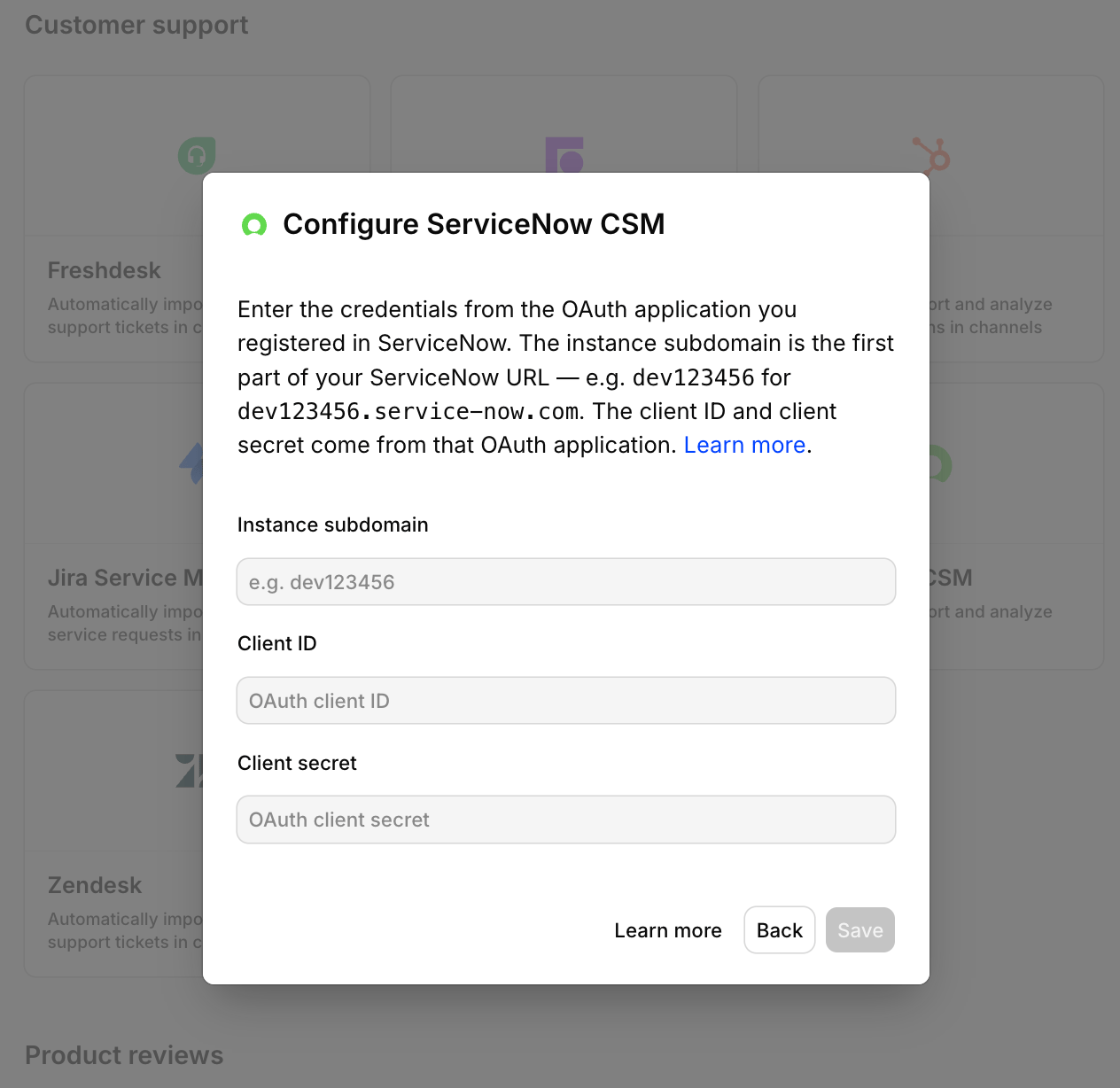
A workspace admin enters the three values from Step 1:
* **Instance subdomain** — for example `dev123456`
* **Client ID** — from the ServiceNow OAuth app
* **Client secret** — from the ServiceNow OAuth app
Select **Save and continue**.
Only workspace admins can save these credentials, and they're stored once for the whole workspace. When editing an existing connection, you can leave the **Client secret** blank to keep the saved value.
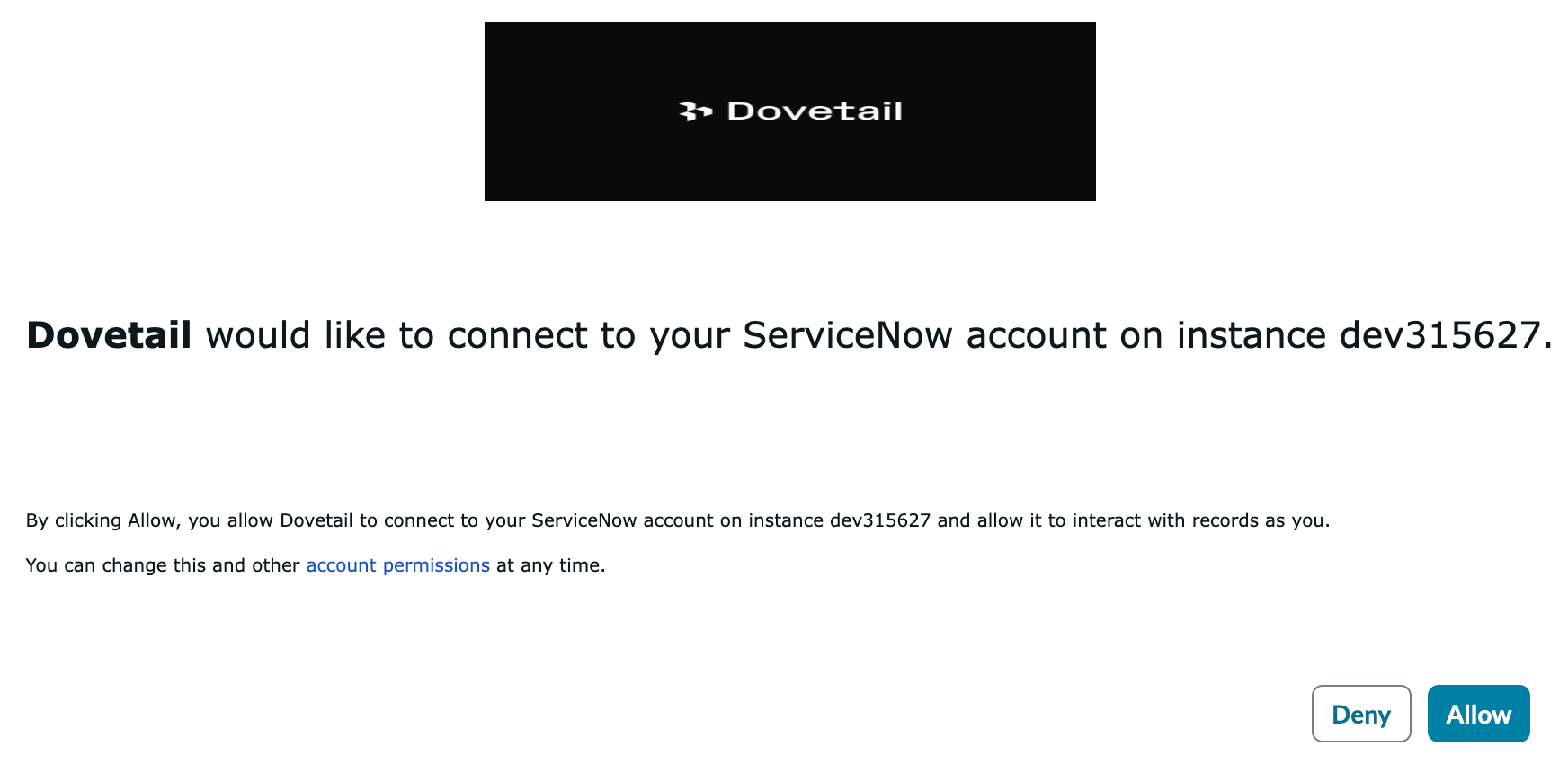
Select **Connect ServiceNow**. A ServiceNow window opens asking you to sign in and approve access. Approve it, and you'll be returned to Dovetail.
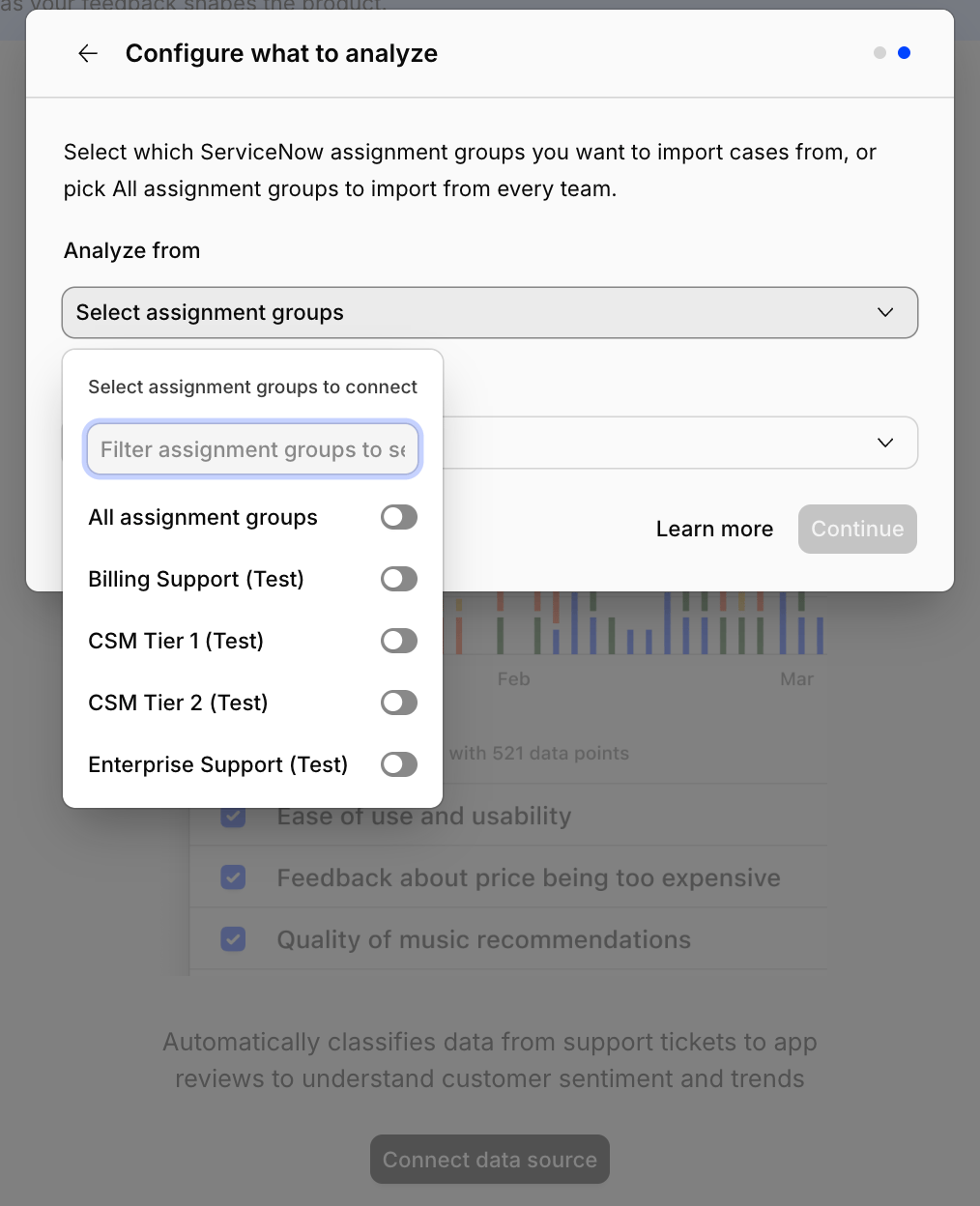
Under **Analyze from**, choose the **assignment groups** whose cases you want to import — or keep **All** to import from every assignment group that owns cases. Dovetail only lists groups that actually have CSM cases assigned to them.
Under **From the last**, choose how far back to import existing cases: `Last 7 days`, `Last 30 days`, `Last 90 days`, or `Last 6 months`.
Confirm setup and select `Finish`. Dovetail begins importing cases and keeps syncing new and updated cases automatically.
***
## Step 2 — Connect ServiceNow CSM in Dovetail
You can set up the integration from [Settings](https://dovetail.com/settings/integrations), when you create a new Channel, or when you `Add source` to an existing Channel.
The connect flow has two phases: a workspace admin first **saves the credentials** from Step 1, then anyone with the right access **authorizes** the connection with ServiceNow.
In Dovetail, open the **Connect data source** modal and select `ServiceNow CSM`.
A workspace admin enters the three values from Step 1:
* **Instance subdomain** — for example `dev123456`
* **Client ID** — from the ServiceNow OAuth app
* **Client secret** — from the ServiceNow OAuth app
Select **Save and continue**.
Only workspace admins can save these credentials, and they're stored once for the whole workspace. When editing an existing connection, you can leave the **Client secret** blank to keep the saved value.
Select **Connect ServiceNow**. A ServiceNow window opens asking you to sign in and approve access. Approve it, and you'll be returned to Dovetail.
Under **Analyze from**, choose the **assignment groups** whose cases you want to import — or keep **All** to import from every assignment group that owns cases. Dovetail only lists groups that actually have CSM cases assigned to them.
Under **From the last**, choose how far back to import existing cases: `Last 7 days`, `Last 30 days`, `Last 90 days`, or `Last 6 months`.
Confirm setup and select `Finish`. Dovetail begins importing cases and keeps syncing new and updated cases automatically.
 ### Authentication and permissions
Dovetail uses **OAuth 2.0** against your ServiceNow instance, with the private OAuth app you registered in Step 1. There are two credential layers: the **app credentials** (client ID and secret) are saved once by a workspace admin, and then **each user authorizes individually** with their own ServiceNow login. Dovetail only **reads** from ServiceNow — it lists assignment groups, reads case records and their comments, and resolves comment authors to display names. Nothing is written back to ServiceNow.
Because each source runs as the user who connected it, ServiceNow's own access controls (ACLs) apply on top of the scope: Dovetail can only ever see the cases and fields that user can see. Dovetail keeps the connection alive with a refresh token, so you don't have to re-authorize on every sync.
***
## What gets imported
Each ServiceNow CSM case becomes one Channels data point, with the case's **comment thread** attached as the conversation.
### Conversation content
Dovetail pulls the case's **comments** (from the `sys_journal_field` journal), ordered oldest-to-newest, and lays them out as a multi-turn conversation. Each comment carries its author's ServiceNow display name (resolved from `sys_user`) and its timestamp. If a case has **no comments** but has a **Description**, the description is used as the conversation content instead. Cases with neither a comment thread nor a description are skipped.
### Case fields
Attached as fields on each data point:
| Field | ServiceNow source |
| ----------------- | ----------------------------------------------------------------- |
| Case number | `number` |
| Short description | `short_description` (used as the data point's title) |
| State | `state` |
| Priority | `priority` |
| Channel | `contact_type` |
| Category | `category` |
| Subcategory | `subcategory` |
| Assignment group | `assignment_group` |
| Account | `account` |
| ServiceNow link | Deep link to the case (`/sn_customerservice_case.do?sys_id=`) |
The **contact** on the case (`contact`) is used to identify the customer on the data point.
### Not imported
* **Attachments** on the case or its comments.
* **Work notes** and other internal-only journal fields — only the `comments` journal is read.
* **Related records** such as tasks, incidents, or knowledge articles linked to the case.
* **Custom fields** beyond those listed above.
* **Cases the authorizing user can't see**, per ServiceNow ACLs.
Need a field that isn't on this list? Let us know.
### Limits
* **Conversation length.** A case's combined comment text is capped at **10,000 characters**. If a thread is longer, Dovetail trims the oldest comments first (and truncates a single over-long comment) so the most recent context is kept. HTML in comments is stripped to plain text.
* **Page size.** Cases are fetched 500 at a time and Dovetail keeps paginating until everything in the window is in.
### Sync behavior
* **Backfill window.** When you first connect, Dovetail imports cases updated within the period you selected — `Last 7 days`, `Last 30 days`, `Last 90 days`, or `Last 6 months`.
* **Ongoing sync.** Dovetail tracks the most recent `sys_updated_on` it has seen and pulls anything newer on each sync — so newly created cases and any case that gets updated are picked up.
* **Assignment-group filter.** Only cases owned by the assignment groups you selected are imported. Choose **All** to import from every group that owns cases.
* **Rate limiting.** If ServiceNow rate-limits a request, Dovetail backs off and resumes automatically.
***
## Troubleshooting
**The OAuth window shows an error or won't complete.** The most common cause is a mismatched **Redirect URL**. Confirm the OAuth app in ServiceNow has the redirect URL set to exactly `https://dovetail.com/account/integration/oauth/serviceNowCsm`, with no trailing slash or extra characters. Also confirm the **Client ID** and **Client secret** in Dovetail match the ServiceNow app.
**"A workspace admin needs to configure ServiceNow first."** The workspace-level credentials haven't been saved yet. A Dovetail workspace admin needs to complete the credential step (Step 2) before other users can authorize.
**Authentication succeeds, but no cases import.** Likely causes:
* The authorizing user doesn't have **read access** to `sn_customerservice_case` or the related tables listed under Prerequisites.
* The selected assignment groups contain no cases, or every case in them was skipped because it has neither comments nor a description.
* The Customer Service plugin (`com.sn_customerservice`) isn't active on the instance, so there are no CSM cases to read.
**An assignment group is missing from the picker.** Dovetail only lists assignment groups that currently own at least one CSM case. A group with no cases assigned to it won't appear.
**The connection stopped syncing.** If the client secret was rotated or the OAuth app was deleted in ServiceNow, re-open the ServiceNow CSM connection in Dovetail and re-enter the current credentials, then re-authorize.
***
## Disconnect or delete the ServiceNow CSM source
There are two distinct actions on a Channels source.
**Disconnect.** Stops Dovetail from ingesting any new cases from this source. Anything already imported stays in the Channel.
To disconnect, open the Channel, go to the sources list, click `•••` on the ServiceNow CSM source, and select `Disconnect`. You'll see:
> Are you sure you want to disconnect **\[source name]** from **\[Channel name]**? This will immediately stop the Channel from ingesting any new data. Any data already imported from this source will remain in the Channel.
**Delete.** Removes the source and **deletes every data point** that was imported from it. This is permanent.
To delete, click `•••` on the ServiceNow CSM source and select `Delete`. You'll see:
> Are you sure you want to delete **\[source name]** from **\[Channel name]**? This will delete all associated data points. This is permanent and cannot be undone.
To revoke access entirely, delete or deactivate the Dovetail OAuth app in your ServiceNow instance under **System OAuth → Application Registry**. Disconnecting in Dovetail stops the sync; revoking in ServiceNow ensures the tokens can no longer be used.
### Authentication and permissions
Dovetail uses **OAuth 2.0** against your ServiceNow instance, with the private OAuth app you registered in Step 1. There are two credential layers: the **app credentials** (client ID and secret) are saved once by a workspace admin, and then **each user authorizes individually** with their own ServiceNow login. Dovetail only **reads** from ServiceNow — it lists assignment groups, reads case records and their comments, and resolves comment authors to display names. Nothing is written back to ServiceNow.
Because each source runs as the user who connected it, ServiceNow's own access controls (ACLs) apply on top of the scope: Dovetail can only ever see the cases and fields that user can see. Dovetail keeps the connection alive with a refresh token, so you don't have to re-authorize on every sync.
***
## What gets imported
Each ServiceNow CSM case becomes one Channels data point, with the case's **comment thread** attached as the conversation.
### Conversation content
Dovetail pulls the case's **comments** (from the `sys_journal_field` journal), ordered oldest-to-newest, and lays them out as a multi-turn conversation. Each comment carries its author's ServiceNow display name (resolved from `sys_user`) and its timestamp. If a case has **no comments** but has a **Description**, the description is used as the conversation content instead. Cases with neither a comment thread nor a description are skipped.
### Case fields
Attached as fields on each data point:
| Field | ServiceNow source |
| ----------------- | ----------------------------------------------------------------- |
| Case number | `number` |
| Short description | `short_description` (used as the data point's title) |
| State | `state` |
| Priority | `priority` |
| Channel | `contact_type` |
| Category | `category` |
| Subcategory | `subcategory` |
| Assignment group | `assignment_group` |
| Account | `account` |
| ServiceNow link | Deep link to the case (`/sn_customerservice_case.do?sys_id=`) |
The **contact** on the case (`contact`) is used to identify the customer on the data point.
### Not imported
* **Attachments** on the case or its comments.
* **Work notes** and other internal-only journal fields — only the `comments` journal is read.
* **Related records** such as tasks, incidents, or knowledge articles linked to the case.
* **Custom fields** beyond those listed above.
* **Cases the authorizing user can't see**, per ServiceNow ACLs.
Need a field that isn't on this list? Let us know.
### Limits
* **Conversation length.** A case's combined comment text is capped at **10,000 characters**. If a thread is longer, Dovetail trims the oldest comments first (and truncates a single over-long comment) so the most recent context is kept. HTML in comments is stripped to plain text.
* **Page size.** Cases are fetched 500 at a time and Dovetail keeps paginating until everything in the window is in.
### Sync behavior
* **Backfill window.** When you first connect, Dovetail imports cases updated within the period you selected — `Last 7 days`, `Last 30 days`, `Last 90 days`, or `Last 6 months`.
* **Ongoing sync.** Dovetail tracks the most recent `sys_updated_on` it has seen and pulls anything newer on each sync — so newly created cases and any case that gets updated are picked up.
* **Assignment-group filter.** Only cases owned by the assignment groups you selected are imported. Choose **All** to import from every group that owns cases.
* **Rate limiting.** If ServiceNow rate-limits a request, Dovetail backs off and resumes automatically.
***
## Troubleshooting
**The OAuth window shows an error or won't complete.** The most common cause is a mismatched **Redirect URL**. Confirm the OAuth app in ServiceNow has the redirect URL set to exactly `https://dovetail.com/account/integration/oauth/serviceNowCsm`, with no trailing slash or extra characters. Also confirm the **Client ID** and **Client secret** in Dovetail match the ServiceNow app.
**"A workspace admin needs to configure ServiceNow first."** The workspace-level credentials haven't been saved yet. A Dovetail workspace admin needs to complete the credential step (Step 2) before other users can authorize.
**Authentication succeeds, but no cases import.** Likely causes:
* The authorizing user doesn't have **read access** to `sn_customerservice_case` or the related tables listed under Prerequisites.
* The selected assignment groups contain no cases, or every case in them was skipped because it has neither comments nor a description.
* The Customer Service plugin (`com.sn_customerservice`) isn't active on the instance, so there are no CSM cases to read.
**An assignment group is missing from the picker.** Dovetail only lists assignment groups that currently own at least one CSM case. A group with no cases assigned to it won't appear.
**The connection stopped syncing.** If the client secret was rotated or the OAuth app was deleted in ServiceNow, re-open the ServiceNow CSM connection in Dovetail and re-enter the current credentials, then re-authorize.
***
## Disconnect or delete the ServiceNow CSM source
There are two distinct actions on a Channels source.
**Disconnect.** Stops Dovetail from ingesting any new cases from this source. Anything already imported stays in the Channel.
To disconnect, open the Channel, go to the sources list, click `•••` on the ServiceNow CSM source, and select `Disconnect`. You'll see:
> Are you sure you want to disconnect **\[source name]** from **\[Channel name]**? This will immediately stop the Channel from ingesting any new data. Any data already imported from this source will remain in the Channel.
**Delete.** Removes the source and **deletes every data point** that was imported from it. This is permanent.
To delete, click `•••` on the ServiceNow CSM source and select `Delete`. You'll see:
> Are you sure you want to delete **\[source name]** from **\[Channel name]**? This will delete all associated data points. This is permanent and cannot be undone.
To revoke access entirely, delete or deactivate the Dovetail OAuth app in your ServiceNow instance under **System OAuth → Application Registry**. Disconnecting in Dovetail stops the sync; revoking in ServiceNow ensures the tokens can no longer be used.