> ## Documentation Index
> Fetch the complete documentation index at: https://docs.dovetail.com/llms.txt
> Use this file to discover all available pages before exploring further.
# Snowflake
 ## Overview
Automatically import records from any **Snowflake** table into Channels, where they're analyzed and grouped into themes so you can turn rows of customer feedback into trends and insights over time. [Learn more about Channels →](/help/channels)
Snowflake works a little differently from Dovetail's other Channels sources:
* **Authentication uses a key pair**, not OAuth. You create (or reuse) a Snowflake user set up for key-pair authentication and give Dovetail its private key.
* **You choose a table and map its columns.** For each table you import, you tell Dovetail which column is the **unique identifier**, which is the **timestamp**, and which holds the **text to analyze**.
We recommend creating a **dedicated, read-only Snowflake user** for Dovetail, scoped to only the warehouse, database, schema, and tables you want to import.
***
## Prerequisites
* A Dovetail workspace with **Channels enabled**, and **Can edit** or **Full access** on the Channel you're adding the source to.
* A **Dovetail workspace admin** — the Snowflake connection is stored once for the whole workspace, and only admins can save it.
* Access to Snowflake with enough privileges to **create a user and role** (or an existing service user set up for key-pair authentication) and to grant it read access to the tables you want to import.
* A tool to generate an RSA key pair (for example, `openssl`).
Dovetail's Snowflake integration is **read-only**. It only runs `SELECT` (and `DESCRIBE TABLE`) queries against the tables you configure and never writes back to Snowflake.
***
## Step 1 — Set up a Snowflake service user
Do this once in Snowflake (a `SECURITYADMIN`/`ACCOUNTADMIN` typically runs it). It creates a dedicated read-only role and user, then registers a key pair on that user. Adjust the object names to match your account.
### Create a read-only role and grant minimal access
```sql theme={null}
-- A dedicated role with only the access Dovetail needs
CREATE ROLE IF NOT EXISTS DOVETAIL_RO;
GRANT USAGE ON WAREHOUSE DEV_WAREHOUSE TO ROLE DOVETAIL_RO;
GRANT USAGE ON DATABASE MY_DB TO ROLE DOVETAIL_RO;
GRANT USAGE ON SCHEMA MY_DB.MY_SCHEMA TO ROLE DOVETAIL_RO;
-- SELECT on the specific table(s) you'll import…
GRANT SELECT ON TABLE MY_DB.MY_SCHEMA.MY_TABLE TO ROLE DOVETAIL_RO;
-- …or, to allow importing any table in the schema (current and future):
-- GRANT SELECT ON ALL TABLES IN SCHEMA MY_DB.MY_SCHEMA TO ROLE DOVETAIL_RO;
-- GRANT SELECT ON FUTURE TABLES IN SCHEMA MY_DB.MY_SCHEMA TO ROLE DOVETAIL_RO;
```
### Generate a key pair
Generate an **unencrypted PKCS#8** private key and its public key:
```bash theme={null}
# Private key (unencrypted PKCS#8 — this is what you paste into Dovetail)
openssl genrsa 2048 | openssl pkcs8 -topk8 -nocrypt -out dovetail_key.p8
# Public key (this goes on the Snowflake user)
openssl rsa -in dovetail_key.p8 -pubout -out dovetail_key.pub
```
Dovetail's connection form accepts an **unencrypted** private key. Passphrase-protected keys aren't supported in the UI, so don't add `-passout`/encryption when generating the key.
### Create the user and register the public key
Copy the public key body **without** the `-----BEGIN PUBLIC KEY-----` / `-----END PUBLIC KEY-----` lines and without line breaks, then:
```sql theme={null}
CREATE USER IF NOT EXISTS DOVETAIL_USER
DEFAULT_ROLE = DOVETAIL_RO
DEFAULT_WAREHOUSE = DEV_WAREHOUSE
COMMENT = 'Read-only service user for Dovetail Channels';
GRANT ROLE DOVETAIL_RO TO USER DOVETAIL_USER;
-- Register the PUBLIC key (paste the key body, no header/footer lines)
ALTER USER DOVETAIL_USER SET RSA_PUBLIC_KEY='MIIBIjANBgkqhk...';
```
You'll paste the **private** key into Dovetail in Step 2. For background on Snowflake's key-pair authentication, see [Snowflake's key-pair authentication docs](https://docs.snowflake.com/en/user-guide/key-pair-auth).
If you leave **Role** blank in Dovetail (Step 2), Snowflake uses the user's **default role** — so make sure the role that carries these grants is the user's `DEFAULT_ROLE`, or specify the role explicitly in Dovetail.
***
## Step 2 — Connect Snowflake in Dovetail
The connection is saved once for your whole workspace. You can start from [Settings](https://dovetail.com/settings/integrations), or when you add Snowflake as a source to a Channel.
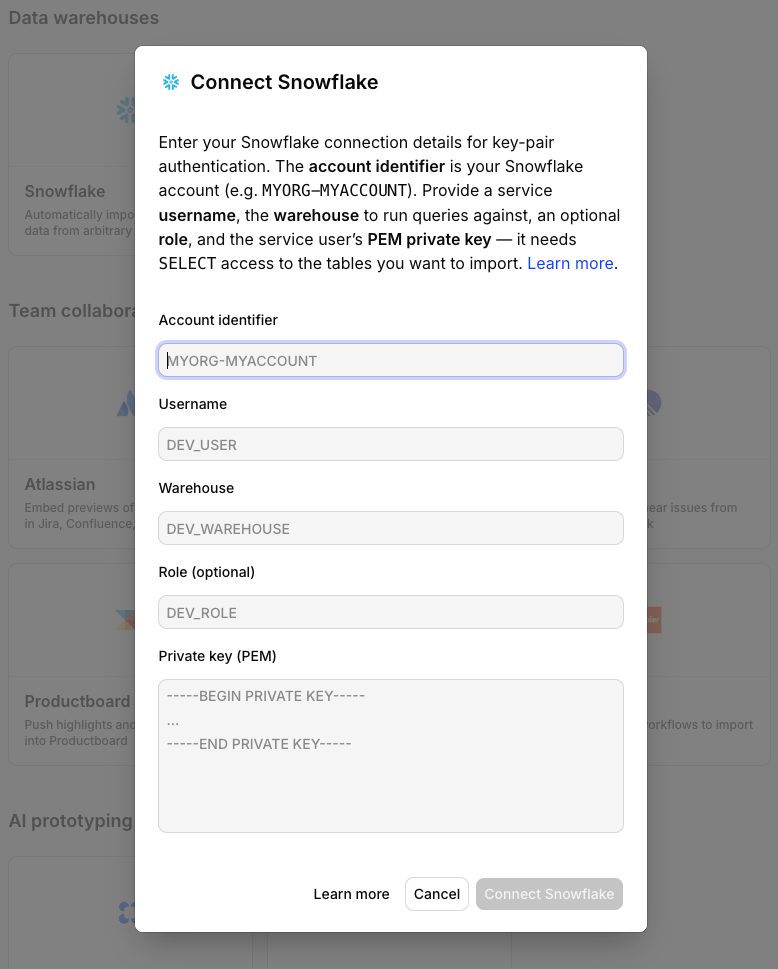
In Dovetail, open the **Connect data source** modal and select `Snowflake`.
Provide:
* **Account identifier** — your Snowflake account, for example `MYORG-MYACCOUNT` (or a locator like `xy12345`).
* **Username** — the service user, for example `DOVETAIL_USER`.
* **Warehouse** — the warehouse Dovetail runs queries against, for example `DEV_WAREHOUSE`.
* **Role** *(optional)* — the role to use; if blank, the user's default role applies.
* **Private key (PEM)** — paste the full contents of `dovetail_key.p8`, including the `-----BEGIN PRIVATE KEY-----` and `-----END PRIVATE KEY-----` lines.
Select **Connect Snowflake**. Dovetail validates the credentials by opening a connection to Snowflake.
## Overview
Automatically import records from any **Snowflake** table into Channels, where they're analyzed and grouped into themes so you can turn rows of customer feedback into trends and insights over time. [Learn more about Channels →](/help/channels)
Snowflake works a little differently from Dovetail's other Channels sources:
* **Authentication uses a key pair**, not OAuth. You create (or reuse) a Snowflake user set up for key-pair authentication and give Dovetail its private key.
* **You choose a table and map its columns.** For each table you import, you tell Dovetail which column is the **unique identifier**, which is the **timestamp**, and which holds the **text to analyze**.
We recommend creating a **dedicated, read-only Snowflake user** for Dovetail, scoped to only the warehouse, database, schema, and tables you want to import.
***
## Prerequisites
* A Dovetail workspace with **Channels enabled**, and **Can edit** or **Full access** on the Channel you're adding the source to.
* A **Dovetail workspace admin** — the Snowflake connection is stored once for the whole workspace, and only admins can save it.
* Access to Snowflake with enough privileges to **create a user and role** (or an existing service user set up for key-pair authentication) and to grant it read access to the tables you want to import.
* A tool to generate an RSA key pair (for example, `openssl`).
Dovetail's Snowflake integration is **read-only**. It only runs `SELECT` (and `DESCRIBE TABLE`) queries against the tables you configure and never writes back to Snowflake.
***
## Step 1 — Set up a Snowflake service user
Do this once in Snowflake (a `SECURITYADMIN`/`ACCOUNTADMIN` typically runs it). It creates a dedicated read-only role and user, then registers a key pair on that user. Adjust the object names to match your account.
### Create a read-only role and grant minimal access
```sql theme={null}
-- A dedicated role with only the access Dovetail needs
CREATE ROLE IF NOT EXISTS DOVETAIL_RO;
GRANT USAGE ON WAREHOUSE DEV_WAREHOUSE TO ROLE DOVETAIL_RO;
GRANT USAGE ON DATABASE MY_DB TO ROLE DOVETAIL_RO;
GRANT USAGE ON SCHEMA MY_DB.MY_SCHEMA TO ROLE DOVETAIL_RO;
-- SELECT on the specific table(s) you'll import…
GRANT SELECT ON TABLE MY_DB.MY_SCHEMA.MY_TABLE TO ROLE DOVETAIL_RO;
-- …or, to allow importing any table in the schema (current and future):
-- GRANT SELECT ON ALL TABLES IN SCHEMA MY_DB.MY_SCHEMA TO ROLE DOVETAIL_RO;
-- GRANT SELECT ON FUTURE TABLES IN SCHEMA MY_DB.MY_SCHEMA TO ROLE DOVETAIL_RO;
```
### Generate a key pair
Generate an **unencrypted PKCS#8** private key and its public key:
```bash theme={null}
# Private key (unencrypted PKCS#8 — this is what you paste into Dovetail)
openssl genrsa 2048 | openssl pkcs8 -topk8 -nocrypt -out dovetail_key.p8
# Public key (this goes on the Snowflake user)
openssl rsa -in dovetail_key.p8 -pubout -out dovetail_key.pub
```
Dovetail's connection form accepts an **unencrypted** private key. Passphrase-protected keys aren't supported in the UI, so don't add `-passout`/encryption when generating the key.
### Create the user and register the public key
Copy the public key body **without** the `-----BEGIN PUBLIC KEY-----` / `-----END PUBLIC KEY-----` lines and without line breaks, then:
```sql theme={null}
CREATE USER IF NOT EXISTS DOVETAIL_USER
DEFAULT_ROLE = DOVETAIL_RO
DEFAULT_WAREHOUSE = DEV_WAREHOUSE
COMMENT = 'Read-only service user for Dovetail Channels';
GRANT ROLE DOVETAIL_RO TO USER DOVETAIL_USER;
-- Register the PUBLIC key (paste the key body, no header/footer lines)
ALTER USER DOVETAIL_USER SET RSA_PUBLIC_KEY='MIIBIjANBgkqhk...';
```
You'll paste the **private** key into Dovetail in Step 2. For background on Snowflake's key-pair authentication, see [Snowflake's key-pair authentication docs](https://docs.snowflake.com/en/user-guide/key-pair-auth).
If you leave **Role** blank in Dovetail (Step 2), Snowflake uses the user's **default role** — so make sure the role that carries these grants is the user's `DEFAULT_ROLE`, or specify the role explicitly in Dovetail.
***
## Step 2 — Connect Snowflake in Dovetail
The connection is saved once for your whole workspace. You can start from [Settings](https://dovetail.com/settings/integrations), or when you add Snowflake as a source to a Channel.
In Dovetail, open the **Connect data source** modal and select `Snowflake`.
Provide:
* **Account identifier** — your Snowflake account, for example `MYORG-MYACCOUNT` (or a locator like `xy12345`).
* **Username** — the service user, for example `DOVETAIL_USER`.
* **Warehouse** — the warehouse Dovetail runs queries against, for example `DEV_WAREHOUSE`.
* **Role** *(optional)* — the role to use; if blank, the user's default role applies.
* **Private key (PEM)** — paste the full contents of `dovetail_key.p8`, including the `-----BEGIN PRIVATE KEY-----` and `-----END PRIVATE KEY-----` lines.
Select **Connect Snowflake**. Dovetail validates the credentials by opening a connection to Snowflake.
 ***
## Step 3 — Choose a table and map its columns
Once connected, tell Dovetail which table to import and what each column means.
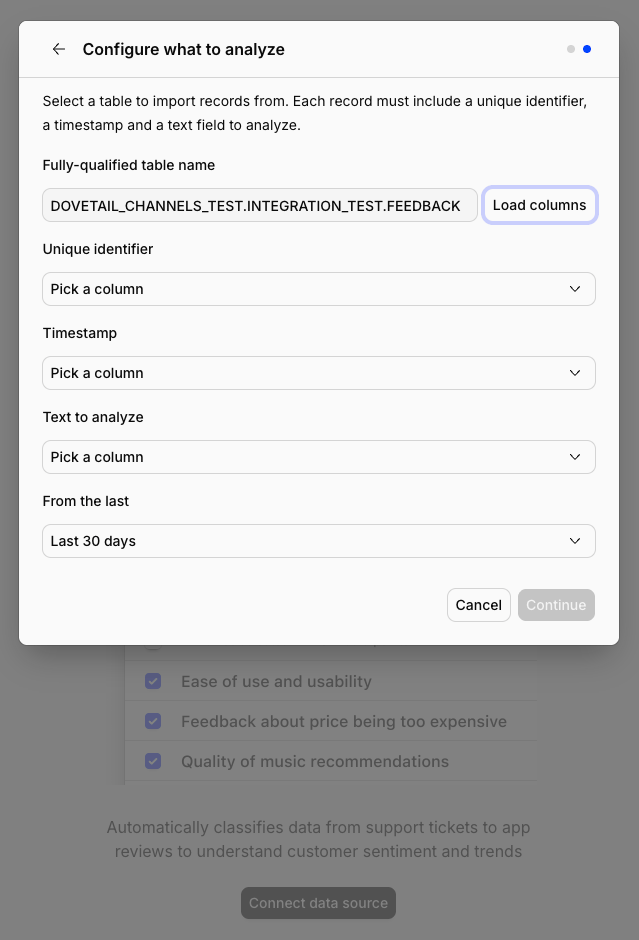
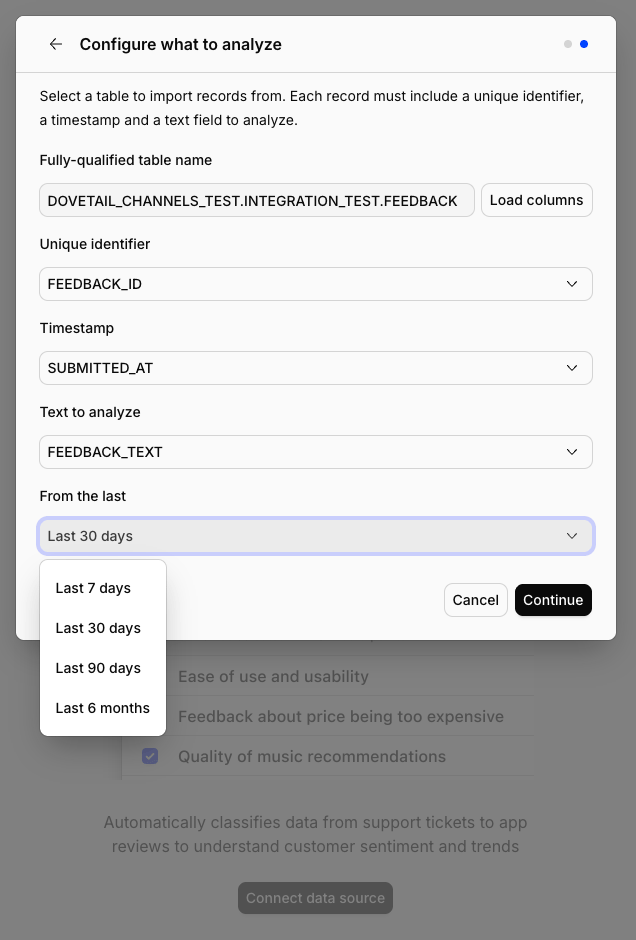
In the **Fully-qualified table name** field, enter `DATABASE.SCHEMA.TABLE` (for example `MY_DB.MY_SCHEMA.FEEDBACK`), then select **Load columns**. Dovetail runs `DESCRIBE TABLE` and lists the columns.
Choose a column for each role. Each must be a **different** column:
* **Unique identifier** — uniquely identifies each row.
* **Timestamp** — when the record was created; drives ordering and incremental sync.
* **Text to analyze** — the free-text field Dovetail analyzes and themes.
Only columns of a compatible type appear in each dropdown (see the table below).
Under **From the last**, choose how far back to import existing rows: `Last 7 days`, `Last 30 days`, `Last 90 days`, or `Last 6 months`. The default is `Last 30 days`.
Confirm setup and finish. Dovetail imports matching rows and keeps syncing new rows automatically.
### Column type restrictions
Each role only accepts certain Snowflake column types:
| Column role | Allowed Snowflake column types |
| --------------------- | ----------------------------------------------------------------------------- |
| **Unique identifier** | Any column type |
| **Timestamp** | `TIMESTAMP`, `TIMESTAMP_NTZ`, `TIMESTAMP_LTZ`, `TIMESTAMP_TZ`, `DATE`, `TIME` |
| **Text to analyze** | `VARCHAR`, `STRING`, `TEXT`, `CHAR` |
If a dropdown shows **"No matching columns in this table"**, the table has no column of the required type — pick a different table or adjust the table so it has a suitable column.
***
## Step 3 — Choose a table and map its columns
Once connected, tell Dovetail which table to import and what each column means.
In the **Fully-qualified table name** field, enter `DATABASE.SCHEMA.TABLE` (for example `MY_DB.MY_SCHEMA.FEEDBACK`), then select **Load columns**. Dovetail runs `DESCRIBE TABLE` and lists the columns.
Choose a column for each role. Each must be a **different** column:
* **Unique identifier** — uniquely identifies each row.
* **Timestamp** — when the record was created; drives ordering and incremental sync.
* **Text to analyze** — the free-text field Dovetail analyzes and themes.
Only columns of a compatible type appear in each dropdown (see the table below).
Under **From the last**, choose how far back to import existing rows: `Last 7 days`, `Last 30 days`, `Last 90 days`, or `Last 6 months`. The default is `Last 30 days`.
Confirm setup and finish. Dovetail imports matching rows and keeps syncing new rows automatically.
### Column type restrictions
Each role only accepts certain Snowflake column types:
| Column role | Allowed Snowflake column types |
| --------------------- | ----------------------------------------------------------------------------- |
| **Unique identifier** | Any column type |
| **Timestamp** | `TIMESTAMP`, `TIMESTAMP_NTZ`, `TIMESTAMP_LTZ`, `TIMESTAMP_TZ`, `DATE`, `TIME` |
| **Text to analyze** | `VARCHAR`, `STRING`, `TEXT`, `CHAR` |
If a dropdown shows **"No matching columns in this table"**, the table has no column of the required type — pick a different table or adjust the table so it has a suitable column.
 Each table you import is its own data source. To analyze more than one table in the same Channel, add Snowflake again and select a different table.
### Authentication and permissions
Dovetail authenticates with **Snowflake key-pair authentication**: it connects as your service user using the private key you provided and the public key you registered on that user. The connection is **workspace-level** — saved once and shared by everyone in the workspace — and only workspace admins can save or remove it.
Dovetail only ever runs `SELECT CURRENT_VERSION()` (to validate the connection), `DESCRIBE TABLE` (to list columns), and `SELECT` against the tables you configure. What Dovetail can read is capped by the role's grants — if the role loses access to the warehouse, database, schema, or table, syncing stops.
There's no token to refresh: access ends when you remove the connection in Dovetail, or when the key or grants are revoked in Snowflake.
***
## What gets imported
Each row in your table becomes one Channels data point:
| Data point field | From |
| ----------------- | ------------------------------------------------- |
| Title | Your **text** column, truncated to 120 characters |
| Analyzed text | Your **text** column, in full |
| Date | Your **timestamp** column |
| External ID | Your **unique identifier** column |
| Fields (metadata) | **Every other column** in the table |
Every column that isn't one of the three mapped roles is imported as a **field** on the data point, so you can filter and group by it. Field types are mapped from Snowflake: booleans → Boolean, numeric types → Number, date/time types → Date, text types → Text. Semi-structured and other types (`VARIANT`, `OBJECT`, `ARRAY`, `BINARY`, `GEOGRAPHY`, `GEOMETRY`) are imported as JSON text.
### Rows that are skipped
A row is skipped if its **unique identifier** is empty, its **text** column is empty, or its **timestamp** can't be parsed as a date.
### Sync behavior
* **Backfill window.** On the first sync, Dovetail imports rows whose timestamp falls within the window you selected (`Last 7 days`, `Last 30 days`, `Last 90 days`, or `Last 6 months`).
* **Ongoing sync.** Dovetail records the latest timestamp it has seen (using the unique identifier as a tiebreaker for rows sharing a timestamp) and, on each sync, pulls rows with a **newer** timestamp. Rows are read in ascending timestamp order, up to 1,000 per page.
* **Choose your timestamp column carefully.** Because the sync advances by the timestamp column, only rows with a timestamp later than the high-water mark are picked up. New rows flow in as long as their timestamp increases; edits to older rows that **don't** change the timestamp won't be re-imported. Pick an insert/created timestamp that only ever moves forward for records you want analyzed.
***
## Troubleshooting
**"JWT token is invalid" / authentication fails.** The private key in Dovetail doesn't match the public key registered on the Snowflake user, or the username/account is wrong. Confirm you registered the **public** key with `ALTER USER … SET RSA_PUBLIC_KEY`, that you pasted the matching **private** key into Dovetail, and that the account identifier and username are correct.
**"Snowflake rejected these credentials" / can't connect.** Double-check the **account identifier** format (for example `MYORG-MYACCOUNT` or a locator like `xy12345`), the **warehouse** name, and that the role has `USAGE` on that warehouse.
**"Couldn't read columns from Snowflake."** The table name must be fully qualified as `DATABASE.SCHEMA.TABLE`, and the role needs `USAGE` on the database and schema plus `SELECT` on the table.
**Connected, but no rows import.** Likely causes:
* The role is missing a grant — `USAGE` on the warehouse/database/schema or `SELECT` on the table.
* No rows have a timestamp within (or after) the backfill window.
* Rows were skipped because the unique identifier or text column was empty, or the timestamp couldn't be parsed.
**My private key isn't accepted.** Use an **unencrypted PKCS#8** key (`-----BEGIN PRIVATE KEY-----`). Passphrase-protected keys aren't supported.
***
## Disconnect or delete the Snowflake source
There are two distinct actions on a Channels source.
**Disconnect.** Stops Dovetail from ingesting any new rows from this source. Anything already imported stays in the Channel.
To disconnect, open the Channel, go to the sources list, click `•••` on the Snowflake source, and select `Disconnect`. You'll see:
> Are you sure you want to disconnect **\[source name]** from **\[Channel name]**? This will immediately stop the Channel from ingesting any new data. Any data already imported from this source will remain in the Channel.
**Delete.** Removes the source and **deletes every data point** that was imported from it. This is permanent.
To delete, click `•••` on the Snowflake source and select `Delete`. You'll see:
> Are you sure you want to delete **\[source name]** from **\[Channel name]**? This will delete all associated data points. This is permanent and cannot be undone.
To remove the workspace-wide connection entirely, go to ⚙️ [Settings → Integrations](https://dovetail.com/settings/integrations), open **Snowflake**, and select **Remove connection**. To fully revoke access on the Snowflake side, unset the key or drop the service user:
```sql theme={null}
ALTER USER DOVETAIL_USER UNSET RSA_PUBLIC_KEY;
-- or
DROP USER DOVETAIL_USER;
```
Each table you import is its own data source. To analyze more than one table in the same Channel, add Snowflake again and select a different table.
### Authentication and permissions
Dovetail authenticates with **Snowflake key-pair authentication**: it connects as your service user using the private key you provided and the public key you registered on that user. The connection is **workspace-level** — saved once and shared by everyone in the workspace — and only workspace admins can save or remove it.
Dovetail only ever runs `SELECT CURRENT_VERSION()` (to validate the connection), `DESCRIBE TABLE` (to list columns), and `SELECT` against the tables you configure. What Dovetail can read is capped by the role's grants — if the role loses access to the warehouse, database, schema, or table, syncing stops.
There's no token to refresh: access ends when you remove the connection in Dovetail, or when the key or grants are revoked in Snowflake.
***
## What gets imported
Each row in your table becomes one Channels data point:
| Data point field | From |
| ----------------- | ------------------------------------------------- |
| Title | Your **text** column, truncated to 120 characters |
| Analyzed text | Your **text** column, in full |
| Date | Your **timestamp** column |
| External ID | Your **unique identifier** column |
| Fields (metadata) | **Every other column** in the table |
Every column that isn't one of the three mapped roles is imported as a **field** on the data point, so you can filter and group by it. Field types are mapped from Snowflake: booleans → Boolean, numeric types → Number, date/time types → Date, text types → Text. Semi-structured and other types (`VARIANT`, `OBJECT`, `ARRAY`, `BINARY`, `GEOGRAPHY`, `GEOMETRY`) are imported as JSON text.
### Rows that are skipped
A row is skipped if its **unique identifier** is empty, its **text** column is empty, or its **timestamp** can't be parsed as a date.
### Sync behavior
* **Backfill window.** On the first sync, Dovetail imports rows whose timestamp falls within the window you selected (`Last 7 days`, `Last 30 days`, `Last 90 days`, or `Last 6 months`).
* **Ongoing sync.** Dovetail records the latest timestamp it has seen (using the unique identifier as a tiebreaker for rows sharing a timestamp) and, on each sync, pulls rows with a **newer** timestamp. Rows are read in ascending timestamp order, up to 1,000 per page.
* **Choose your timestamp column carefully.** Because the sync advances by the timestamp column, only rows with a timestamp later than the high-water mark are picked up. New rows flow in as long as their timestamp increases; edits to older rows that **don't** change the timestamp won't be re-imported. Pick an insert/created timestamp that only ever moves forward for records you want analyzed.
***
## Troubleshooting
**"JWT token is invalid" / authentication fails.** The private key in Dovetail doesn't match the public key registered on the Snowflake user, or the username/account is wrong. Confirm you registered the **public** key with `ALTER USER … SET RSA_PUBLIC_KEY`, that you pasted the matching **private** key into Dovetail, and that the account identifier and username are correct.
**"Snowflake rejected these credentials" / can't connect.** Double-check the **account identifier** format (for example `MYORG-MYACCOUNT` or a locator like `xy12345`), the **warehouse** name, and that the role has `USAGE` on that warehouse.
**"Couldn't read columns from Snowflake."** The table name must be fully qualified as `DATABASE.SCHEMA.TABLE`, and the role needs `USAGE` on the database and schema plus `SELECT` on the table.
**Connected, but no rows import.** Likely causes:
* The role is missing a grant — `USAGE` on the warehouse/database/schema or `SELECT` on the table.
* No rows have a timestamp within (or after) the backfill window.
* Rows were skipped because the unique identifier or text column was empty, or the timestamp couldn't be parsed.
**My private key isn't accepted.** Use an **unencrypted PKCS#8** key (`-----BEGIN PRIVATE KEY-----`). Passphrase-protected keys aren't supported.
***
## Disconnect or delete the Snowflake source
There are two distinct actions on a Channels source.
**Disconnect.** Stops Dovetail from ingesting any new rows from this source. Anything already imported stays in the Channel.
To disconnect, open the Channel, go to the sources list, click `•••` on the Snowflake source, and select `Disconnect`. You'll see:
> Are you sure you want to disconnect **\[source name]** from **\[Channel name]**? This will immediately stop the Channel from ingesting any new data. Any data already imported from this source will remain in the Channel.
**Delete.** Removes the source and **deletes every data point** that was imported from it. This is permanent.
To delete, click `•••` on the Snowflake source and select `Delete`. You'll see:
> Are you sure you want to delete **\[source name]** from **\[Channel name]**? This will delete all associated data points. This is permanent and cannot be undone.
To remove the workspace-wide connection entirely, go to ⚙️ [Settings → Integrations](https://dovetail.com/settings/integrations), open **Snowflake**, and select **Remove connection**. To fully revoke access on the Snowflake side, unset the key or drop the service user:
```sql theme={null}
ALTER USER DOVETAIL_USER UNSET RSA_PUBLIC_KEY;
-- or
DROP USER DOVETAIL_USER;
```