> ## Documentation Index
> Fetch the complete documentation index at: https://docs.dovetail.com/llms.txt
> Use this file to discover all available pages before exploring further.
# Sprig
 ## Overview
Automatically import open-text survey responses from Sprig into Channels in real-time, where they're analyzed and grouped into themes so you can track trends over time.
When you set up the connection, you'll pick one Sprig survey, choose which open-text questions inside it to analyze, and decide how far back to backfill. [Learn more about Channels →](/help/channels)
***
## Prerequisites
* A Dovetail workspace with Channels enabled and your user has Can edit or Full access on the Channel you're adding the source to.
* A Sprig account with admin access (needed to generate an API key).
* A Sprig **API key** with access to the Data Import API.
***
## Set up the Sprig integration
You can set up the Sprig integration from [Settings](https://dovetail.com/settings/integrations), when you create a new Channel, or when you `Add source` to an existing Channel.
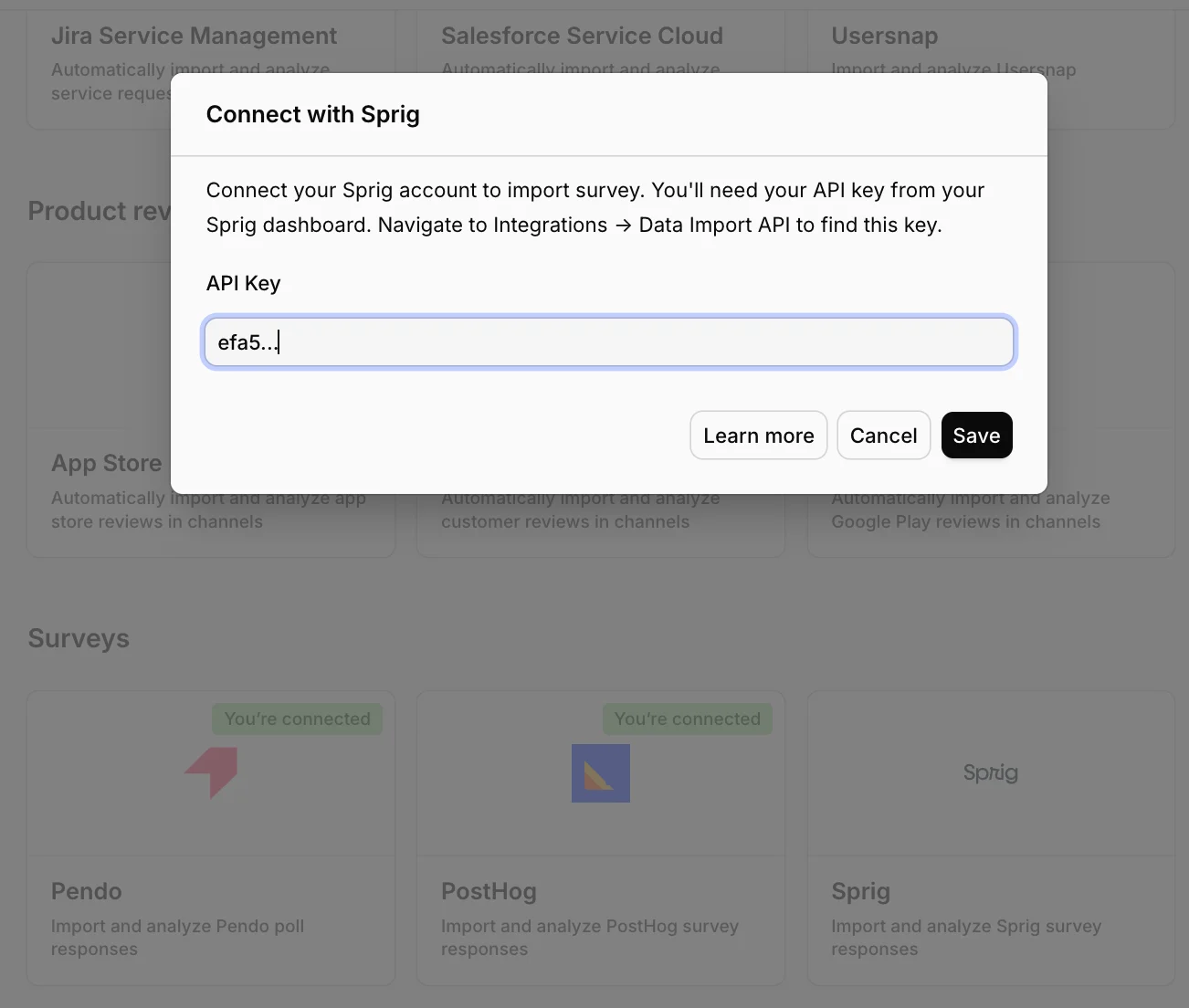
In Dovetail, open the **Connect data source** modal and select `Sprig`.
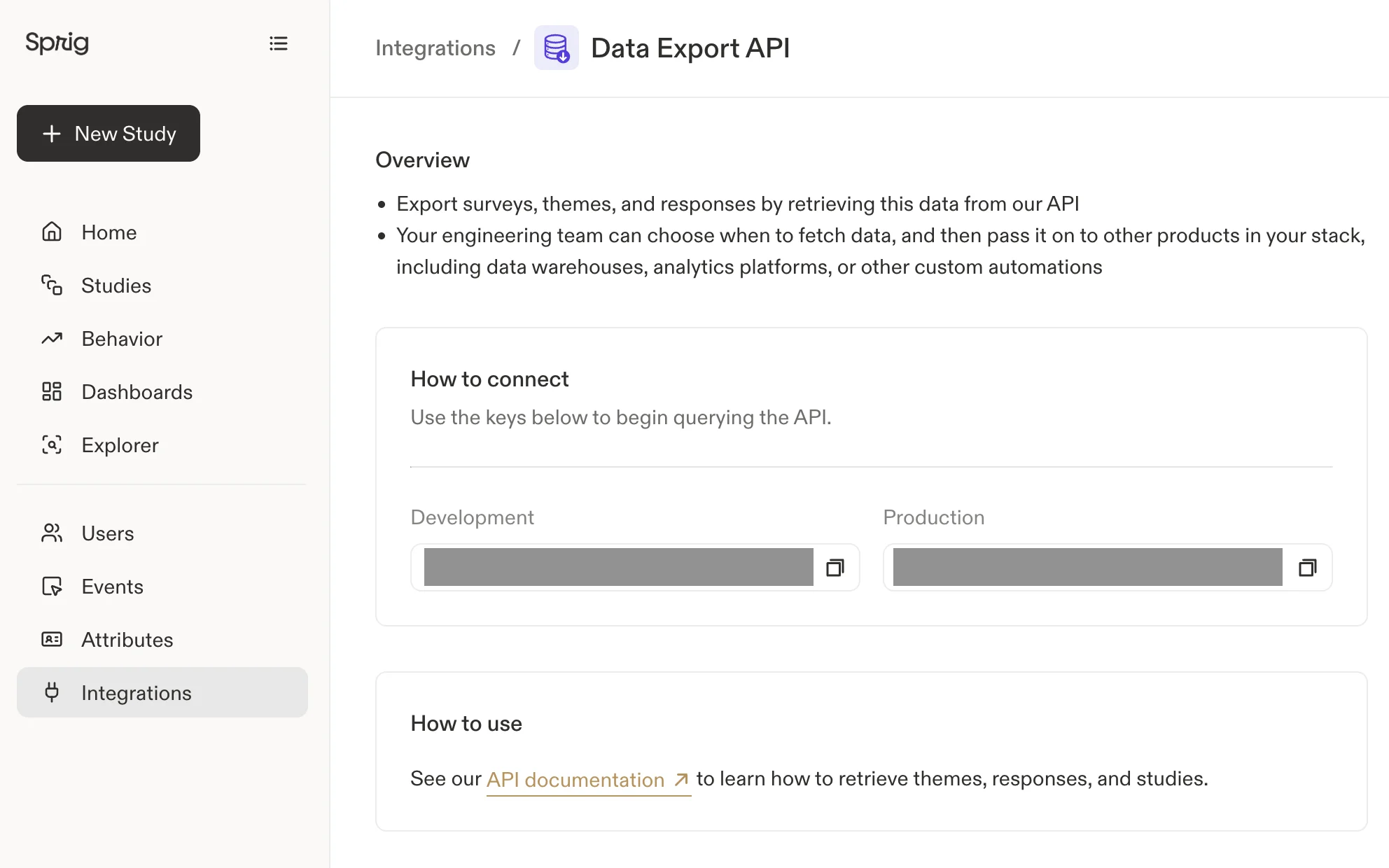
In a separate tab, sign in to Sprig and open **Integrations → Data Import API**. Generate or copy your API key.
Paste the key into the **API Key** field in Dovetail and select `Next`. If the key is invalid or lacks the required access, you'll see: *"Invalid API key. Verify your Sprig API key."*
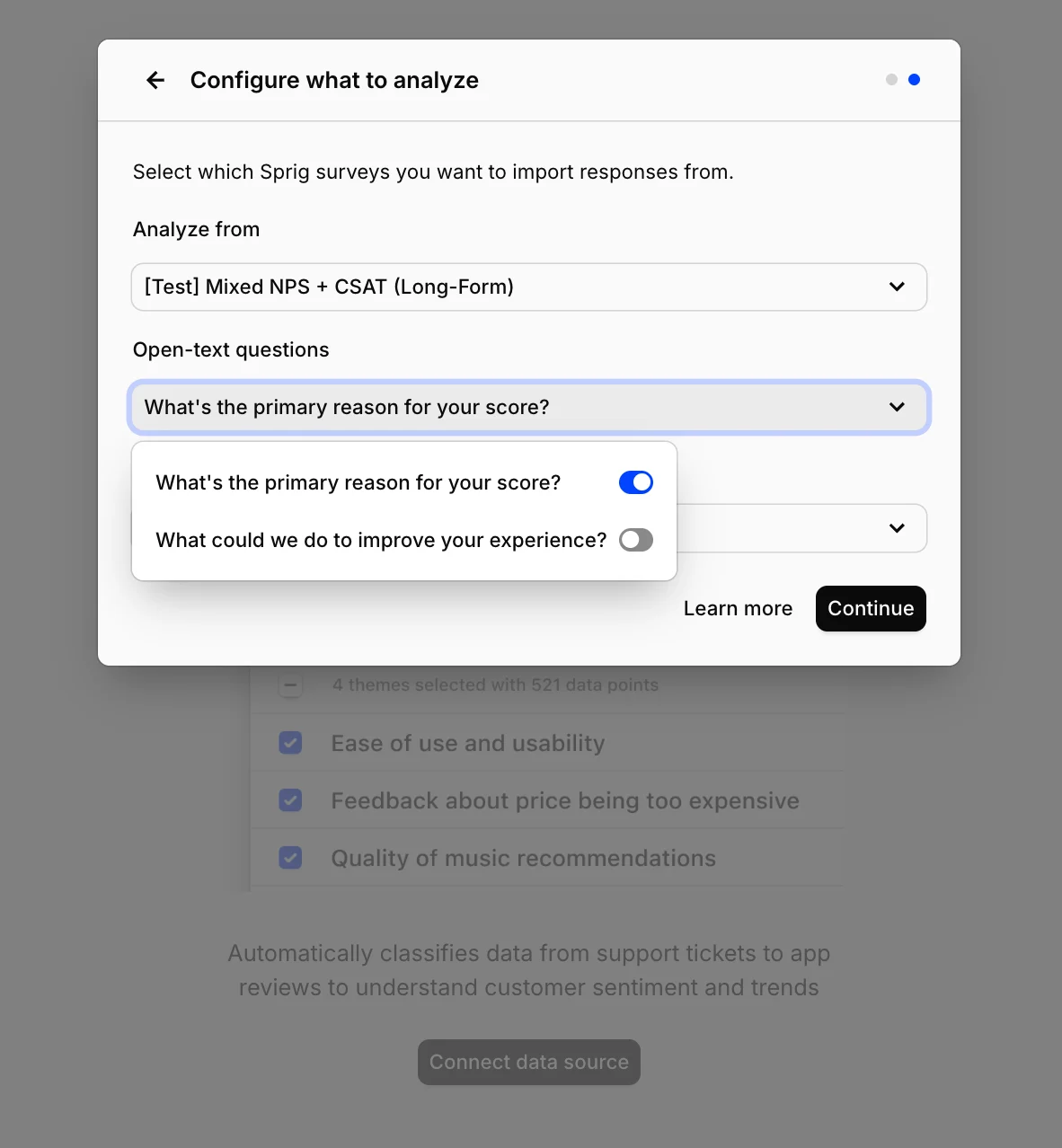
Choose the **Sprig survey** you want to import responses from. Only surveys with status `In progress` or `Completed` appear in the list.
Select one or more **open-text questions** inside that survey. Multiple-choice, NPS, and rating questions aren't selectable here — only open-text questions land as conversation content in this Channel.
Choose how far back to import existing responses: `Last 7 days`, `Last 30 days`, `Last 90 days`, or `Last 6 months`.
Confirm setup and select `Finish`.
## Overview
Automatically import open-text survey responses from Sprig into Channels in real-time, where they're analyzed and grouped into themes so you can track trends over time.
When you set up the connection, you'll pick one Sprig survey, choose which open-text questions inside it to analyze, and decide how far back to backfill. [Learn more about Channels →](/help/channels)
***
## Prerequisites
* A Dovetail workspace with Channels enabled and your user has Can edit or Full access on the Channel you're adding the source to.
* A Sprig account with admin access (needed to generate an API key).
* A Sprig **API key** with access to the Data Import API.
***
## Set up the Sprig integration
You can set up the Sprig integration from [Settings](https://dovetail.com/settings/integrations), when you create a new Channel, or when you `Add source` to an existing Channel.
In Dovetail, open the **Connect data source** modal and select `Sprig`.
In a separate tab, sign in to Sprig and open **Integrations → Data Import API**. Generate or copy your API key.
Paste the key into the **API Key** field in Dovetail and select `Next`. If the key is invalid or lacks the required access, you'll see: *"Invalid API key. Verify your Sprig API key."*
Choose the **Sprig survey** you want to import responses from. Only surveys with status `In progress` or `Completed` appear in the list.
Select one or more **open-text questions** inside that survey. Multiple-choice, NPS, and rating questions aren't selectable here — only open-text questions land as conversation content in this Channel.
Choose how far back to import existing responses: `Last 7 days`, `Last 30 days`, `Last 90 days`, or `Last 6 months`.
Confirm setup and select `Finish`.
 ### Authentication and permissions
Sprig uses an **API key**. The key needs access to:
* `GET /v1/surveys` — list available surveys.
* `GET /v1/responses` — fetch survey responses.
* `GET /v2/users/{id}` — resolve a respondent's email for [contact linking](#link-responses-to-contacts). Only needed if you turn contact linking on; without it, responses still import, they just aren't linked to contacts.
These are read-only endpoints. Dovetail never writes back to Sprig.
If your key is rotated or deleted in Sprig, the next sync will fail with an authorization error. Generate a new key in Sprig, then open the Sprig integration in Dovetail and update the stored key.
***
## Configuration in detail
### Picking a survey
You can pick **one survey** per data source connection. Surveys appear in the dropdown only if their status is `In progress` or `Completed` — drafts and archived surveys are filtered out at the Sprig API level.
To analyze responses from more than one Sprig survey in the same Channel, add Sprig as a data source again with a different survey selected.
### Picking open-text questions
Once you've picked a survey, Dovetail loads its question list and shows only the **open-text questions** in the picker. You can select one or more.
If a respondent answered multiple selected questions in the same submission, they are combined into a single data point, consisting of multiple question and answer pairs.
***
## Link responses to contacts
Dovetail can attribute each response to a [**Contact**](/help/contacts), so you can see who said what and filter responses by your contact fields and CRM properties. Turn on **Create contacts** when you add the source — Dovetail then matches every response to a contact by email address, creating a new contact when there's no match. Responses with no email still import as data points; they just aren't linked to a contact.
For this to work, the respondent has to be an **identified Sprig user with an email**. Set it in Sprig with `setEmail` (or pass the email when you identify the visitor) so it's stored as the user's reserved `!email` attribute, and make sure the survey is shown to identified visitors so each response is tied to a Sprig user ID. Dovetail resolves the email through Sprig's Users API at sync time (this needs the extra scope noted under [Authentication and permissions](#authentication-and-permissions)). Anonymous responses carry no user ID or email, so they won't create contacts. Sprig doesn't expose a respondent name, so contacts are created with the email only.
***
## What gets imported
Each open-text response becomes one Channels data point.
### Always imported
| Field | Source |
| -------------------- | ------------------------------------------------------------------ |
| Response text | The respondent's free-text answer becomes the conversation content |
| Question text | The exact question wording attached as metadata |
| Question type | Sprig question type (always an open-text variant for this Channel) |
| Survey ID | Sprig numeric survey ID |
| Question ID | Sprig numeric question ID |
| Submission timestamp | Sprig `createdAt` |
| Respondent ID | `externalUserId` if present; otherwise `visitorUuid` |
### Not imported
* **Responses to non-open-text questions in the same survey** — NPS, Likert, rating, and multiple-choice responses are filtered out, even if the respondent answered them in the same session.
* **Respondent identity properties as data point fields** beyond the external user ID or visitor UUID. (The respondent's email is used for contact linking — see [Link responses to contacts](#link-responses-to-contacts) — but isn't stored on the data point.)
* **Custom metadata** (`customMetadata`) and **visitor snapshot** data captured by the Sprig SDK.
* **Page URL** the survey was shown on (`url`).
* **Sprig's own response themes** if you've set those up — Dovetail computes its own themes against the raw responses.
* **Attachments** — Sprig surveys don't carry these.
Need a field that isn't on this list? Let us know.
### Sync behavior
* **Backfill window.** When you first connect, Dovetail imports responses received within the period you selected.
* **Ongoing sync.** New responses sync in automatically after the initial backfill — every hour or so on the standard Channels cadence.
* **Pagination.** Dovetail fetches responses in pages of 1,000 records, paginating with Sprig's cursor until the window is in.
* **Rate limiting.** If Sprig returns a 429, Dovetail honors the `Retry-After` header and resumes automatically.
***
## Troubleshooting
**"Invalid API key" when I paste the key.** Double check your key under **Integrations → Data Export API** in Sprig and try again.
**My survey doesn't show up in the picker.** Dovetail only lists surveys with status `In progress` or `Completed`. Drafts and archived surveys are filtered out. Activate the survey in Sprig and refresh the picker.
**My question doesn't show up after I pick the survey.** Only open-text questions appear in the picker. NPS, rating, Likert, and multiple-choice questions aren't supported as inputs to this Channel.
**My survey has responses in Sprig but Dovetail says nothing imported.** Likely causes:
* Every response in the backfill window had an empty answer to the open-text questions you selected for the channel. Dovetail only imports non-empty open-text answers.
* The responses landed before your backfill window. Reconnect with a longer window, or wait for new responses.
* The Sprig API key was rotated. Re-enter the current key on the Sprig integration in Dovetail.
**I want to analyze multiple surveys in the same Channel.** Add Sprig as a data source on the same Channel once per survey.
***
## Disconnect or delete the Sprig source
There are two distinct actions on a Channels source, and they aren't the same thing.
**Disconnect.** Stops Dovetail from ingesting any new data from this source. Anything already imported stays in the Channel.
To disconnect, open the Channel, go to the sources list, click `•••` on the Sprig source, and select `Disconnect`. You'll see:
> Are you sure you want to disconnect **\[source name]** from **\[Channel name]**? This will immediately stop the Channel from ingesting any new data. Any data already imported from this source will remain in the Channel.
**Delete.** Removes the source and **deletes every data point** that was imported from it. This is permanent.
To delete, click `•••` on the Sprig source and select `Delete`. You'll see:
> Are you sure you want to delete **\[source name]** from **\[Channel name]**? This will delete all associated data points. This is permanent and cannot be undone.
To revoke API access entirely, delete the API key in Sprig under **Integrations → Data Export API**. That immediately invalidates any sync that tries to use it.
### Authentication and permissions
Sprig uses an **API key**. The key needs access to:
* `GET /v1/surveys` — list available surveys.
* `GET /v1/responses` — fetch survey responses.
* `GET /v2/users/{id}` — resolve a respondent's email for [contact linking](#link-responses-to-contacts). Only needed if you turn contact linking on; without it, responses still import, they just aren't linked to contacts.
These are read-only endpoints. Dovetail never writes back to Sprig.
If your key is rotated or deleted in Sprig, the next sync will fail with an authorization error. Generate a new key in Sprig, then open the Sprig integration in Dovetail and update the stored key.
***
## Configuration in detail
### Picking a survey
You can pick **one survey** per data source connection. Surveys appear in the dropdown only if their status is `In progress` or `Completed` — drafts and archived surveys are filtered out at the Sprig API level.
To analyze responses from more than one Sprig survey in the same Channel, add Sprig as a data source again with a different survey selected.
### Picking open-text questions
Once you've picked a survey, Dovetail loads its question list and shows only the **open-text questions** in the picker. You can select one or more.
If a respondent answered multiple selected questions in the same submission, they are combined into a single data point, consisting of multiple question and answer pairs.
***
## Link responses to contacts
Dovetail can attribute each response to a [**Contact**](/help/contacts), so you can see who said what and filter responses by your contact fields and CRM properties. Turn on **Create contacts** when you add the source — Dovetail then matches every response to a contact by email address, creating a new contact when there's no match. Responses with no email still import as data points; they just aren't linked to a contact.
For this to work, the respondent has to be an **identified Sprig user with an email**. Set it in Sprig with `setEmail` (or pass the email when you identify the visitor) so it's stored as the user's reserved `!email` attribute, and make sure the survey is shown to identified visitors so each response is tied to a Sprig user ID. Dovetail resolves the email through Sprig's Users API at sync time (this needs the extra scope noted under [Authentication and permissions](#authentication-and-permissions)). Anonymous responses carry no user ID or email, so they won't create contacts. Sprig doesn't expose a respondent name, so contacts are created with the email only.
***
## What gets imported
Each open-text response becomes one Channels data point.
### Always imported
| Field | Source |
| -------------------- | ------------------------------------------------------------------ |
| Response text | The respondent's free-text answer becomes the conversation content |
| Question text | The exact question wording attached as metadata |
| Question type | Sprig question type (always an open-text variant for this Channel) |
| Survey ID | Sprig numeric survey ID |
| Question ID | Sprig numeric question ID |
| Submission timestamp | Sprig `createdAt` |
| Respondent ID | `externalUserId` if present; otherwise `visitorUuid` |
### Not imported
* **Responses to non-open-text questions in the same survey** — NPS, Likert, rating, and multiple-choice responses are filtered out, even if the respondent answered them in the same session.
* **Respondent identity properties as data point fields** beyond the external user ID or visitor UUID. (The respondent's email is used for contact linking — see [Link responses to contacts](#link-responses-to-contacts) — but isn't stored on the data point.)
* **Custom metadata** (`customMetadata`) and **visitor snapshot** data captured by the Sprig SDK.
* **Page URL** the survey was shown on (`url`).
* **Sprig's own response themes** if you've set those up — Dovetail computes its own themes against the raw responses.
* **Attachments** — Sprig surveys don't carry these.
Need a field that isn't on this list? Let us know.
### Sync behavior
* **Backfill window.** When you first connect, Dovetail imports responses received within the period you selected.
* **Ongoing sync.** New responses sync in automatically after the initial backfill — every hour or so on the standard Channels cadence.
* **Pagination.** Dovetail fetches responses in pages of 1,000 records, paginating with Sprig's cursor until the window is in.
* **Rate limiting.** If Sprig returns a 429, Dovetail honors the `Retry-After` header and resumes automatically.
***
## Troubleshooting
**"Invalid API key" when I paste the key.** Double check your key under **Integrations → Data Export API** in Sprig and try again.
**My survey doesn't show up in the picker.** Dovetail only lists surveys with status `In progress` or `Completed`. Drafts and archived surveys are filtered out. Activate the survey in Sprig and refresh the picker.
**My question doesn't show up after I pick the survey.** Only open-text questions appear in the picker. NPS, rating, Likert, and multiple-choice questions aren't supported as inputs to this Channel.
**My survey has responses in Sprig but Dovetail says nothing imported.** Likely causes:
* Every response in the backfill window had an empty answer to the open-text questions you selected for the channel. Dovetail only imports non-empty open-text answers.
* The responses landed before your backfill window. Reconnect with a longer window, or wait for new responses.
* The Sprig API key was rotated. Re-enter the current key on the Sprig integration in Dovetail.
**I want to analyze multiple surveys in the same Channel.** Add Sprig as a data source on the same Channel once per survey.
***
## Disconnect or delete the Sprig source
There are two distinct actions on a Channels source, and they aren't the same thing.
**Disconnect.** Stops Dovetail from ingesting any new data from this source. Anything already imported stays in the Channel.
To disconnect, open the Channel, go to the sources list, click `•••` on the Sprig source, and select `Disconnect`. You'll see:
> Are you sure you want to disconnect **\[source name]** from **\[Channel name]**? This will immediately stop the Channel from ingesting any new data. Any data already imported from this source will remain in the Channel.
**Delete.** Removes the source and **deletes every data point** that was imported from it. This is permanent.
To delete, click `•••` on the Sprig source and select `Delete`. You'll see:
> Are you sure you want to delete **\[source name]** from **\[Channel name]**? This will delete all associated data points. This is permanent and cannot be undone.
To revoke API access entirely, delete the API key in Sprig under **Integrations → Data Export API**. That immediately invalidates any sync that tries to use it.