

Available on Professional (legacy) and Enterprise plans
The new Dovetail experience is now live. We’ve updated the app’s navigation and structure, so you may notice some features have moved to new locations. We’re currently updating our Help Center articles to reflect these changes. If you encounter any discrepancies between the product and our documentation, please refer to the latest in-app experience.
Overview
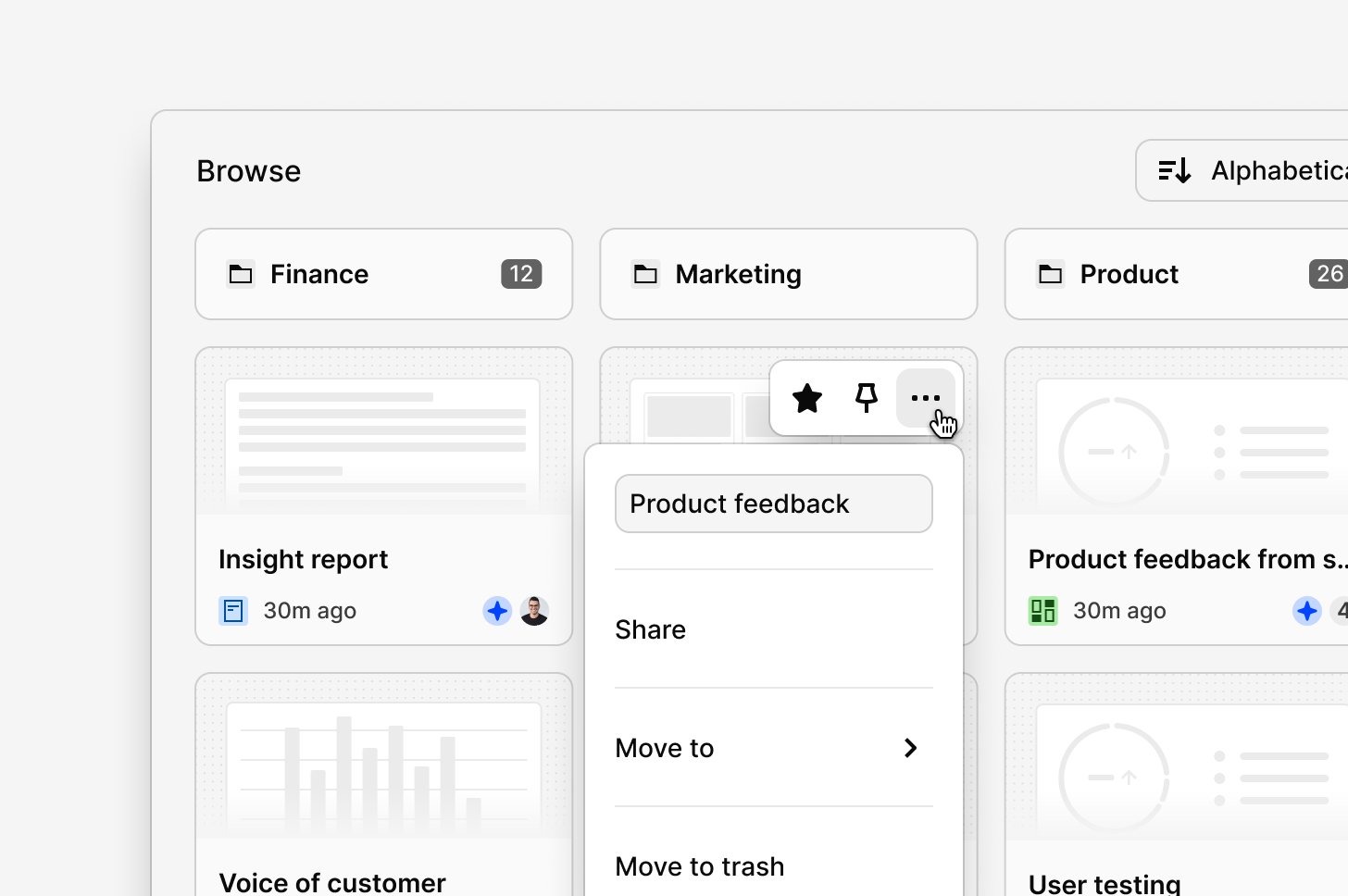
Organize your projects and channels into folders so your team can find and share their work with ease. Content can be re-ordered and stored in folders, and your most important folders, projects, and channels can be pinned for quick access by everyone in your organization.Where to find folders
Find folders using the tabs on the Browse section of your Home page. These tabs let you navigate your projects and find your work quickly.- Folders, Channels, Projects → Shows a list of all projects, channels, or folders at the highest level.
- Docs → Show all Docs from projects you have access to across the workspace.
Create and edit a folder
Managers and Contributors can create a new folder for their workspace via the sidebar by clicking on + New- To create a new folder, click +
Newand selectFolder.
••• to apply relevant options.
Organize projects into folders
To make projects easy for users in your workspace to find, organize your projects into folders and reorder them with drag and drop. Group related projects into folders by:- Type of research → Customer interviews, usability testing, survey responses.
- Product team → Core product, search and navigation, growth.
- Department/role → Design, user research, content strategy.
Assign users or groups access to a folder
If you are on a Business or Enterprise plan with Full access to a folder, you can also limit who can view, edit, and create new objects that live within a folder. View more information about sharing and access controls →- To do this, click
•••next to the folder and selectShare. - From there, enter users or groups and assign the appropriate access level to them.
Pin and reorder objects
Admins can pin projects, channels, and folders to the top of the Home page for quick access across the workspace — useful for surfacing ongoing research or active work.- To pin a project, open
•••next to it and selectPin for everyone. - Once pinned, the item appears at the top of your Home page.
- To reorder pinned items, drag and drop them into your preferred order. The new order applies to the entire workspace.
Select objects to pin, move, archive, or delete
You can select one or multiple objects on the Browse page by clicking on the checkbox that appears while hovering over them. From there, you’ll be able to use the actions menu that appears at the bottom of your screen to edit your selection. In this menu, you will see different options depending on what you have selected.- If you have only selected projects, you can pin, move, archive, or delete your selection.
- If you have only selected folders, you will be able to move, or delete your selection.
- If you have selected both projects and folders, you will be able to move, or delete your selection.
For you
Available on Professional and Enterprise plans
- Created by me → All projects, channels, and folders you’ve created across the workspace.
- Viewed by me → Objects you’ve recently viewed across the workspace.