

Overview
Connect Gong to Dovetail and import your sales and customer call recordings for analysis. The same connection can feed two different workflows, depending on what you want to do with the calls:- Gong for Channels — calls stream into a Channel where Dovetail analyzes the transcripts continuously, grouping feedback into themes and tracking trends over time. Best for high-volume, always-on analysis.
- Gong for Projects — calls import into a Project as playable audio or video data points, transcribed by Dovetail and ready for manual highlighting, tagging, and insight work. Best for hands-on analysis of a focused set of calls.
Prerequisites
These apply to both workflows.- A Dovetail workspace with the relevant feature enabled (Channels or Projects).
- For Channels: Can edit or Full access on the Channel. For Projects: access to add or edit data in the Project.
- A Technical admin role in Gong — required to authorize the connection. If your Gong account owner doesn’t have Dovetail access, invite them as a free user to complete the connection.
- A Gong plan with API access.
How Gong authorization works
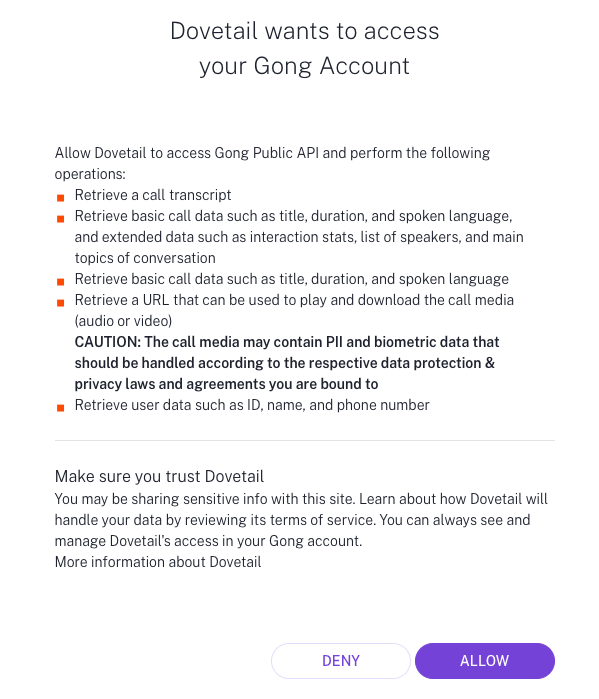
Both workflows use the same OAuth 2.0 connection againsthttps://app.gong.io. When you authorize, Dovetail requests these read-only scopes:
- Read call transcripts.
- Read detailed call metadata — parties, media, and content.
- Read basic call information such as title, duration, and language.
- Read the media (audio or video) URL for a call.
- Read user and team information.
Choosing teams
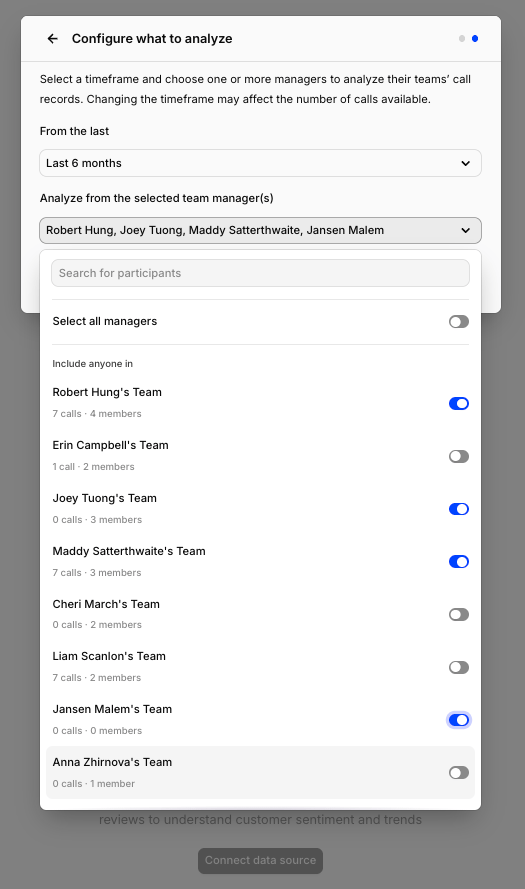
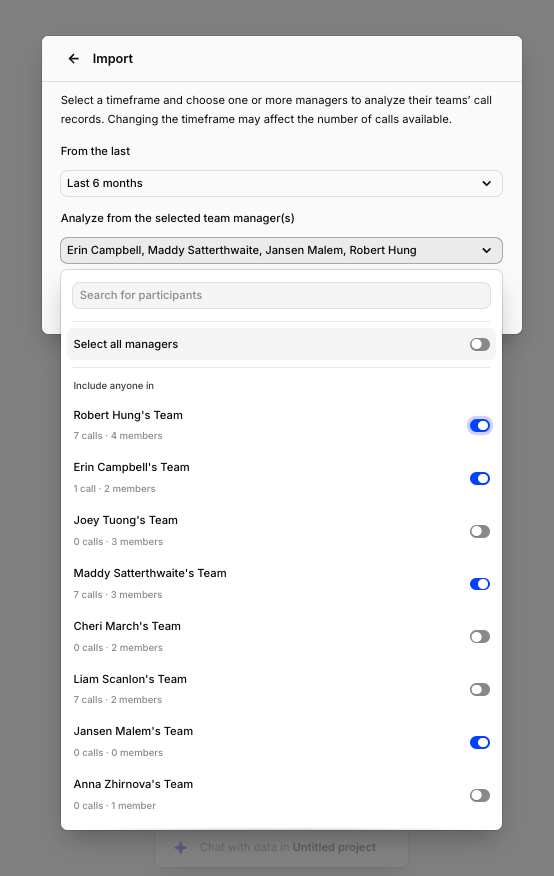
Both workflows use the same team picker. Dovetail builds your Gong org chart from the user directory and shows it as a list of team managers, with the number of calls in the selected timeframe and the team’s member count next to each. You scope what comes in by selecting managers:- Specific managers — Dovetail imports calls owned by the selected managers and everyone who reports to them, directly or further down the chain. For example, selecting Erin Campbell’s team also pulls in calls owned by all her reports (Maddy, Anna, Felipe, and anyone reporting to them).
- All managers — Dovetail imports calls across every team, for broad coverage.
Last 7 days, Last 30 days, Last 90 days, or Last 6 months. Changing it updates the call counts shown next to each team.
Gong for Channels
Use this workflow to stream call transcripts into a Channel for continuous, automatic analysis. Dovetail themes the conversations as they arrive so you can track trends across your call volume without reading every call.Set up
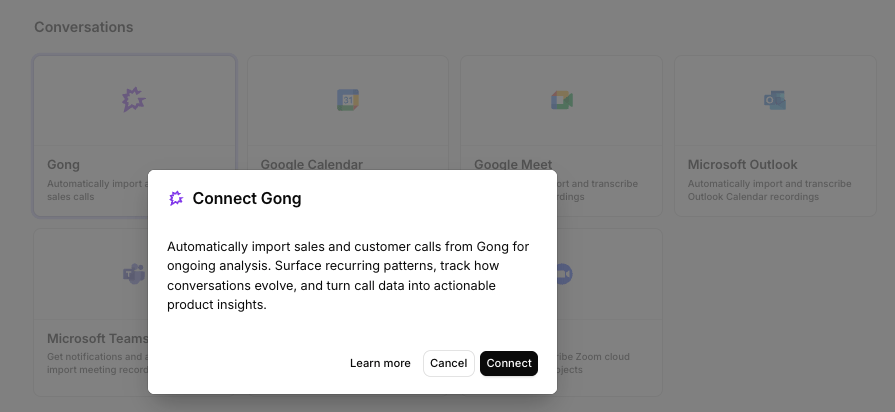
You can set up the Gong integration from Settings, when you create a new Channel, or when youAdd source to an existing Channel.
Authorize with Gong
You’ll be redirected to Gong to log in and approve the requested permissions. You must sign in as a Gong Technical admin. If you’re already logged in, this happens in a single click.
Pick the team managers to analyze
Back in Dovetail, choose one or more team managers whose calls you want to import — or select all managers. Selecting a manager pulls in calls from everyone on their team, including reports further down the org chart.
Pick a backfill window
Choose how far back to import existing calls:
Last 7 days, Last 30 days, Last 90 days, or Last 6 months. Changing the timeframe updates the call counts shown next to each team.- Connect data source
- Configure import
What gets imported
Each Gong call becomes one Channels data point, with the transcript laid out as a multi-turn conversation. Dovetail imports the full call transcript turn by turn, using the transcript text Gong provides. Each turn carries the speaker’s name, email, and affiliation — whether they’re internal (your team) or external (the customer or prospect) — matched from the call’s participant list. The Gong-generated brief (call summary) is attached alongside the transcript. Themes are generated based on content from external speakers. The following metadata is attached as fields on the data point:| Field | Gong source |
|---|---|
| Call date | started |
| Duration | duration (seconds) |
| Direction | direction (Inbound, Outbound, Conference, Unknown) |
| Scope | scope (Internal, External, Unknown) |
| Media | media (Video or Audio) |
| Language | language |
| System | system (the source the call came from) |
| Purpose | purpose |
| Private | isPrivate |
| Primary owner | primaryUserId |
| Custom data | customData |
| Gong link | The call’s URL in Gong |
Sync behavior
- Backfill window. When you first connect, Dovetail imports calls that started within the period you selected.
- Ongoing sync. New calls sync in automatically — Dovetail polls Gong roughly once an hour and tracks how far it has synced, so each run only pulls calls it hasn’t seen yet.
- Reconnection. If Gong rejects Dovetail’s credentials (for example, the authorizing admin’s access is revoked), the integration is flagged as needing reconnection and the sync stops until you reconnect.
- Rate limiting. If Gong rate-limits a request, Dovetail honors the
Retry-Afterwindow and resumes automatically.
Troubleshooting
I can’t authorize the connection. Only Gong Technical admins can authorize Gong. Check your role under Company Settings → Team Members in Gong. If you’re not an admin, ask one to complete the connection — they can be invited to Dovetail as a free user if needed. Authentication succeeds, but no calls import. The selected teams may have no calls in the backfill window (widen the timeframe or select more managers), the calls may fall outside the teams you selected (the filter is on the call’s owner, resolved through the org chart), or the authorizing admin can’t see those calls in Gong (private calls or sharing restrictions). The integration shows as needing reconnection. Gong rejected Dovetail’s credentials — usually because the authorizing admin’s Gong access changed. Reconnect with a current Technical admin account.Disconnect or delete the Gong source
There are two distinct actions on a Channels source. Disconnect. Stops Dovetail from ingesting any new calls. Anything already imported stays in the Channel. Open the Channel, go to the sources list, click••• on the Gong source, and select Disconnect. You’ll see:
Are you sure you want to disconnect [source name] from [Channel name]? This will immediately stop the Channel from ingesting any new data. Any data already imported from this source will remain in the Channel.Delete. Removes the source and deletes every data point imported from it. This is permanent. Click
••• on the Gong source and select Delete. You’ll see:
Are you sure you want to delete [source name] from [Channel name]? This will delete all associated data points. This is permanent and cannot be undone.To revoke access entirely, remove Dovetail’s authorization in your Gong app or integration settings.
Gong for Projects
Use this workflow to bring calls into a Project as playable audio or video data points. Dovetail transcribes each recording so you can play it back, read the synced transcript, and highlight, tag, and build insights by hand — the same as any other data in a Project.Set up
You import Gong calls from inside a Project, not from the Channels source picker.Open the import dialog in a Project
Open the Project you want to import into and start an import. In the dialog, select the Gong tab.
Authorize with Gong
If this is your first Gong connection, you’ll be redirected to Gong to log in and approve the requested permissions as a Technical admin. If you’ve already connected Gong for Channels, you won’t need to re-authorize — you’ll go straight to the team picker.
Pick the team managers to import
Choose one or more team managers whose calls you want to import, or select all managers. Selecting a manager pulls in calls from everyone on their team, including reports further down the org chart.
- Connect data source
- Configure import
What gets imported
Each Gong call becomes one data point in the Project — a playable audio or video file with a transcript Dovetail generates from the recording. This is the key difference from the Channels workflow: in Projects, Dovetail imports the actual recording and transcribes it itself, so the data point is the recording you can play back and scrub through. Each data point carries the following metadata as fields:| Field | Gong source |
|---|---|
| Call date | started |
| Duration | duration (seconds) |
| Direction | direction (Inbound, Outbound, Conference, Unknown) |
| Scope | scope (Internal, External, Unknown) |
| Media | media (Video or Audio) |
| Language | language |
| System | system (the source the call came from) |
| Purpose | purpose |
| Private | isPrivate |
| User | primaryUserId |
| Custom data | customData |
Sync behavior
- Backfill window. When you first import, Dovetail brings in calls that started within the period you selected and transcribes each recording.
- Ongoing sync. The import keeps syncing — Dovetail polls Gong roughly once an hour and adds new calls from the selected teams to the Project as they appear. It’s a continuous connection, not a one-time import.
- Reconnection and rate limits. Same as the Channels workflow — Dovetail flags the connection for reconnection if Gong rejects its credentials, and backs off automatically if Gong rate-limits a request.
Managing or removing the import
To change which teams feed the Project, select Gong from the Sources menu in the top-right corner and Configure.Disconnect Gong from your workspace
Disconnecting Gong entirely from your workspace happens in ⚙️ Settings → Integrations: locate Gong, click•••, and select Disconnect. Dovetail then loses access to your Gong data; anything already imported into Channels or Projects stays in Dovetail.