

Overview
Dovetail is being redesigned to help you find insights faster, cut through clutter, and seamlessly scale your workspace as feedback volumes increase. The new content-first, relevance-driven experience is personalized by default, so each user can easily access the most relevant information based on what matters most to them. Custom home and feeds functionality will be retired as part of this rollout.Transition timeline
On March 31, 2026, the new experience becomes the default for all accounts on login, though users can still toggle back to the previous experience. On June 5th, 2026, the toggle is removed, and the new experience becomes permanent for all users.What’s changing
Home is personalized for every user by default, with no setup required to keep it relevant as teams and workspaces grow.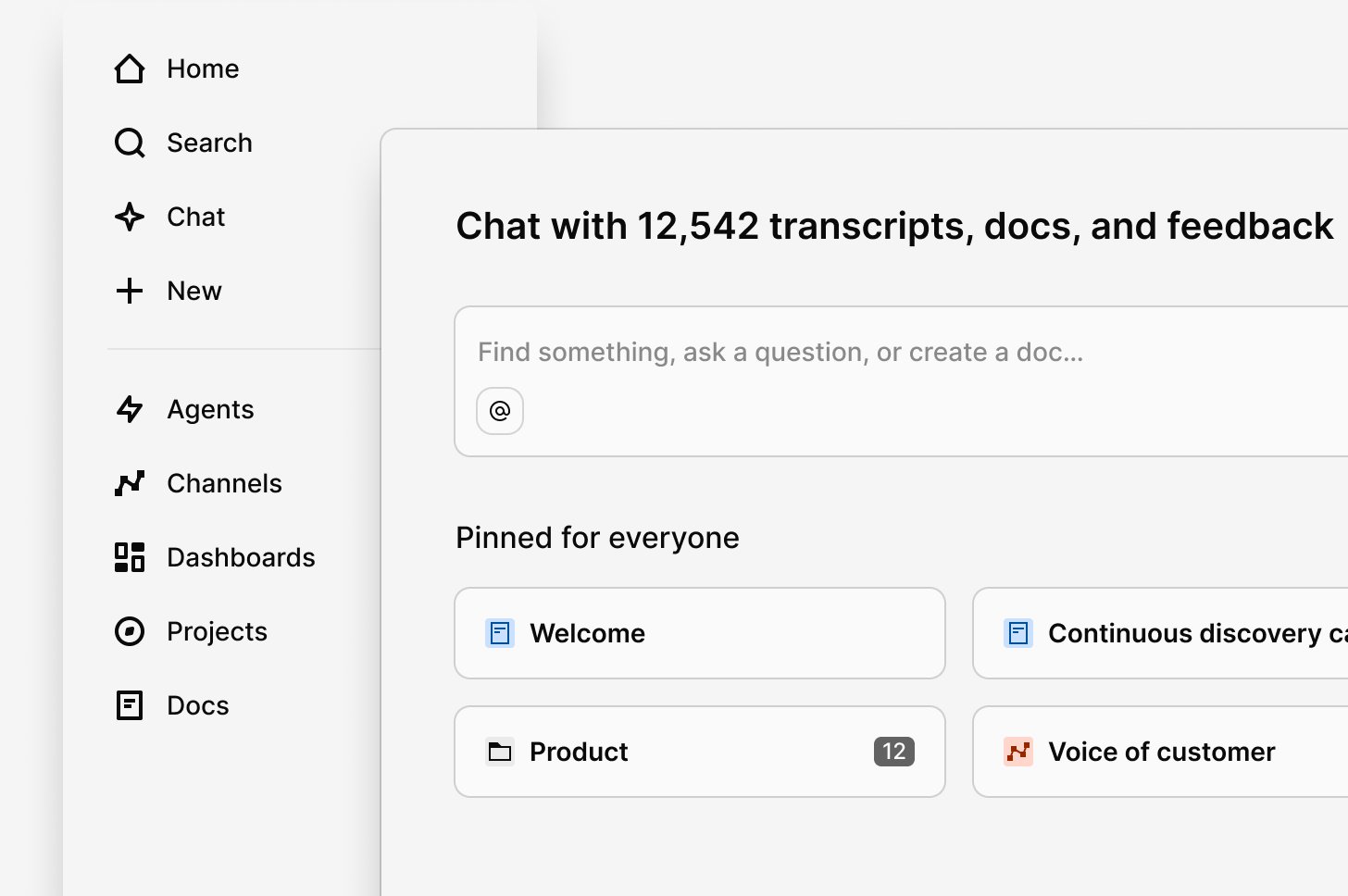
Chat sits at the top of Home and is the fastest way to find insights in Dovetail. Instead of navigating through folders or browsing multiple pages, you can ask a question in natural language and receive an instant answer. Chat searches across your workspace and generates responses grounded in your data, with citations so you can verify sources and navigate directly to the original content. You can also refine queries using @ mentions to reference a specific folder or project.

The Welcome section gives you a starting point when you use Dovetail for the first time. It surfaces quick actions — like connecting a data source, inviting teammates, or asking a question — so you can get up and running and get the most out of Dovetail without digging through settings. You can dismiss it at any time.
Announcement banner Allows admins to add a banner to the Home page to display important information—such as updates, resources, or notices—ensuring key messages are clearly visible and never missed by the team.
If you’ve dismissed the Announcement within home, a workspace admin can toggle Announcements back on for the entire workspace. To do this, the admin should navigate to the Home page, click “Edit home for everyone,” toggle Announcements off, then toggle them back on.
Pinned for Everyone Admins can pin important objects — such as docs, projects, and folders — so key resources remain visible and accessible to the entire team. Admins can now manually reorder items in the Pinned for everyone section, making it easier to surface the most important sources across the organization. Simply drag and drop pinned items into your preferred order.

For You is a personalized section that surfaces content tailored to your activity, including data, docs, projects, agents, and other objects you’ve recently viewed or created. You can customize how content is displayed using the sorting and filtering options in the dropdown on the right.
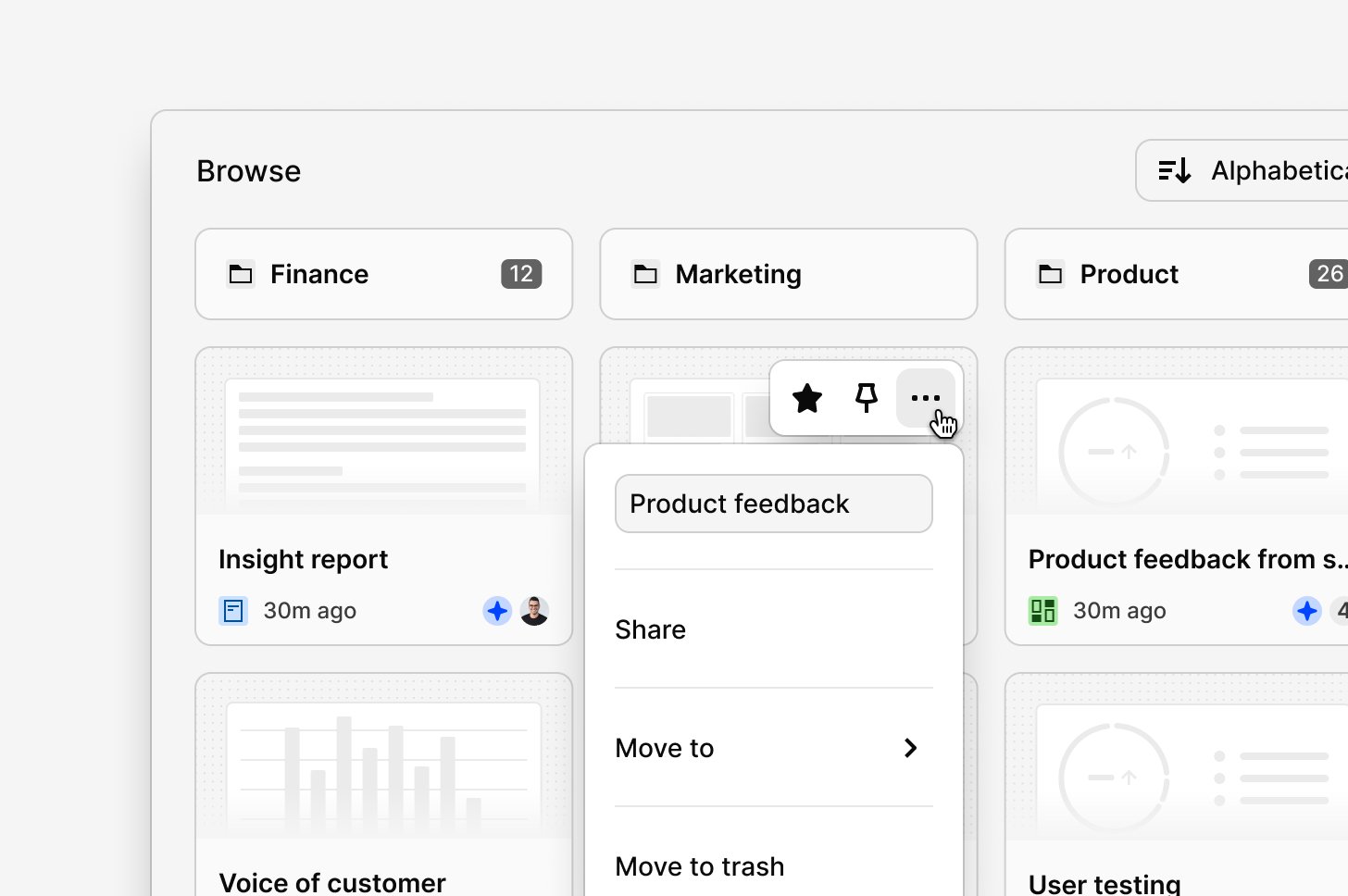
Browse displays the top-level folder structure of your workspace, including folders, projects, channels, dashboards, agents, and docs. It supports multiple sorting options and is alphabetical by default. Within folders, you can sort results using Sort and Filter in the top right. Folders are always shown at the top and clearly separated from individual items.
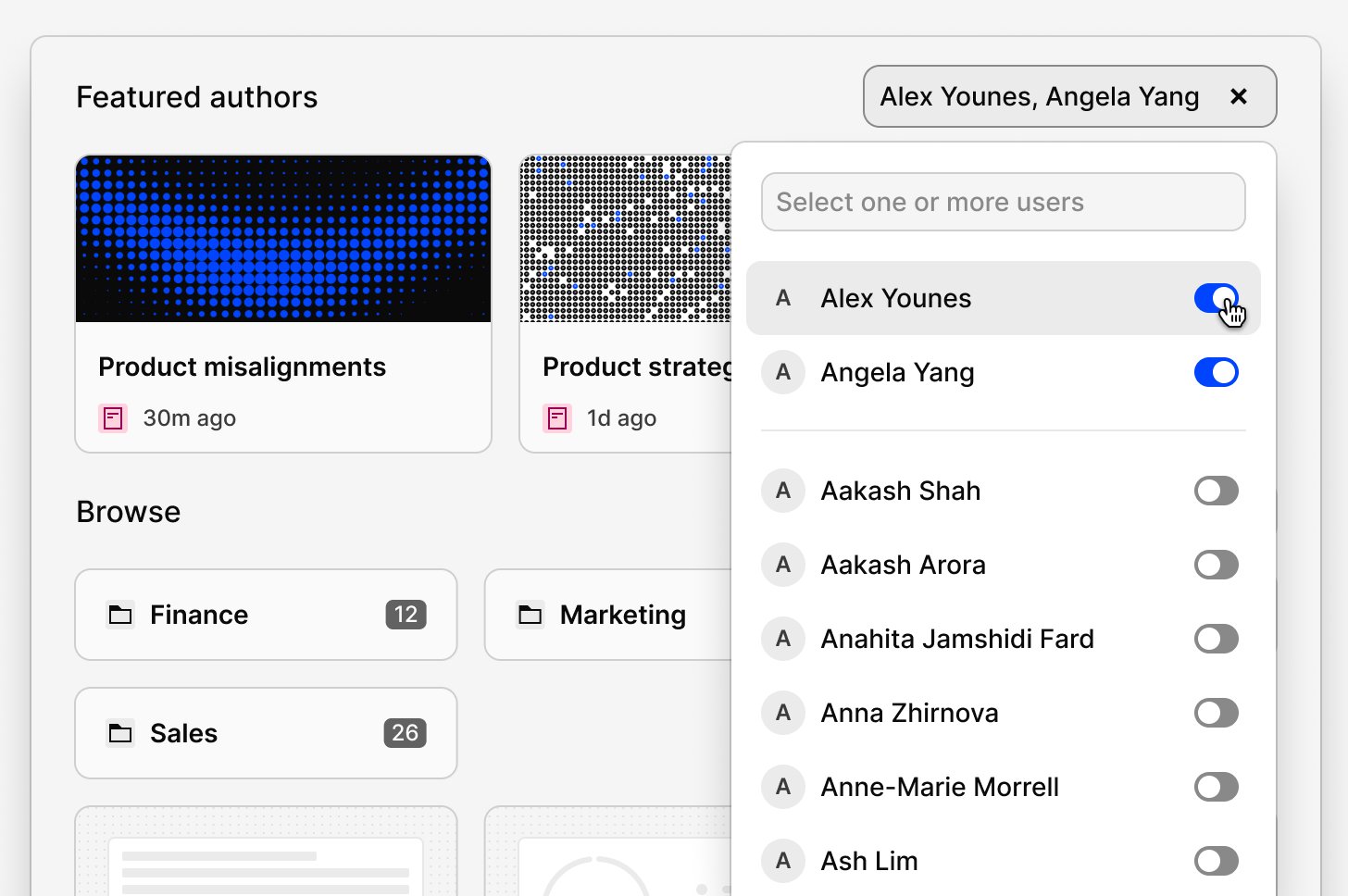
The Featured Authors section highlights Docs created by selected team members and shared with the entire workspace. Admins can choose up to 50 authors to feature, surfacing the latest reports and insights for the whole team. Docs are sorted by newest first, so the most recent content always appears at the top.
The featured doc section lets admins embed a single Doc directly on the home page, with its content rendered inline for everyone to see. This is a great way to pin important information, like an onboarding guide, right where your team will find it first. The Doc must be shared with the entire workspace to be eligible, and admins can swap it out at any time. To read the full content, click “See more,” and the Doc will open in a layer above Home.
Section ordering and visibility
Admins control how Home is organized in their workspace. To get started, click the settings icon in the top right corner of Home to open the configuration dropdown. From there, you can drag and drop sections to reorder them and toggle any section on or off to show only what’s relevant. The only exception is Chat, which always stays at the top. This means you can tailor Home to match how your team works — put the most important content front and center, and hide anything that isn’t needed. Changes apply to everyone in the workspace, so the whole team gets a consistent, curated experience.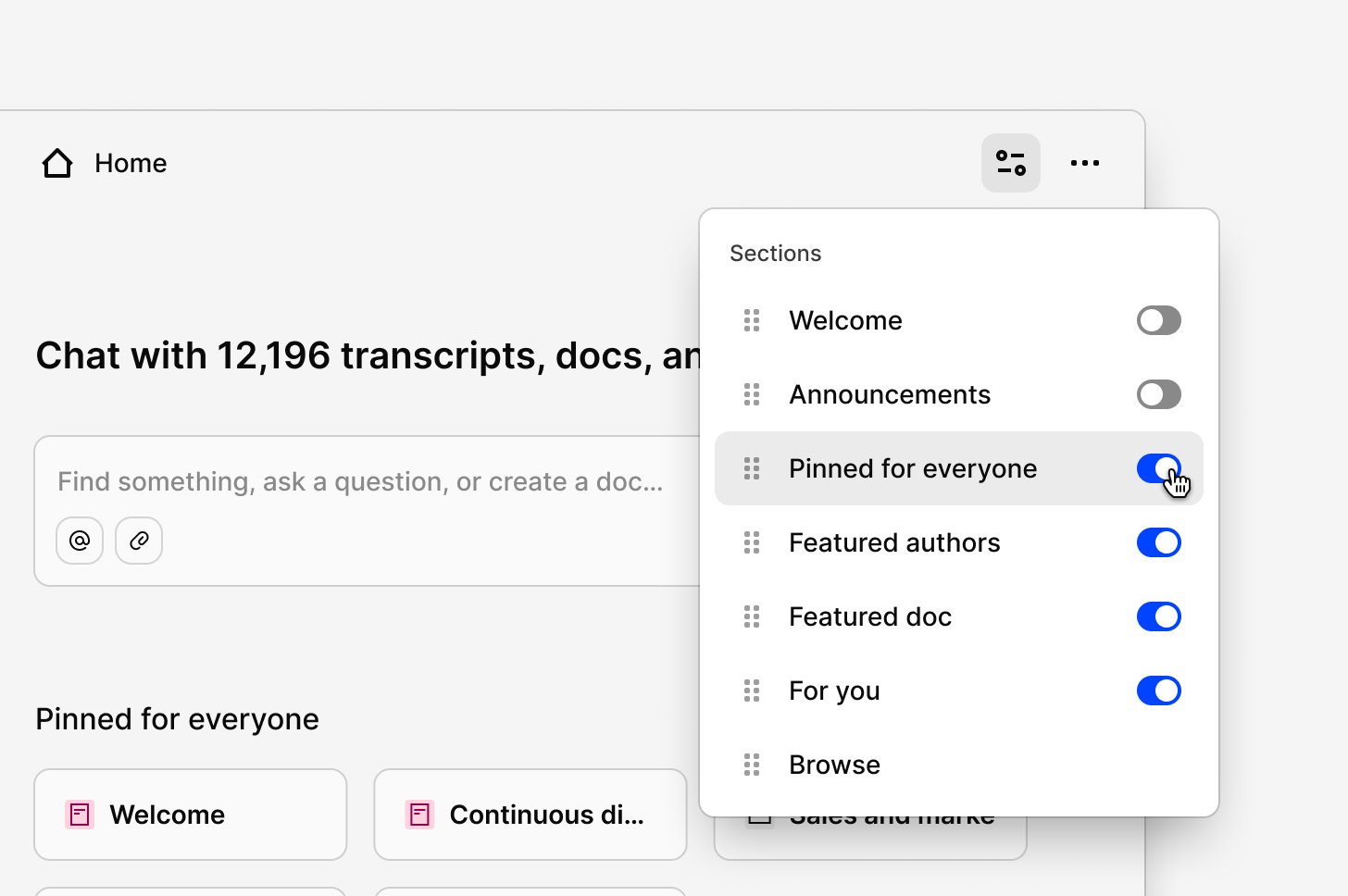
Grid and list layouts
For any page that shows a list of objects (like the Browse section on Home, subfolders, or object pages), you can switch between grid and list layout. This setting applies only to individual items like projects, docs, or agents. Folders will still be displayed as small cards to ensure they remain distinct and easy to differentiate from other listed objects.To change the layout, click the
... icon in the top-right corner, then select the view type you prefer from the dropdown.When you switch views, the change applies to the entire workspace.

Customizable project card thumbnails
You can set a cover image for both docs and projects, and that image becomes the card thumbnail in Browse and other list views (Note: For best results, we recommend an aspect ratio of 9:4 (2.25:1)). For a project, you can upload a cover image directly in the project overview. You can also add or update a cover from anywhere by clicking the... more icon on any doc or project—on either its card or list item, then selecting Update cover. From there, upload your own image or pick one from the built-in Unsplash library. You can also remove a cover from the same ... menu.
Navigating your workspace
Clicking the menu icon in the top left corner (or pressing [ on your keyboard) opens the sidebar with workspace navigation. The sidebar is accessible on any screen and stays collapsed while you work to give you more focus space.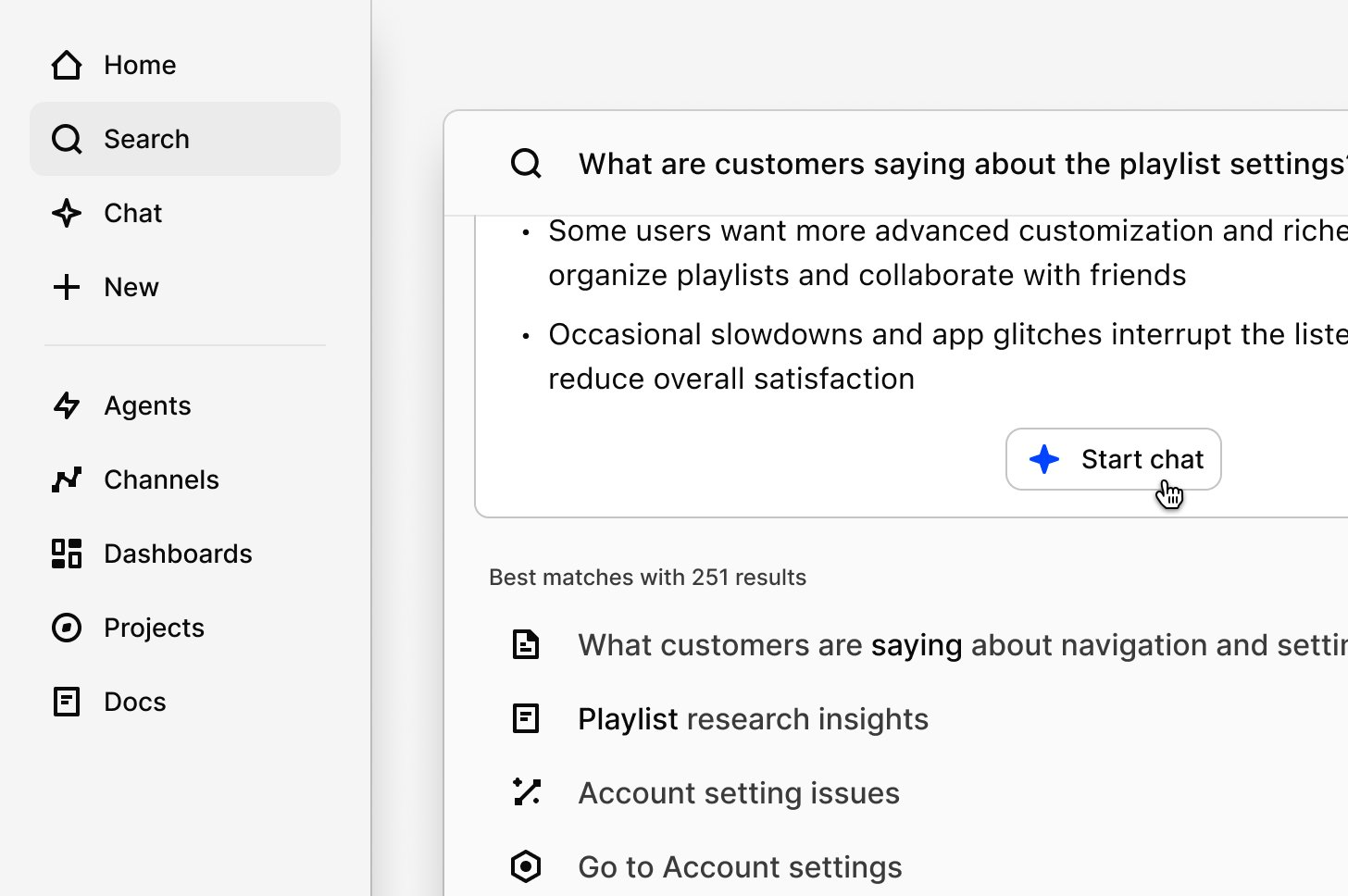
Feature Retirement: Custom home and Feeds
Custom home and feeds are being retired as part of the move to a more personalized Home experience. Both features required significant manual setup and ongoing maintenance, which the new Home experience is designed to eliminate. To preserve your custom home content, create a new doc, add your existing homepage content, and pin the doc to Home as a team welcome page. To replace a feed, create a new doc, open the reference picker, add a search block, and apply filters to customize the content. Search blocks update automatically in real time as new data is added to your workspace. You can switch between the new and previous experiences until June 5th. After that date, Custom Home and Feeds will no longer be available.FAQs
What happened to feeds?
What happened to feeds?
Feeds are being retired. You can recreate them using a Doc with a search block, then pin the doc to Home for your team.
Where did folders go?
Where did folders go?
Folders haven’t been removed — they now appear in a different place. Object pages in the side navigation show all items of a given type in one place. To navigate by folder structure, go to the Browse section on your Home page and select a folder from there.
Why do I suddenly see so many projects?
Why do I suddenly see so many projects?
The Projects page shows all projects across your workspace in one place. Use sorting, filters, or search to narrow the list.
Why did my Home page change?
Why did my Home page change?
Home has been redesigned as the central hub for your workspace, bringing Chat, Pinned for Everyone, For You, and Browse all into one place.
Can I toggle between List and Grid layouts in Home?
Can I toggle between List and Grid layouts in Home?
Yes, we recently added a List view in the new Dovetail experience! Click on
... in the top right and select “List”How do I find archived projects?
How do I find archived projects?
Go to Projects, click Sort and Filter in the top right, then select All → Archived. Alternatively, go to Search, toggle Projects, click More, and select Archived.
Is there a way to manually reorder items on Home?
Is there a way to manually reorder items on Home?
No, manual sorting is not currently available. You can sort by Viewed by me, Updated by anyone, Date created, Alphabetical, or Type.
What is the difference between Updated by anyone and Viewed by me?
What is the difference between Updated by anyone and Viewed by me?
Viewed by me is based on when you last opened an item. Updated by anyone sorts by the last time any collaborator modified the item.
Where do I find Contacts in the new navigation?
Where do I find Contacts in the new navigation?
How can I change the Project card thumbnail?
How can I change the Project card thumbnail?
If you upload an image to the project overview, that image will be used as the card thumbnail. For best results, we recommend an aspect ratio of 9:4 (2.25:1).
I've dismissed the Announcement section on Home. How do I bring it back?
I've dismissed the Announcement section on Home. How do I bring it back?
A workspace admin can toggle Announcements back on for the entire workspace. To do this, the admin should navigate to the Home page, click “Edit home for everyone,” toggle Announcements off, then toggle them back on.