

Available on Enterprise planOnly Managers can create new templates for the workspace
Overview
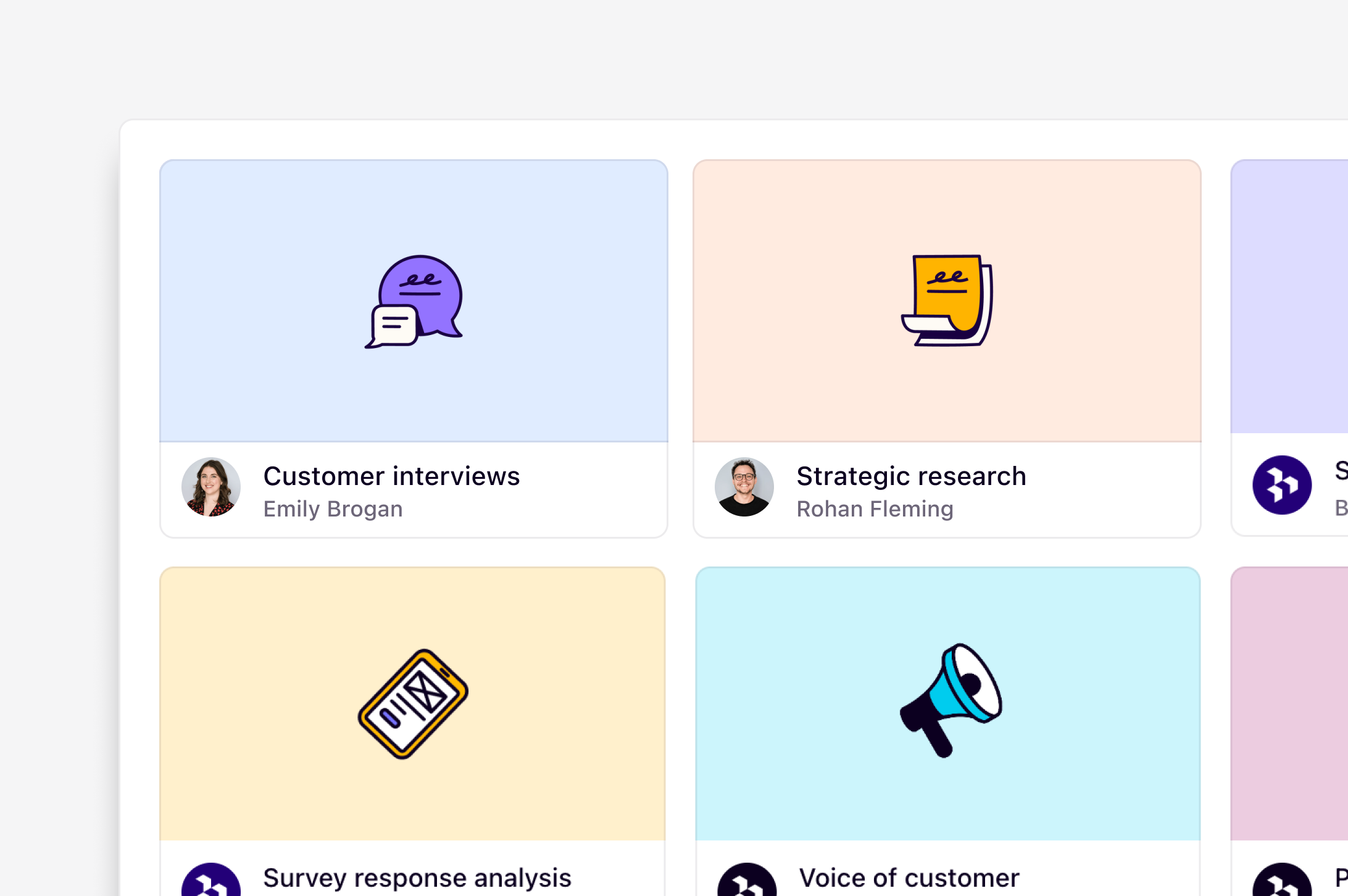
Managers in Dovetail have the ability to create project templates to help standardize research across their organization. They can be used to give teams a starting set of data, tags, and project configurations to skip the set up process and kick start new projects and producing insights faster.Create a project template
Managers can create new project or doc templates by navigating to ⚙️ Settings → Templates, and clicking+ New template from within the projects or docs tab.
From there, you’ll be directed straight into the template itself for editing.
You can also convert an existing project into a template by navigating to the project’s settings and selecting Convert to template.
The project will be converted to a template as-is and will retain all content, including the Overview, Data, Tags, highlights, and Docs.
Create a doc template
You can leverage doc templates to structure your data within a doc. When you begin working on a new doc, you can start with a template created for your workspace.- To use a doc template, open your doc and click
Templates. - From there, open Community or Workspace templates. You can select your preferred template, preview it, and click
Add Template. - The template will then be added to the top of your doc for you to organize your text and highlights.
••• in the top right of the doc, and pressing Save as template.
A doc template will be created using the current formatting of the doc, including all content contained within it.
Edit an existing template
Managers can edit all content within templates, however, edits will only be applied to future projects and docs created using the template.- To edit templates, navigate to ⚙️ Settings → Templates and select your desired template.
- From there, make updates to your template. Once finished, these changes will apply to any new project or doc created from the template
Manage access to a project template
Only Managers have the ability to create and edit templates. They also have the ability to restrict access to certain individuals or groups so that they are the only users with the ability to use a template.- To do this, go to ⚙️ Settings → Templates, open your chosen template and press
Share. - From there, you can update the template’s access by amending the workspace’s access to No access and add specific individuals or individuals to have Full, Edit or View access.
Delete a template
Managers with Full access can delete a project or doc template at any time.Project template
- To delete a project template, navigate to ⚙️ Settings → Templates, click
Projectsand select the project template you wish to delete. - From there, open
•••settings in the top right and selectMove template to trash.
Doc template
- To delete a doc template, navigate to ⚙️ Settings → Templates, click
Docsand select the project template you wish to delete. - From there, open
•••settings in the top right and selectMove template to trash.
FAQs
I have created a template for our workspace but my team can't find it
I have created a template for our workspace but my team can't find it
You may need to update the template’s share settings so your team can create new projects from it. To view your template’s current settings, open your template from settings and navigate to Share in the top right corner. The user or group that need to use the template should have at least Can view access to create new projects from it.