

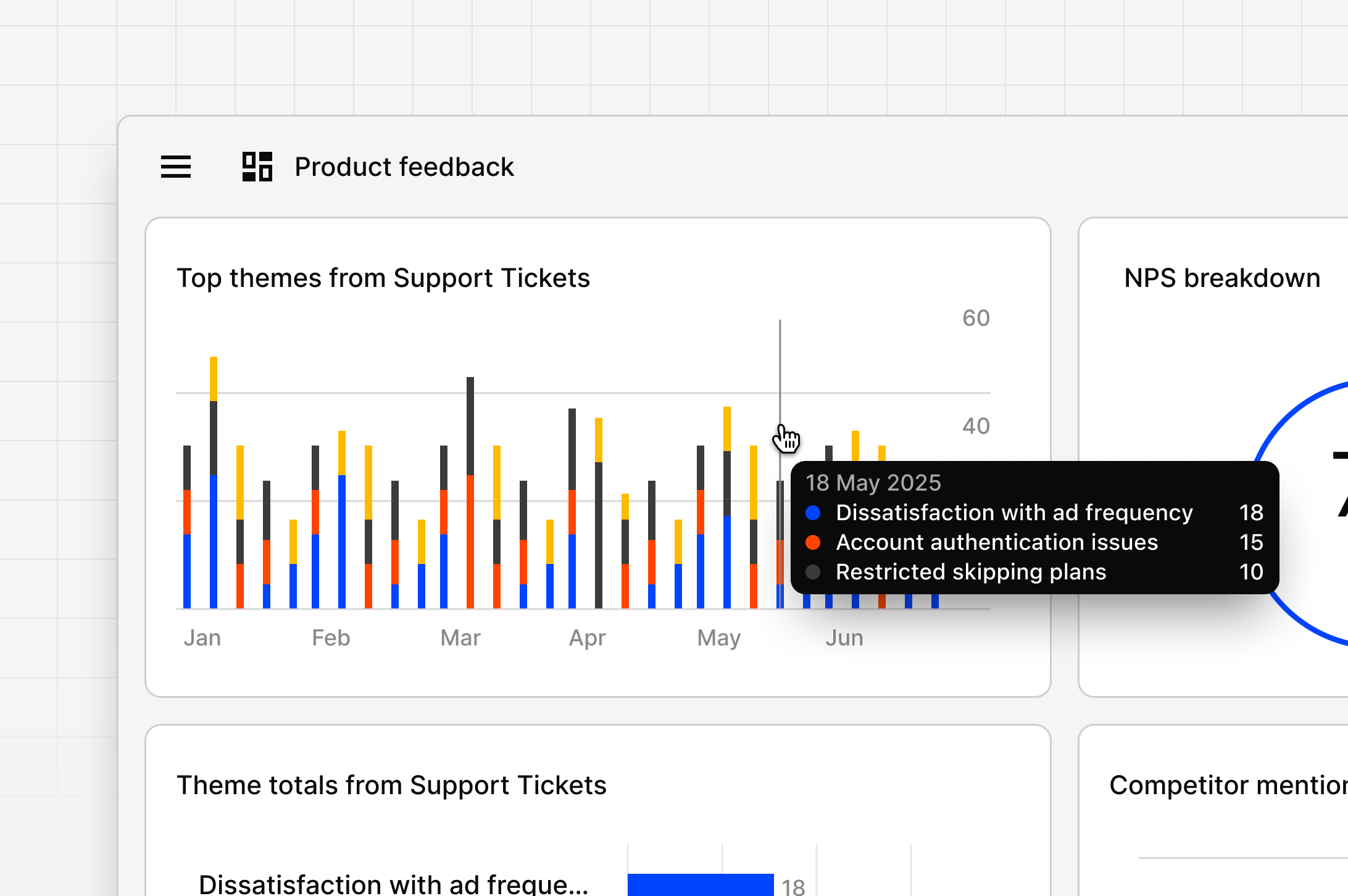
Dashboards are available in beta for Enterprise workspaces. Admins can enable this feature for their workspace in Settings.
Overview
Dashboards let you track feedback and metrics over time. You can combine quantitative data (like CSAT and NPS) with qualitative insights (like themes and sentiment) in one view. They show real-time shifts in scores, sentiment, and themes, helping you spot what’s improving or declining. The value is in the pairing. A score on its own tells you something moved; the themes and quotes beside it tell you why. Because every widget links back to the data powering it, a dashboard is a starting point for investigation rather than a static report — you can drill into the underlying Channel or open Chat against the same data without leaving the page.When to use a dashboard
Dashboards answer questions about direction and change over time:- Is this getting better or worse? Track NPS, CSAT, or sentiment across weeks and months rather than reading a single point-in-time score.
- Did that release land? Line up a sentiment or theme trend against the date something shipped.
- What’s gaining momentum? Watch which themes are climbing and which are fading, before they show up in escalations.
- What are customers starting to call it? Keyword search surfaces shifts in the words customers use.
- What do we show leadership every week? A dashboard is a standing view your team returns to, instead of rebuilding a chart each time someone asks.
Dashboards, charts, and channels
Dovetail has more than one way to visualize customer data. They’re built for different questions.
The practical difference: charts show you the shape of one project’s analysis right now, while dashboards show you how workspace-level metrics and themes are moving. Charts do not show historical data; dashboard widgets are built around a time frame and interval.
Before you build
Most widgets are powered by Channels, so what you can visualize depends on what your channels are ingesting.- A channel with data flowing in. NPS, CSAT, theme, and sentiment widgets all read from Channels. See Channels to set one up, or import data to channels to connect a source.
- The right field mapped. To chart NPS or CSAT, the channel has to be ingesting that metric and have it selected as the corresponding field. If a channel doesn’t appear as an option under a widget, this is almost always why.
- Enough history to see a trend. A time-series widget needs data across the period you’re charting. A channel connected yesterday will show a trend line of one point.
- Topics and themes worth tracking. Theme widgets chart up to four themes at a time, so it helps to know which ones matter before you start.
Create a dashboard
Managers and contributors can create and edit dashboards, while viewers can only see those shared with them. By default, all users can access any dashboards created in their workspace.- To create a dashboard, select + New → Dashboard in the global side menu, or in a folder or project.
- Dovetail automatically analyzes your workspace and will populate widgets based on the type of data you have available.
Data displayed on a dashboard will honor any permission controls enforced on the original source data in your workspace. If a user views a chart and does not have access to the original source data (channel or project), they will not be able to view any of the contents within the chart.
Types of visualizations
Dovetail has built powerful visualizations designed to deliver the greatest impact when visualizing qualitative data. The types of visualizations available to choose from will depend on the metric you’re looking to measure and whether that data is available in your workspace. For example, tracking NPS over time. You must have a Channel that is ingesting your NPS metric.Choosing between them
- Comparing size? Use Themes totals — it answers “which of these is loudest right now.”
- Comparing direction? Use Theme trends — it answers “which of these is growing.”
- Tracking a relationship metric? NPS for long-term loyalty, CSAT for satisfaction with a specific interaction.
- Watching for something new? Keyword search picks up vocabulary shifts before a theme has formed around them.
- Explaining a score change? Put Sentiment next to the NPS or CSAT widget so the movement and the mood sit side by side.
Add a widget
You can visualize different metrics in set ways that make sense for that data type. A single dashboard can have an unlimited amount of widgets.- To add a widget to a dashboard, click + in the top right corner.
- Next, select a metric (Sentiment, CSAT, NPS, Theme) and choose the channel
- If selecting the Keywords widget, you do not need to select a source. You are able to refine where the results are sourced from using Filter.
- From there, refine results further by selecting a time frame, interval, and applying filters.
- Once done, click Save in the bottom right.
View source data
Every widget includes links to the underlying data powering it. This lets you trace insights back to the original feedback for full context.- Hover over a widget and select the Drill in icon. Dovetail will open up the Channel that contains the data powering the widget.
Chat with a Dashboard
Chat directly from a dashboard or an individual widget to explore the data behind what you see.- Chat with a dashboard: Opens Chat connected to all datasets powering the widgets in that dashboard. Use this to ask questions about overall trends or patterns. Example: “Why did CSAT drop this month?”
- Chat with a widget: Hover over a widget, and select the Chat icon that appears in the floating toolbar. This opens chat in a focused context, concentrating on the dataset behind that widget. Use this to dig deeper into a specific metric or visualization. Example: “What quotes are users saying that is driving negative sentiment about pricing.”
Edit or remove a widget
Edit a widget
- To edit a widget on a dashboard, hover over the widget and select the Edit icon.
- From there, this will open the chart editor where you can make any appropriate changes. Once ready, click Save.
Remove a widget
- To remove a widget from a dashboard, hover over the widget and select the Trash icon.
- Once confirmed and removed, you will not be able to restore this chart to the dashboard.
Delete a dashboard
- To delete an entire dashboard, select the Dashboard from Your Work or Browse page.
- From there, click Move to trash. The dashboard will be available to restore in workspace trash for up to 30 days.
Permissions and sharing
Manage and change permissions by clicking on the Share button on a dashboard. Two things to keep in mind:- Creating and editing is role-based. Managers and contributors can create and edit dashboards. Viewers can see dashboards shared with them, and by default all users can access any dashboard created in their workspace.
- Source data permissions always win. A dashboard never widens access to underlying data. If someone can’t access the channel or project behind a widget, the widget’s contents stay hidden from them — even if they can open the dashboard itself.
Share your feedback
Dashboards is currently in beta! Use the Give feedback button to let us know how it’s doing. All feedback is shared with the Dovetail team to help us improve the experience. In addition to speed and performance, we’re working hard on supporting additional widget types like summarize, and powering Dashboards with more Projects data.Related
Channels
The source of most dashboard widgets
Charts
Visualize highlights and tags inside a single project
Chat
Ask questions about the data behind a widget
Agents
Turn a recurring dashboard question into a scheduled summary
FAQs
What if my Channel is not showing up as an option under the CSAT widget?
What if my Channel is not showing up as an option under the CSAT widget?
Ensure the associated Channel has CSAT selected as a CSAT
fieldHow is the CSAT percentage calculated in dashboard widgets?
How is the CSAT percentage calculated in dashboard widgets?
The CSAT dashboard widget calculates satisfaction percentage based on responses to 1–5 scale rating fields.What counts as “Satisfied” vs “Unsatisfied”?
- Satisfied: scores of 4 and 5
- Unsatisfied: scores of 1, 2, and 3
Why does a widget look empty or flat?
Why does a widget look empty or flat?
Usually there isn’t enough data in the period you selected. Check that the channel behind the widget is actually receiving data, then widen the time frame or the interval. For NPS and CSAT widgets, also confirm the metric is mapped as the right field on the channel.
Can I put project data on a dashboard?
Can I put project data on a dashboard?
Keyword search reads across both Projects and Channels. The other widget types read from Channels. Broader Projects support is something the team is working on — see Share your feedback.
Why do two people see different numbers on the same dashboard?
Why do two people see different numbers on the same dashboard?
Dashboards honor the permissions on the original source data. If one person has access to a channel or project behind a widget and the other doesn’t, they’ll see different contents. This isn’t a dashboard setting — change access on the underlying channel or project.
Related guides
Revenue intelligence
Rank what matters by revenue and enrich contacts from a CRM.
Voice of customer
Centralize feedback, make sense of it, and close the loop.