

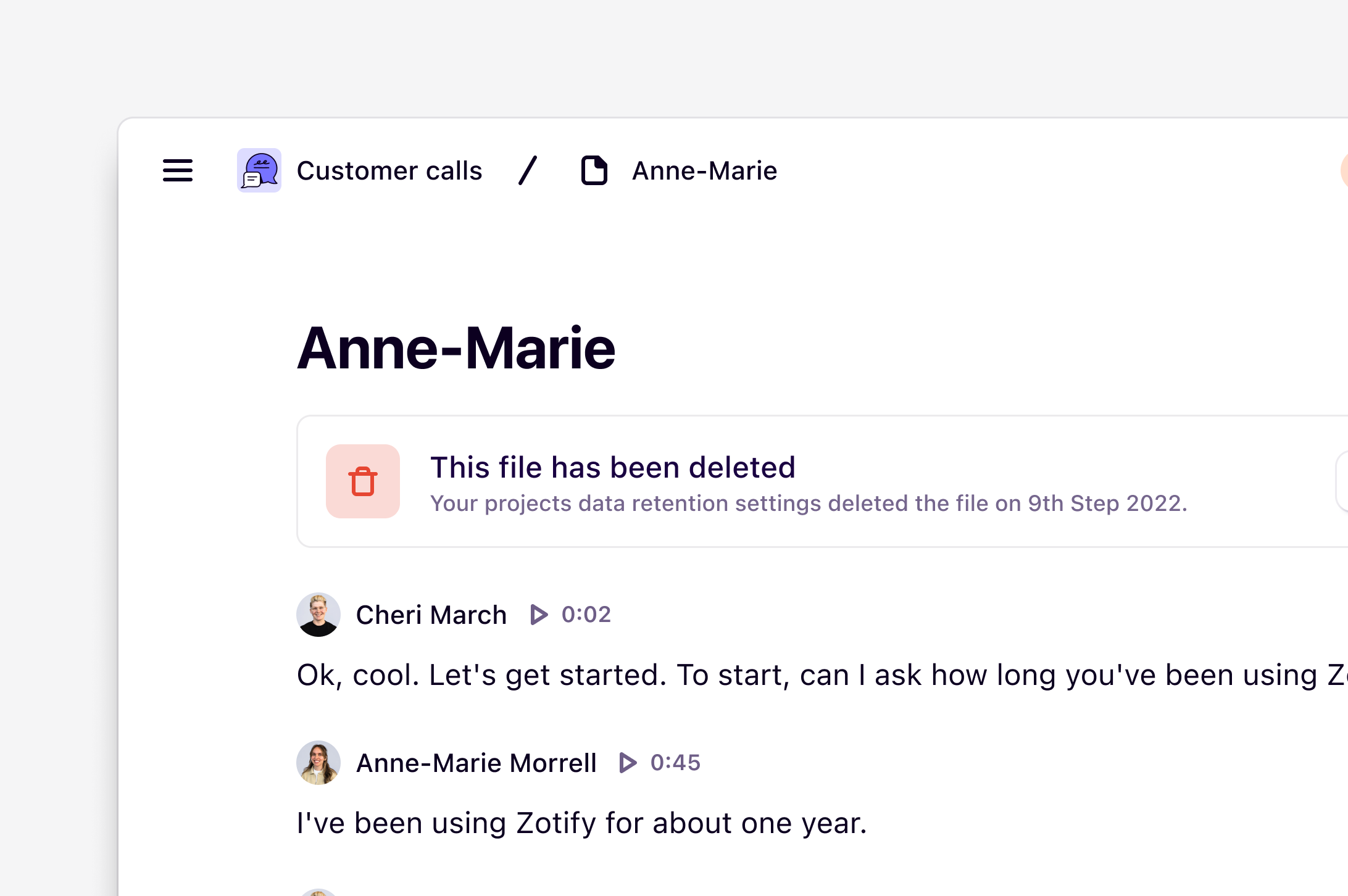
Available on the Enterprise plan.
Overview
Data retention automates the deletion of video and audio files across your workspace after a defined period. By default, Dovetail keeps files until you delete them or cancel your account. By default, only the original audio and video files are deleted — highlights, reels, transcripts, and AI summaries stay so you can keep working from the analysis. Workspace admins can optionally extend deletion to transcripts and AI summaries as well. What’s covered: Audio and video files uploaded to project notes, and optionally the transcripts and AI summaries generated from them. What’s not covered: Channels data, Docs, project attachments, and other general workspace content are not affected by data retention settings.How custom data retention works
The retention period is calculated from each file’s upload (creation) date. Once that period has passed for a given file:- 7 days before deletion, Dovetail notifies the file’s uploader that it’s scheduled for removal. If that user no longer exists, the notification goes to the project creator instead, and finally to workspace admins if neither is available.
- At expiry, each highlight and reel from the file is saved as a standalone clip, and the original video or audio file is then deleted. Highlights shorter than one second are not clipped.
- Recovery window: the original file is retained for 30 days after deletion and can be restored during that window on request from Dovetail Support. After 30 days, it’s permanently removed and cannot be recovered.
Who can manage data retention
Data retention has two levels — a workspace default that a workspace admin sets, and an optional per-project override that a project’s owners set. The two roles don’t overlap by default.
Before anyone can set a project-level period, a workspace admin needs to turn on Enable project-level configuration in Settings > Compliance > Data retention. While that toggle is off, every project follows the workspace default and the per-project dropdown is disabled with the tooltip Overridden by workspace settings.
Data retention is not available on trials.
Configure custom data retention
Custom data retention can be configured at both the workspace and project levels.Delete all data across a workspace
- Go to Settings > Compliance > Data retention.
- Under Data retention period, choose a period from the dropdown. Options are 90 days, 6 months, 1 year, 2 years, 3 years, 5 years, 7 years, 12 years, or Indefinite to keep automatic deletion turned off.
- Confirm the change. Any files older than the new period will be deleted within 24 hours.
- Removes the transcript from the note
- Clears that note’s AI summary
Delete data from a specific project
Some projects may need shorter or longer retention periods than the workspace default — for example, because of the nature of the research or agreements with participants.- In Settings > Compliance > Data retention, turn on Enable project-level configuration.
- Open the project you want to configure, go to its Data retention settings, and choose a period from the Project data retention period dropdown.
- Confirm the change. Any files in that project older than the new period will be deleted within 24 hours.
Disable project-level configuration
Workspace admins can turn off project-level configuration entirely, so every project follows the workspace-level period. In Settings > Compliance > Data retention, turn off Enable project-level configuration. All projects will fall back to the workspace-level retention period.FAQs
When does deletion happen?
When does deletion happen?
Data retention uses each file’s upload date — the date the audio or video was added to Dovetail.A file is scheduled for deletion on upload date + the retention period. For example, a file uploaded on 1 January with a 90-day retention period is due for deletion on 1 April.Dovetail notifies the relevant people 7 days before that date. When the date is reached, the original audio or video file is deleted.
Does a change apply to files already in the workspace?
Does a change apply to files already in the workspace?
Yes. Retention applies to existing files, not only files uploaded after you change the setting.If you shorten the retention period, or turn retention on for the first time, any audio or video already older than the new period can be deleted. Those files are typically deleted within 24 hours. You’ll see a confirmation of this when you change a project’s retention period.New files follow the same rule from their own upload date.If you lengthen the period, or set it to Indefinite, automatic deletions stop going forward. Files that have already been deleted are not restored.
Who gets notified before a file is deleted?
Who gets notified before a file is deleted?
Seven days before a file is scheduled for deletion, Dovetail notifies the person who uploaded it. If that user has been removed from the workspace, the notification goes to the project creator instead. If neither is available, workspace admins on the project are notified as a fallback.
A file just got deleted. How do I get it back?
A file just got deleted. How do I get it back?
Files can be restored within 30 days of deletion. Reach out to Dovetail Support with the file details and they’ll assist. After 30 days, files are permanently removed and cannot be recovered.
Do transcripts and AI summaries get deleted with the file?
Do transcripts and AI summaries get deleted with the file?
Only if you turn on Delete transcripts and AI summaries in workspace settings. By default, transcripts, highlights, and reels are preserved even after the original video or audio file is removed.
Can I still watch and export highlight reels after the original is deleted?
Can I still watch and export highlight reels after the original is deleted?
Yes. Highlights and reels are converted into independent clips before the original file is removed, so playback and export continue to work.If a highlight or reel is embedded in a doc, the doc keeps the snapshot it captured when the reference was added, so the reference can appear broken after the original file is deleted. To fix it, open the doc and refresh the reference — see Keep references current for the steps.
What happens if I shorten a highlight after the original video has been deleted?
What happens if I shorten a highlight after the original video has been deleted?
The saved clip stays as it was when the original file was removed. Trimming the highlight afterwards won’t recover any additional footage.