

Available on Legacy and Enterprise plans.Managers and Contributors can create and edit contacts. On plans without user roles, any user can.
Overview
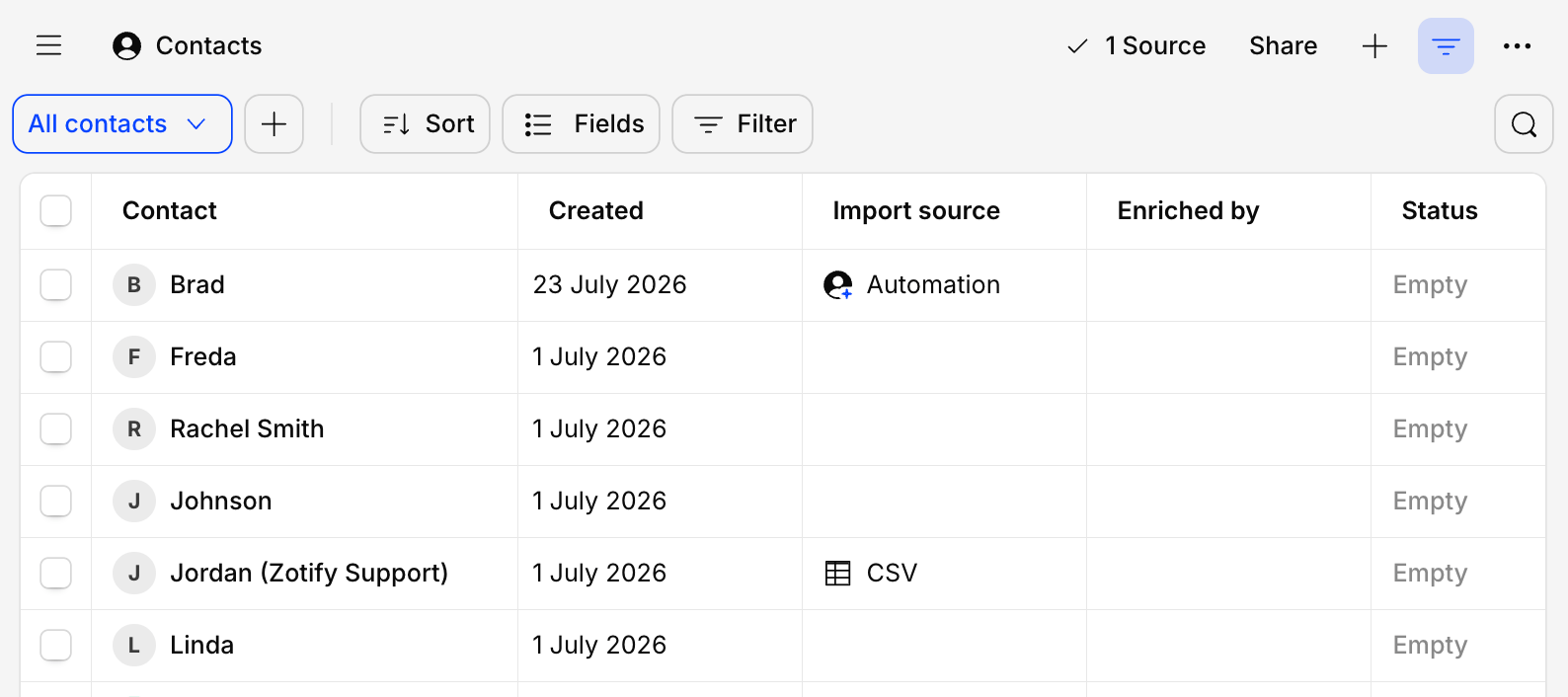
Contacts is where you can store, track, and manage your contacts and participants. A contact can be linked to raw data and docs created across projects in your workspace, allowing you to trace every interaction with an individual or participant. Contacts are available across your entire workspace and are not specific to a project. Contacts can be added manually, imported via CSV, or created automatically when Dovetail transcribes your video or audio files. See Contact automation (Beta) below for more information.Add a new contact to your database
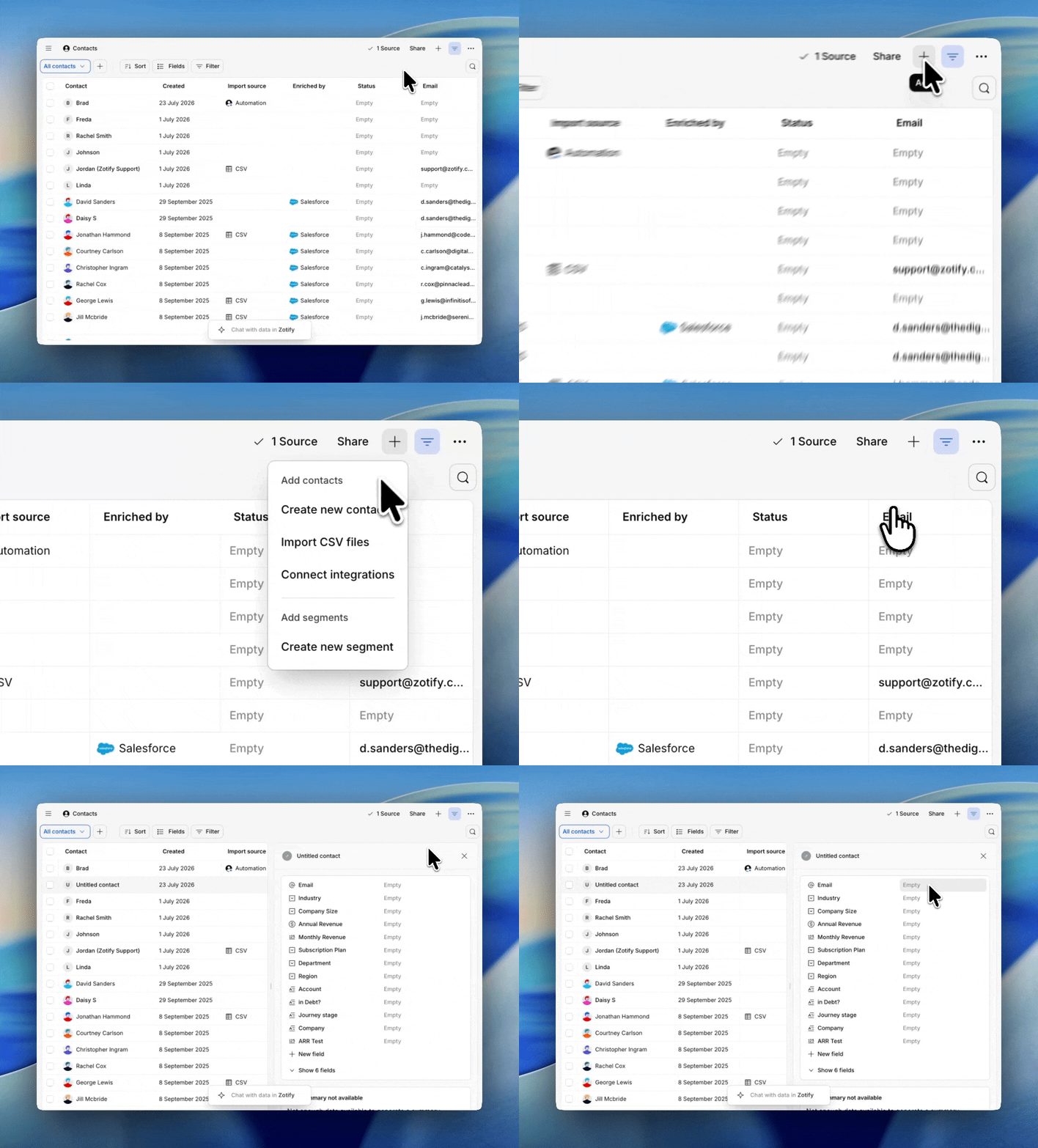
Users with edit access can add new contacts to the contacts database to store and track participants and individuals involved in project work, such as interviews, surveys, and usability tests.- To create a new contact, click the
Main Menu, navigate to••• More, clickContacts. From there, click+ Addand selectCreate new contact - From there, enter a name or unique identifier and any important information in fields.
- To do this, go to ⚙️ Settings → Contacts and select
Import. - From there, upload your CSV file containing a list of your contacts and map columns to a person’s metadata. You must have at least 1 column mapped to Name to ensure a successful import.
Please note that we only support 500 rows per import for Contact CSV file uploads.In addition, the contact database supports up to 50,000 contacts.
Contact automation
When a video or audio file is uploaded and transcribed in a Project, Dovetail can automatically find contact information in the transcript and use it to create new contacts or update existing ones. This feature currently applies to transcripts in Projects only and does not apply to data in Channels. Dovetail uses a combination of sources to find contact details:- If your file is imported from Zoom or Microsoft Teams, Dovetail pulls the contact name and email where available.
- For meetings imported automatically via calendar integrations, participant details are pulled from the calendar event.
- All other information, including role, company, or name if not available from the above sources, is inferred by AI directly from the transcript itself.
- Auto-create and update – Dovetail creates new contacts and updates existing ones automatically.
- Update existing only – only contacts already in your database are updated. No new contacts are created.
- Off – contact enrichment is disabled entirely.
Add fields to categorize contacts
You can store metadata on contacts using fields. Fields allow you to categorize your participants for search and analysis purposes and commonly capture demographic information (like participant age, location), contact details (like email address or phone number), and other information (like interview date or persona type). Users with edit access can create and edit fields on contacts.- To do this, go to ⚙️ Settings → Contacts and select
Fields. - In the menu, click
+ New field, enter a field title and select the field type. This field will then appear across all contacts profiles stored in your database.
Sort and filter contacts in your database
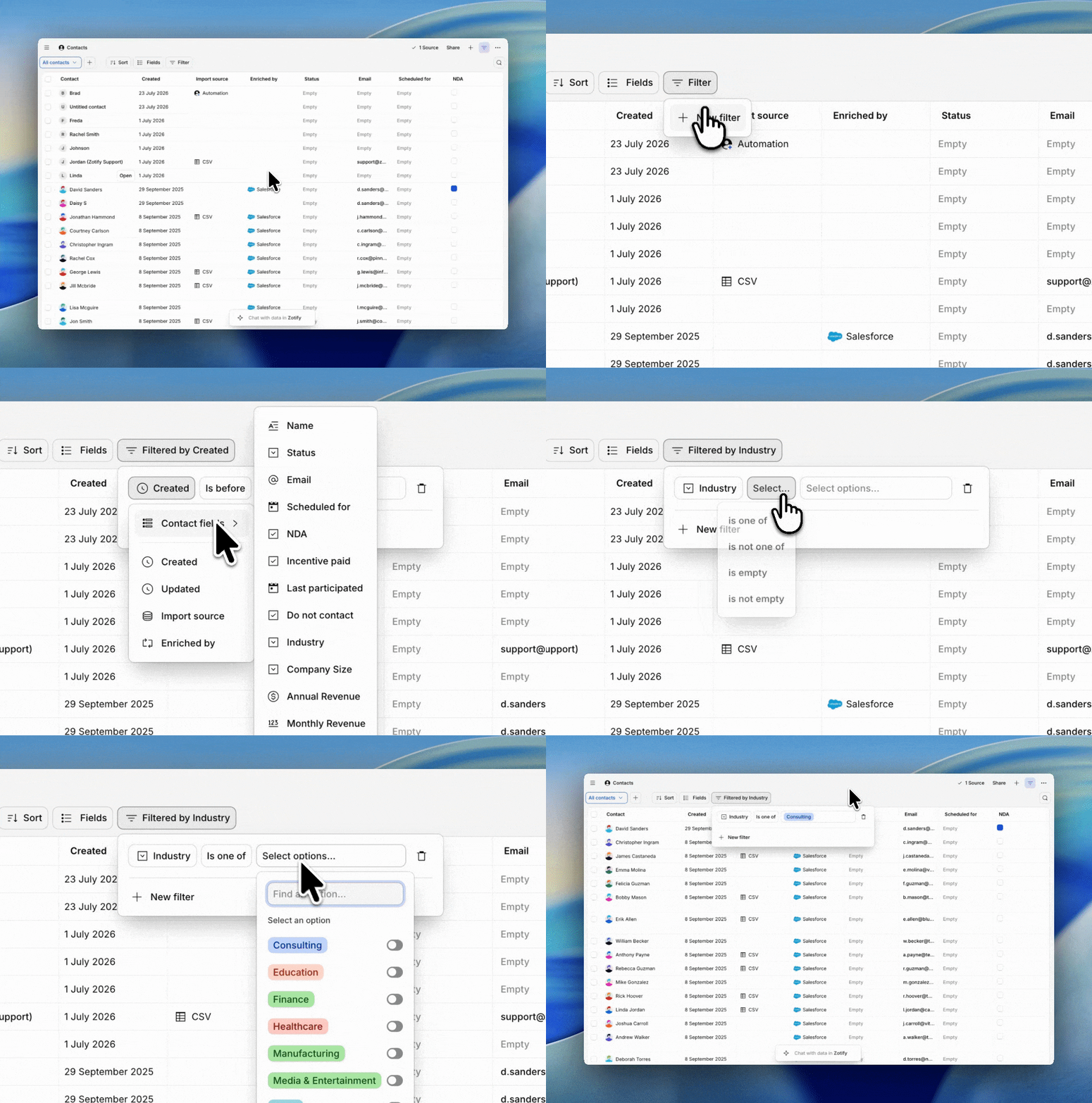
You can sort and filter your view to segment contacts in your database.- To do this, open ⚙️ Settings → Contacts, click
Filterand apply your filters. You can also filter results by specific contacts or the values you’ve stored in fields.
Link contacts to data or docs
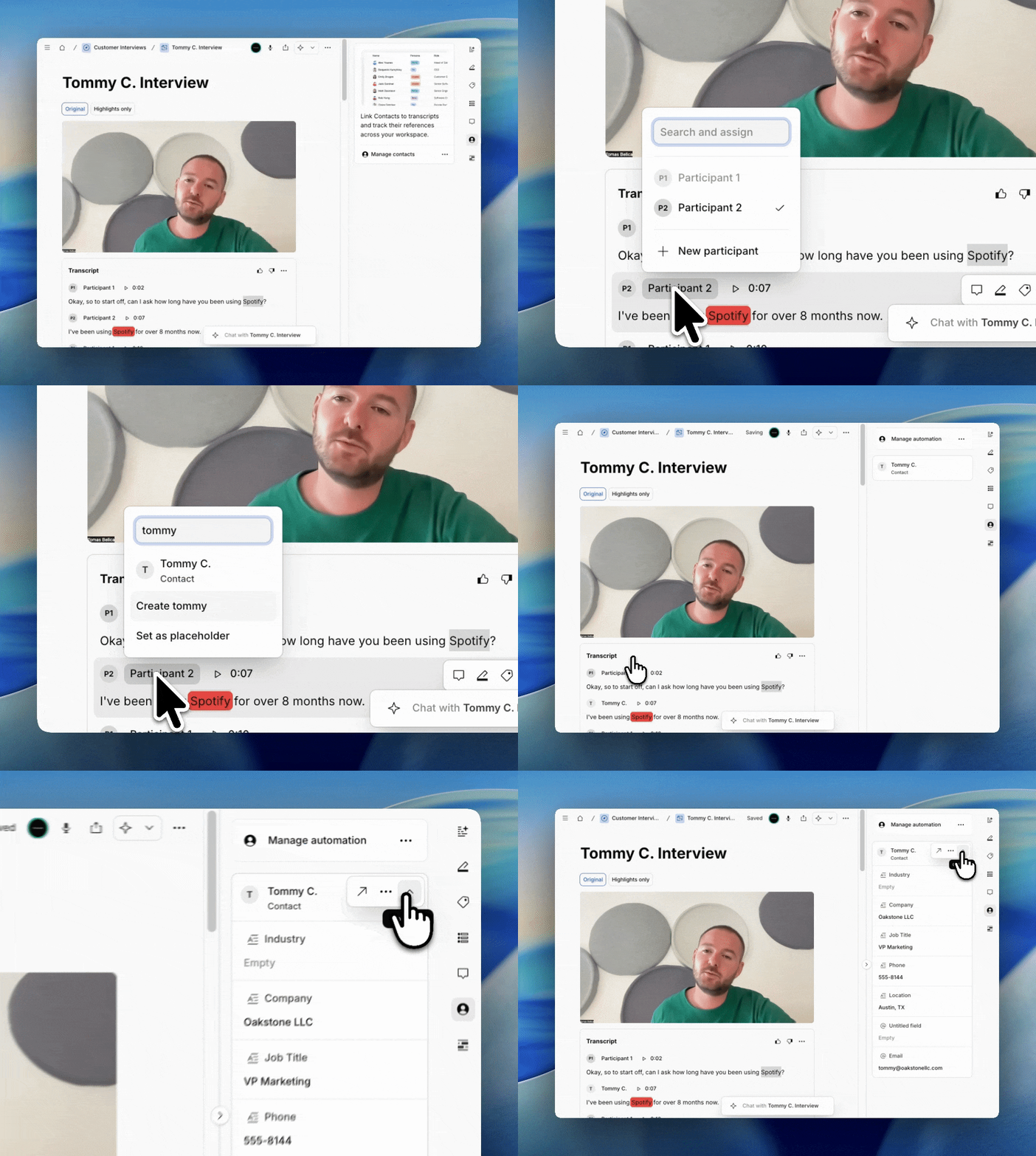
Contacts can be added to data or docs in projects using fields. This provides traceability of specific research you’ve done related to a particular person.- To add a contact to a data object or doc, click
+ New fieldand select the field typeContact. - From there, you can proceed to select contact stored in the contact database as values in the field itself.
Manage duplicate contacts
If you’re importing contacts, you can choose how you would like to deal with duplicate contacts if found. There are three options, for managing duplicate data:- Keep both - all imported spreadsheet rows will create new contacts.
- Replace - spreadsheet rows with a duplicate in the contacts database will replace the duplicate.
- Discard - spreadsheet rows with a duplicate in the contacts database will not be imported.
Restrict access to your contacts database
Only available on our Enterprise plan
Users always inherit their highest assigned access levelA user’s access to contacts is always determined by their highest assigned permission. To restrict them, you must first lower the workspace’s permission level, then grant higher access back to other users individually.
- You want only a few people to manage access to contacts, while everyone can interact with it.
- You want contacts metadata only to be visible to a specific team.
- You want your stakeholders to know the names of speakers, but not let them edit all the metadata.
Access to the contact database has recently changed. Here is everything you need to know:
- For any new workspaces created after July 2nd, 2025:
- By default, everyone in the workspace has full access.
- For workspaces created before July 2nd, 2025:
- Existing permissions have been carried over, so you shouldn’t notice any changes.
Here’s how old permissions map to the new system: - Admins at the time of the implementation were granted Full access.
- Admins added after July 2, 2025, will need to be granted Full access. To receive Full access, you’ll need to navigate to the “Share” button on the top right on the Contacts page and reach out to a user with Full access to grant you Full access.
- Other roles that previously had access now have “Can edit permissions”, they can create, edit, link, and comment on contacts, but can’t manage access levels.
- If a role didn’t have access before, it still doesn’t.
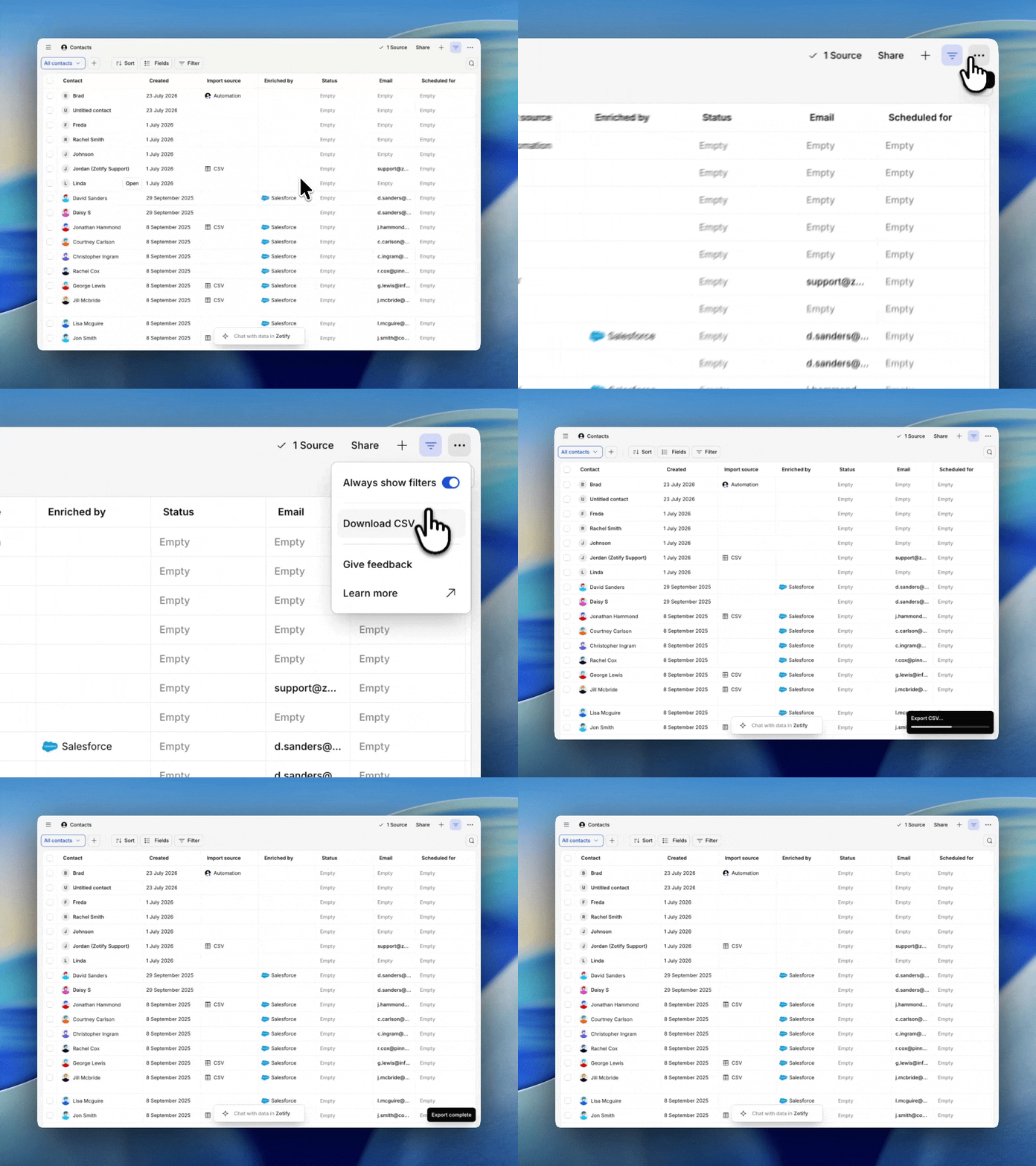
Download contacts data
Managers can download a spreadsheet of stored contacts from the workspace.- To export your contacts database, navigate to ⚙️ Settings → Contacts database and in the top right corner, select
Download CSV.
Related guides
Research operations
Standardize how your team works, then scale it past the researchers.
Revenue intelligence
Rank what matters by revenue and enrich contacts from a CRM.