

.png?fit=max&auto=format&n=ccGVOITNN8waXFod&q=85&s=2edb5323b100e67a4f0d634d566ba2f4)
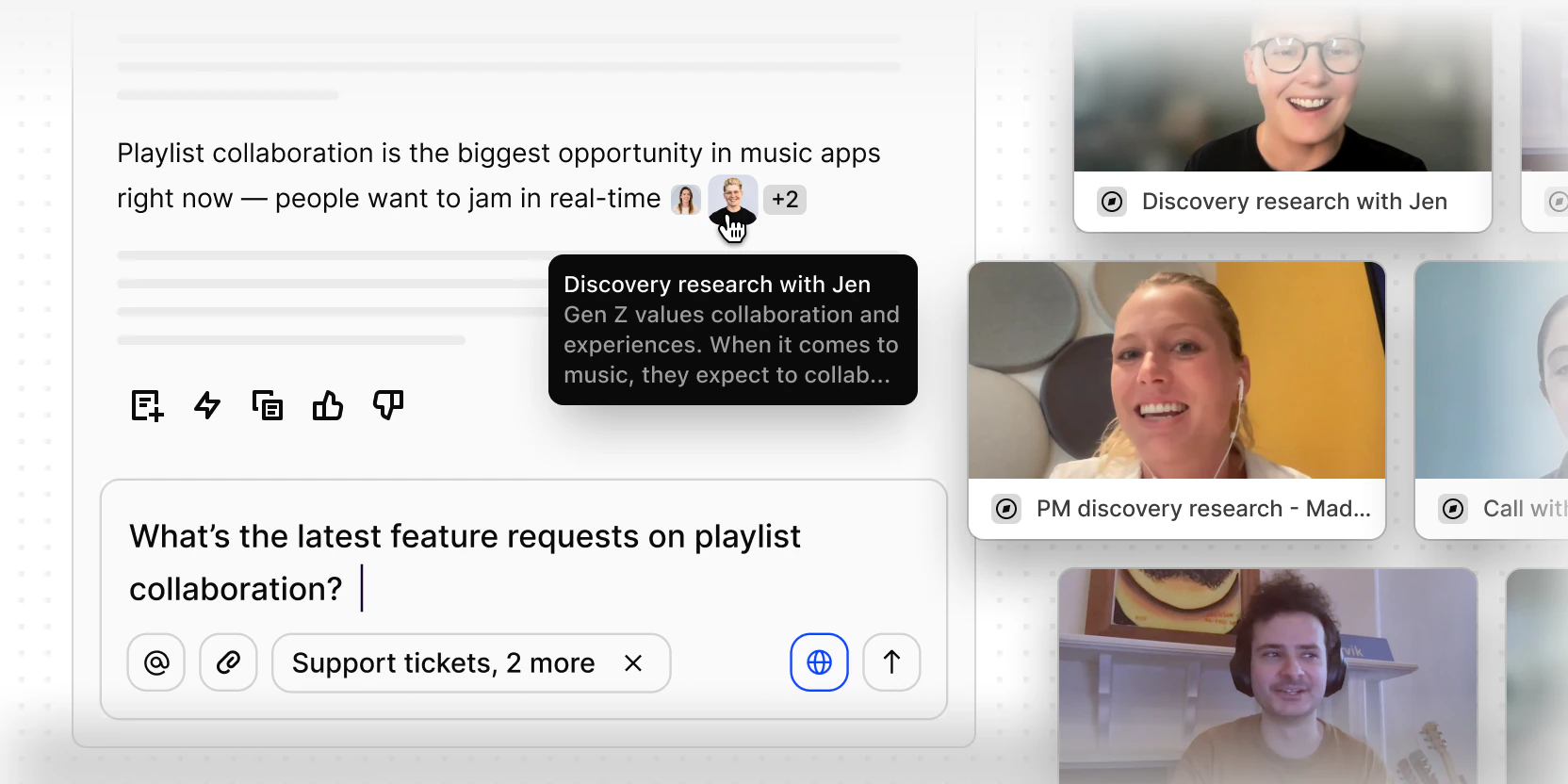
How Chat works
Chat auto-applies context from wherever you are in Dovetail, so you’re always asking the right question at the right scope.- Focused analysis: Ask about a specific transcript — including OCR’d documents like academic papers — or a single feedback note.
- Project synthesis: At project level, ask broader questions across all the data in that project: a meta-study, a round of interviews, a collection of sales calls.
- Workspace overview: Zoom out further and synthesize across projects — different product areas, research themes, or feedback sources.
Start a new chat
Open Chat from the sidebar, or press ⌘ J (Mac) / Ctrl J (Windows) from anywhere in your workspace. You can switch to full-page Chat for a larger workspace when you want more room for deeper analysis, then toggle back to the corner view whenever you need. Ask anything — from “How might I improve this conversation next time?” on a single customer interaction to “What are the main VoC themes this month?” at workspace level. The real power is conversational: ask follow-ups, push for nuance, challenge a point, or change direction entirely. Treat it like a dialogue with your research, not a search box.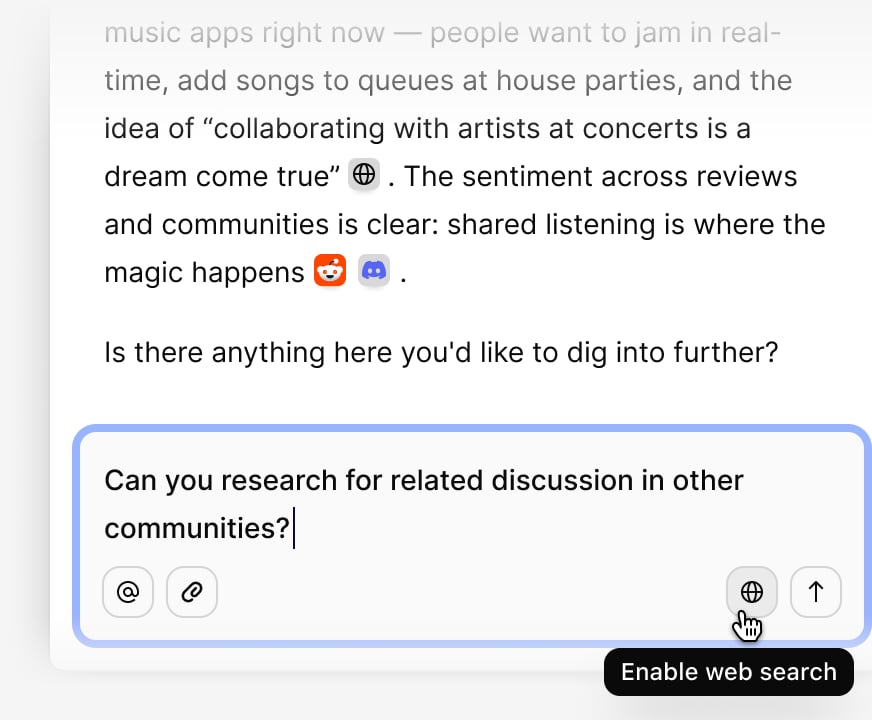
Mode selection
Chat gives you two modes to choose from, set via the mode selector in the prompt toolbar. Fast is built for day-to-day questions, returning quick, cited answers when you want to know what’s trending, what customers are saying, or where key themes are surfacing. Deep research works through more of your data and takes a little longer, drawing connections across sales calls, support tickets, and research sessions to tackle harder, more open-ended questions. A good way to decide: start in Fast, and reach for Deep research when a question is worth the extra time.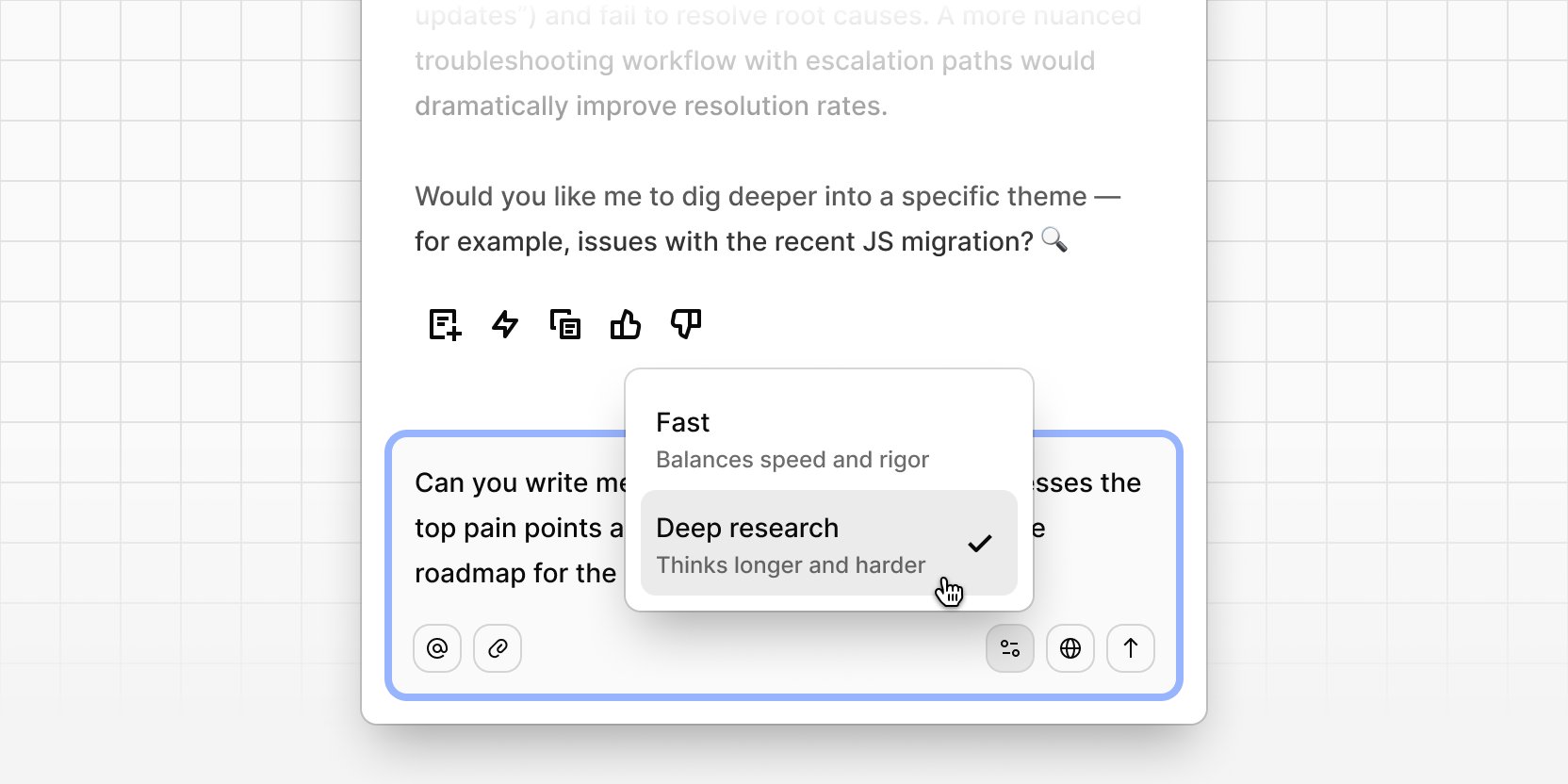
Once the mode is changed, it’ll carry over across any new chat or context until you change it again.
Multi-context: ask one question across multiple sources
You can now @mention multiple sources in a single query — a project, a channel, a specific document, or any combination — and Chat will synthesize insights across all of them in one response, with citations linked back to each source. You can also narrow your scope within a project. Instead of querying an entire project, select specific calls or documents and ask targeted questions about just those inputs. How teams use this:- Cross-functional synthesis — combine perspectives from research, support, and sales to understand what’s changing and where to focus next.
- Focused analysis — isolate a handful of interviews or documents without noise from the rest of the project.
- Strategic context — pair internal research data with specific strategy documents for more informed answers.
How Chat uses metadata
Chat reads metadata across your data. The better structured your workspace — fields filled in, contacts assigned, segments used consistently — the richer the answers.Who can see what
Chat only searches and cites content your account can already access in Dovetail. It doesn’t bypass permissions.Manage your chats
Open Chat, then select Show chat history to see past threads. Conversations are named from what they were about, so you can scan the list quickly. You can view all chat history in the sidebar of full page chat too. To rename or remove a thread, open full-page Chat, click••• next to the chat you want to change, then select Rename chat or Delete. Chat history titles can be 1 to 500 characters.
Where to go next
Read and verify answers
Citations, the thinking behind a reply, and video shown inline.
Attach files to Chat
Bring a document into a conversation without importing it.
Web search and external tools
Let Chat reach the public web and your connected MCP servers.
Create from a chat
Turn a conversation into an agent or a doc.
Prompt guidance
How to ask a question that gets a useful answer.
Chat in Slack and Teams
Ask Dovetail from the tools your team already works in.
Related guides
Continuous discovery
Set up once so recorded calls arrive transcribed and highlighted.
Research operations
Standardize how your team works, then scale it past the researchers.