

Who can use this
Anyone with edit access to a Project can generate a summary. Advanced summary templates are available on paid plans. Summary translation is available on the Enterprise plan.Overview
Save time identifying key themes in calls, interviews, and documents with data summaries, powered by the latest version of Claude. When importing files into a project, we can automatically generate a summary of all text content to your preferred structure.Before you begin
- Edit access to the Project containing the note or data object
- Enough content in the note to summarize
- The note isn’t in read-only mode
- Advanced summary frameworks require a paid plan. Please review the table below.
- Translation requires an Enterprise plan
Generate a summary
- Open the note or data object in your Project.
- Click the Summary tab in the right sidebar.
- Click Summarize. Dovetail uses By topics by default.
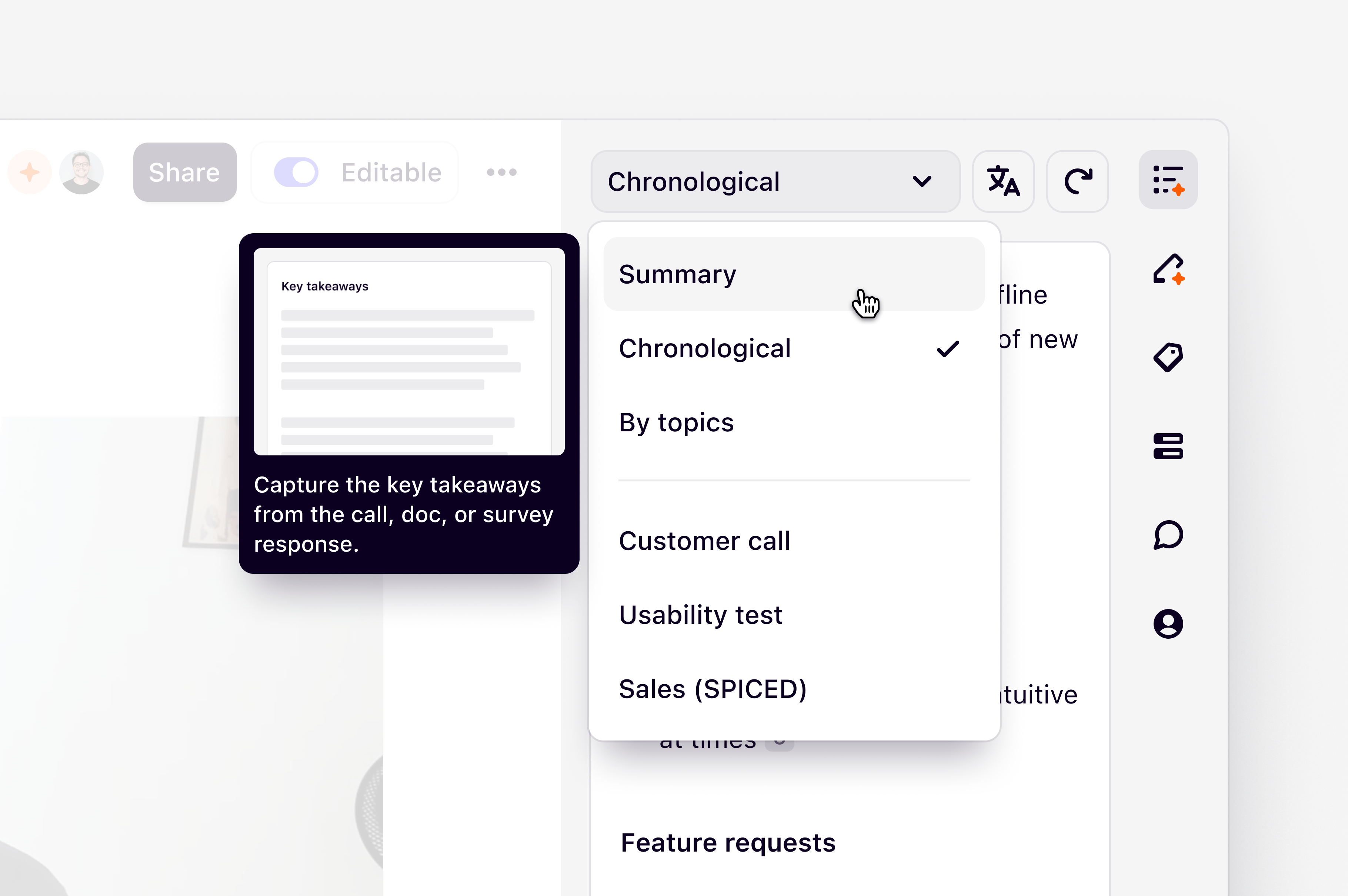
- To try a different template, open the template dropdown at the top of the summary, choose a template, and click Regenerate.
Available summary frameworks
There are different frameworks that you can select from to tailor your data summary output.Review and act on a summary
Each summary card has action buttons for Share, Feedback, Copy text, and Regenerate. Individual paragraphs offer Edit summary, Copy text, and Delete from their overflow menu.Citations
Summaries reference the passages they were generated from:- For notes and transcripts, clicking a citation number scrolls to the quoted passage in the source content.
- For audio and video files that have a transcript, the summary is broken into timestamped sections. Click a section to jump to that point in the recording.
When summarizing documents such as PDFs, citations behave differently than they do for calls, transcripts, or notes.
- Clicking a citation from a document won’t reliably scroll you to the quote in the document.
- Hovering over the citation instead shows a tooltip preview of the quoted text.
Change the summary language
You can translate any data summary from one language to another. You need edit access to the Project, and the note can’t be in read-only mode.- In the Summary tab, click Change language in the summary header.
- Choose a language from the list.
Auto-generate summaries when importing files
You can set a default template on a Project so that Dovetail automatically summarizes each file as it’s imported.- Open your project.
- Click the ••• (more options) menu in the top-right corner.
- Select Automation.
Troubleshooting
The Summarize button is disabled. The Summary tab shows a specific reason for each case:- Viewers cannot generate summaries — you’re on the Viewer role in this workspace. Ask a Workspace admin to change your role.
- You don’t have edit permissions in this project — ask a Project admin or the owner to grant you edit access.
- Not enough content to summarize — the note doesn’t have enough text yet. Add more content and try again.
- Summarization is disabled for this workspace — a Workspace admin has turned off summarization for the workspace.
FAQs
Which AI model generates data summaries?
Which AI model generates data summaries?
Data summaries are generated by the latest Claude model from Anthropic.
Can I create a custom summary template?
Can I create a custom summary template?
Custom summary templates aren’t currently available for data summaries. Enterprise workspaces can add Custom context under Settings > Custom context, but that guides Chat, AI Agents, and Dovetail in Slack and Teams — it doesn’t add a template to the summary picker.
Can I edit the text of a generated summary?
Can I edit the text of a generated summary?
Yes. Open the overflow menu on a summary paragraph and choose Edit summary. You can also delete a paragraph from the same menu.
Do summaries update automatically when the transcript changes?
Do summaries update automatically when the transcript changes?
No — the summary you see is a snapshot. Click Regenerate on the summary card to produce a new one from the current content.
Does translating the summary translate the transcript too?
Does translating the summary translate the transcript too?
No. Change language only re-summarizes and translates the summary itself. Transcript translation is a separate feature in the transcript panel.
Which languages are supported?
Which languages are supported?
You can translate summaries into any of the 70+ languages Dovetail supports for transcription and translation.