

Workspace admins and the user who connected a source (shown as Connected by) can manage it. Users with Can use on the source can open it and see its details. See Manage source access.
Open a source
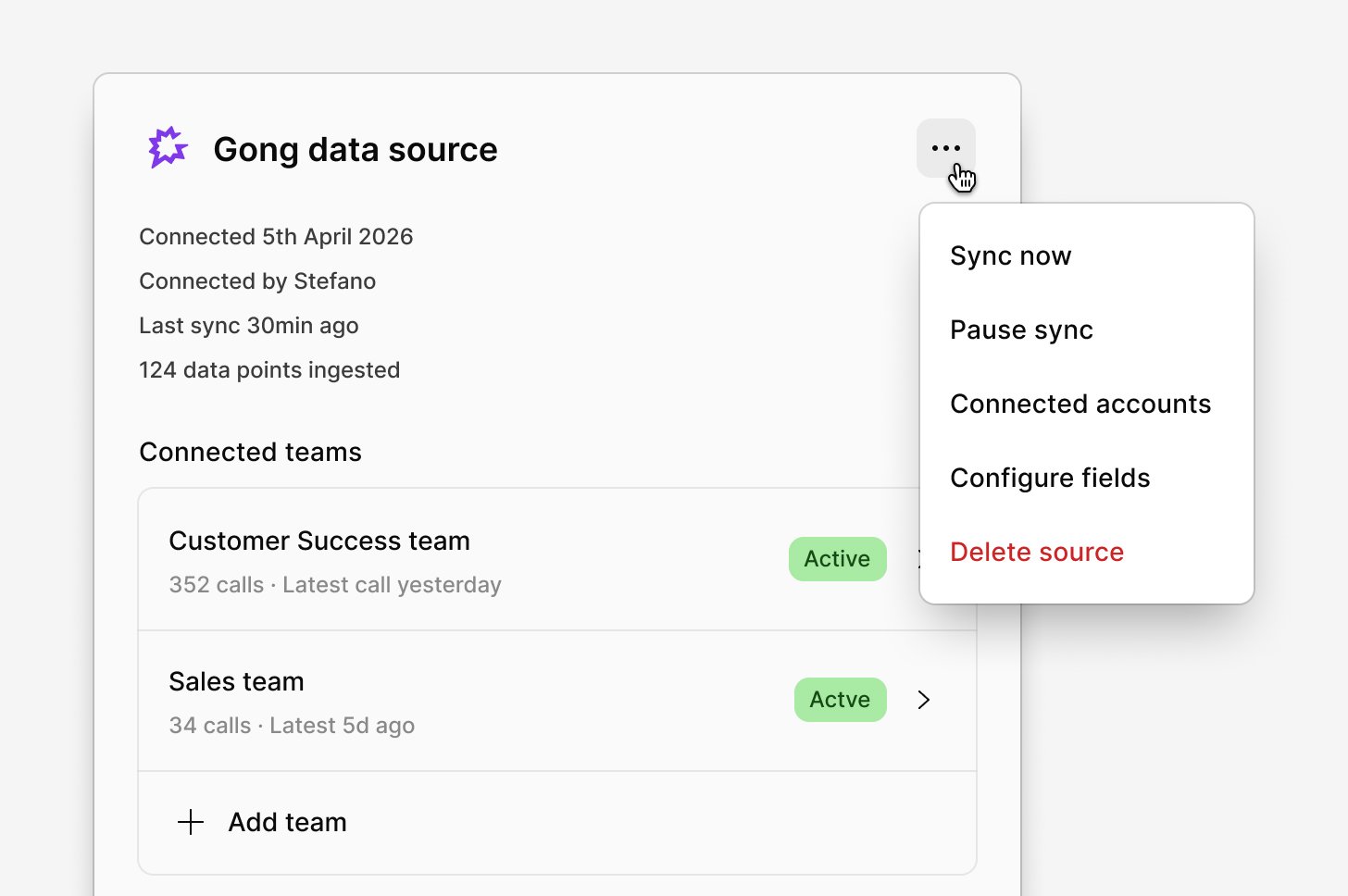
In the sidebar, select Sources, then select the source. The source opens with these details:- Connected and Connected by: when the source was created and who connected it.
- Last sync: when the source last synced. API and Zapier sources show Last pushed instead.
- Data points ingested: how many data points the source has imported.
- The source’s datasets, such as Connected teams for Gong, each with its own status.
•••) in its header, which holds the actions on this page and the options in Source fields.
Source statuses
Each source shows one status.
If data is missing from a channel and the source looks healthy, see Missing or outdated data.
Sync a source now
Sources sync automatically about every hour. To sync right away:- Open the source.
- Select Source actions (
•••) →Sync now.
Sync now after you fix the cause of a Check connection status, so Dovetail retries without waiting for the next automatic attempt.
Sync now isn’t available while the source is Paused or Disconnected. You can also start a sync from a channel’s Sources dialog. See Sync a source now in a channel.
Pause and resume syncing
Pausing stops a source from importing new data. Data it has already imported stays in the source and in every channel that uses it, so pausing is the way to stop importing without losing anything. To pause a source, open it and select Source actions (•••) → Pause sync. Pausing applies to the whole source. You can’t pause a single dataset.
To start again, select Source actions (•••) → Resume sync. The source picks up from where it left off, so data created in the tool while the source was paused is imported on the next sync. Some tools only make recent data available, so a long pause can leave a gap.
API and Zapier sources can’t be paused. To stop them, stop sending data from your system or Zap.
Reconnect a source
When a source is Disconnected, for example because the connecting account lost access or a token expired, select Source actions (•••) → Reconnect. What happens next depends on how the integration connects:
- Sign-in with the tool (OAuth): you’re taken to the tool to sign in and approve access again. The source then runs on the account of the user who reconnected it.
- Key, token, or key file: you enter new credentials.
Change the connected account
To see which account a source syncs with, open the source and select Source actions (•••) → Connected account. It shows the user who connected the account, the account in the tool, and when it was connected.
Reconnectswitches the source to your own account in the tool, without waiting for it to disconnect. Use it to hand a source over to another account.Removeunlinks the account. The source stops syncing and shows as Disconnected until it’s reconnected. Data it has already imported is kept.
Add datasets
After a source is created, you can add more of the tool’s containers to it. For example, add another Front inbox or another Qualtrics survey.- Open the source.
- At the end of the datasets list, select
Add {item}, for exampleAdd inboxorAdd survey. - Select the items to add.
- Choose an Import period for the new datasets. See Import period.
- Select
Save.
See which channels use a dataset
Select a dataset in the source to open it. Connections using this dataset lists each channel that uses it. Users who can manage the source can also remove the dataset from a channel here. This takes the dataset’s data points out of that channel only: the data stays in the source and in any other channel that uses it. See Remove a dataset or source.Delete a dataset
- Open the source and select the dataset.
- Select Dataset actions (
•••) →Delete dataset. - Check the channels listed in the confirmation, then select
Delete dataset.
Change redaction
Whether Dovetail redacts a source’s data is chosen when the source is created. Workspace admins and the user who connected the source can change it later in the source’s settings. A change applies only to data the source imports afterward. Data already imported keeps the redaction it arrived with, in every channel that uses the source. To redact data that’s already been imported, contact Dovetail support at support@dovetail.com. Dovetail redacts using your workspace’s redaction settings. For what redaction covers and how redacted text appears, see Redact data from sources.Change contact creation
For integrations whose data includes customer email addresses, a source can create contacts from those addresses and link its data points to them. New sources have this turned on by default. To turn it on or off, open the source and change it in the source’s settings. The change applies everywhere the source is used. You need to be able to manage the source and to edit contacts. For what contact creation does and which fields it fills in, see Create contacts from source data.Delete a source
Deleting a source removes its data from every channel that uses it. This can’t be undone.
- Open the source.
- Select Source actions (
•••) →Delete source. - Check the channels listed in the confirmation, then select
Delete source.
Notifications
Dovetail sends an in-app notification and an email to the user who connected the source and to every workspace admin in two cases:- The source becomes Disconnected.
- A dataset keeps failing. Dovetail retries a failed dataset automatically. If it still fails after those retries and the source feeds at least one channel, Dovetail sends this notification, at most once a day for each source.
Related guides
Manage source access
Choose who can add a source’s data to channels.
Source fields
Rename a source’s fields and change their types.
Troubleshoot sources
Find out why a source isn’t available or data is missing.
Channel setup
Add a source’s datasets to a channel, or remove them.