

Managers and Contributors can create and edit docs. Users with view-only access can view and comment on them.
Overview
A doc is where you summarize and share findings, connected directly to the raw data behind them. This page covers what’s specific to docs created inside a project — building one from your analysis, and referencing project data. For everything else — creating docs anywhere in the workspace, editing and formatting, sharing, presenting, and metrics — see the Docs section.Getting started with docs
Create a doc from a project, channel, folder, or chat.
Edit and format docs
Formatting, cover images, @ mentions, captions, and version history.
Share and organize docs
Permissions, present mode, moving docs, and doc metrics.
Report prompts
Prompts for generating reports from your data.
Create a doc from your analysis
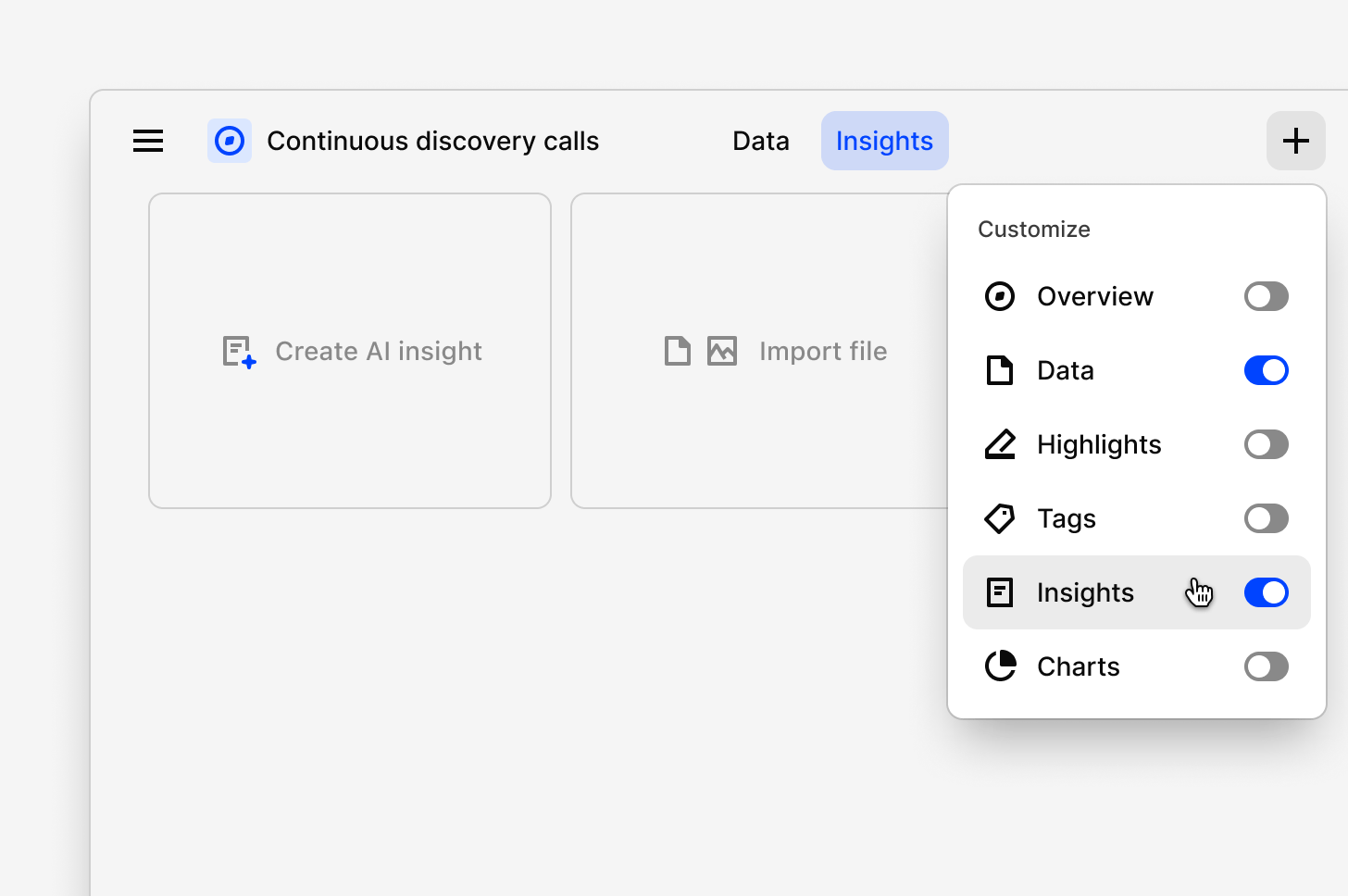
Inside a project you can build a doc straight from the work you’ve already done, rather than starting from a blank page.- Select
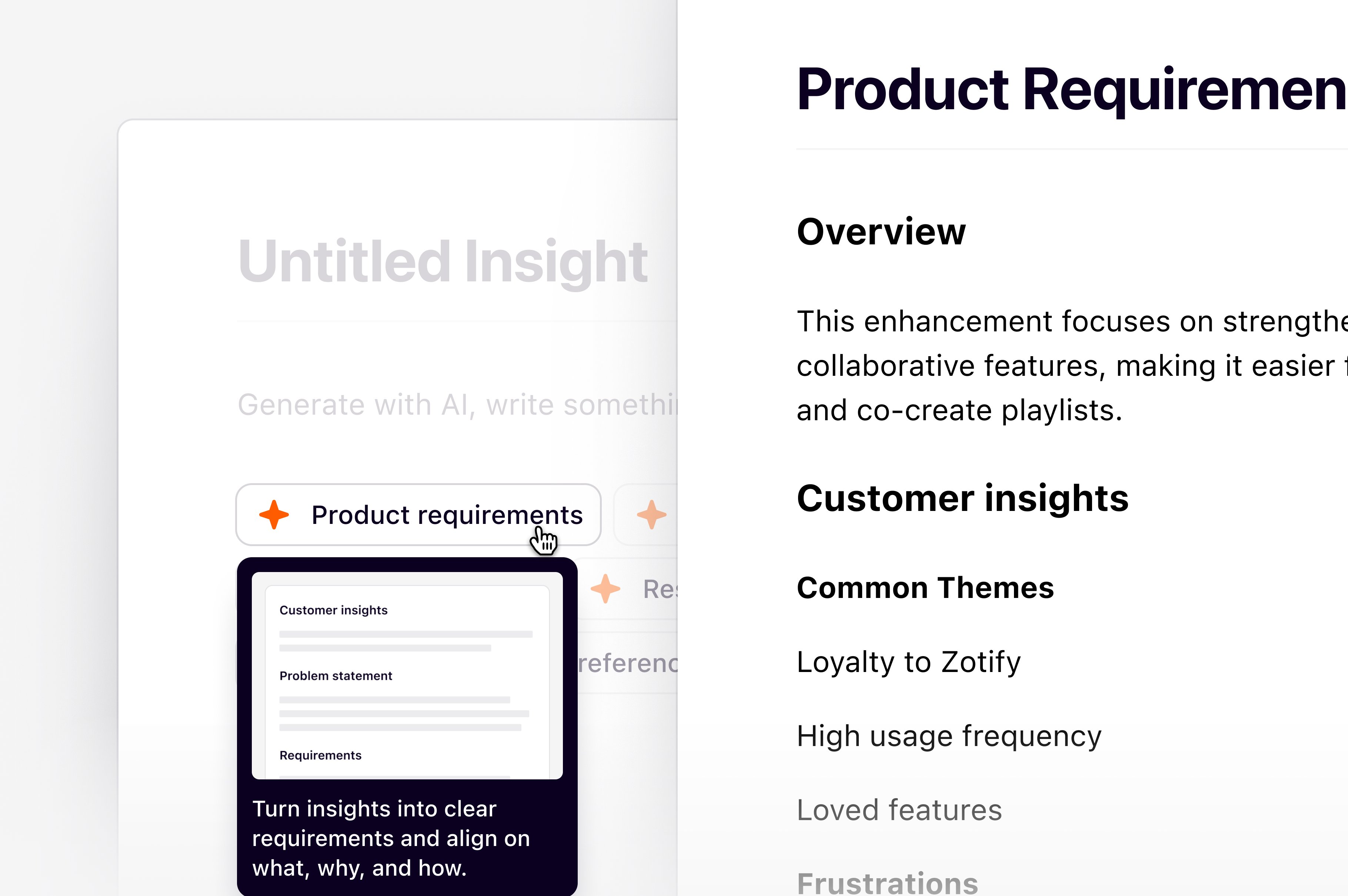
+and toggleDocon, then selectCreate a doc. - Choose how to start: ask a question or write a custom prompt in chat, or pick a predefined framework like Voice of Customer, Research Report, or PRD.
Highlights page, select the highlights you want, click Add to doc, then give the new doc a title.
Reference project data
Add data from across your workspace using the reference picker.- Open your doc and type
/within the editor to see the available options. - Select
References. Search and filter by object type — highlights, tags, data, and more — then select or drag them into your doc. - Toggle the content you want each reference to display.
By default, references don’t show project name and creator information. Dovetail remembers your preference for each reference you add after that.
Keep references current
When you add project data to a doc — data, highlights, tags, or other docs — Dovetail creates a snapshot of that content at the moment you add it. The reference doesn’t change on its own if the original is later edited or deleted. The same applies after data retention deletes the original video or audio file: highlights and reels are converted into independent clips before deletion, so they still play back and export, but a reference embedded in a doc can appear broken until it’s refreshed. Updating references needs Manager or Contributor access, with Full access or Can edit access on the project.Update one reference
- Open the doc.
- Hover over the reference.
- Click Update reference (↻).
Update every reference in a doc
- Open the doc.
- Click the ••• (More actions) menu in the top-right corner.
- Select Update references.
Deleted references
If the original object is deleted, the reference stays visible in the doc with an alert showing that the underlying object no longer exists.Dynamic references
Some blocks, such as search blocks and other dynamic feeds, are live rather than snapshots. They update automatically and always show the latest content.Categorize project docs with fields
Fields store structured information about a doc, helping teams categorize findings and find prior research. See Data and docs fields for how to set them up.Fields are available on project docs only. If you’re working in a workspace doc, move it into a project to add fields.