

Overview
The Dovetail API lets you extend Dovetail’s functionality beyond what we provide out of the box. Create your own scripts and applications that integrate with Dovetail to automate tasks, extract insights, and manage your data in an efficient manner. You can also use the API to send customer feedback from your own systems into Dovetail through an API source, so channels can analyze it alongside data from your other sources. See Send data to an API source. The API is one of three ways to reach your workspace programmatically. See Build on Dovetail to compare it against the MCP server and the CLI.Check out our technical API documentation for a more in-depth explanation on what our API supports and the specifics of each read/write API endpoint.View developer docs →
Get started with the Dovetail API
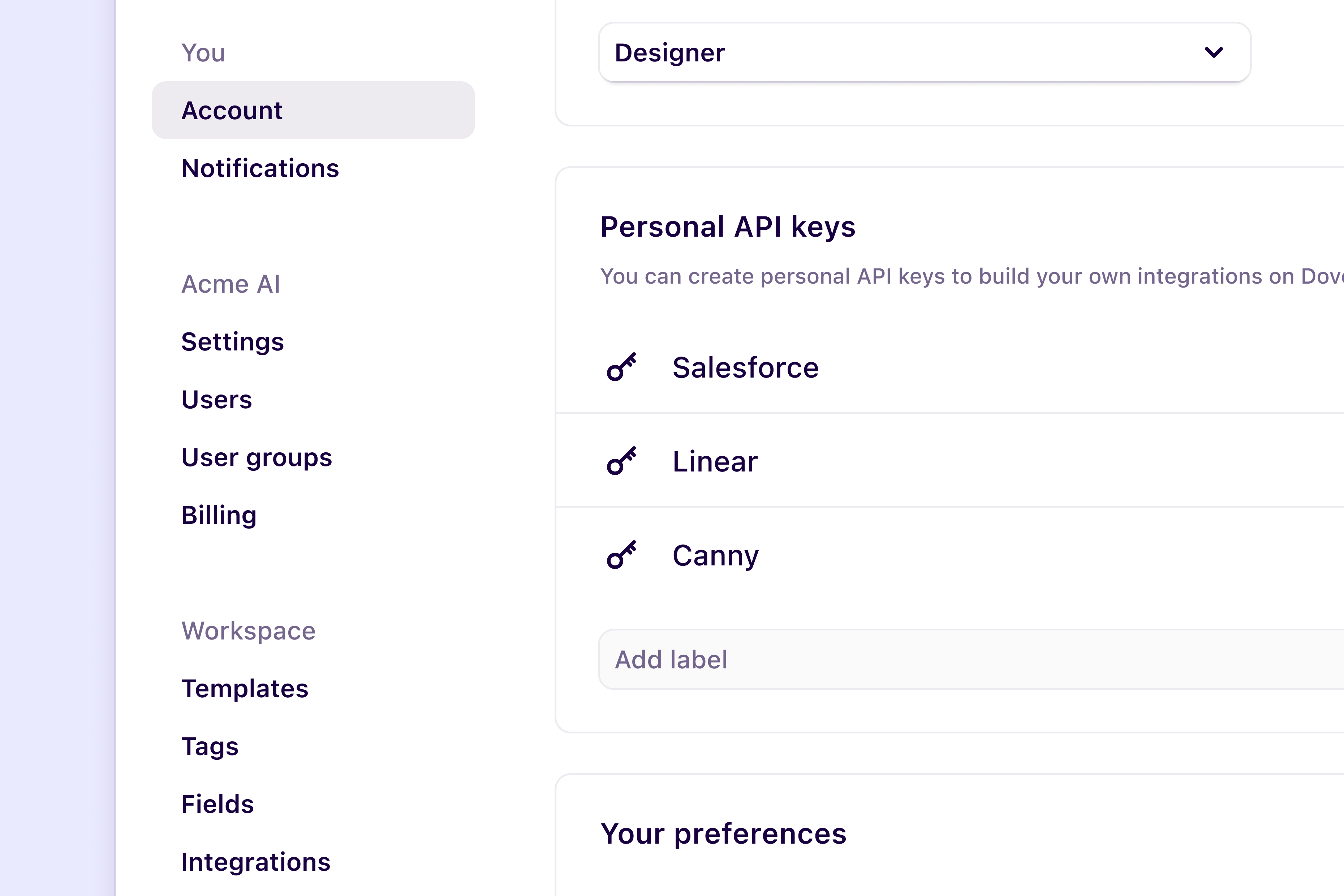
To get started, go to Settings → Account, find Personal API keys, and selectCreate key. Enter a label, choose how long the key lasts under Expires after, and choose an Access level. Copy the key straight away, because it’s shown only once.
A key acts with your own access. Data you don’t have access to, and actions you can’t take in Dovetail, aren’t available through your key either.
Access levels
The access level sets what a key can do:- Full access — the key can use every API endpoint and MCP tool that your account can.
- Read only — the key can read data, but can’t create, change, or delete anything.
- Custom — choose read, write, and delete access for each area, such as data, docs, channels, and projects.
Send data to an API source
An API source receives data points that your own systems send to Dovetail, for example feedback collected by an in-house tool or by a product that has no Dovetail integration. Dovetail analyzes each data point in the same way as data from any other source. An API source starts with one dataset, and each dataset has its own ID that you send data points to.
A workspace admin creates the API source once for the whole workspace, and channels then add its datasets. Learn more about Sources →
Before you start
- A workspace admin creates the source. Other users can request it.
- If your workspace already has an API source, add a dataset to it instead of creating another. See Create a source.
- An API source has no shared credentials. Each request is authenticated with a personal API key, which belongs to the user who created it. You can create a key while you create the source, or in Settings → Account. See Get started with the Dovetail API.
Create the API source
An API source has no sign-in step and no import period. For how API and Zapier sources differ from other sources, see API and Zapier sources.1
Open Sources and select API
In the sidebar, select Sources, then select API.
2
Name the source
Enter a Name. It becomes the name of the source’s first dataset, and you can rename it later.
3
Choose who can use the source
Choose who can use the source, then select
Next. See Create a source.4
Create the source
Choose whether to auto-redact sensitive information in the data the source receives, then select
Create source. The dialog shows the dataset ID. See Redact data from sources.5
Copy the dataset ID and create a key
Copy the dataset ID. If you need a key, create one under Personal API key. Copy the key straight away, because it’s shown only once.
Authentication and permissions
Requests to an API source are authenticated with a personal API key, sent as a Bearer token in theAuthorization header. A key acts with the access of the user who created it.
- Scopes. Keys created in the source dialog aren’t limited to specific scopes. If you use a key that is limited to specific scopes, it needs
channel:write. - Expiry. Personal API keys expire after the period you choose when you create them. When a key expires, requests fail until you create a new key and update your system.
- Nothing is stored on the source. The source doesn’t hold a key, so to switch keys, update the
Authorizationheader in your system.
Datasets
An API source starts with one dataset, named after the Name you entered. Data points go to the dataset whose ID you send them to, and a channel can add some or all of the source’s datasets. Use separate datasets when channels should be able to add some of your data without the rest. To find a dataset’s ID later, open the source and select the dataset. To add more datasets later, open the source and selectAdd dataset. See Add datasets.
Send data points
Send each data point as aPOST request to its dataset:
A successful request returns
201 Created with the new data point’s id.
For the full request and response reference, see Create data point on a dataset in the developer docs.
What gets imported
Each request creates one data point. Dovetail analyzes itstext, and its source_title, source_url, and metadata values become fields. Dovetail doesn’t match a request to earlier ones, so sending the same item twice creates two data points.
Fields from metadata
Each metadata key becomes a field on the source the first time Dovetail receives it. The field’s type comes from that first value:- A number becomes a Number field.
trueorfalsebecomes a Checkbox field.- A list of strings becomes a Multi select field.
- Any other value becomes a Text field.
Not imported
- Contact details. Data points sent to an API source aren’t linked to contacts, even when the metadata includes an email address.
- Files and attachments. A request carries text and metadata only.
Scores and field types
A numeric score sent as metadata, such as an NPS or CSAT score, arrives as a Number field. To chart scores in Dashboards, the field must use the NPS or CSAT type. See NPS and CSAT scores for Dashboards.Sending data
- No import period. An API source has no history to import. It holds only the data points you send after it’s created.
- Data is kept until a channel uses it. Data points sent before any channel adds the source are kept, and a channel that adds the source later gets them.
- No sync controls. Dovetail doesn’t fetch anything from an API source, so the source has no
Sync noworPause sync. - Rate limit. Requests to an API source count toward the workspace’s limit of 200 API requests per minute. See FAQs.
Troubleshooting
Requests fail with401 and “Invalid token”. Check that the Authorization header is Bearer followed by the key, and that the key hasn’t expired or been revoked under Personal API keys in Settings → Account. If you’re not sure, create a new key and use that.
Requests fail with 403 and “Insufficient scope”. The key is limited to scopes that don’t include channel:write. Create a key that includes it.
Requests fail with 400 and “Source may not exist or has been deleted”. Dovetail couldn’t find a dataset with the ID in the request. Check that you copied the whole ID, and that neither the dataset nor the source has been deleted.
Requests fail with 400 and “Contract violation”. A field in the request is missing or invalid. The message and path in the response name the field.
Requests fail with 429 and “Too many requests”. The workspace has sent more than 200 API requests in a minute. Wait for the number of seconds in the Retry-After header, then send the request again.
Data points I sent don’t appear in a channel. Check that the channel includes the dataset you sent them to. New datasets aren’t added to channels automatically. See Missing or outdated data.
The API source isn’t available when I set up a channel. See Troubleshoot sources.
Stop sending data
To stop sending data, turn off the requests in your own system. To make sure a key can’t send anything more, revoke it under Personal API keys in Settings → Account. Revoking a key stops every script and integration that uses it, not only the API source. To delete the source in Dovetail, see Manage a source. To take its data out of one channel, see Channel setup.FAQs
Does the Dovetail API have a rate limit?
Does the Dovetail API have a rate limit?
Yes. Dovetail limits the rate of REST API requests to ensure services are reliable and responsive for all API users. The default limit is 200 requests per minute per workspace.
Related guides
Sources
What a source is, and how its data reaches channels.
Channel setup
Add the API source’s datasets to a channel, or remove them.
Manage a source
Add datasets to the source, or delete it.
Voice of customer
Collect, analyze, and act on customer feedback in channels.