

Available on the Enterprise plan. On some legacy paid plans, it’s available as an add-on. It’s unavailable when generative AI is turned off for the workspace.
Overview
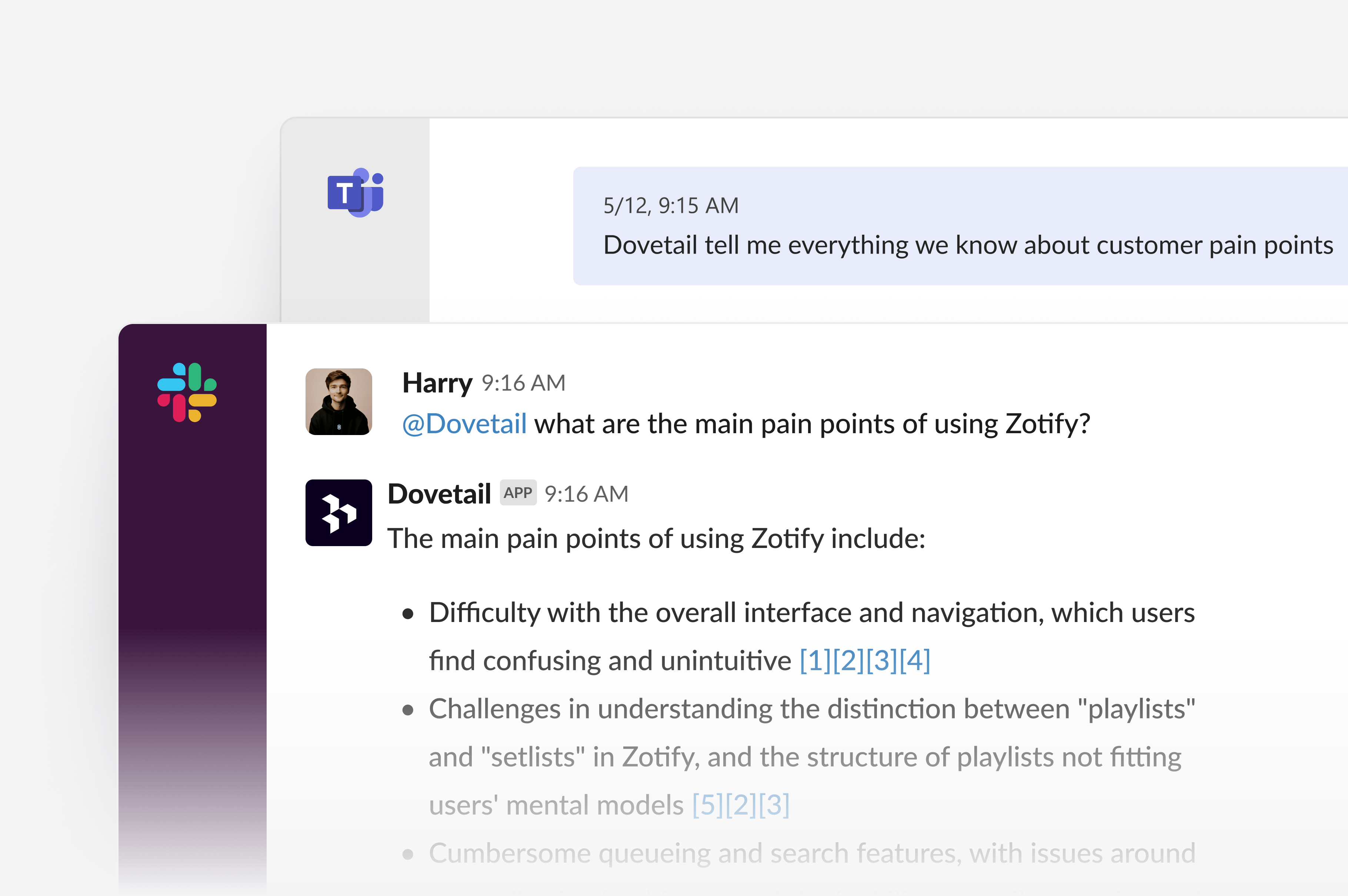
Once a workspace admin connects Dovetail to Slack or Microsoft Teams, people in that Slack workspace or Microsoft tenant can:- Query Dovetail. Mention
@Dovetailand ask a question, such as “What do new users struggle with during onboarding?” The answer is a summary with citations to the source data. - Talk to a Digital Twin. Type
@Dovetail +followed by a Digital Twin’s name to ask that customer segment a question. The twin answers in persona. Only people whose Slack or Teams account is linked to a Dovetail user can talk to a twin. - Receive scheduled summaries in Slack. Set up a Dovetail agent to post weekly wraps and summaries to Slack. Agents can’t post to Teams.
Connect Slack or Teams
A workspace admin connects Dovetail to Slack or Teams in Settings → Connected apps.- Slack. The admin turns on querying in Slack and selects Connect to Slack. Individual users can separately select Connect on the Slack card to link their own Slack account.
- Microsoft Teams. Only a workspace admin can authorize the Teams connection. Notifications and calendar import are set up separately from the Teams section.
- A Slack or Microsoft admin may need to approve the Dovetail app before it can be installed. If so, share this article and the list of requested permissions with your IT team.
- The connection is one-to-one: one Dovetail workspace to one Slack workspace, or to one Microsoft tenant. People in the Dovetail workspace can still connect their own Slack accounts for notifications.
- Personal Microsoft accounts aren’t supported for Teams. The account must belong to an organization.
- Slack guests and people from another Slack organization can’t query Dovetail.
Query Dovetail in Slack or Teams
Anyone in the connected Slack workspace or Microsoft tenant can query Dovetail, including people without a Dovetail account. Where relevant, the answer includes citations so you can trace each point back to the data in Dovetail. Opening a citation to private data requires a Dovetail account in that workspace.- Slack – In a channel, mention
@Dovetailfollowed by your question. The Dovetail app must already be in that channel. You can also send your question as a direct message to the Dovetail app, without a mention. To ask a follow-up in a channel thread, mention@Dovetailagain. - Teams – In a channel or group chat, mention
@Dovetailfollowed by your question. In a personal chat with the Dovetail app, type the question directly.
Talk to a Digital Twin in Slack or Teams
A Digital Twin is an agent built from a customer segment’s own words. You can talk to one in Slack or Teams the same way you would in Chat.Only someone whose Slack or Teams account is linked to a Dovetail user can talk to a Digital Twin. Anyone else who mentions
@Dovetail gets an ordinary answer to their question.@Dovetail, then + directly followed by the twin’s name, then your question. The + tells Dovetail you’re addressing a twin rather than asking a general question. For example, with a twin named “Churned SMB customer”:
@Dovetail again with each follow-up. In a Slack direct message, send the next question to the app.
To create a twin or choose the data it draws from, see Digital Twins.
Send scheduled summaries to Slack
Weekly wraps and other scheduled summaries are created with Dovetail agents and posted to Slack. Agents can’t post to Microsoft Teams. To set one up:- Create an agent and set its trigger to On schedule. Choose Weekly, set the start date to the weekday you want (a Monday, for a Monday summary), then set the time and timezone. See Agent triggers.
- Connect your own Slack account in Settings → Connected apps. The summary is sent from your Slack account, and you receive a direct message when it posts.
- Leave Send Slack message turned on in the agent’s tools.
- In the agent’s instructions, describe what the summary should cover. Insert the Send Slack message tool and pick Send to me or a channel. Typing a channel name in the instructions doesn’t select that channel.