

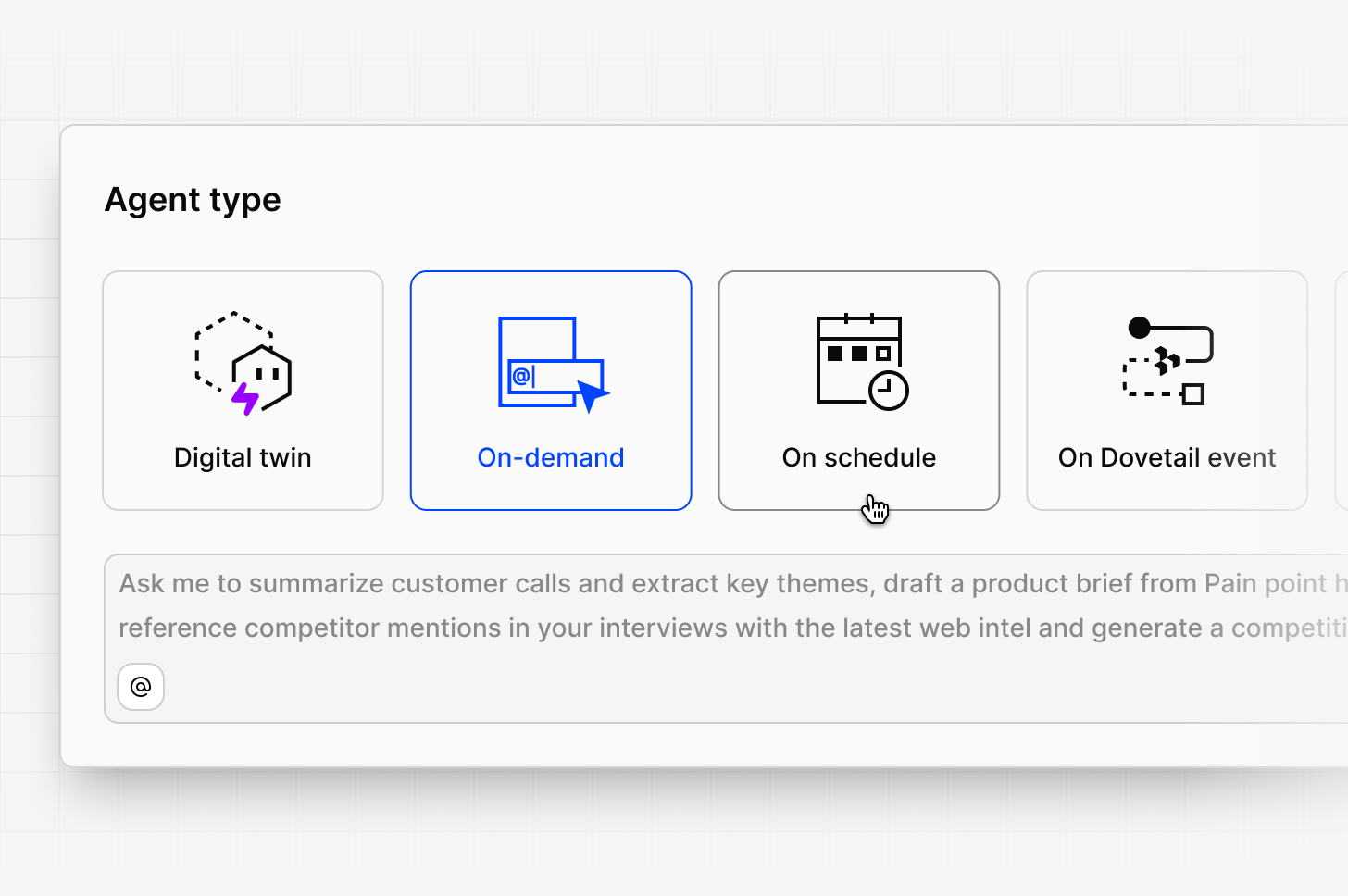
Trigger types
On-demand
The simplest trigger. No schedule, no events—the agent sits idle until you run it manually or mention it in chat with @. Good fits: one-off analysis with deep skills docs, exploratory summaries, agents you invoke conversationally, agents you only need to use at specific times for a specific task.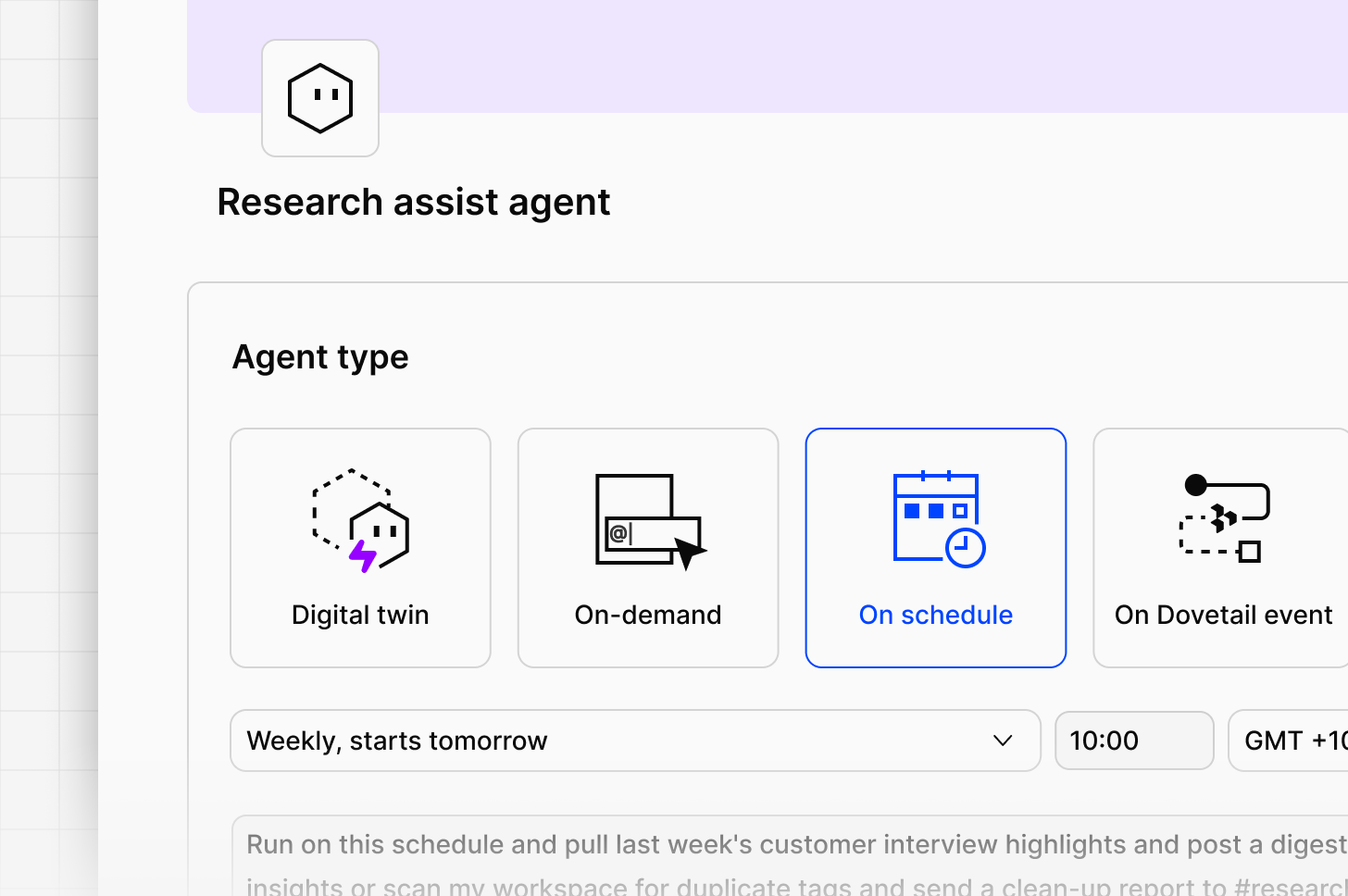
Scheduled
Scheduled agents run on a recurring cadence you define. Use them for anything predictable—a Monday morning digest, a Friday competitor scan, an hourly triage sweep.Choosing a cadence
Match the schedule to the freshness of the data. If new items land every few minutes, a daily digest is probably enough. If items land once a week, a daily run wastes context and produces empty output most days. Common cadences and when they fit:- Hourly—high-volume sources where fast response matters
- Daily—inbox-style summaries, tagging sweeps, standup summaries
- Weekly—team digests, retros, competitor scans, trend reports
- Monthly—executive rollups, quarterly prep
Setting the schedule
Schedules use a picker with natural language input—describe when you want the agent to run and Dovetail translates it into a cadence. Examples: “every Monday at 9am,” “weekdays at 5pm,” “the first of every month.”Timezone behavior
Schedules run in your local timezone by default. You can override the timezone in the scheduler UI if the agent should fire for a different region or a shared team time.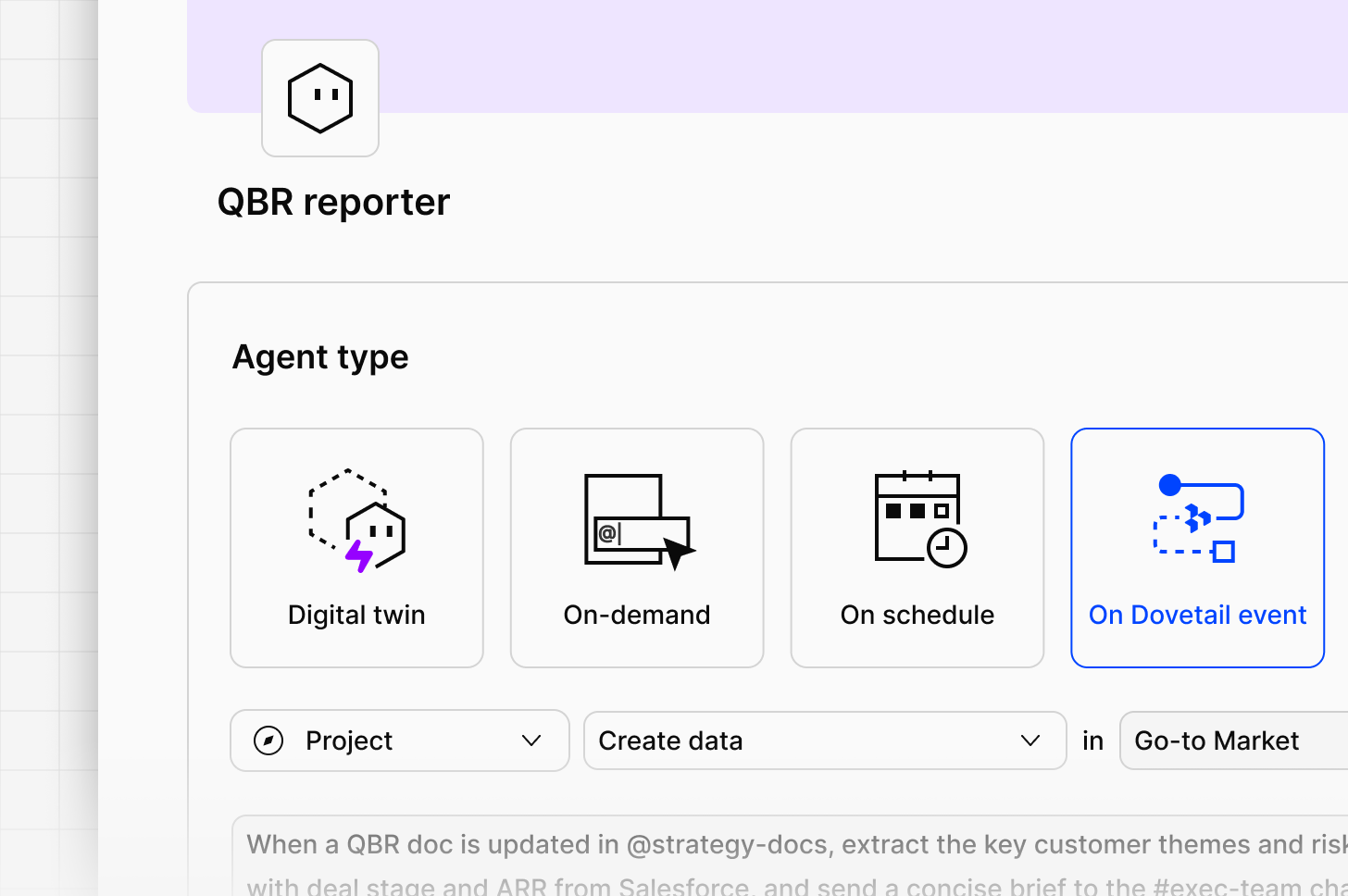
Dovetail events
Event triggers fire the moment something changes in your workspace. The agent runs immediately, with the changed item as its input.Available events
Example patterns
Auto-tag new project dataTrigger: Data added to project Instructions: When new data lands in the project, apply tags from the attached taxonomy. If the data doesn’t clearly match any tag, leave it untagged rather than force a match.Notify on churn signals
Trigger: Tag applied (Churn risk) Instructions: When this tag is applied, summarize the data point in two sentences and post to the #cs-alerts channel in Slack.Enrich new docs
Trigger: Doc created Instructions: When a new doc is created in the [Folder name] folder, generate a one-paragraph summary and add it as a comment at the top of the doc.
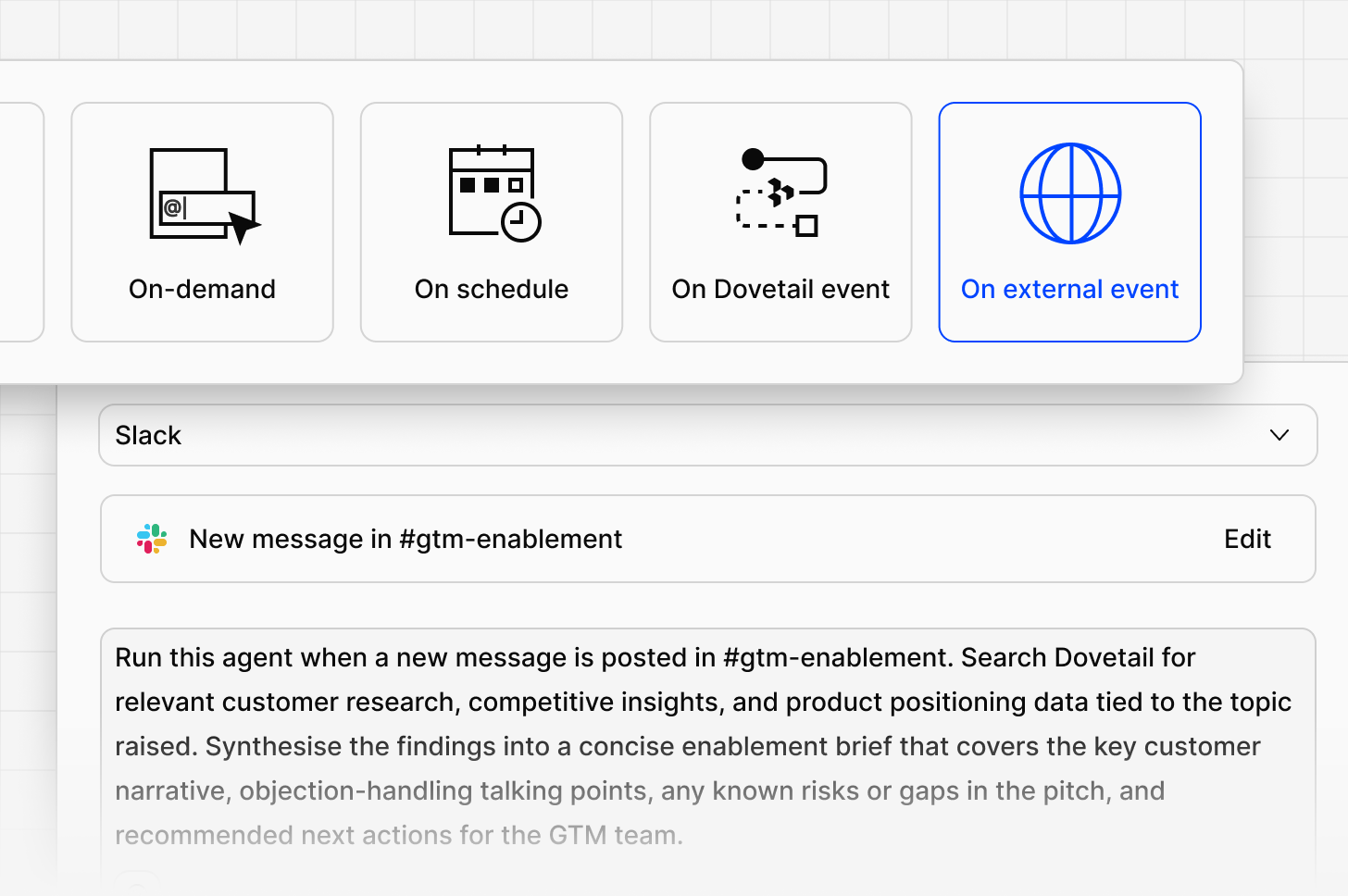
External webhook
For triggers coming from Salesforce, Linear, Jira, or any other external system. Connecting Salesforce is covered in Connect Salesforce.Digital Twin
Digital Twin agents don’t use the trigger types above. They run as continuous active chat listeners when invoked. See Digital Twins.Choosing the right trigger
Ask two questions:- Does the work happen on a cadence, or in response to something? Cadence → Scheduled. Response → Dovetail event or External webhook.
- How fast does the response need to be? Real-time → event. Same-day → schedule. Only when needed → on-demand.
Related guides
Agent workflows
Choose a trigger, write instructions, and test before launch.