

This page documents the original Channels experience. Channels created before 2.0 continue to run on it. New channels use Channels 2.0, where themes are replaced by ranked Ideas and the underlying data points are called Evidence.
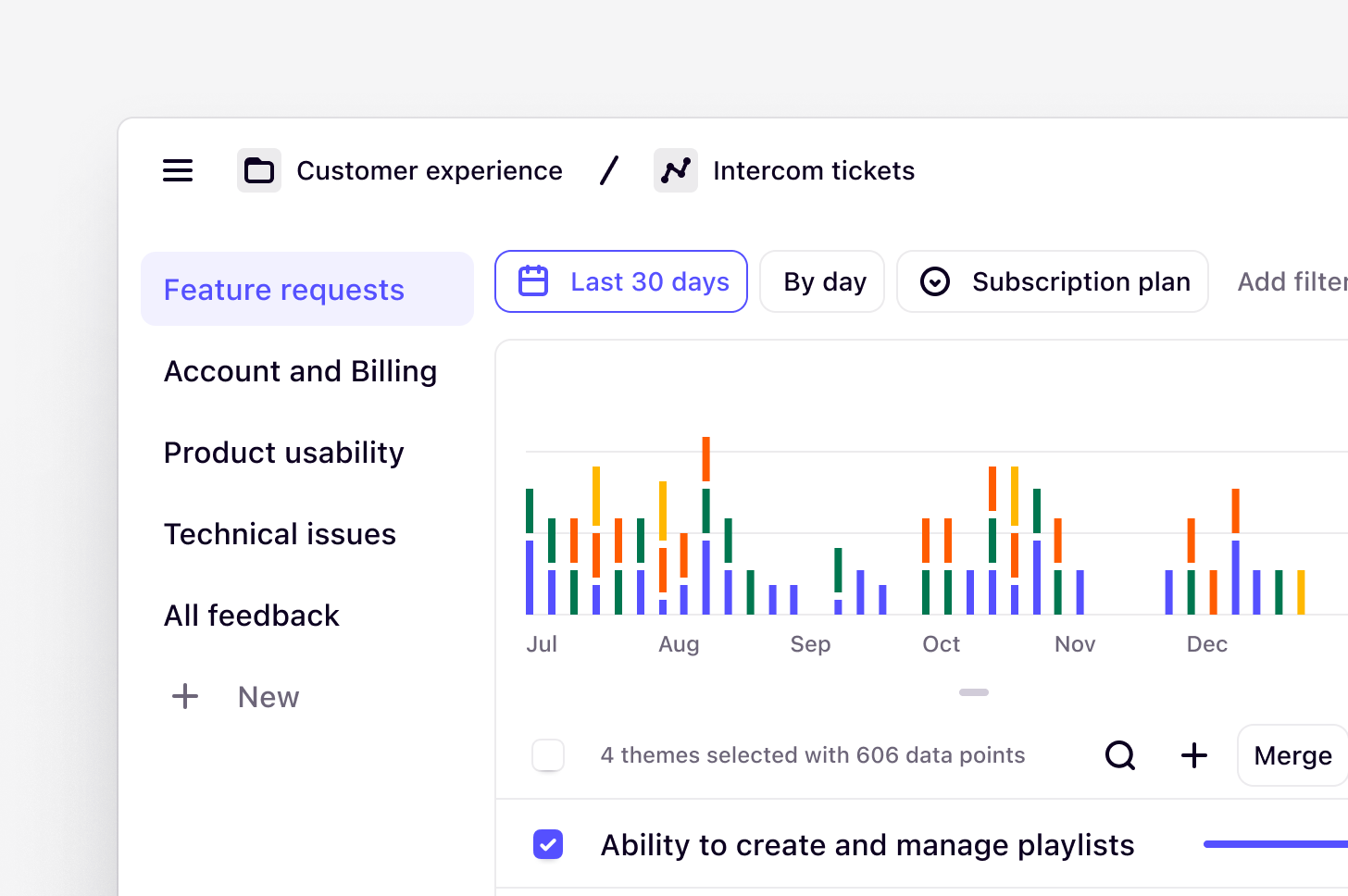
To add a source’s data to a channel, you need edit access to the channel and Can use on the source. Who can see the data in a channel depends on the channel’s own permissions. See Manage source access.
Overview
Channels turn continuous, high-volume customer feedback into something your team can act on. Bring your support tickets, product reviews, survey responses, and sales conversations into one place, and let Dovetail make sense of it as the data arrives.How Channels 1.0 works
Channels continuously classifies and tracks themes in large data sets. A channel gets its data from the sources that workspace admins set up, and from any CSV files uploaded to it. New data from a source reaches the channel automatically. Channels is powered by generative AI. We build upon established technology from Anthropic, ensuring reliability and privacy, and utilize specific models to manage large data sets efficiently without training on your sensitive data. Themes are generated from the individual data points imported into a channel. A data point is a single piece of feedback that is imported to a channel in Dovetail. It could be a support ticket, an NPS response, or any kind of continuous product feedback. A theme is a collection of data points with a title. On legacy paid plans, workspaces can import up to 1,000 data points per month, and more can be purchased by contacting our Sales team. On current plans, each data point uses credits instead. See Credits and usage.Create a new channel
Managers and Contributors can create a new channel sidebar under Home or Browse pages. You can create a channel to track themes in support tickets, CSAT/NPS responses, churn responses, app store reviews, and in-product reviews.- To do this, click
Newand selectChannel. - From there, add data from the sources your workspace has set up, or upload a CSV.
Add context to guide AI
In a channel, Dovetail generates high-level topics to organize and refine key themes from your data. You can enhance AI-driven topic generation by adding context. Context is a prompt with details such as your role, specific goals, or key focus areas, which Dovetail uses to create topics that align with what you’re interested in. If a new channel’s first data comes from a source rather than a CSV upload, you’re not asked for context, so add it from the channel header afterwards.- To do this, enter your details as a prompt under Context prompt.
- Next, your channel will generate and our AI will surface a list of auto-generated topics and descriptions based on your imported data and context.
••• in the top-right corner, and select Configuration. Enter your details as a prompt, hit Save, and let the AI generate topics that focus on what truly matters to you. Updating this will only affect future classification.
Merge, edit, and create themes
You’re always in control of your data. Once themes have been generated, you can merge any that are overlapping, edit to refine the title, or create your own if something was missed!Merge themes
- To merge themes, simply select multiple themes and press
Mergefrom the top of the theme table.
Edit themes
- To edit a theme, select the … menu next to the theme name and, select
Edit. You will see a dialogue box where you can change the theme title and description. Press Save when done.
Create a theme
- To create new themes and keep track of what’s relevant to you, click
+New in the sidebar or on the themes list. - From there, enter the theme name and description to help guide data classification and theme detection.
Metadata fields
The fields you can filter by in a channel come from its sources, and a channel can’t rename them or change their types. Those changes happen on the source itself and apply to every channel that uses it. See Rename fields and change field types.Manage the sources in a channel
Channels 1.0 uses the same Sources dialog as Channels 2.0. To open it, select the sources button in the channel header, for example2 sources. See Manage the sources in a channel.
Removing a source from the dialog takes its data out of this channel only. Pausing and deleting a source happen on the source itself. See Manage a source.
Track usage across channels
Channels is billed by the total number of data points used in all channels across a single workspace. To help you keep on top of your team’s usage, you can quickly review how much data has been used for an entire workspace. For what happens at the limit, see Channels FAQs. To check usage from any channel:- Open any channel in your workspace.
- In the channel header, select the sources button, for example
2 sources. - In the Sources dialog, the Workspace data usage card shows:
- your current billing period, for example “1 Jun — 1 Jul 2026”
- the data points used across the workspace and your plan’s limit, for example “4,521 of 10,000 data points”, or Unlimited if your plan includes unlimited data points for Channels
- a bar that splits that usage between This channel and the rest of the Workspace
Defining topic names and description
While you can utilize the Dovetail generated topics and descriptions, you are always able to adjust the both the topic names and/or the descriptions (or add your own).Topic name best practices
- Use clear wording that immediately conveys the high-level category
- Keep titles concise (2-3 words when possible)
- Use customer language rather than internal jargon
- Avoid overlapping categories that could confuse classification
- Use consistent naming patterns across similar topics
Topic description best practices
- Explain the theme’s scope clearly in 1-2 sentences
- Use keywords that customers might actually use
- Guide the AI on what to look for and what to exclude
- Keep under 200 characters for optimal performance
- Include specific examples but make sure the example and expectation matches the most common meaning in general English
Examples
Below you will find Context and Topic descriptions examples for six of the most common types of data customers- NPS/CSAT
- App Store Reviews
- Support Tickets
- General Product Feedback
- Churn/Cancellation Reasons
- Product Reviews
Context Examples
Customer Experience Manager: I am a Customer Experience Manager analyzing NPS and CSAT responses to understand what drives customer satisfaction and loyalty. Help me identify the key factors that create promoters versus detractors, understand specific touch-points that impact satisfaction scores, and discover actionable insights for improving overall customer experience. Focus on both positive experiences we should amplify and negative experiences we need to address.Product Manager: I am a Product Manager using NPS/CSAT feedback to guide product strategy. I want to understand which product features and experiences most strongly correlate with customer satisfaction. Highlight specific product strengths that drive positive scores and pain points that create detractors. Include any suggestions for product improvements or new features that could increase satisfaction.Multi-team: We are Product, Marketing, and Customer Success teams jointly analyzing customer satisfaction feedback to drive company-wide improvements. We want to understand satisfaction drivers across the entire customer journey, identify both product and service factors that impact scores, and discover insights for improving customer experience, product development, and go-to-market strategies. Focus on actionable insights that can inform product roadmaps, marketing messaging, and customer success programs.Topic Description Examples
- Open the channel
- Navigate to the Channel ⋯ menu → Open trash
- Choose from which tab to restore from: Data points, Themes, or Topics
FAQs
What are best practices for creating topics?
What are best practices for creating topics?
When creating your own topics:
- Use clear wording that immediately conveys the high-level category
- Keep titles concise (2-3 words when possible)
- Use customer language rather than internal jargon
- Avoid overlapping categories that could confuse classification
- Use consistent naming patterns across similar topics
- Explain the theme’s scope clearly in 1-2 sentences
- Use keywords that customers might actually use
- Guide the AI on what to look for and what to exclude
- Keep under 200 characters for optimal performance
- Include specific examples but make sure the example and expectation matches the the most common meaning in general English
What happens when I hit the data points limit for the month?
What happens when I hit the data points limit for the month?
Once you reach the usage limit for the month, no new data points will appear in your channel. You can continue to access all data that has been imported previously, move data points, and update the themes list.This also means that there will be no extra charges for overages and if necessary, you can choose to upgrade your data usage for your plan.The usage period resets every month from the workspace original billing date. This is applicable for subscriptions billed on both a monthly and yearly cycle.
Can I increase or decrease how many data points are included in my plan?
Can I increase or decrease how many data points are included in my plan?
Yes. Workspace admins can increase or decrease the number of data points included in your plan in Settings → Billing. For more information, see Add or reduce data point limit for Channels. If the option to increase your data points is unavailable, contact our Sales team.There are a few important things you will need to know before upgrading or downgrading your Channels add-on:
- If you upgrade in the current billing cycle, the new limit will apply immediately, and data points in the current cycle will be imported and analyzed in Channels (up to the new limit).
- If you upgrade in the next billing cycle, only the data points that come in during the new cycle will appear in Channels. You will lose the data points from the previous cycle that were not imported.
- When downgrading and decreasing your limit, the new limit will apply immediately and no new data will appear in Channels. Any historical data will still be available.
Can I export data from Channels?
Can I export data from Channels?
No, you cannot export data from a channel like regular project data. This includes imported data points, generated themes, or generated summaries.
How is our data being used?
How is our data being used?
For how Dovetail AI handles your data, including security and model training, see the FAQs on Dovetail AI.
Are there new policy checks required to use Channels?
Are there new policy checks required to use Channels?
The current Artificial intelligence development policy in our trust center is still relevant and covers what is required to use channels.
What’s the difference between removing a source from a channel and deleting it?
What’s the difference between removing a source from a channel and deleting it?
Removing a dataset or source takes its data out of this channel only. The source keeps importing, and other channels that use it aren’t affected. See Remove a dataset or source.Deleting a source happens on the source itself, and removes its data from every channel that uses it. To stop a source importing new data without removing anything, pause it instead. See Delete a source and Pause and resume syncing.
How often are themes and topics classified when a channel’s data comes from a CSV upload?
How often are themes and topics classified when a channel’s data comes from a CSV upload?
CSV files don’t automatically re-sync or reprocess in the background. Instead, reclassification is mostly triggered by specific events, such as:
- Importing new data from a CSV
- Creating or updating topics/themes
- At least ~24 hours have passed since the last run, and
- More than 200 new datapoints have been added
How many data points are needed for a theme to be generated?
How many data points are needed for a theme to be generated?
200 data points are the minimum required to generate a theme.
Why can’t I reconnect a source from my channel?
Why can’t I reconnect a source from my channel?
Only workspace admins and the user who connected a source can reconnect it, from the channel’s Sources dialog or from the source itself. Other users can ask one of them. See Sources that need reconnecting.
How am I notified when a source needs reconnecting?
How am I notified when a source needs reconnecting?
For most sources, Dovetail notifies the user who connected the source and every workspace admin, in the app and by email. In the channel, a banner names the integration, and the source’s row in the Sources dialog shows that it needs reconnecting. See Notifications.
How do I recover deleted Channel topics or themes?
How do I recover deleted Channel topics or themes?
To restore deleted topics or themes:
- Open the channel
- Navigate to the Channel ⋯ menu → Open trash
- Choose from which tab to restore from: Data points, Themes, or Topics