

Overview
Each source has its own access setting, Can use, which decides who can add the source’s data to channels. It’s separate from the permissions on each channel, which decide who can see that data once a channel uses it.
To add a source’s data to a channel, you need both Can use on the source and edit access to the channel.
Source access doesn’t limit what users with access to a channel see. If you remove a user’s Can use, they still see the source’s data in every channel they have access to.
Can use also lets users find the source’s data in Chat and Dashboards, including data that isn’t in a channel they can open. Users without it find only the data in channels they can open.
The Contacts database also has a permission level called Can use. It’s a different permission and has no effect on sources. See Restrict access to your contacts database.
Who has access by default
New sources start with Everyone in the workspace set toCan use. The workspace admin who creates the source can restrict access during setup or at any time afterward. See Create a source.
Workspace admins and the user who connected the source always have full control of it, including who can use it.
Give users or groups access
Workspace admins and the user who connected the source can change who can use it.- In the sidebar, select Sources, then select the source.
- Select
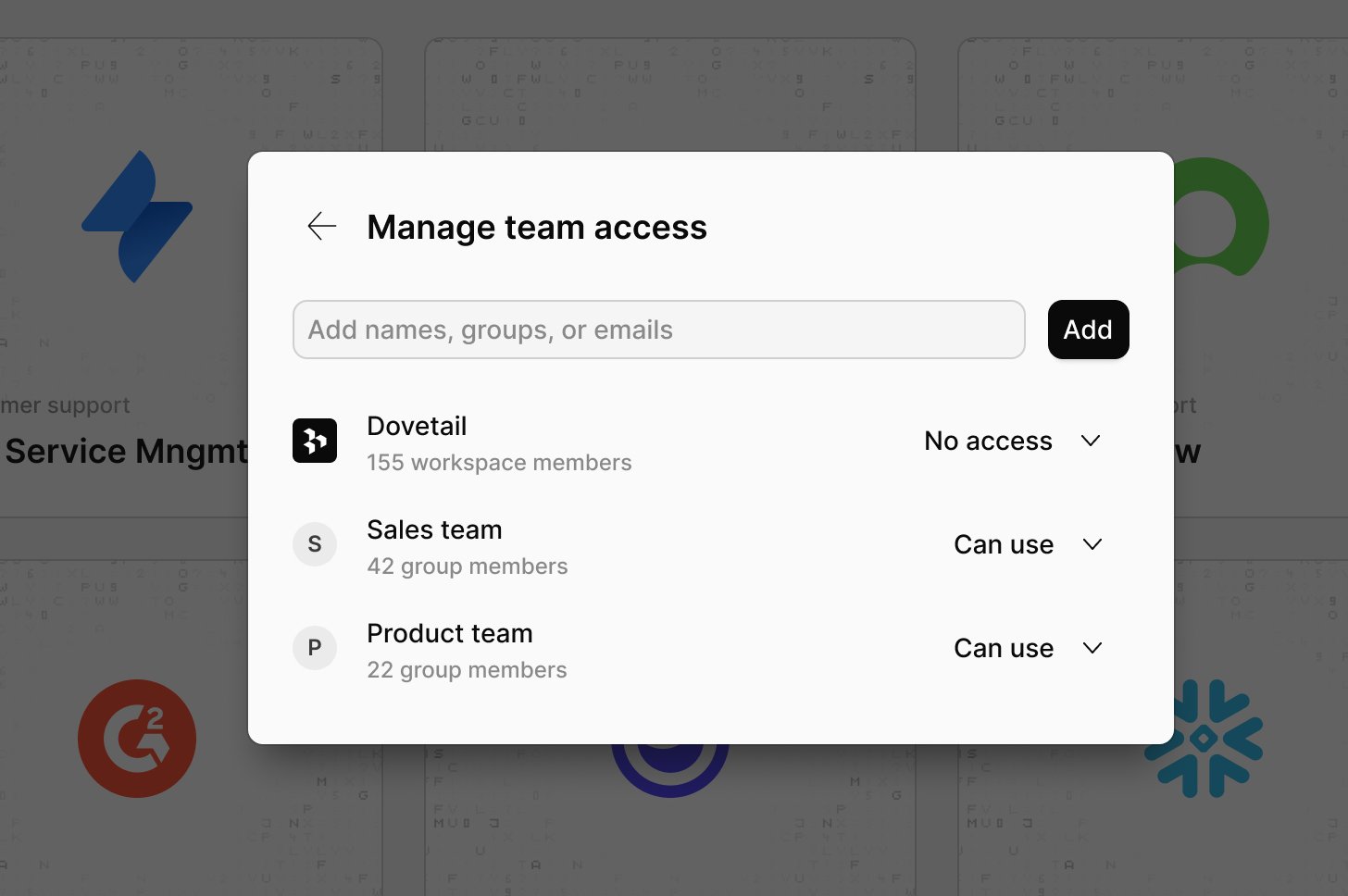
Manage team access. - In Add names or groups, choose users or user groups, then select
Add. - To limit the source to the users and groups you added, set the row for your workspace (Everyone in the workspace) to
No access.
Remove access
In Manage team access, open theCan use menu on a user’s or group’s row and select Remove. To remove access for all users who aren’t listed, set the workspace row to No access.
Users keep Can use while a group they belong to, or the workspace row, still has it. Check those rows as well.
Removing access doesn’t take the source’s data out of channels that already use it. To do that, see Remove a dataset or source.
Request access
Every user can see the workspace’s sources on the Sources page. On a source you can’t use, selectRequest access to ask for Can use.
Workspace admins and the user who connected the source approve or decline requests in Manage team access. You’re notified when your request is approved.
Related guides
Sources
What sources are, who manages them, and how their data reaches channels.
Channel setup
Add data from the sources you can use to a channel, and manage it later.
Access and permissions
Control who can view and edit folders, projects, and channels.