

Overview
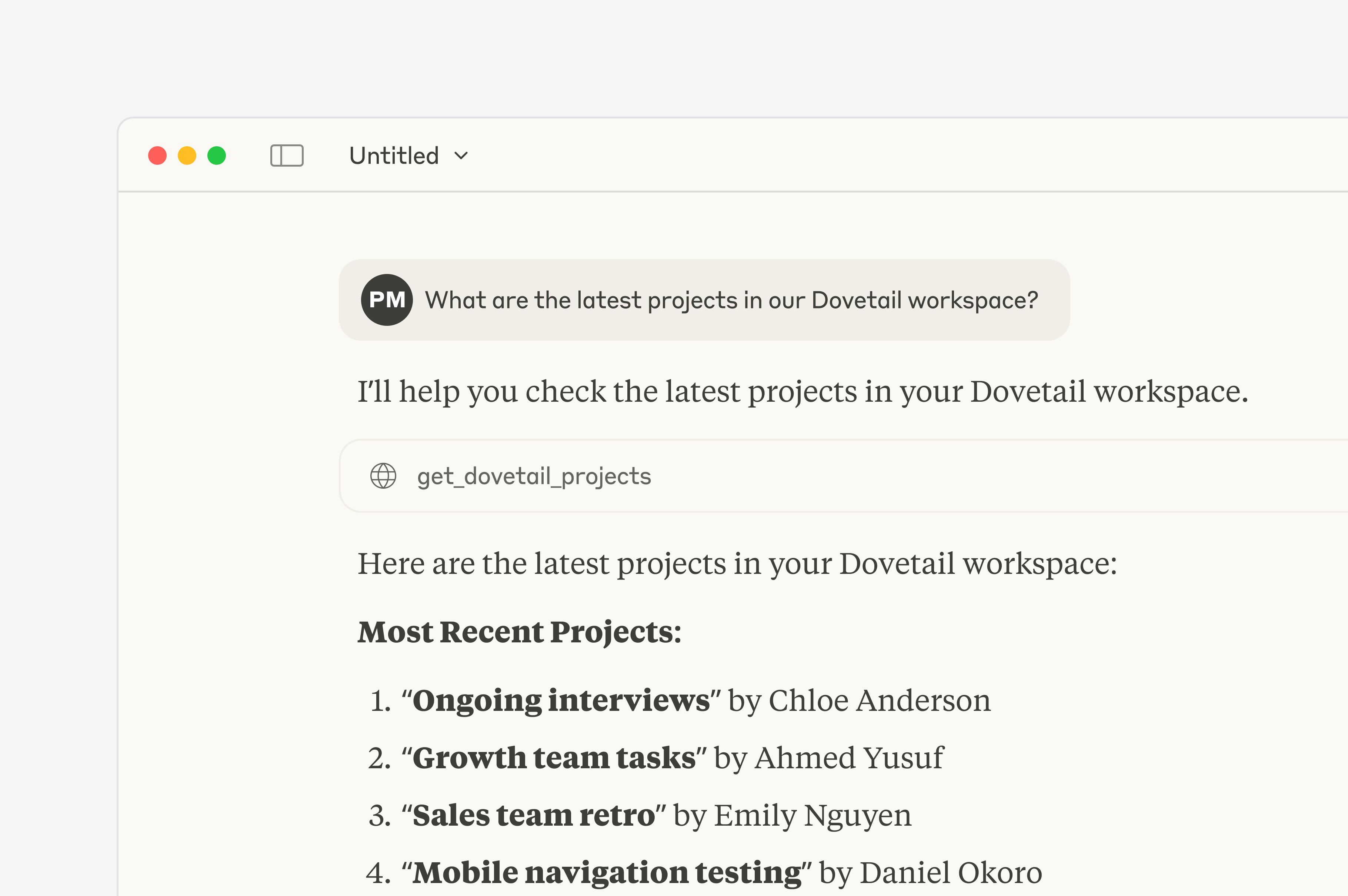
Streamline access to customer intelligence with the Dovetail MCP server. Designed for efficiency and seamless integration, the Dovetail MCP server enables AI models to securely access, search and create customer feedback within your Dovetail workspace. The Model Context Protocol (MCP) is an open standard that allows AI assistants, like Claude Desktop or Cursor - to connect with other tools and services. By connecting to an MCP server you can transform an AI assistant from a helpful generalist tool into a a powerful, informed teammate capable of giving more grounded answers and performing more complex tasks. Dovetail’s MCP server allows you to connect AI assistants to your Dovetail workspace, allowing these assistants to query your research data, summarize insights, find evidence, and create new content directly within your AI chat interface, without manually copying and pasting information. Claude and ChatGPT connect to it as first-party connectors and only need you to sign in. To compare the MCP server against the API and the CLI, see Build on Dovetail. To make Dovetail content searchable from Glean instead, see Glean.What can you do with the Dovetail MCP?
Normally, you need to manually provide your AI assistant with context by pasting transcripts or information into your chat. With the Dovetail MCP server, your AI assistant gets read access to your Dovetail data, docs and data points. It’s able to search across your workspace, dive into specific transcripts, look for projects, find published docs and highlights, and now create new content on your behalf. When you connect Dovetail to an MCP-compatible AI assistant, you can use natural language to interact with your customer data.- Ask questions about your data
Query your findings by asking things like “What are the most common complaints about our checkout flow?” or “What did users say about the new dashboard design?” - Generate summaries
Quickly get a high-level overview of a specific project, folder, or set of docs without leaving your AI tool - Find evidence instantly
Ask the AI to find specific customer quotes (highlights) or existing docs that support a hypothesis you are working on. - Draft content with context
If you are using an AI to write a product brief or a blog post, the AI can reference your actual Dovetail data to ensure the content is grounded in real customer data. - Fetch richer data AI tools can now retrieve contacts, users, folders, doc comments, highlights, channel themes, and project tags from your Dovetail workspace. Existing retrieval tools also support filtering by name, timestamp, and parent folder.
- Create directly from your AI tool You can now create projects, docs, data, highlights, and channel data without leaving your AI tool of choice.
How it works
The Dovetail MCP server acts as a secure translator between your AI assistant and your data in Dovetail. When you connect your AI assistant to Dovetail’s MCP server, your AI assistant gets access to a whole suite of tools it can use to answer any questions or requests you send it. Your AI assistant will be able to use these tools to gather context, provide you with richer, more grounded answers, and take action within your Dovetail workspace on your behalf.Security and permissions
The AI only has access to the information you can access. It can’t see projects or data that you don’t have permission to access. Any changes made through the MCP server are performed on your behalf, using your own access and permissions. You maintain full control. You can connect or disconnect your AI assistant from Dovetail whenever you like.Get started with Dovetail’s MCP server
There’s a few ways to get set up with an MCP server. It is a technical process, so while you don’t need to be a developer to use it, you may want to ask for assistance from a developer or a technical teammate to install it.You can get set up in one of several ways:
- Connecting with an API token
Most AI tools will require that you generate a “Personal API Key” from your Dovetail account settings. - Connecting with a first party integration
Some tools (like ChatGPT, Figma Make) natively support Dovetail as an MCP connector. You just need to login to your Dovetail account.
Connect Dovetail to Claude
Connect Dovetail to ChatGPT
Connect Dovetail to Figma Make - Running a local server
Some tools (like Claude) may require you to run a small script on your computer to get connected.
If you are ready to set this up, or if you want to pass the instructions to a teammate who can help, please refer to our more in-depth technical documentation:
View developer docs →
View developer docs →
Bring customer intelligence to your users
If you’re interested in partnering with Dovetail to bring it into your app or service, you can build a custom integration using our MCP server. For partnership inquiries or help getting started with a new connector, reach out to us at mcp@dovetail.com.Share your feedback
Let us know about your experience with our MCP server. All feedback is shared with the Dovetail team to help us improve the experience. Need help? Chat with our team, or join our #api channel on Slack.FAQs
I'm having issues connecting to Dovetail to the MCP. What can I do?
I'm having issues connecting to Dovetail to the MCP. What can I do?
We recommend connecting Dovetail to your MCP tool via an incognito browser by following these steps:
• Chrome/Edge: Press
• Firefox: Press
- Open an incognito/private browser window
- Log into your Dovetail workspace
- Log into [Claude / Figma / MCP tool] using the same login method you use for Dovetail
- Connect Dovetail
- A screen recording of the steps above with your browser console logs
- Confirmation of the integration/tool you’re connecting (Claude, MCP, Figma, etc.)
• Chrome/Edge: Press
Ctrl + Shift + I (Windows/Linux) or Cmd + Option + I (macOS)• Firefox: Press
Ctrl + Shift + K (Windows/Linux) or Cmd + Option + K (macOS)Alternatively, you can right-click on the webpage, select “Inspect” or “Inspect Element,” and navigate to the “Console” tab.