

Overview
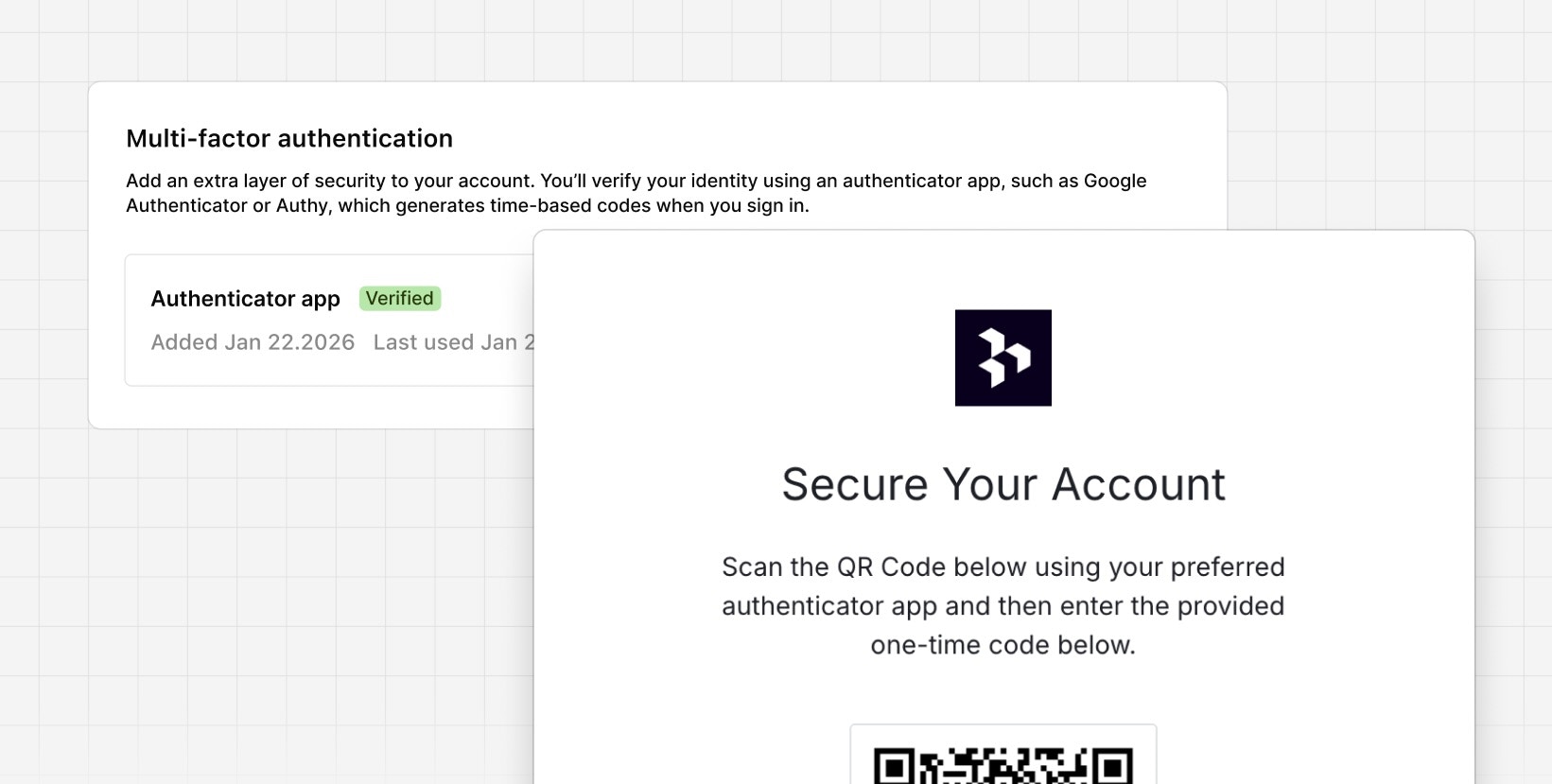
Two-factor authentication (2FA) adds an extra layer of security to your Dovetail account. When enabled, you’ll verify your identity using an authenticator app each time you sign in, protecting your account even if your password is compromised.Available on all plans
What to know before you get started
Before your start configuring two-factor authentication, review the below requirements and dependencies.Who can use two-factor authentication?
2FA is available for users who sign in with a password. Important limitations:- SSO users: If you sign in using SSO, Google, or Microsoft, 2FA is not available in Dovetail. Your identity provider may enforce MFA through their own security policies.
- Free plan users: By default, free plan users don’t have access to Authentication settings, so password, Google, and Microsoft login methods are automatically enabled.
Requirements
Before you can enable MFA, you’ll need:- Password authentication enabled in your workspace’s Authentication settings
- To be logged in using a password-based account (not SSO, Google, or Microsoft)
- An authenticator app installed on your mobile device, such as:
- Google Authenticator
- Authy
- Microsoft Authenticator
- 1Password
- Or any other TOTP-compatible authenticator app
.png?fit=max&auto=format&n=rz-LjpAUNsE9J-f8&q=85&s=5140cfc4c1bdbf141b94cc87f2d0dd75)
How to set-up 2FA
- Click your profile menu and select Settings
- In the left sidebar, navigate to Your Profile > Account
- Scroll to the Multi-factor authentication section
- Click Enable
- On the “Secure Your Account” screen, scan the QR code using your authenticator app
- Enter the 6-digit verification code generated by your authenticator app
- Click Continue to complete the setup
Signing in with 2FA
After 2FA is enabled, your sign-in process will include an additional step:- Enter your email and password as usual
- You’ll see a “Verify Your Identity” screen
- Open your authenticator app and locate the 6-digit code for your Dovetail account
- Enter the code in the provided field
- (Optional) Check “Remember this device for 30 days” to skip MFA verification on this device for 30 days
- Click Continue
Managing your 2FA settings
Disabling 2FA
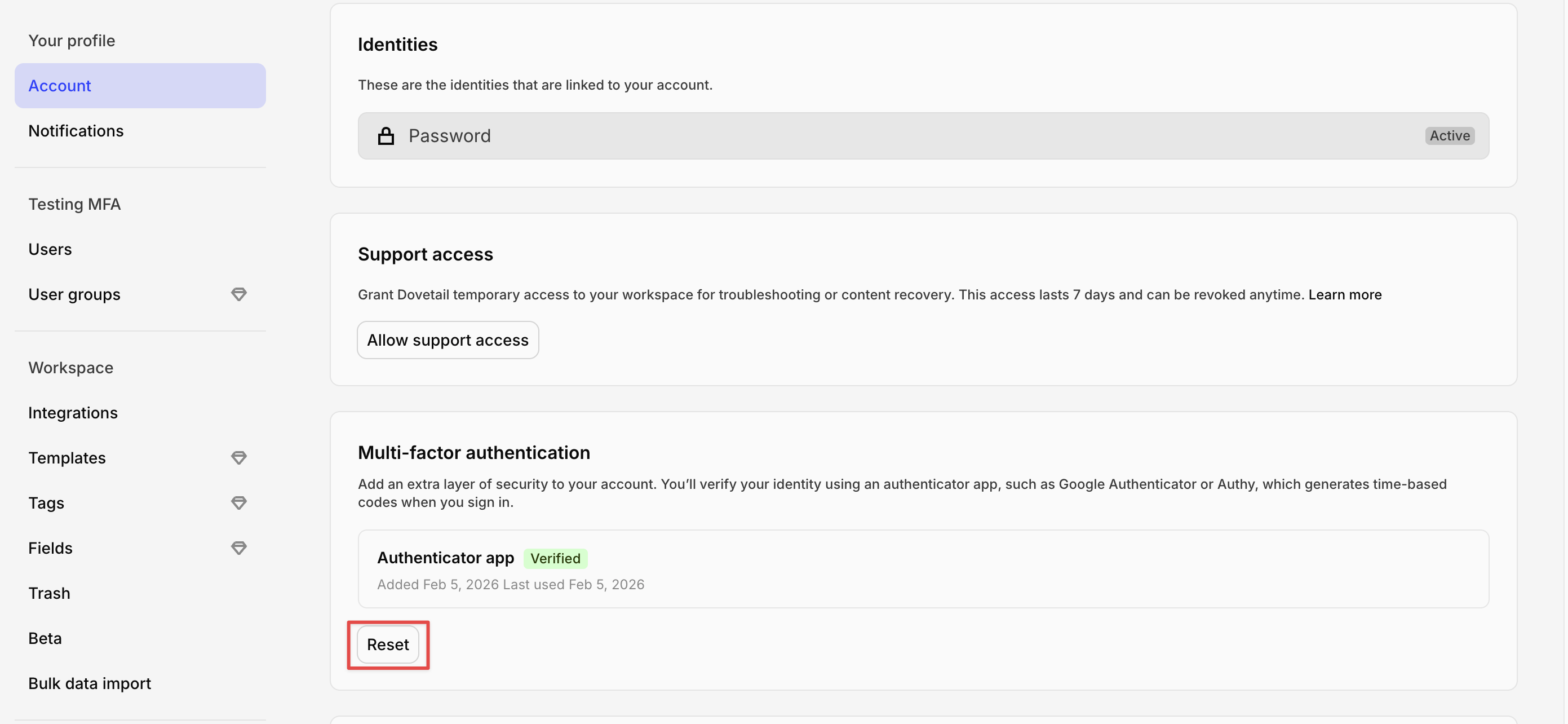
If you want to turn off 2FA:- Go to Settings > Your profile > Account
- In the Multi-factor authentication section, you’ll see your authenticator app status showing “Verified”
- Click Reset
- Confirm by clicking Reset and log out
Lost access to your authenticator app?
If you lose access to your device or authenticator app and can’t sign in:- Contact our support team for assistance
- Support will verify your identity and reset 2FA for your account
- Once reset, you’ll be able to sign in with just your password and can set up 2FA again if desired
FAQs
Can I use SMS or email codes instead of an authenticator app?
Can I use SMS or email codes instead of an authenticator app?
Currently, Dovetail only supports authenticator apps for 2FA. SMS and email options are not available.
What happens if I get a new phone?
What happens if I get a new phone?
Before switching devices, disable 2FA in your settings, then re-enable it on your new device. If you’ve already switched and can’t access your codes, contact support for a reset.
Can workspace admins require 2FA for all users?
Can workspace admins require 2FA for all users?
Currently, 2FA is optional and managed individually by each user. Workspace-wide enforcement is not available at this time.
Will I need to enter a code every time I sign in?
Will I need to enter a code every time I sign in?
Yes, unless you check “Remember this device for 30 days” during sign-in. This option skips 2FA verification on that specific device for 30 days.
What authentication app can I use?
What authentication app can I use?
Users can use any authentication app (ex: Okta verify, 1password, Google authenticator)