

Overview
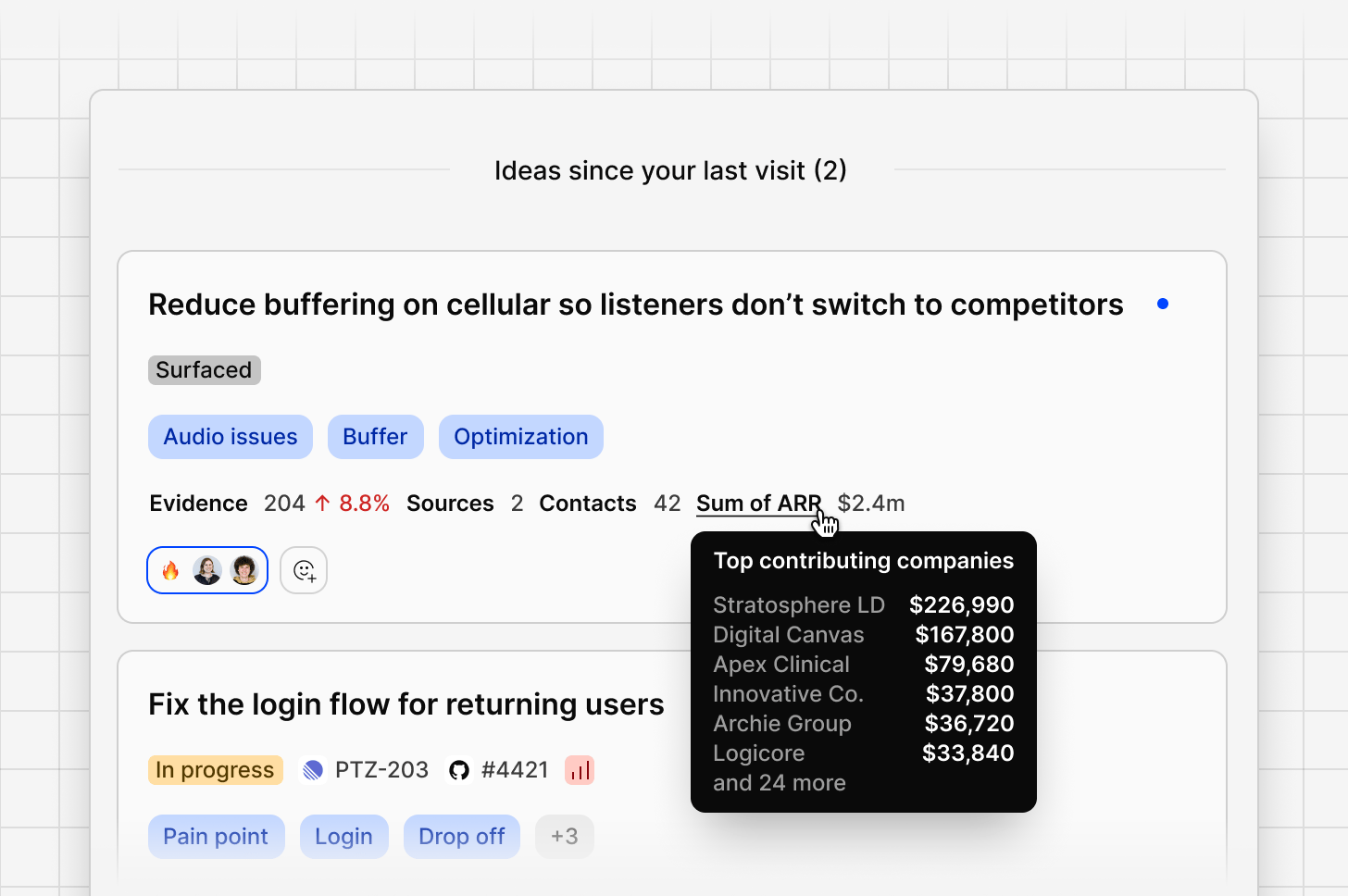
In Channels 2.0, each idea shows how many customers and how much revenue are behind it, and each piece of evidence shows who it came from. Ideas can then be prioritized by the revenue behind them, not only by how many data points they have.- Ideas show how many unique contacts are behind their evidence, which companies those contacts belong to, and the sum of those companies’ revenue.
- Evidence shows the name and contact fields of the contact each data point is linked to.
- Data points linked to contacts. The source that imports the data can link each data point to the people in it, by email address. See How data points are linked to contacts.
- Company and revenue on those contacts. These usually come from your CRM, through a customer context source (CRM enrichment). See How contacts get company and revenue.
How data points are linked to contacts
If a source has contact automation enabled, Dovetail matches each imported data point’s customer email addresses to contacts, creates any contacts that don’t exist yet, and links the data point to them. Contact automation is a setting on the source, on by default, so it applies to every channel that uses the source’s data. See Create contacts from source data. When you upload a CSV to a channel, you can also create contacts from a column of email addresses in the file. See Upload a CSV. A data point without a customer email address isn’t linked to a contact, so it doesn’t add to an idea’s contact count or revenue.How contacts get company and revenue
Contacts created from source data get only an email address and, when the tool provides one, a name. Customer feedback sources don’t fill in a contact’s role, company, or revenue. These details usually come from a customer context source: Salesforce Contacts or HubSpot Contacts.- Matching. Dovetail matches CRM records to existing contacts by email address. A customer context source adds details to contacts that already exist in Dovetail. It doesn’t create contacts.
- Direction. Data flows one way, from the CRM into Dovetail. Your CRM records aren’t changed.
- Timing. When Daily syncing is on in the CRM’s configuration, Dovetail updates matching contacts once a day. To enrich contacts straight away, run
Bulk syncfrom the Sources dialog on the Contacts page. - One CRM at a time. A workspace can connect Salesforce or HubSpot, but not both.
Revenue and customer roll-ups on ideas
Each idea card shows these roll-ups next to its evidence count:
The Contacts roll-up appears only when the idea has linked contacts, and Sum of ARR only when those contacts have revenue.
Sum of ARR counts each company’s revenue once, however many of its contacts are linked to the idea. A contact without both a company and a revenue value isn’t included. Because contacts are grouped by company name, keep company names consistent, for example by syncing them from your CRM.
Roll-ups use each linked contact’s Company and Revenue default contact fields, which your workspace may have renamed. See Default contact fields.
To see the full breakdown, open the idea and select
View breakdown. To rank ideas by revenue, sort by ARR.
Filter and save views by contact field
You can filter the Ideas and Evidence feeds by contact fields, such as company, industry, revenue, or account owner, the same way you filter by activity, status, or owner.- In the channel, select
More. - Select
Contact fields. - Choose a field, then set the values to filter by.
Troubleshooting
A contact is missing expected details. Check these three things:- The data point is linked to a contact. The data point needs a customer email address, and its source needs contact automation enabled.
- The contact’s email address matches a CRM record. Matching is by email address only.
- The CRM has synced since the contact was created. Check that Daily syncing is on, or run
Bulk sync.
Related guides
Create contacts from source data
How sources link data points to contacts by email address.
Salesforce Contacts
Enrich contacts with Salesforce contact and account fields.
HubSpot Contacts
Enrich contacts with HubSpot contact and company properties.
Revenue intelligence
Analyze calls, enrich contacts from a CRM, and rank ideas by revenue.