

Sources are part of the Channels 2.0 beta. Workspaces in the beta add data to their channels from sources.
Overview
A source is a connection between Dovetail and an external tool, such as Zendesk, Gong, or Qualtrics, that keeps importing data over time. Workspace admins create and manage sources for the whole workspace, often as part of setting the workspace up. Each source holds the workspace’s connection to the tool, and it handles the sync schedule, which datasets are imported, who can use the data, and how each data point is processed before it’s used within Dovetail. Channels add data from sources instead of connecting to tools themselves. By the time a user creates a channel, the source has already imported and processed the data. See How data gets from a source to a channel. To find your workspace’s sources, select Sources in the sidebar. Every user can open the Sources page. Learn how to create a source →Who does what
Workspace admins manage sources centrally. Other users add a source’s data to channels, or see that data in the channels they can open.
Can use on a source decides who can add its data to a channel. The channel’s own permissions decide who can see that data once it’s in the channel. See Manage source access.
Customer feedback and customer context sources
There are two kinds of source. They bring in different data and are used in different ways.Customer feedback sources
A customer feedback source imports what customers say, such as support tickets and conversations, customer calls, survey responses, and app and product reviews. Each item it imports, such as a ticket or a call, becomes a data point. Channels analyze the data points from feedback sources. Most feedback sources fetch new data from the tool on a schedule. API and Zapier sources instead receive data you send from your own systems. See API and Zapier sources. For the tools you can connect, see Integrations.Customer context sources
A customer context source (CRM enrichment) adds details from your CRM, such as role, company, and revenue, to your Dovetail contacts. It doesn’t add data points to channels. Instead, Channels 2.0 uses those contact details to roll up revenue and customer counts on ideas, based on the data points that are linked to contacts. Dovetail matches CRM records to contacts by email address, and data flows one way, from the CRM into Dovetail. A workspace can connect one CRM at a time. For setup, see HubSpot Contacts or Salesforce Contacts.Datasets
A dataset is a natural container of data in the tool a source connects to, such as a Slack channel, a Gong team, a Zendesk group, or a Qualtrics survey. When you create a source, you choose which datasets it imports, and you can add more later. Datasets usually sync independently, so if one can’t sync, the source’s other datasets keep syncing. Channels add datasets, not whole sources. One source can feed several channels, and each channel can use a different set of its datasets. Each integration’s guide explains what a dataset is for that tool.How data gets from a source to a channel
- A workspace admin creates the source. The first import starts right away and brings in data from the import period the admin chooses, such as the last 30 days.
- The source keeps syncing. It checks the tool for new data about every hour, even when no channel uses it yet. Each data point a source imports uses credits from your workspace’s balance. See Credits and usage.
- Each data point is processed as it arrives. This happens in the source, before any channel uses the data:
- Contacts. If the source has contact automation enabled, a data point that includes a customer’s email address is linked to the matching contact, and Dovetail creates the contact if it doesn’t exist yet. See Create contacts from source data.
- Redaction. If the source has auto-redaction enabled, Dovetail redacts sensitive information in each data point’s text. Redaction happens first, so the summary and extracted feedback never include the redacted information. See Redact data from sources.
- Summary and sentiment. Dovetail summarizes the data point and scores its sentiment.
- Feedback extraction. Dovetail identifies each piece of feedback in the data point, such as a feature request, bug report, pain point, praise, or question, rates its severity, and picks out the products, features, companies, and people mentioned. Channels use this to build ideas, and it powers the entity tags, intent filters, and severity sorting on ideas.
- A channel adds datasets from the source. A user with Can use on the source chooses datasets for a channel they can edit. The channel gets every data point those datasets have already imported, and then new data points as the source syncs. See What a channel gets from its sources.
- The channel analyzes the data. In Channels 2.0, the data points are grouped into ideas.
Other ways to bring data in
Some data comes into Dovetail without a source. These ways of adding data don’t appear on the Sources page:- CSV upload. Upload a spreadsheet of feedback to one channel. A CSV upload is a one-off import, and other channels can’t use its data. The upload asks whether to redact the text and create/link contacts. See Upload a CSV.
- Connected apps. Each user connects their own accounts, such as a calendar or meeting recorder that sends recordings to a project, or file storage to import files from. Connected apps also cover AI tools like Claude and ChatGPT, and the tools you send ideas to. See Connected apps.
- Bulk import and the Dovetail CLI. These are one-off imports of files and existing research into projects. See Bulk import data and Dovetail CLI.
Sources and connected apps
Sources and connected apps both connect Dovetail to other tools, but they work differently.
Slack appears in both places. It can be a source that imports messages from Slack channels, and a connected app for notifications and link previews. See Slack.
The Sources page
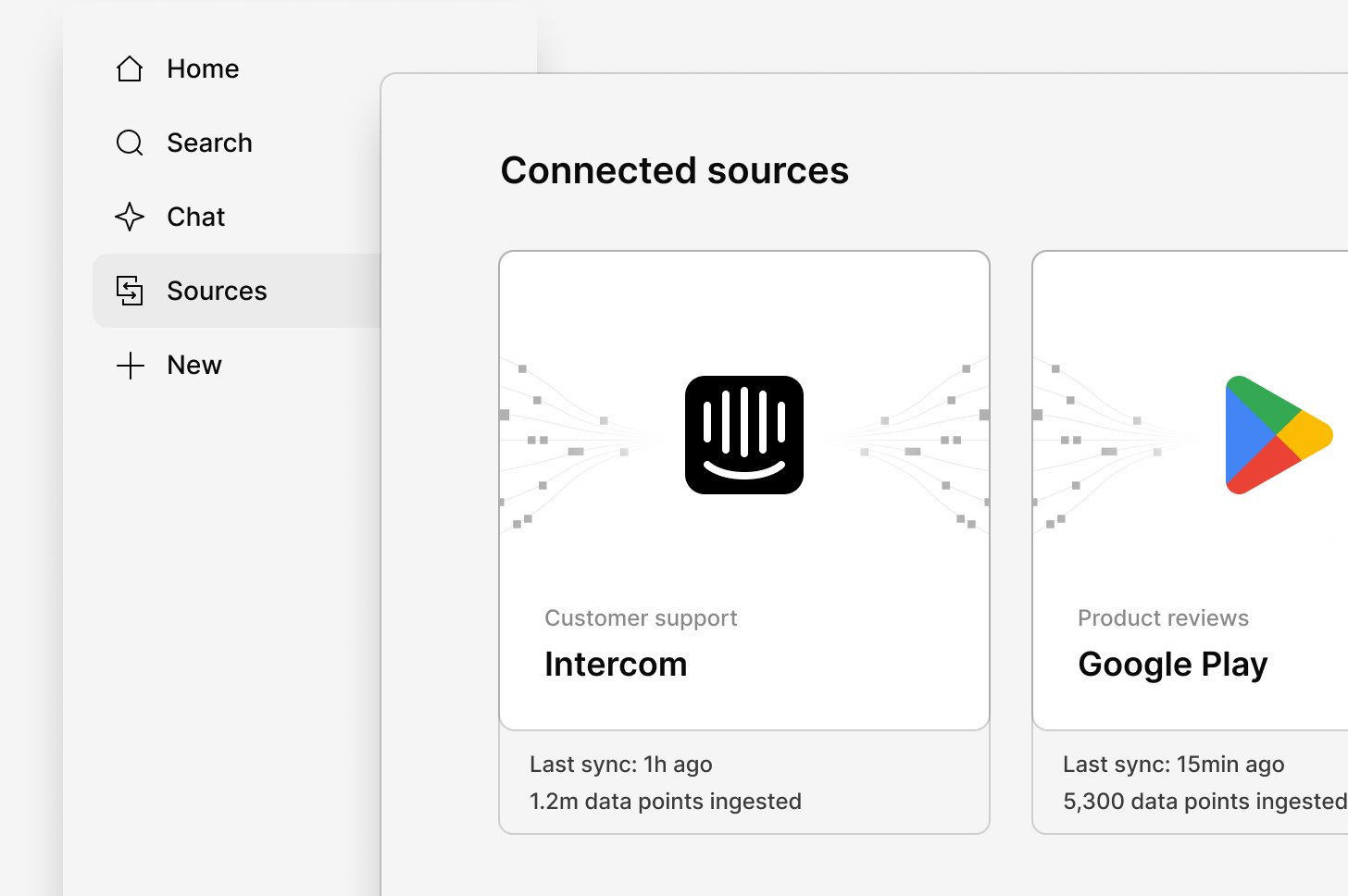
- Connected sources lists your workspace’s sources, grouped into customer feedback and customer context sources. For each source you can use, its card shows its status, when it last synced, and how many data points it has ingested. Select a source to see its details and datasets. See Source statuses. For a source you can’t use, you can request access.
- The integrations you can add are listed below, each with its category. Workspace admins select one to create a source, including the customer context source for your CRM. Other users select one to request it.
Related guides
Create a source
Connect a tool for the whole workspace and choose who can use its data.
Request a source
Ask a workspace admin for a new source, or for access to an existing one.
Channel setup
Create a channel from your workspace’s sources and choose its datasets.
Connected apps
Connect your own accounts in tools like Zoom, Google Drive, Jira, and Claude.