

Sharing and permissions for Docs
Readers with view-only access can still comment on a doc and @ mention colleagues in it. See Comment and mention. Docs in Dovetail use sharing permissions to control who can see your work. There are no draft or published states. Your doc is only visible to others once you choose to share it. Doc visibility in chat mirrors your sharing permissions. Your work is only surfaced to the people who have access to it, whether that’s just you, a select few, a project team, or your whole workspace.
To share a doc with your workspace:
- Open the Doc
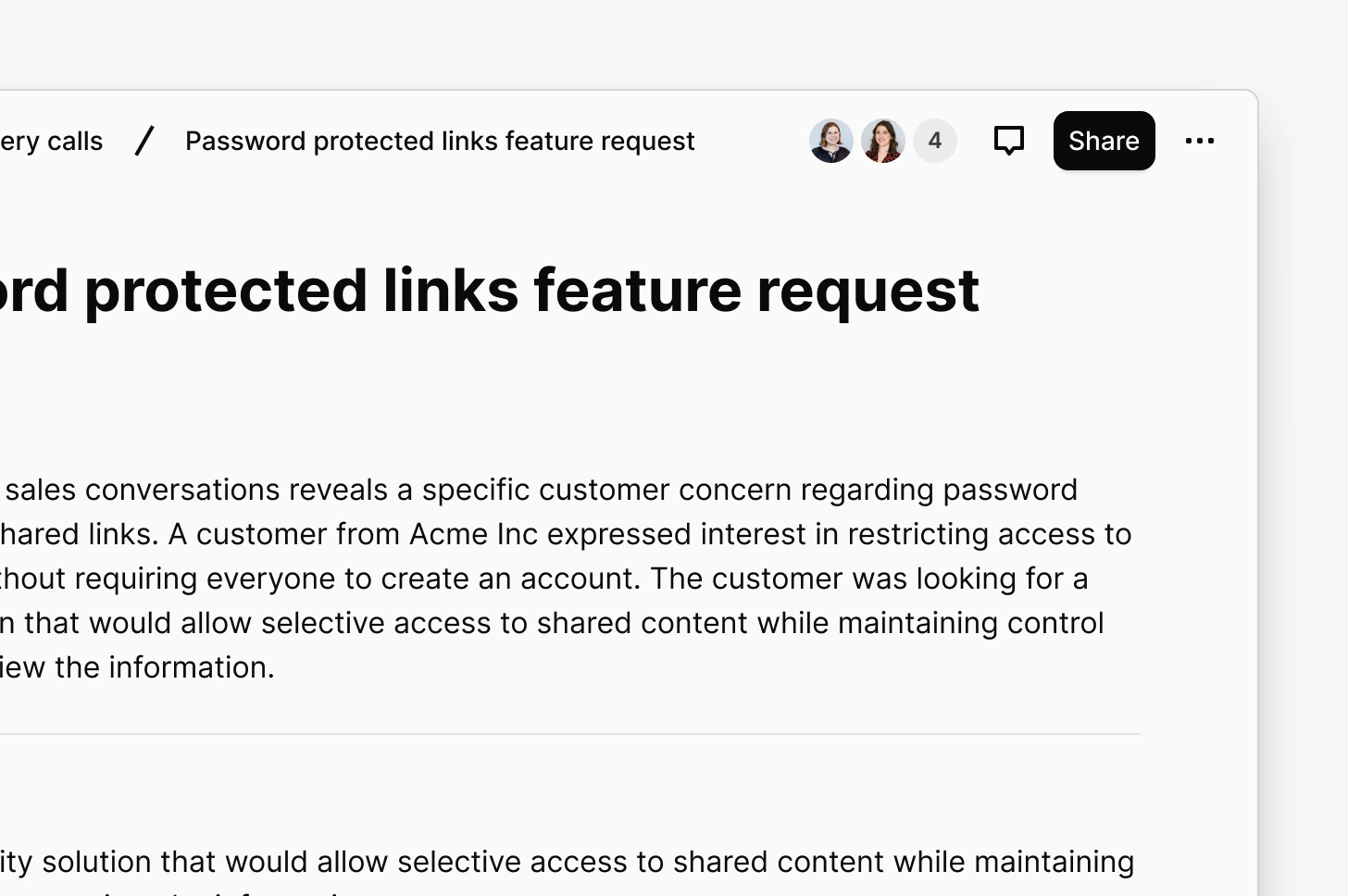
- Click
Sharein the top-right corner - Update permissions to share with specific people, groups, or your whole workspace
Present your docs
Once you have a few docs to present to your stakeholders, you can use presentation mode.Open present mode
- Navigate to the Doc you want to present.
- Click the ⋯ (More actions) menu in the top-right corner.
- Select Present.
Share docs with those outside the workspace
You can share your Docs with those outside Dovetail by enabling public access to your project. Learn more about enabling public access to project docs →Move or copy a Doc
Workspace-level Docs do not currently support fields. If you require adding fields to a Doc, please move the Doc within a project.
- Go to the doc location or open the doc
- Click the meatball menu ••• in the top right, and choose
Move to - Pick the destination (folder or project)
- Go to the doc location or open the doc
- Click the meatball menu ••• in the top right, and choose
Copy to - Pick the destination (folder or project)
Send doc to Jira and/or Linear
You can send your doc to Jira and/or Linear, helping you share Docs directly with product and development teams, keeping the customer voice tied to what you’re building. To send a Doc to Jira / Linear:- Open the Doc
- Click the meatball menu ••• in the top right
- Choose Send to Jira or Send to Linear
- Follow the prompts
Measure impact with doc metrics
Doc metrics help you capture traction and engagement by providing information on who is engaging with your Docs and how. These metrics are captured per-doc.- To view a Doc’s metrics, open your doc, click the
...menu, and selectMetrics.