Overview
Docs are where your team creates, manages, and shares documents in Dovetail. Use them to turn research, feedback, updates, and strategy into documents other people can find and build on. A doc can live at workspace level, in a folder, or inside a project, so it sits wherever the work does. Docs are not limited to research findings — use them for strategy updates, feedback reports, onboarding guides, and briefs.All AI generated docs display a disclaimer.
Format, style, and structure your doc
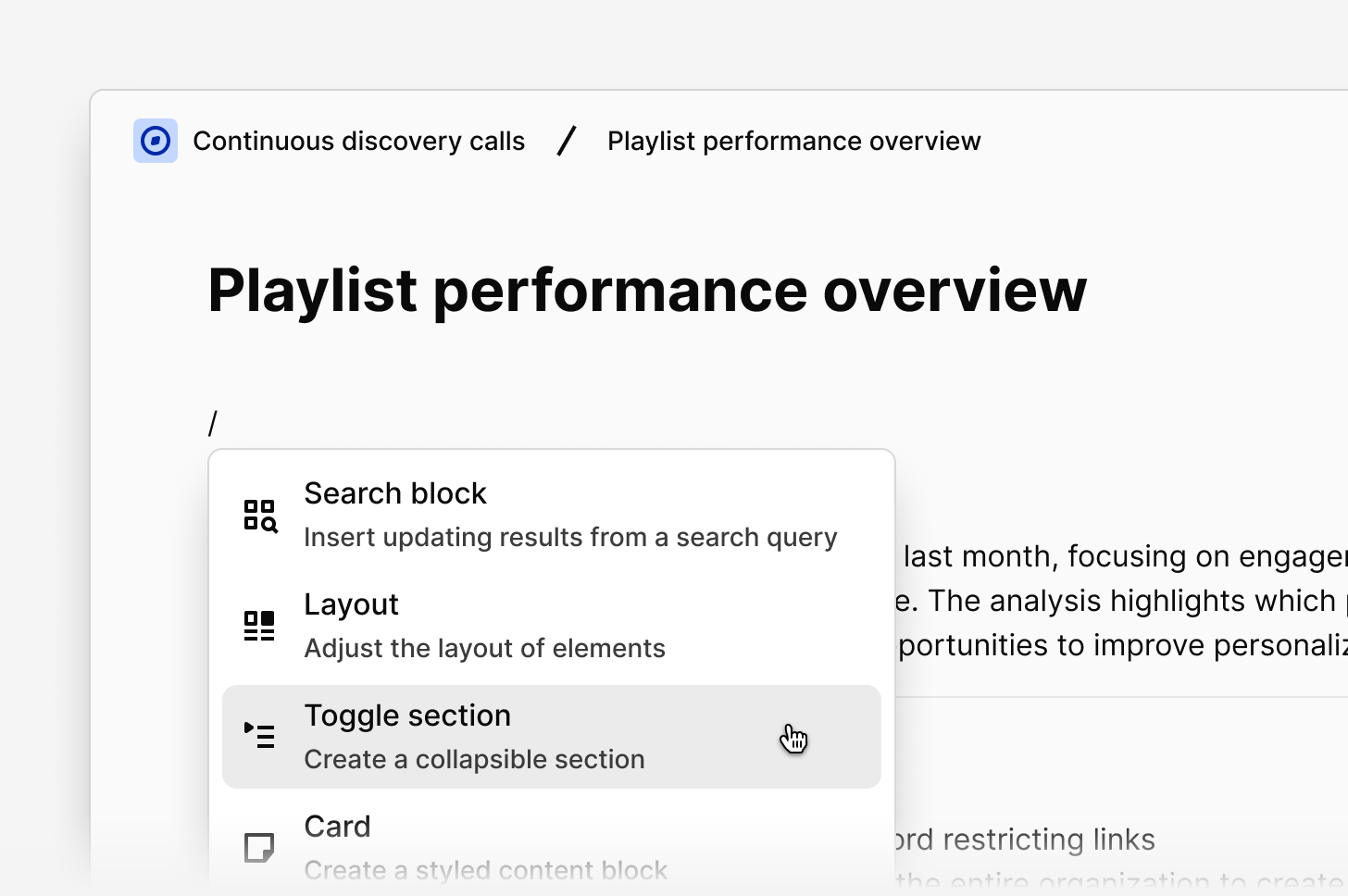
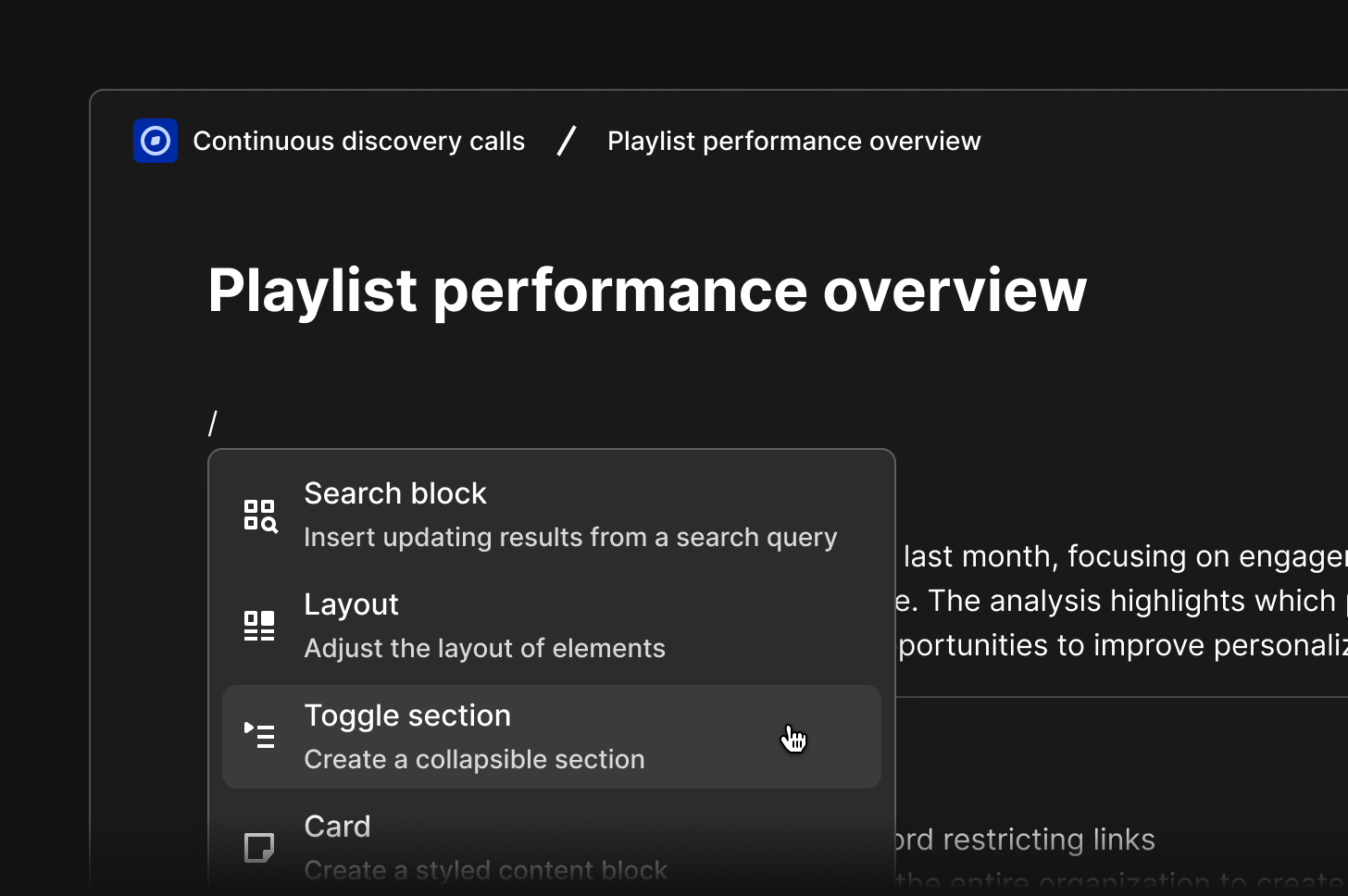
Ease stakeholders through your findings by polishing how text and data is displayed in your doc. In a doc, type/ within the editor to see all blocks for formatting and structure options that you can drag and drop with ⋮⋮ anywhere on your page. Learn how to edit and format your doc →
Formatting options include
- Headings and text styling →
- Add cards, layouts and dividers →
- Add a table of contents →
- Add, modify, and remove tables →
- Toggle sections →
- Code block →
Add a cover image to your doc
Doc cover photos give you a quick way to make your doc more visual with a banner. You can upload your own image as a cover photo or search for one from thousands of free photos using our Unsplash integration.- To do this, click the
...menu - Click
Update coverand select your image - Once selected, it will be automatically applied and saved to your doc
@ mention objects
You can @ mention objects directly inside any doc to create inline links to other content in your workspace. To mention an object:- Type
@anywhere in the doc editor - Search for the object you want to reference
- Select it from the results to insert it inline
Add captions to images
You can add a caption to any image in a doc to provide context or label your visuals. To add a caption:- Insert or select an image in your doc
- Click below the image to add a caption
- Type your caption text
Version history
You’ll needcan edit access to view version history.
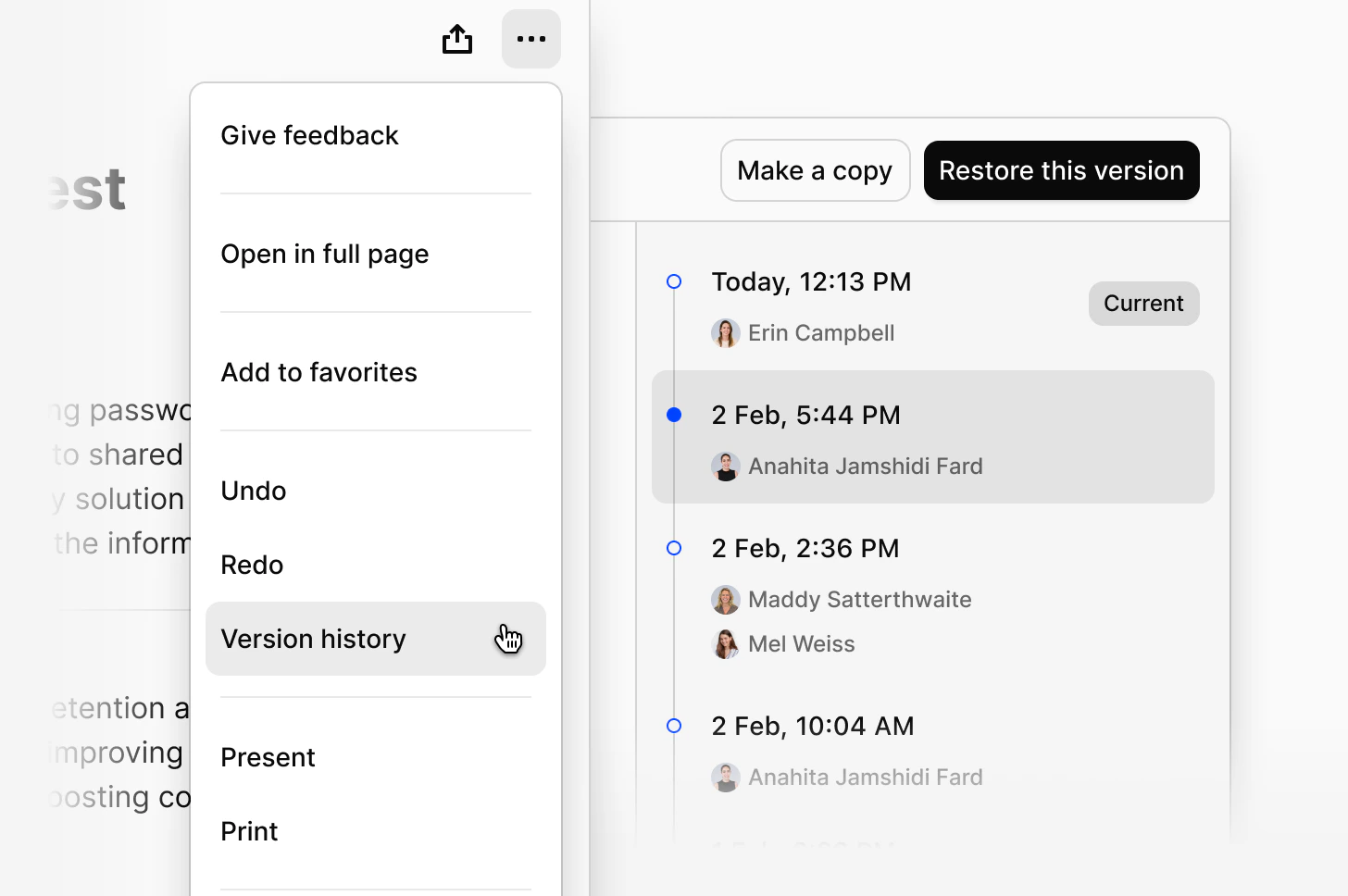
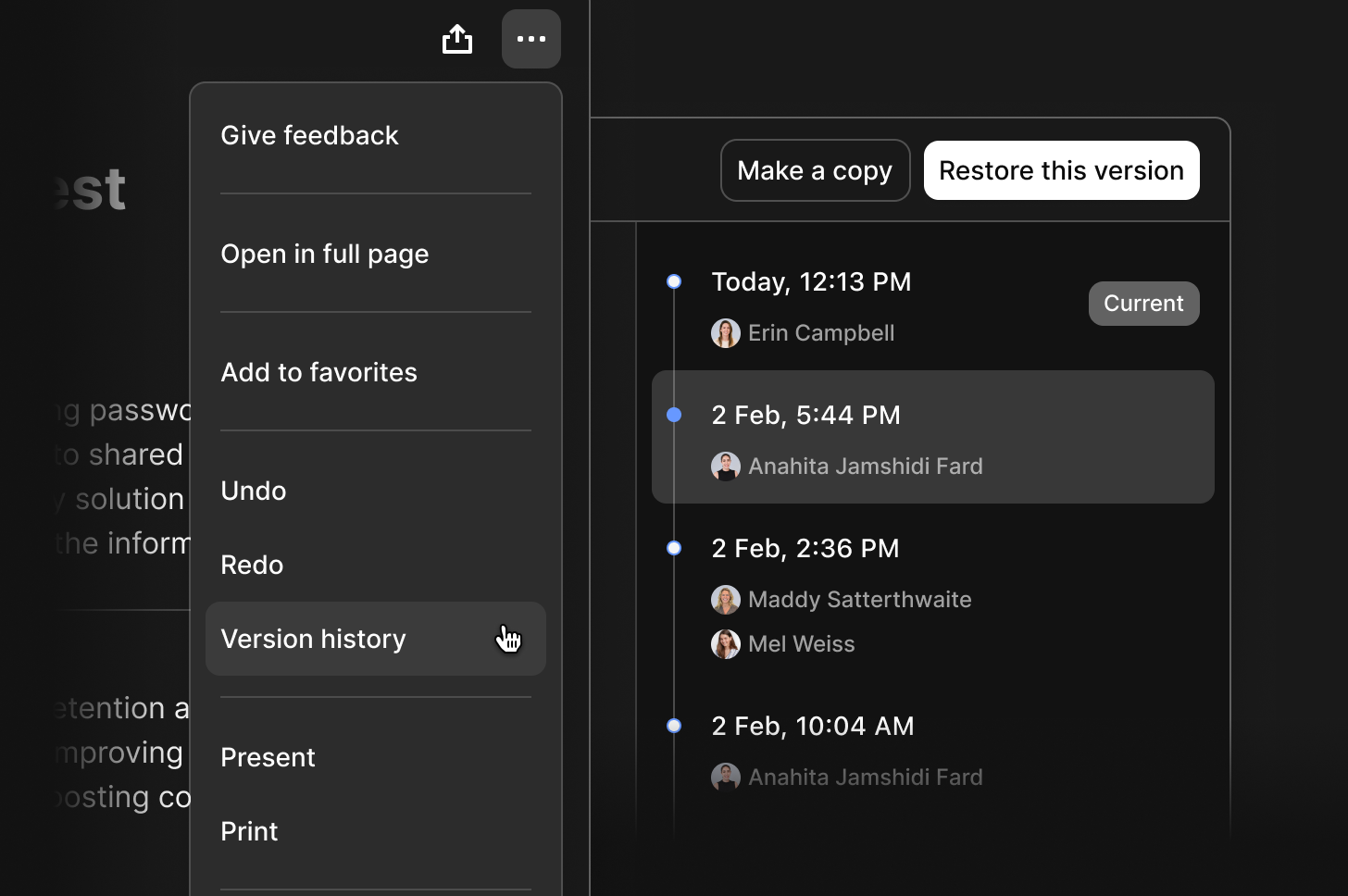
- Click the
...menu in the top right corner of the doc - Select
Version history
- View all previous versions of the page
- Open a version to see how the page looked at that point in time
Version history saves automatically as you edit. A new version is created when you stop editing for 10 seconds.
Restore a previous version
- Open the version you want to restore
- Click
Restore this version
- Previous versions remain in the history
- The restored version is added as the current one
Make a copy of a previous version
- Open the version you want to copy
- Click
Make a copy
- In the same location as the original
- With the same permissions