

To add a source’s data to a channel, you need edit access to the channel and Can use on the source. Who can see the data in a channel depends on the channel’s own permissions. See Manage source access.
Opting in to the Channels 2.0 beta
You can opt in to the new Channels 2.0 beta in Settings → Beta → Channels 2.0.New channels created will then be on the 2.0 experience. Sources are part of the Channels 2.0 beta: in beta workspaces, channels add their data from the workspace’s sources.Channels created before 2.0 continue to run on the original experience, documented in Channels 1.0.A badge on each channel shows which one it is using.
Ideas vs Evidence
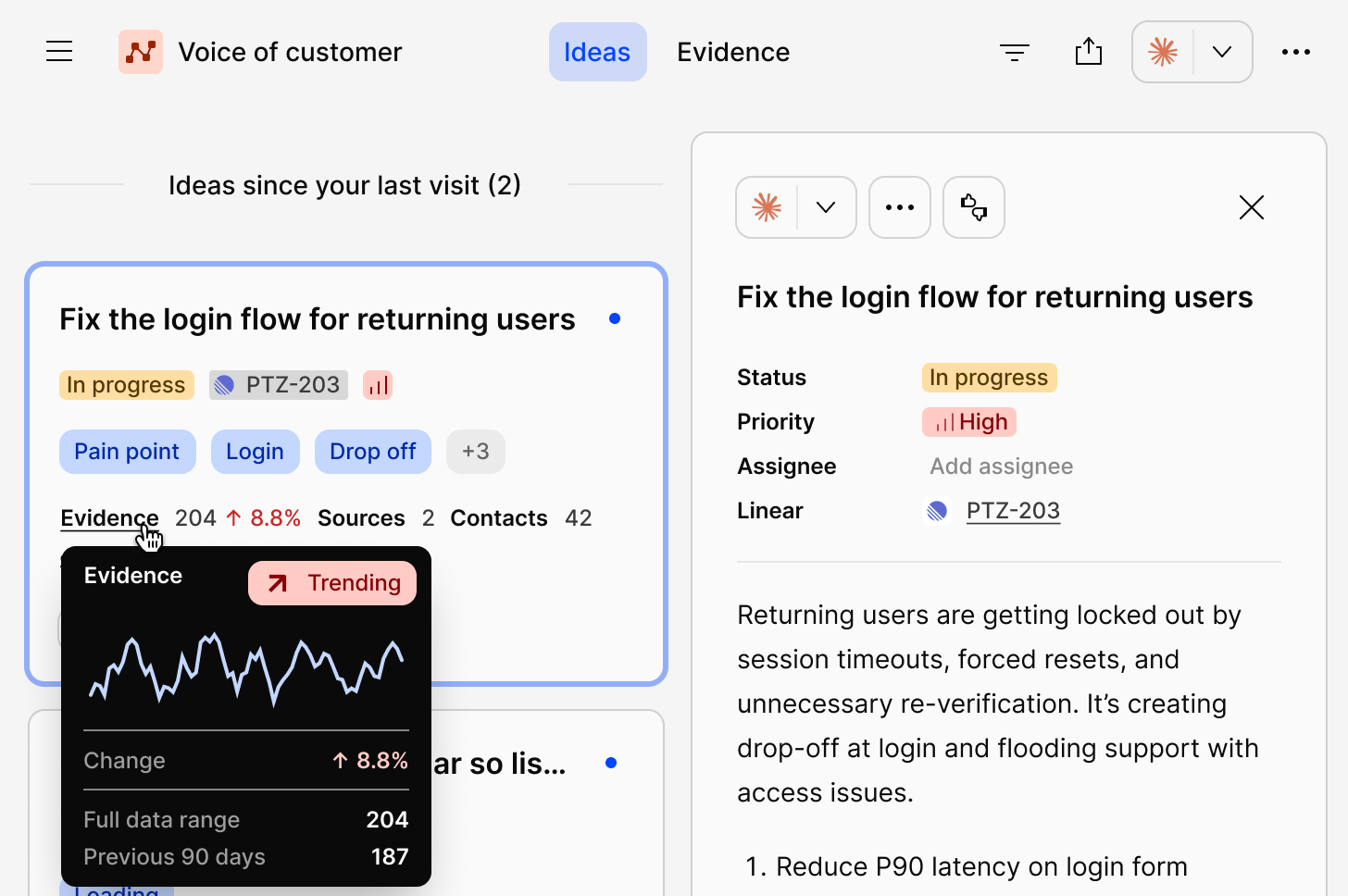
Channels 2.0 organizes everything you see into two views.Ideas are AI-generated, opinionated summaries of what’s worth doing next, based on the consolidation of all your high-volume feedback. Each idea groups together the feedback pointing at the same underlying problem or request, and is ranked by how much it matters: your business context, how often it comes up, how many accounts are affected, and how much ARR sits behind it.
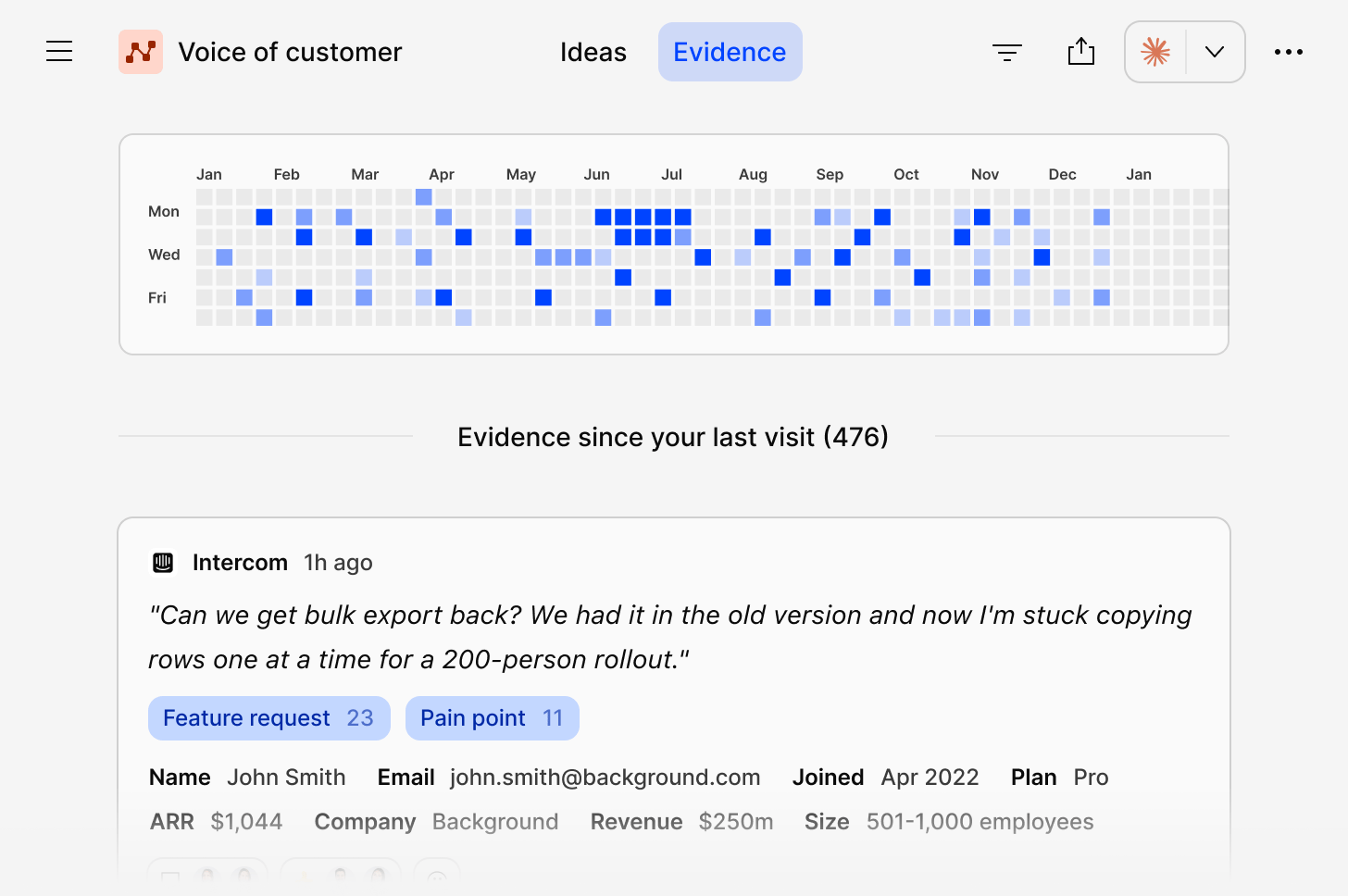
Evidence is the raw material behind every idea: the original support tickets, reviews, survey responses, and conversations. Use Evidence to check a claim, pull a quote, or see exactly who said what.
How Channels work
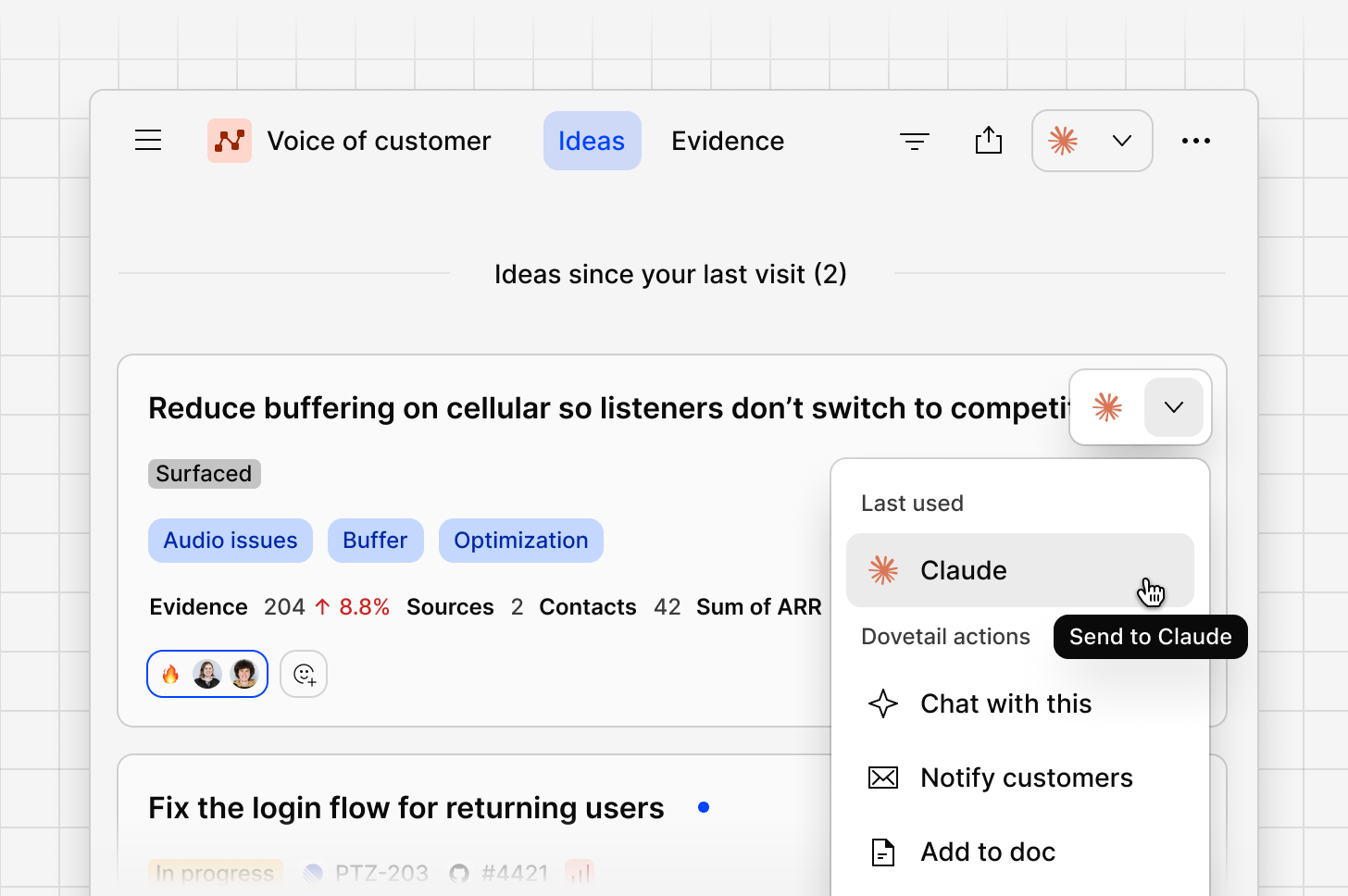
Channels analyze continuous, high-volume customer feedback: support tickets, product reviews, survey responses, and sales conversations. The feedback comes from sources that workspace admins set up, and Channels groups it into ranked Ideas you can act on. Channels 2.0 is built around four stages. Feedback in. Workspace admins set up sources for the tools where customer feedback lives, such as Zendesk, Gong, or Qualtrics. When you create a channel, you choose which sources and datasets feed it, and the channel starts with the data those datasets have already imported. You can bring several sources into one channel for a combined voice of customer view, or create separate channels for different sources or areas. See How data gets from a source to a channel. Ideas surfaced. As data flows in, Channels groups it into ideas, ranked by severity, frequency, reach, and business context such as ARR. Dovetail uses any workspace docs as context to help generate ideas and ensure the right evidence is attached. Team acts. From any idea, send to Jira, Figma Make, Linear, or Claude, comment, assign an owner, and track progress without leaving the feed. Close the loop. When an idea is resolved, Channels lets you notify the customers whose feedback contributed to it.Share your feedback
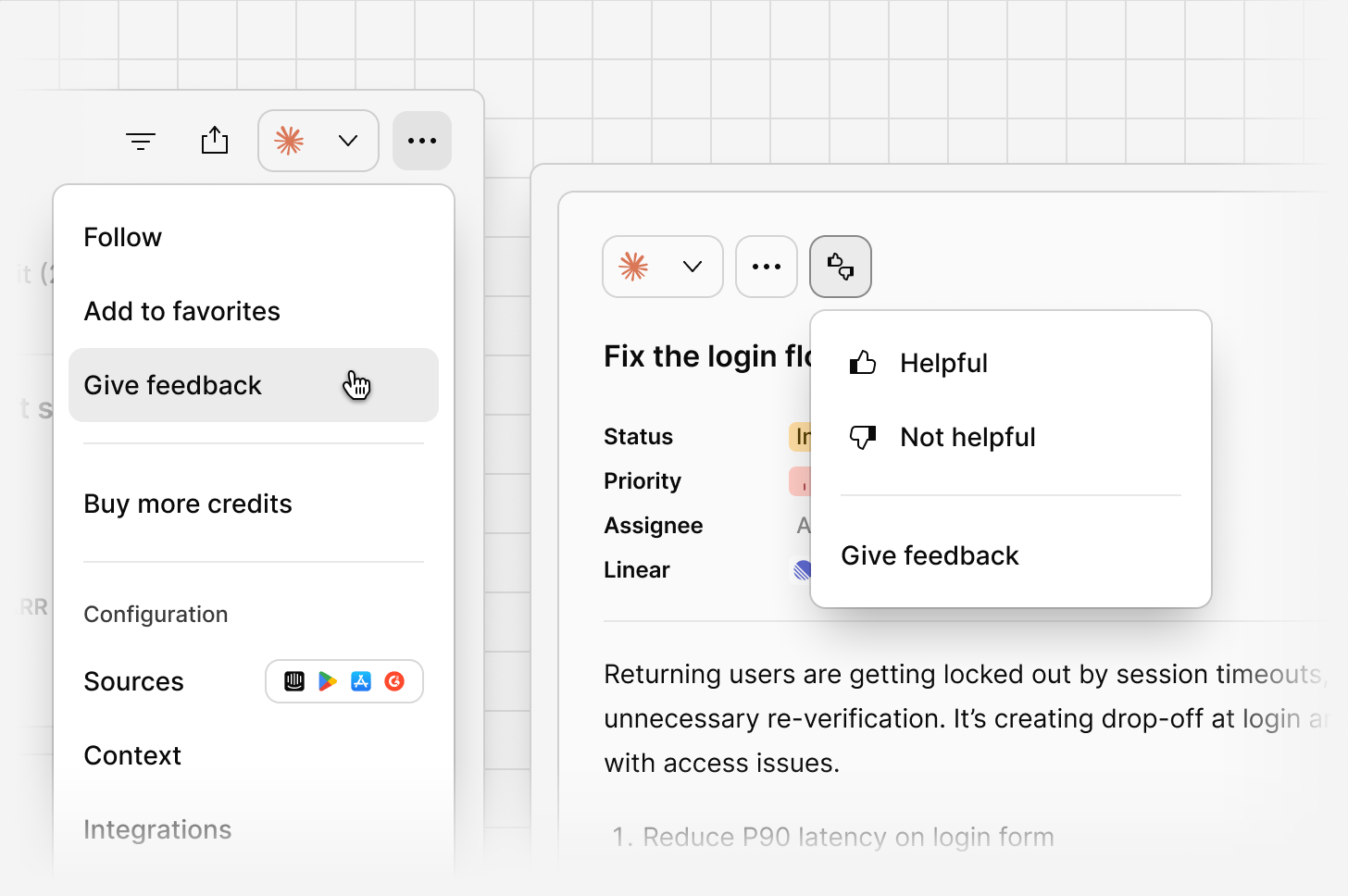
Channels 2.0 is in beta, so we would love to hear your feedback to let us know how your experience is going. All feedback is shared directly with the Dovetail team to help us improve the product. You can send feedback from two places:- In the channel header, select
•••, thenGive feedback. - In an idea’s side panel, select the feedback icon, then
Give feedback.
Where to go next
Channel setup
Create a channel from your sources and manage its data over time.
Channel context
Focus areas and linked docs that shape how feedback is classified.
Ideas
The ranked feed, roll-ups, trends, and saved views.
Evidence
The tickets, reviews, and conversations behind every idea.
Idea actions
Send to Jira or Linear, notify customers, and reach ideas through MCP.
Channels 1.0
The original experience, for channels created before 2.0.
FAQs
How is Channels usage billed?
How is Channels usage billed?
Channels usage draws from your workspace’s credits. Each data point a source imports uses 1 credit from your workspace’s balance, whether or not a channel uses it, and a redacted data point uses 1 more. Adding a source’s data to a channel doesn’t use more credits. Each row you upload from a CSV counts as a data point. See Credits and usage.Workspaces on legacy paid plans keep their monthly data point limit until they move to credits. See Existing customers on legacy paid plans.
Can I export data from Channels?
Can I export data from Channels?
No, you cannot export data from a channel like regular project data. This includes imported data points, generated ideas, or generated summaries.
How is our data being used?
How is our data being used?
For how Dovetail AI handles your data, including security and model training, see the FAQs on Dovetail AI.
Are there new policy checks required to use Channels?
Are there new policy checks required to use Channels?
The current Artificial intelligence development policy in our trust center is still relevant and covers what is required to use channels.
What’s the difference between removing a source from a channel and deleting it?
What’s the difference between removing a source from a channel and deleting it?
Removing a source or dataset from a channel takes its data out of that channel only. The source keeps importing, and its data stays available to other channels that use it. See Remove a dataset or source.Deleting a source removes its data from every channel that uses it, and can’t be undone. Only workspace admins and the user who connected the source can delete it. See Delete a source.To stop a source importing new data but keep what it has already imported, pause it instead. See Pause and resume syncing.
How many data points are needed for an idea to be generated?
How many data points are needed for an idea to be generated?
We recommend at least 200 data points before generating ideas. A channel with fewer can still generate them: select
Generate ideas anyway in the empty channel.Why can’t I reconnect my integration to my channel?
Why can’t I reconnect my integration to my channel?
Only workspace admins and the user who connected a source can reconnect it, from the channel’s Sources dialog or from the source itself. Other users can ask one of them. See Sources that need reconnecting.
How am I notified when a source needs reconnecting?
How am I notified when a source needs reconnecting?
Source notifications go to the user who connected the source and to every workspace admin, in the app and by email. The channel also shows a banner that names the integration. The data already in the channel stays, and once the source is reconnected, syncing resumes from where it left off. See Notifications.